> ## Documentation Index
> Fetch the complete documentation index at: https://docs.flexprice.io/llms.txt
> Use this file to discover all available pages before exploring further.
# Validating Events
> Learn how to verify that events are being processed correctly in Flexprice
After transmitting events to Flexprice, it's crucial to verify that they're being processed correctly. This guide shows you how to check event ingestion, debug issues, and ensure your billing calculations are accurate.
## Prerequisites
* Events have been transmitted to Flexprice
* Access to the Flexprice Admin Dashboard
* Knowledge of your feature configuration
## Checking Event Ingestion
### 1. Navigate to Events Dashboard
1. Log into your Flexprice Admin Dashboard
2. In the left sidebar, click on **Developers**
3. Click on **[Event Debugger](https://admin.flexprice.io/usage-tracking/events?page=1)**
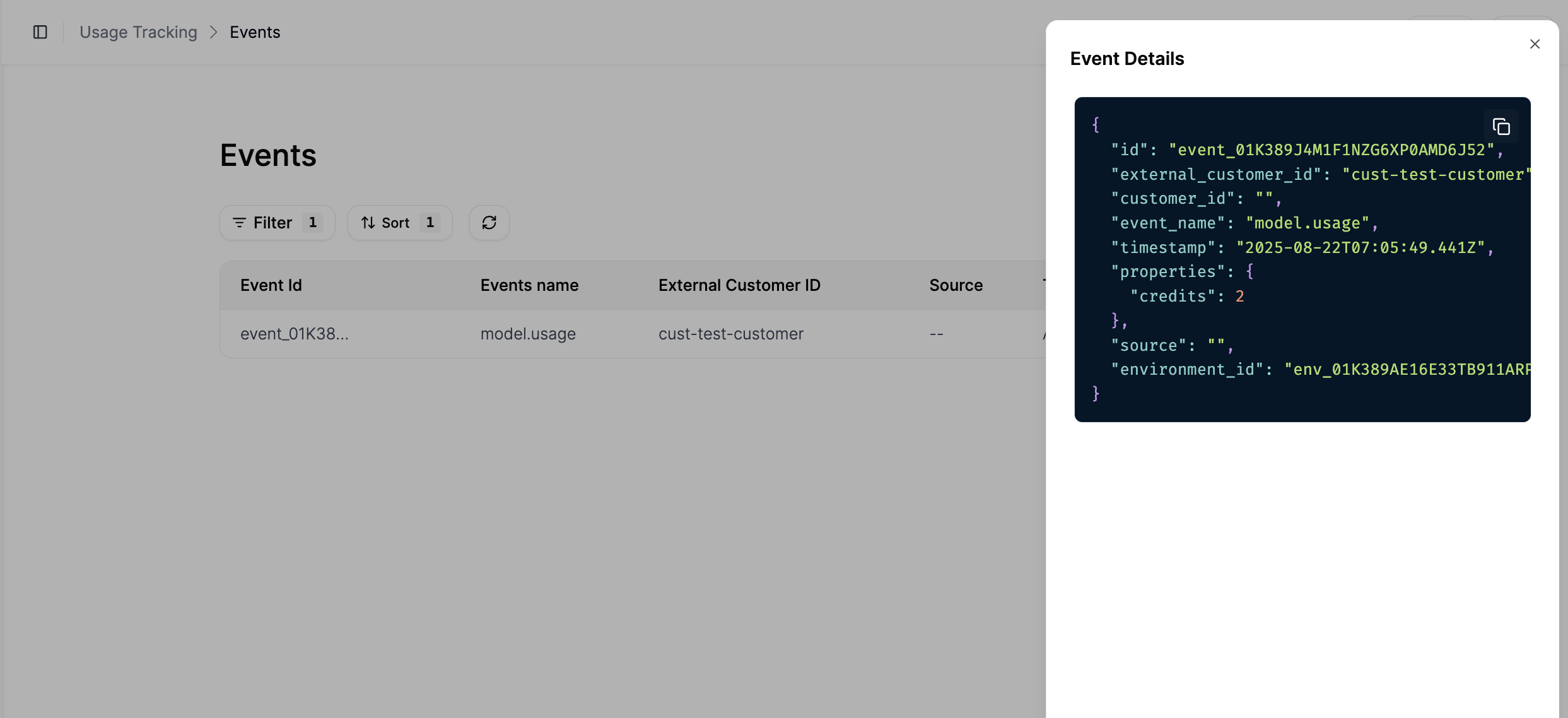
You'll see a list of all ingested events with key information:
* **Event ID**: Unique identifier for each event
* **Event Name**: The feature being tracked
* **External Customer ID**: Customer associated with the event
* **Source**: Origin of the event (if provided)
* **Timestamp**: When the event occurred
 ### 2. View Event Details
Click on any event in the list to view the complete payload that was transmitted:
### 2. View Event Details
Click on any event in the list to view the complete payload that was transmitted:
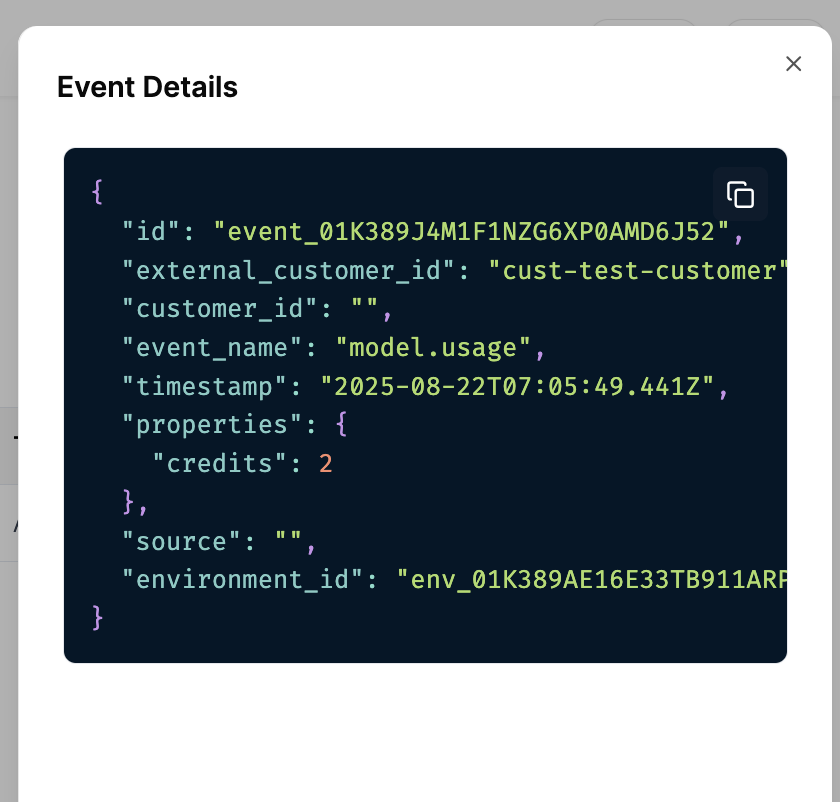
 This displays the exact JSON payload that Flexprice received, including:
* All properties transmitted with the event
* Timestamp information
* Customer details
* Any additional metadata
**Important**: Verify that the `properties` object contains the correct aggregation field with the expected value.
## Using the Event Debugger
The Event Debugger provides real-time insights into event processing:
1. Go to **Usage Tracking** → **Event Debugger**
2. You can see:
* Events being processed in real-time
* Any errors or warnings
* Processing status and timing
This is especially useful for debugging issues with event ingestion.
## Validating Aggregation
### Check Feature Configuration
1. Go to **Product Catalog** → **Features**
2. Find your metered feature
3. Verify the configuration:
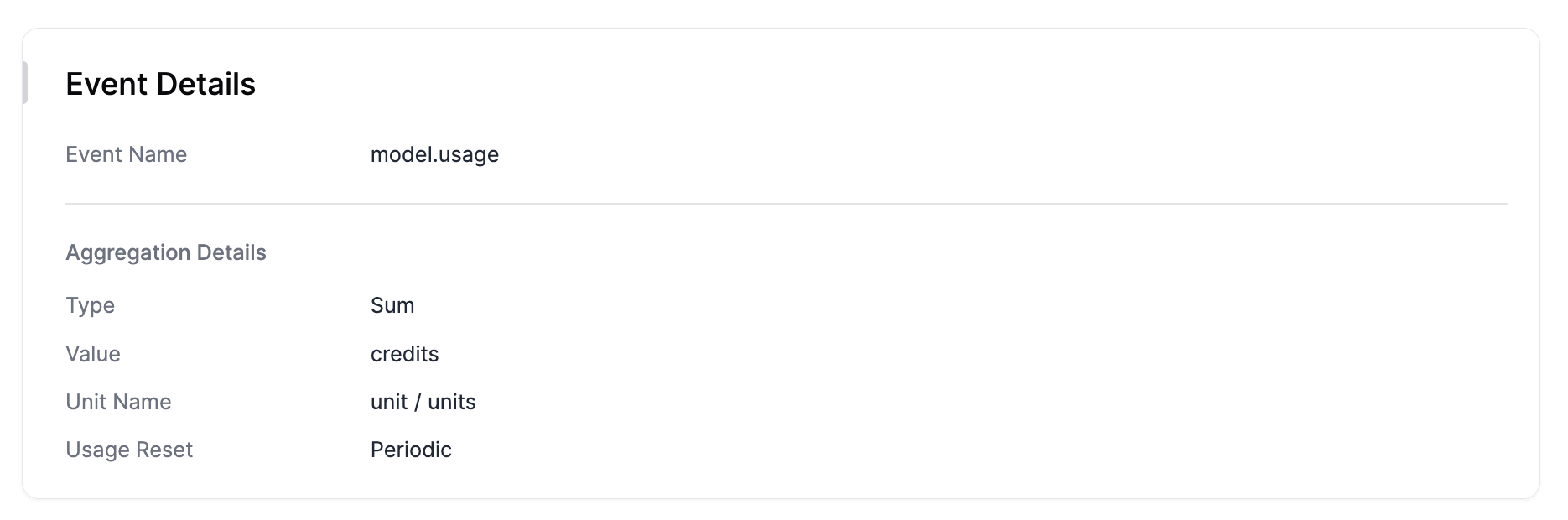
* **Event Name** matches what you're transmitting
* **Aggregation Function** is set correctly
* **Aggregation Field** exists in your event properties
### Verify Event Properties
In the Events dashboard, check that:
1. **Event Name** matches your feature exactly
2. **Properties** contain the aggregation field
3. **Property values** are the correct data type
**Example**: If your feature aggregates `credits`, ensure every event has:
```json theme={null}
{
"properties": {
"credits": 2
}
}
```
## Common Validation Issues
### 1. Events Not Appearing
**Possible Causes:**
* Invalid Event Name
* Missing required fields
* Customer doesn't exist
* API key issues
**Solutions:**
* Check Event Name spelling and case
* Verify all required fields are present
* Ensure customer exists in Flexprice
* Validate API key permissions
### 2. Wrong Aggregation Values
**Possible Causes:**
* Aggregation field name mismatch
* Incorrect data types
* Missing properties
**Solutions:**
* Verify field name matches exactly (case-sensitive)
* Use numbers for Sum/Max, strings for Unique Count
* Ensure every event includes the required property
### 3. Events Appearing but No Billing
**Possible Causes:**
* Feature not added to a plan
* Customer not subscribed to the plan
* Usage reset configuration
**Solutions:**
* Add feature to a pricing plan
* Subscribe customer to the plan
* Check Usage Reset setting (Periodic vs Cumulative)
## Testing Your Setup
### Step-by-Step Validation
1. **Transmit a Test Event**
```bash theme={null}
curl --request POST \
--url https://api.cloud.flexprice.io/v1/events \
--header 'Content-Type: application/json' \
--header 'x-api-key: ' \
--data '{
"event_name": "model.usage",
"external_customer_id": "cust-test-customer",
"properties": {
"credits": 1
}
}'
```
2. **Check Event Ingestion**
* Go to Events dashboard
* Locate your test event
* Verify the payload is correct
3. **Verify Aggregation**
* Check that the event appears in the correct billing period
* Verify the aggregation value is as expected
4. **Test Billing Impact**
* Ensure feature is in a plan
* Subscribe customer to the plan
* Check upcoming invoices
## Debugging Checklist
Use this checklist to systematically debug event ingestion issues:
### ✅ Event Configuration
* Feature exists and is active
* Event Name matches exactly
* Aggregation Function is correct
* Aggregation Field is set (if required)
### ✅ Event Payload
* All required fields present
* Event Name matches feature
* External Customer ID exists
* Properties contain aggregation field
* Property values are correct data type
### ✅ Customer Setup
* Customer exists in Flexprice
* External Customer ID matches
* Customer has active subscription
* Subscription includes the feature
### ✅ Billing Configuration
* Feature is added to a plan
* Plan has pricing for the feature
* Customer is subscribed to the plan
* Usage Reset setting is correct
## Advanced Validation
### Query Events by Customer
You can filter events by customer to see all usage for a specific account:
1. In the Events dashboard, use the filter options
2. Filter by External Customer ID
3. Review all events for that customer
### Check Aggregated Usage
1. Go to **Usage Tracking** → **Query**
2. Select your feature
3. Choose the customer and time period
4. View aggregated usage values
This displays how Flexprice is calculating the total usage for billing.
This displays the exact JSON payload that Flexprice received, including:
* All properties transmitted with the event
* Timestamp information
* Customer details
* Any additional metadata
**Important**: Verify that the `properties` object contains the correct aggregation field with the expected value.
## Using the Event Debugger
The Event Debugger provides real-time insights into event processing:
1. Go to **Usage Tracking** → **Event Debugger**
2. You can see:
* Events being processed in real-time
* Any errors or warnings
* Processing status and timing
This is especially useful for debugging issues with event ingestion.
## Validating Aggregation
### Check Feature Configuration
1. Go to **Product Catalog** → **Features**
2. Find your metered feature
3. Verify the configuration:
* **Event Name** matches what you're transmitting
* **Aggregation Function** is set correctly
* **Aggregation Field** exists in your event properties
### Verify Event Properties
In the Events dashboard, check that:
1. **Event Name** matches your feature exactly
2. **Properties** contain the aggregation field
3. **Property values** are the correct data type
**Example**: If your feature aggregates `credits`, ensure every event has:
```json theme={null}
{
"properties": {
"credits": 2
}
}
```
## Common Validation Issues
### 1. Events Not Appearing
**Possible Causes:**
* Invalid Event Name
* Missing required fields
* Customer doesn't exist
* API key issues
**Solutions:**
* Check Event Name spelling and case
* Verify all required fields are present
* Ensure customer exists in Flexprice
* Validate API key permissions
### 2. Wrong Aggregation Values
**Possible Causes:**
* Aggregation field name mismatch
* Incorrect data types
* Missing properties
**Solutions:**
* Verify field name matches exactly (case-sensitive)
* Use numbers for Sum/Max, strings for Unique Count
* Ensure every event includes the required property
### 3. Events Appearing but No Billing
**Possible Causes:**
* Feature not added to a plan
* Customer not subscribed to the plan
* Usage reset configuration
**Solutions:**
* Add feature to a pricing plan
* Subscribe customer to the plan
* Check Usage Reset setting (Periodic vs Cumulative)
## Testing Your Setup
### Step-by-Step Validation
1. **Transmit a Test Event**
```bash theme={null}
curl --request POST \
--url https://api.cloud.flexprice.io/v1/events \
--header 'Content-Type: application/json' \
--header 'x-api-key: ' \
--data '{
"event_name": "model.usage",
"external_customer_id": "cust-test-customer",
"properties": {
"credits": 1
}
}'
```
2. **Check Event Ingestion**
* Go to Events dashboard
* Locate your test event
* Verify the payload is correct
3. **Verify Aggregation**
* Check that the event appears in the correct billing period
* Verify the aggregation value is as expected
4. **Test Billing Impact**
* Ensure feature is in a plan
* Subscribe customer to the plan
* Check upcoming invoices
## Debugging Checklist
Use this checklist to systematically debug event ingestion issues:
### ✅ Event Configuration
* Feature exists and is active
* Event Name matches exactly
* Aggregation Function is correct
* Aggregation Field is set (if required)
### ✅ Event Payload
* All required fields present
* Event Name matches feature
* External Customer ID exists
* Properties contain aggregation field
* Property values are correct data type
### ✅ Customer Setup
* Customer exists in Flexprice
* External Customer ID matches
* Customer has active subscription
* Subscription includes the feature
### ✅ Billing Configuration
* Feature is added to a plan
* Plan has pricing for the feature
* Customer is subscribed to the plan
* Usage Reset setting is correct
## Advanced Validation
### Query Events by Customer
You can filter events by customer to see all usage for a specific account:
1. In the Events dashboard, use the filter options
2. Filter by External Customer ID
3. Review all events for that customer
### Check Aggregated Usage
1. Go to **Usage Tracking** → **Query**
2. Select your feature
3. Choose the customer and time period
4. View aggregated usage values
This displays how Flexprice is calculating the total usage for billing.
 ### Validate Billing Periods
For **Periodic** usage reset:
* Usage should reset at the start of each billing cycle
* Check that usage accumulates correctly within the period
For **Cumulative** usage reset:
* Usage should keep growing across billing cycles
* Verify no unexpected resets
## Troubleshooting Common Scenarios
### Scenario 1: Events Transmitted but Not Counted
**Symptoms**: Events appear in dashboard but don't affect billing
**Check**:
1. Feature configuration (Event Name, Aggregation Field)
2. Event properties (correct field name and data type)
3. Customer subscription status
4. Plan configuration
### Scenario 2: Wrong Aggregation Values
**Symptoms**: Billing shows incorrect quantities
**Check**:
1. Aggregation Field name matches exactly
2. Property values are correct data type
3. No duplicate or conflicting events
4. Usage Reset configuration
### Scenario 3: Events Missing from Dashboard
**Symptoms**: Events not visible in Events list
**Check**:
1. API response status (should be 202 Accepted)
2. Event Name validity
3. Customer existence
4. API key permissions
### Scenario 4: Unexpected Usage Resets
**Symptoms**: Usage resets when it shouldn't
**Check**:
1. Usage Reset setting (Periodic vs Cumulative)
2. Billing cycle configuration
3. Subscription changes
4. Feature configuration changes
## Best Practices for Validation
### 1. Test Before Production
Always test your event ingestion setup with a small number of events before going live.
### 2. Monitor Regularly
Check the Events dashboard regularly to ensure events are being processed correctly.
### 3. Use Consistent Identifiers
Use consistent Event Names and External Customer IDs across your system.
### 4. Include Debugging Information
Add useful properties to your events for debugging:
```json theme={null}
{
"event_name": "model.usage",
"external_customer_id": "cust_123",
"properties": {
"credits": 2,
"request_id": "req_abc123",
"version": "1.0"
},
"source": "api"
}
```
### 5. Set Up Alerts
Consider setting up alerts for:
* Failed event ingestion
* Unusual usage patterns
* Missing events
## Next Steps
After validating your events:
**[Connect to Billing](/docs/event-ingestion/connecting-to-billing)** - Set up pricing and subscriptions
## Getting Help
If you're still experiencing issues after following this validation guide:
1. Check the **[Event Debugger](/docs/event-ingestion/event-debugger)** for detailed error messages
2. Review your feature configuration carefully
3. Test with a simple event payload
4. Contact support with specific error messages and event examples
### Validate Billing Periods
For **Periodic** usage reset:
* Usage should reset at the start of each billing cycle
* Check that usage accumulates correctly within the period
For **Cumulative** usage reset:
* Usage should keep growing across billing cycles
* Verify no unexpected resets
## Troubleshooting Common Scenarios
### Scenario 1: Events Transmitted but Not Counted
**Symptoms**: Events appear in dashboard but don't affect billing
**Check**:
1. Feature configuration (Event Name, Aggregation Field)
2. Event properties (correct field name and data type)
3. Customer subscription status
4. Plan configuration
### Scenario 2: Wrong Aggregation Values
**Symptoms**: Billing shows incorrect quantities
**Check**:
1. Aggregation Field name matches exactly
2. Property values are correct data type
3. No duplicate or conflicting events
4. Usage Reset configuration
### Scenario 3: Events Missing from Dashboard
**Symptoms**: Events not visible in Events list
**Check**:
1. API response status (should be 202 Accepted)
2. Event Name validity
3. Customer existence
4. API key permissions
### Scenario 4: Unexpected Usage Resets
**Symptoms**: Usage resets when it shouldn't
**Check**:
1. Usage Reset setting (Periodic vs Cumulative)
2. Billing cycle configuration
3. Subscription changes
4. Feature configuration changes
## Best Practices for Validation
### 1. Test Before Production
Always test your event ingestion setup with a small number of events before going live.
### 2. Monitor Regularly
Check the Events dashboard regularly to ensure events are being processed correctly.
### 3. Use Consistent Identifiers
Use consistent Event Names and External Customer IDs across your system.
### 4. Include Debugging Information
Add useful properties to your events for debugging:
```json theme={null}
{
"event_name": "model.usage",
"external_customer_id": "cust_123",
"properties": {
"credits": 2,
"request_id": "req_abc123",
"version": "1.0"
},
"source": "api"
}
```
### 5. Set Up Alerts
Consider setting up alerts for:
* Failed event ingestion
* Unusual usage patterns
* Missing events
## Next Steps
After validating your events:
**[Connect to Billing](/docs/event-ingestion/connecting-to-billing)** - Set up pricing and subscriptions
## Getting Help
If you're still experiencing issues after following this validation guide:
1. Check the **[Event Debugger](/docs/event-ingestion/event-debugger)** for detailed error messages
2. Review your feature configuration carefully
3. Test with a simple event payload
4. Contact support with specific error messages and event examples