> ## Documentation Index
> Fetch the complete documentation index at: https://docs.flexprice.io/llms.txt
> Use this file to discover all available pages before exploring further.
# Managing Invoices
**Viewing Invoices**
* Navigate to **Customer Management > Invoices**.
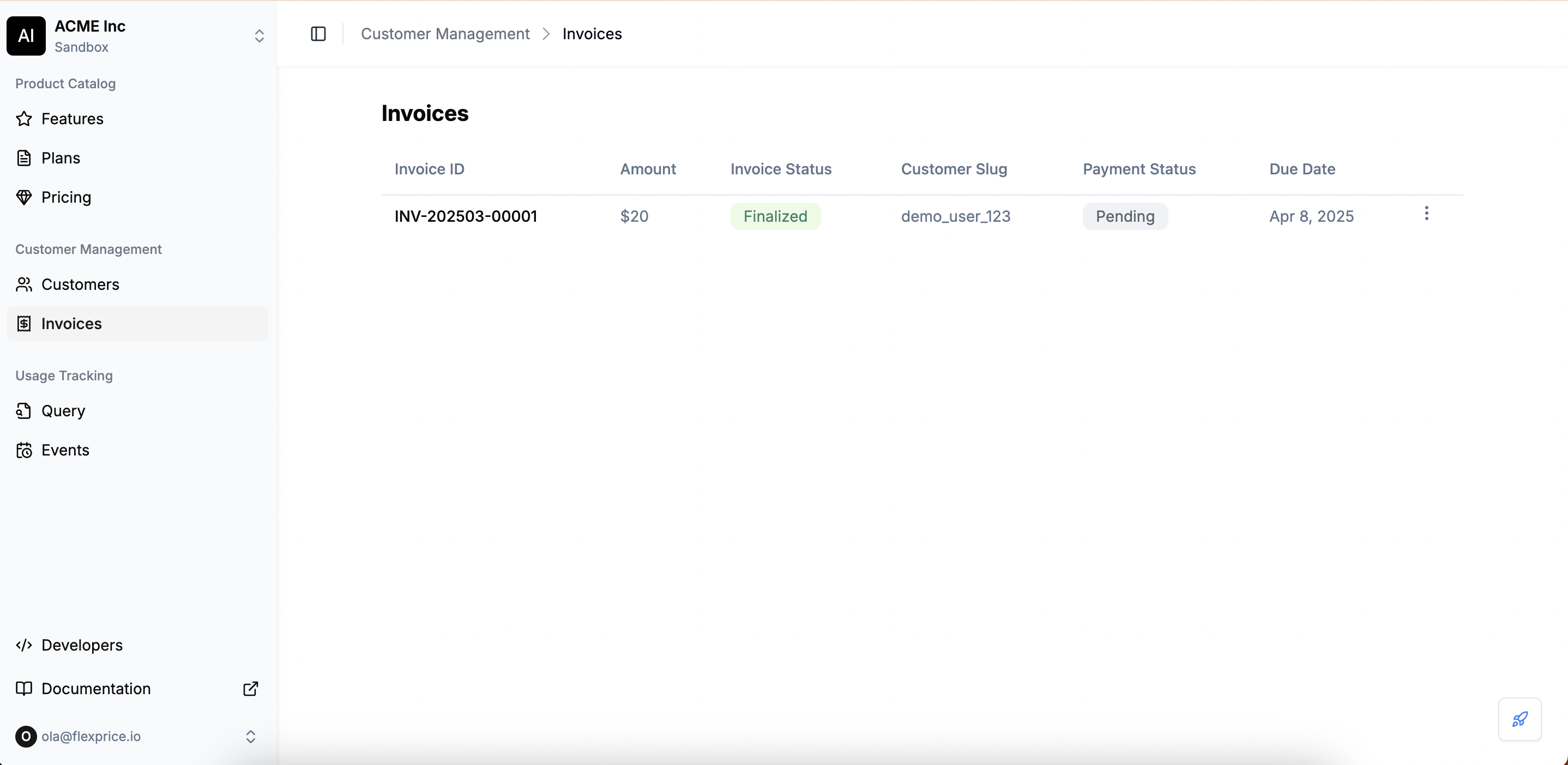 * View the list of invoices with details like **Invoice ID, Amount, Invoice Status, Customer Slug, Payment Status, and Due Date**.
* Click on an invoice to view more details.
* If you want to access Invoice for individual customers, you can click on the customer and navigate to Customers section.
**Invoice Details Breakdown**
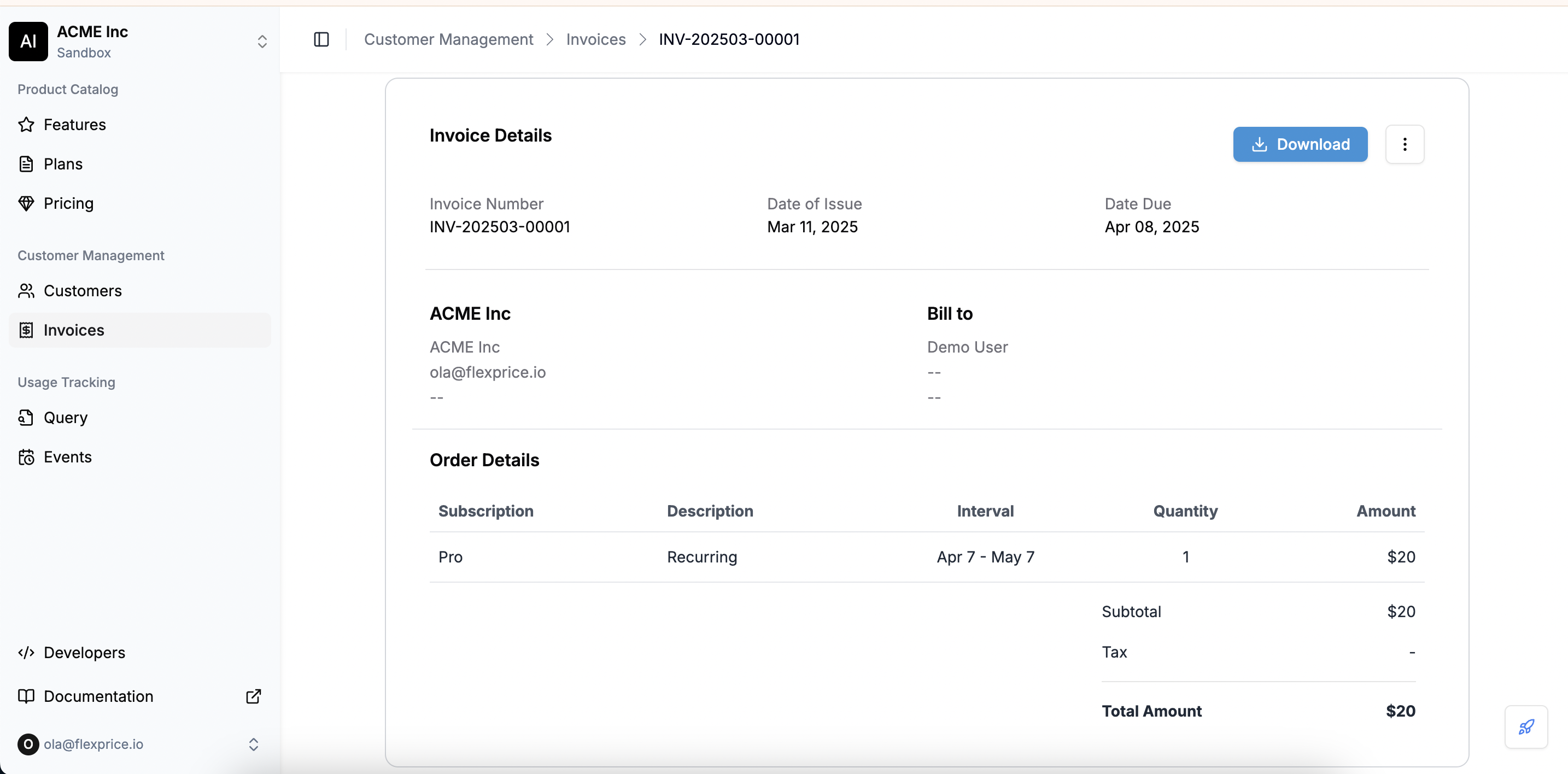
When viewing a specific invoice, you will see:
* **Invoice Number** – A unique identifier for the invoice.
* **Date of Issue** – The date the invoice was generated.
* **Due Date** – The deadline for payment.
* **Order Details** – Breakdown of subscription charges, intervals, and quantities.
* **Taxes and Discounts** – Any applied tax rates, credits, or discounts.
* **Payment Status** – Indicates whether payment is pending, successful, or failed.
* **Wallet Application** – If a customer wallet is used to partially or fully pay the invoice.
**Updating Invoice Status**
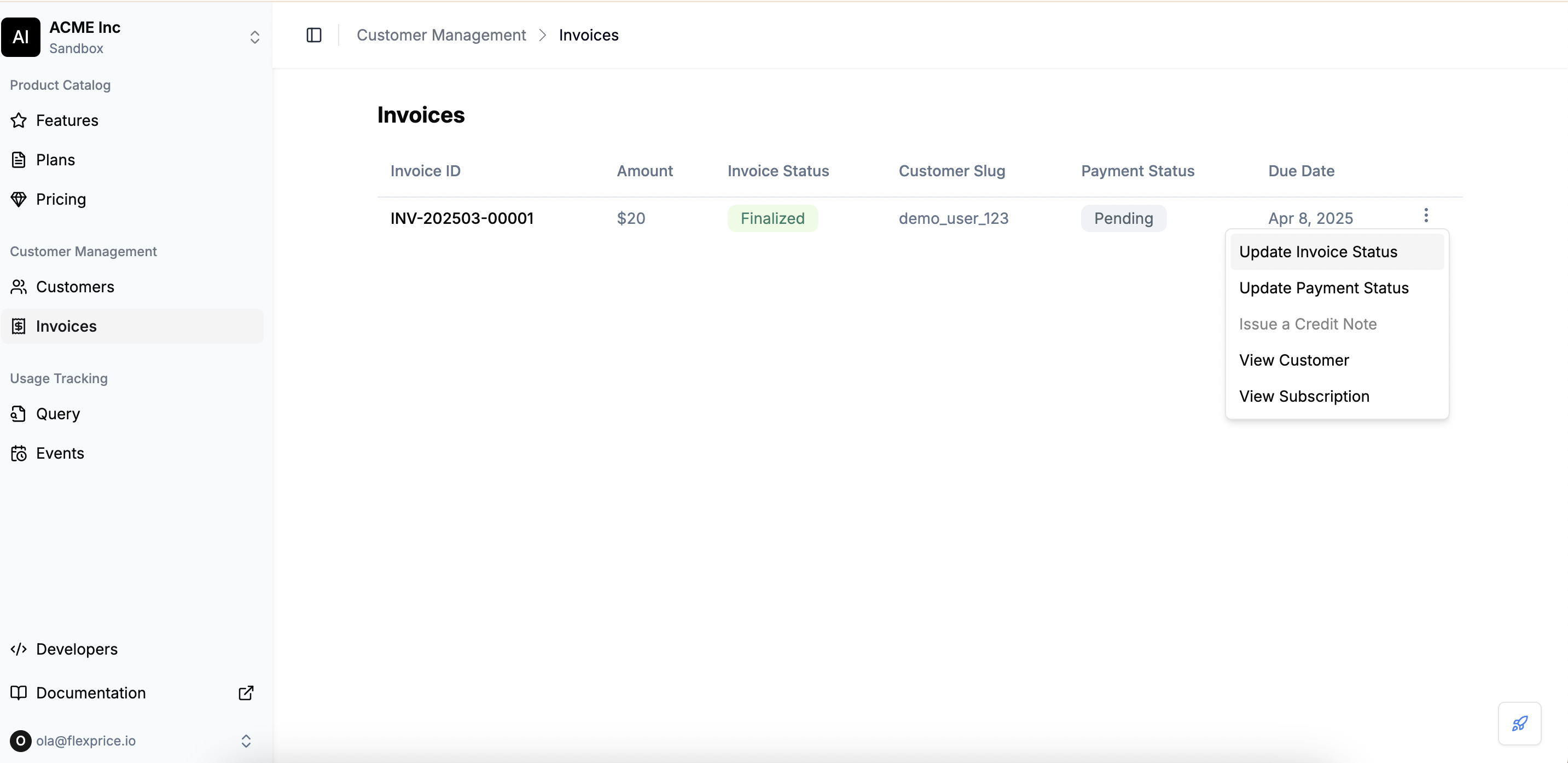
* Click the **Options (⋮)** menu on an invoice.
* Select **Update Invoice Status**.
* View the list of invoices with details like **Invoice ID, Amount, Invoice Status, Customer Slug, Payment Status, and Due Date**.
* Click on an invoice to view more details.
* If you want to access Invoice for individual customers, you can click on the customer and navigate to Customers section.
**Invoice Details Breakdown**
When viewing a specific invoice, you will see:
* **Invoice Number** – A unique identifier for the invoice.
* **Date of Issue** – The date the invoice was generated.
* **Due Date** – The deadline for payment.
* **Order Details** – Breakdown of subscription charges, intervals, and quantities.
* **Taxes and Discounts** – Any applied tax rates, credits, or discounts.
* **Payment Status** – Indicates whether payment is pending, successful, or failed.
* **Wallet Application** – If a customer wallet is used to partially or fully pay the invoice.
**Updating Invoice Status**
* Click the **Options (⋮)** menu on an invoice.
* Select **Update Invoice Status**.
 * Choose from:
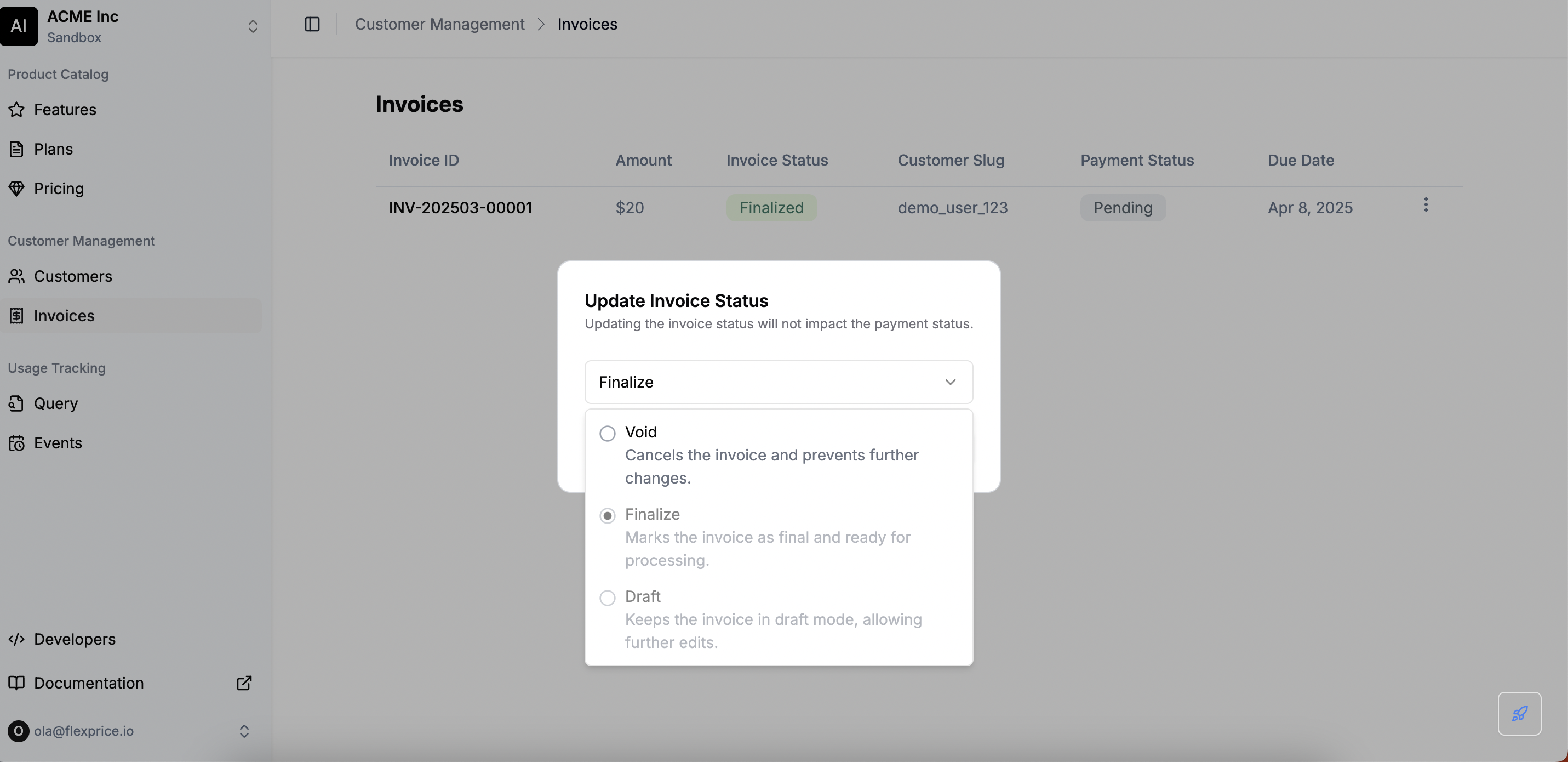 * **Draft** – Editable invoice before finalization.
* **Finalized** – Locked invoice ready for payment processing.
* **Void** – Cancels the invoice and prevents further changes.
* Click **Update** to save the changes.
### Updating Payment Status
1. Open the invoice and click the **Options (⋮)** menu.
2. Select **Update Payment Status**.
3. Choose from:
* **Draft** – Editable invoice before finalization.
* **Finalized** – Locked invoice ready for payment processing.
* **Void** – Cancels the invoice and prevents further changes.
* Click **Update** to save the changes.
### Updating Payment Status
1. Open the invoice and click the **Options (⋮)** menu.
2. Select **Update Payment Status**.
3. Choose from:
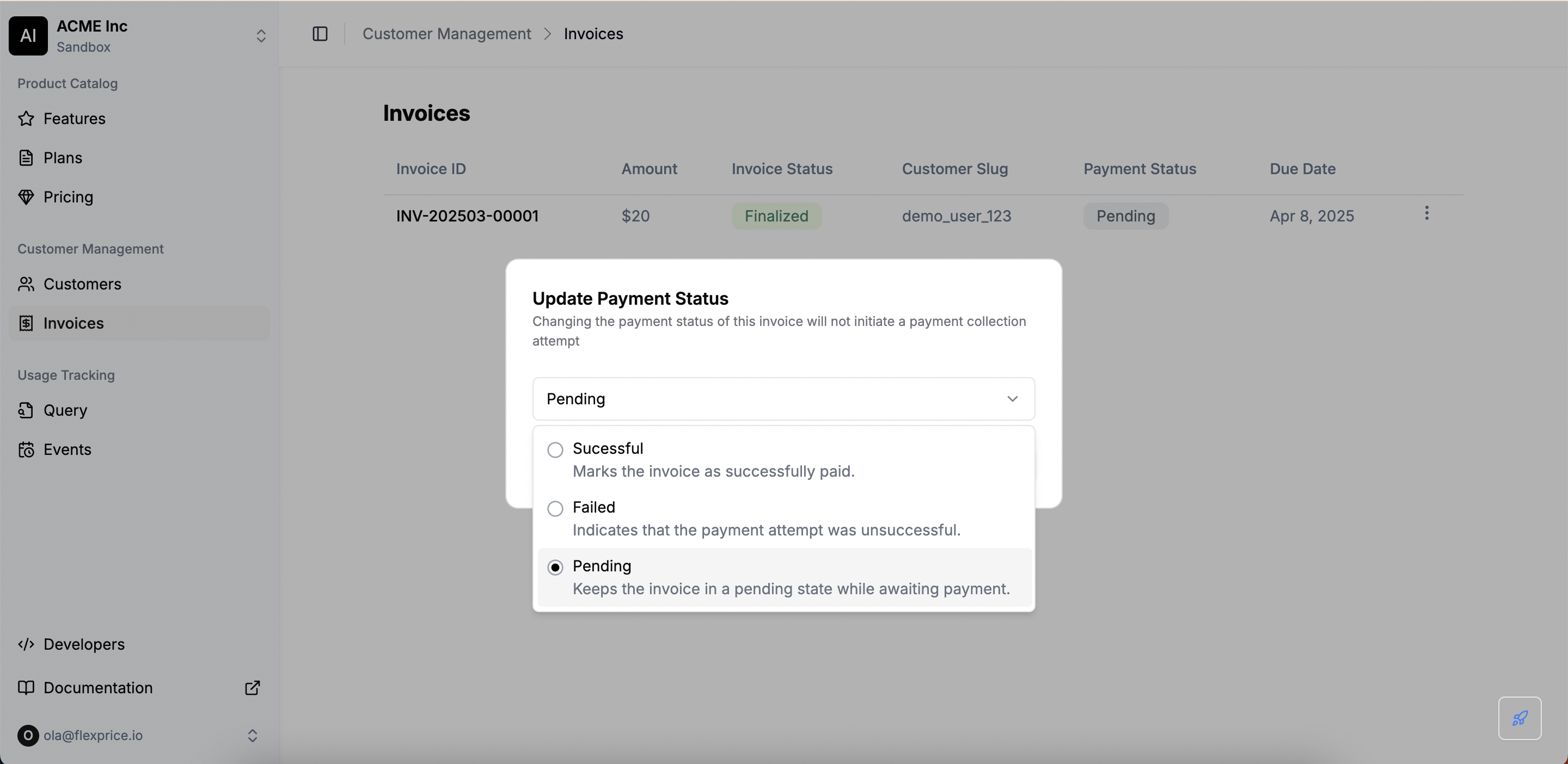 * **Pending** – Payment is awaited.
* **Successful** – Invoice is marked as paid.
* **Failed** – Payment attempt was unsuccessful.
4. Click **Update** to apply changes.
### Downloading Invoices
1. Open an invoice.
2. Click **Download** to get a PDF version.
* **Pending** – Payment is awaited.
* **Successful** – Invoice is marked as paid.
* **Failed** – Payment attempt was unsuccessful.
4. Click **Update** to apply changes.
### Downloading Invoices
1. Open an invoice.
2. Click **Download** to get a PDF version.