> ## Documentation Index
> Fetch the complete documentation index at: https://docs.flexprice.io/llms.txt
> Use this file to discover all available pages before exploring further.
# Manage API Keys
> Generate and manage API keys with specific permissions
API keys allow your services to authenticate with Flexprice. When you create an API key for a service account, it inherits that service account's permissions.
## How API Keys Work
When you create an API key:
1. The key copies the service account's roles
2. The key's role are set and cannot be changed
3. Your service uses this key to make API calls
4. Flexprice checks the key's permissions for each request
**Permissions Are Set at Creation**
Once an API key is created, its permissions don't change.
To get new permissions, create a new API key with required.
## Creating an API Key
### Via Dashboard
Navigate to **Developers > API Keys** and click **Create** to open the API key creation dialog.
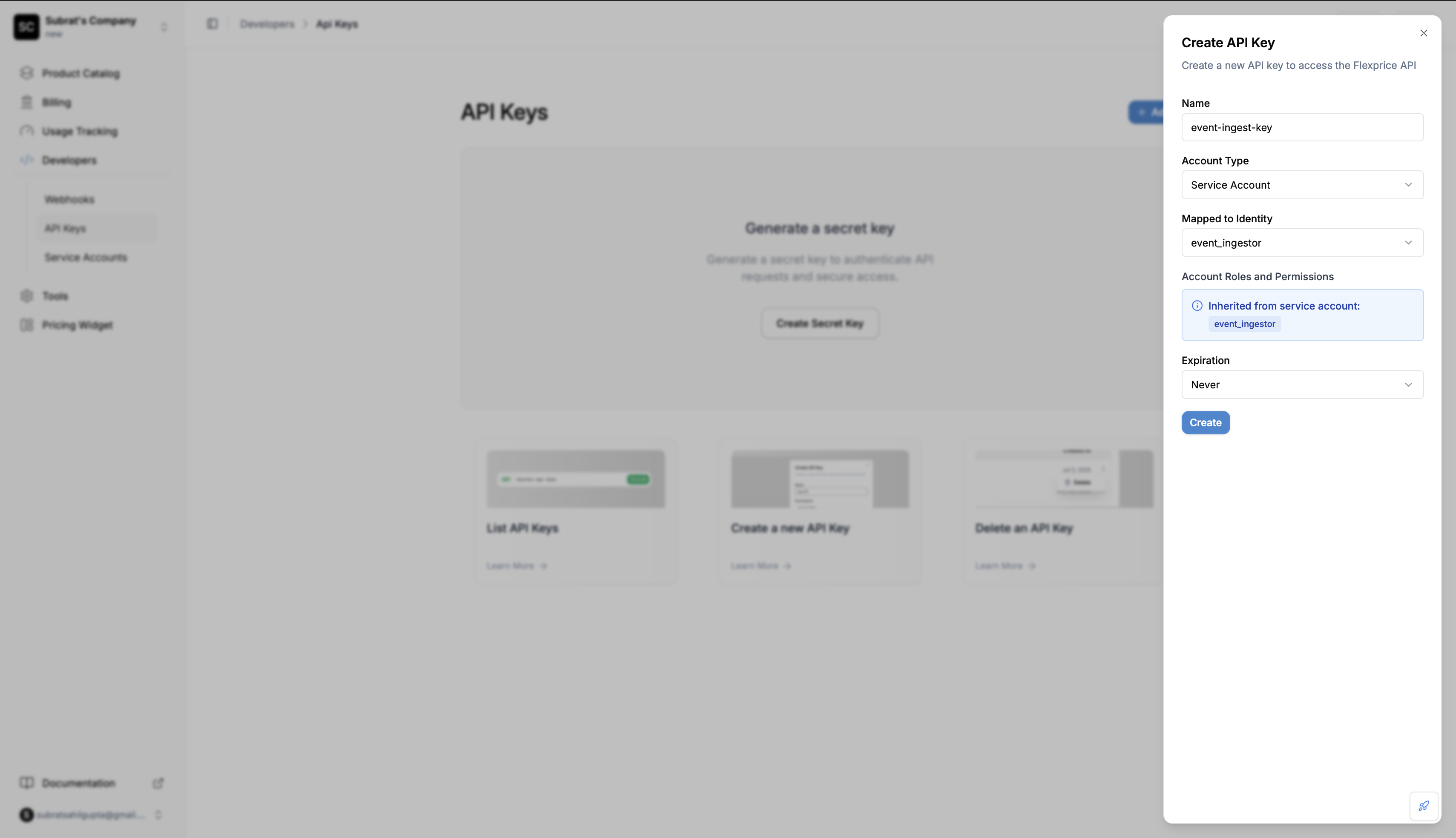 In the dialog:
1. **Name**: Give your API key a descriptive name
2. **Account Type**: Select between User Account or Service Account
3. **Mapped to Identity**: If Service Account is selected, choose which service account to use
4. **Expiration**: Set when the key should expire (or select Never)
5. Click **Create**
The API key will be shown once - make sure to copy and save it securely.
### Via API - For Your Own Account
Create an API key for yourself:
```bash cURL theme={null}
curl --request POST \
--url https://api.cloud.flexprice.io/v1/secrets/api/keys \
--header 'Content-Type: application/json' \
--header 'x-api-key: ' \
--data '{
"expires_at": "",
"name": "",
"type": "private_key"
}'
```
```javascript JavaScript theme={null}
const response = await fetch('https://api.cloud.flexprice.io/v1/secrets/api/keys', {
method: 'POST',
headers: {
'Content-Type': 'application/json',
'x-api-key': ''
},
body: JSON.stringify({
name: 'My Production Key',
type: 'private_key'
})
});
```
```python Python theme={null}
import requests
response = requests.post(
'https://api.cloud.flexprice.io/v1/secrets/api/keys',
headers={
'Content-Type': 'application/json',
'x-api-key': ''
},
json={
'name': 'My Production Key',
'type': 'private_key'
}
)
```
### For a Service Account
Create an API key for a service account:
```bash theme={null}
curl --request POST \
--url https://api.cloud.flexprice.io/v1/secrets/api/keys \
--header 'Content-Type: application/json' \
--header 'x-api-key: ' \
--data '{
"expires_at": "",
"name": "",
"service_account_id": "",
"type": "private_key"
}'
```
### Response
```json theme={null}
{
"id": "sec_xyz789",
"name": "Event Service Production Key",
"api_key": "sk_xxxxxxxxxxxxxxxxxxxxxxxxxxxxxx",
"roles": ["event_ingestor"],
"created_at": "2025-11-14T10:00:00Z"
}
```
**Save Your API Key Now**
The `api_key` value is only shown once, when you create it. Copy and store it securely immediately - you cannot retrieve it later.
## Storing API Keys Securely
**✅ Good Practices:**
* Store in environment variables
* Use secret management services (AWS Secrets Manager, HashiCorp Vault)
* Use Kubernetes Secrets for containerized apps
* Store in your CI/CD platform's secret storage
**❌ Bad Practices:**
* Committing to Git repositories
* Hardcoding in your application code
* Sharing via email or messaging apps
* Storing in plain text files
## Request Parameters
A descriptive name to help you identify this key later.
Examples: `"Production Event Service"`, `"Staging Analytics"`, `"Development Integration"`
The ID of the service account to create the key for. If not provided, creates a key for your own account.
## Understanding Roles and Permissions
### Example 1: Event Ingestor Role
**Service Account has**: `event_ingestor` role
**API Key inherits**: `event_ingestor` role
**What happens**:
* ✅ Can send events
* ❌ Cannot read events (403 Forbidden)
### Example 2: Multiple Roles
**Service Account has**: Both `event_ingestor` and `event_reader` roles
**API Key inherits**: Both roles
**What happens**:
* ✅ Can send events (from `event_ingestor`)
* ✅ Can read events (from `event_reader`)
## Best Practices
**Use Descriptive Names**
Name your keys clearly: `"production-event-service"`, `"staging-analytics"`, `"dev-integration"`
**Rotate Keys Regularly**
Create new API keys and delete old ones every 90 days.
**One Key Per Service**
Create separate API keys for each service or integration, even if they use the same service account.
## Troubleshooting
### API Key Not Working
**Symptom**: Getting "Unauthorized" errors when using the API key.
**Possible Causes**:
* API key format is incorrect
* API key has been deleted
* Using the wrong key for the environment (test vs. production)
**Solution**:
1. Check if the key still exists
2. Make sure you're using the correct environment
### Getting 403 Forbidden Errors
**Symptom**: API calls return "Forbidden" errors.
**Possible Causes**:
* The service account doesn't have the required role
* The API key was created before roles were assigned
* The role doesn't include the permission you need
**Solution**:
1. Check what roles the API key has
2. Verify those roles include the permission you need
3. If roles were recently added, create a new API key with the service account associated with required roles
### Lost API Key
**Symptom**: You didn't save the API key when you created it.
**Solution**: API keys cannot be retrieved after creation. You need to:
1. Create a new API key for the same service account
2. Update your service with the new key
3. Delete the old key
## Related Resources
Learn how to create service accounts →
See all available roles and permissions →
In the dialog:
1. **Name**: Give your API key a descriptive name
2. **Account Type**: Select between User Account or Service Account
3. **Mapped to Identity**: If Service Account is selected, choose which service account to use
4. **Expiration**: Set when the key should expire (or select Never)
5. Click **Create**
The API key will be shown once - make sure to copy and save it securely.
### Via API - For Your Own Account
Create an API key for yourself:
```bash cURL theme={null}
curl --request POST \
--url https://api.cloud.flexprice.io/v1/secrets/api/keys \
--header 'Content-Type: application/json' \
--header 'x-api-key: ' \
--data '{
"expires_at": "",
"name": "",
"type": "private_key"
}'
```
```javascript JavaScript theme={null}
const response = await fetch('https://api.cloud.flexprice.io/v1/secrets/api/keys', {
method: 'POST',
headers: {
'Content-Type': 'application/json',
'x-api-key': ''
},
body: JSON.stringify({
name: 'My Production Key',
type: 'private_key'
})
});
```
```python Python theme={null}
import requests
response = requests.post(
'https://api.cloud.flexprice.io/v1/secrets/api/keys',
headers={
'Content-Type': 'application/json',
'x-api-key': ''
},
json={
'name': 'My Production Key',
'type': 'private_key'
}
)
```
### For a Service Account
Create an API key for a service account:
```bash theme={null}
curl --request POST \
--url https://api.cloud.flexprice.io/v1/secrets/api/keys \
--header 'Content-Type: application/json' \
--header 'x-api-key: ' \
--data '{
"expires_at": "",
"name": "",
"service_account_id": "",
"type": "private_key"
}'
```
### Response
```json theme={null}
{
"id": "sec_xyz789",
"name": "Event Service Production Key",
"api_key": "sk_xxxxxxxxxxxxxxxxxxxxxxxxxxxxxx",
"roles": ["event_ingestor"],
"created_at": "2025-11-14T10:00:00Z"
}
```
**Save Your API Key Now**
The `api_key` value is only shown once, when you create it. Copy and store it securely immediately - you cannot retrieve it later.
## Storing API Keys Securely
**✅ Good Practices:**
* Store in environment variables
* Use secret management services (AWS Secrets Manager, HashiCorp Vault)
* Use Kubernetes Secrets for containerized apps
* Store in your CI/CD platform's secret storage
**❌ Bad Practices:**
* Committing to Git repositories
* Hardcoding in your application code
* Sharing via email or messaging apps
* Storing in plain text files
## Request Parameters
A descriptive name to help you identify this key later.
Examples: `"Production Event Service"`, `"Staging Analytics"`, `"Development Integration"`
The ID of the service account to create the key for. If not provided, creates a key for your own account.
## Understanding Roles and Permissions
### Example 1: Event Ingestor Role
**Service Account has**: `event_ingestor` role
**API Key inherits**: `event_ingestor` role
**What happens**:
* ✅ Can send events
* ❌ Cannot read events (403 Forbidden)
### Example 2: Multiple Roles
**Service Account has**: Both `event_ingestor` and `event_reader` roles
**API Key inherits**: Both roles
**What happens**:
* ✅ Can send events (from `event_ingestor`)
* ✅ Can read events (from `event_reader`)
## Best Practices
**Use Descriptive Names**
Name your keys clearly: `"production-event-service"`, `"staging-analytics"`, `"dev-integration"`
**Rotate Keys Regularly**
Create new API keys and delete old ones every 90 days.
**One Key Per Service**
Create separate API keys for each service or integration, even if they use the same service account.
## Troubleshooting
### API Key Not Working
**Symptom**: Getting "Unauthorized" errors when using the API key.
**Possible Causes**:
* API key format is incorrect
* API key has been deleted
* Using the wrong key for the environment (test vs. production)
**Solution**:
1. Check if the key still exists
2. Make sure you're using the correct environment
### Getting 403 Forbidden Errors
**Symptom**: API calls return "Forbidden" errors.
**Possible Causes**:
* The service account doesn't have the required role
* The API key was created before roles were assigned
* The role doesn't include the permission you need
**Solution**:
1. Check what roles the API key has
2. Verify those roles include the permission you need
3. If roles were recently added, create a new API key with the service account associated with required roles
### Lost API Key
**Symptom**: You didn't save the API key when you created it.
**Solution**: API keys cannot be retrieved after creation. You need to:
1. Create a new API key for the same service account
2. Update your service with the new key
3. Delete the old key
## Related Resources
Learn how to create service accounts →
See all available roles and permissions →