> ## Documentation Index
> Fetch the complete documentation index at: https://docs.flexprice.io/llms.txt
> Use this file to discover all available pages before exploring further.
# Reservation / Commitment Discount
Reservation discount (also called **commitment discount**) lets you guarantee a minimum spend or usage level on any metered charge, charge a premium for usage above that level, and optionally enforce the minimum even when actual usage falls short all configurable per charge, per subscription.
### Who is it for?
* **Cloud infrastructure** — GPU/CPU reservations, storage commitments
* **AI / ML platforms** — inference-hour commitments, training-job minimums
* **SaaS & API providers** — API-call or data-transfer commitments
***
## Key Terminology
| | |
| ----------------------------- | -------------------------------------------------------------------------------------------------------------------------------------------------------------------------------------------------------------- |
| **Commitment** | The guaranteed minimum a customer agrees to for a billing period. Can be expressed as a currency amount (e.g. \$1,000/month) or a unit quantity (e.g. 500 GPU-hours/month). |
| **Overage** | Usage above the commitment. Charged at **unit price × overage factor** — the factor can add a premium (1.5×), keep the same rate (1.0×), or even discount excess (0.8×). |
| **Overage Factor** | A multiplier applied to the excess cost beyond the commitment. 1.5× = 50% premium, 1.0× = no premium, 0.8× = 20% discount on excess. |
| **True-Up** | When enabled, the customer always pays at least the full commitment amount — even if actual usage is lower. The shortfall is added as a true-up fee. When disabled, the customer pays only for what they used. |
| **Commitment Type: Amount** | Customer commits to a minimum **amount** per period. |
| **Commitment Type: Quantity** | Customer commits to a minimum **number of units** per period. The commitment cost is derived as quantity × unit price. |
***
## How Billing Works
For each billing period, Flexprice evaluates one of two outcomes:
```mermaid theme={null}
flowchart TD
A[Usage Reported] --> B{Usage ≥ Commitment?}
B -- Yes --> C[Charge: Commitment + Overage]
B -- No --> D{True-Up Enabled?}
D -- Yes --> E[Charge: Full Commitment Amount]
D -- No --> F[Charge: Actual Usage Only]
```
* **Usage ≥ Commitment →** Total = Commitment + (Usage Cost − Commitment) × Overage Factor. The customer pays the committed amount at standard rate, plus a premium on everything above it.
* **Usage \< Commitment, True-Up enabled →** Customer pays the full commitment amount (shortfall added as true-up fee).
* **Usage \< Commitment, True-Up disabled →** Customer pays only for actual usage.
***
## Example 1 — AI Inference Platform (Per-Period Commitment)
An AI platform sells inference compute at **\$2 / vCPU-hour**. They want customers to commit to a minimum of **500 vCPU-hours/month** and charge a **1.5× premium** on any usage above that.
| Parameter | Value |
| -------------- | -------------------------------------- |
| Metered charge | vCPU-hours |
| Unit price | \$2 / vCPU-hour |
| Commitment | 500 vCPU-hours/month (= \$1,000/month) |
| Overage factor | 1.5× |
| True-up | Enabled |
The vCPU-hours line item is configured with a unit price of \$2 / vCPU-hour in the pricing plan.
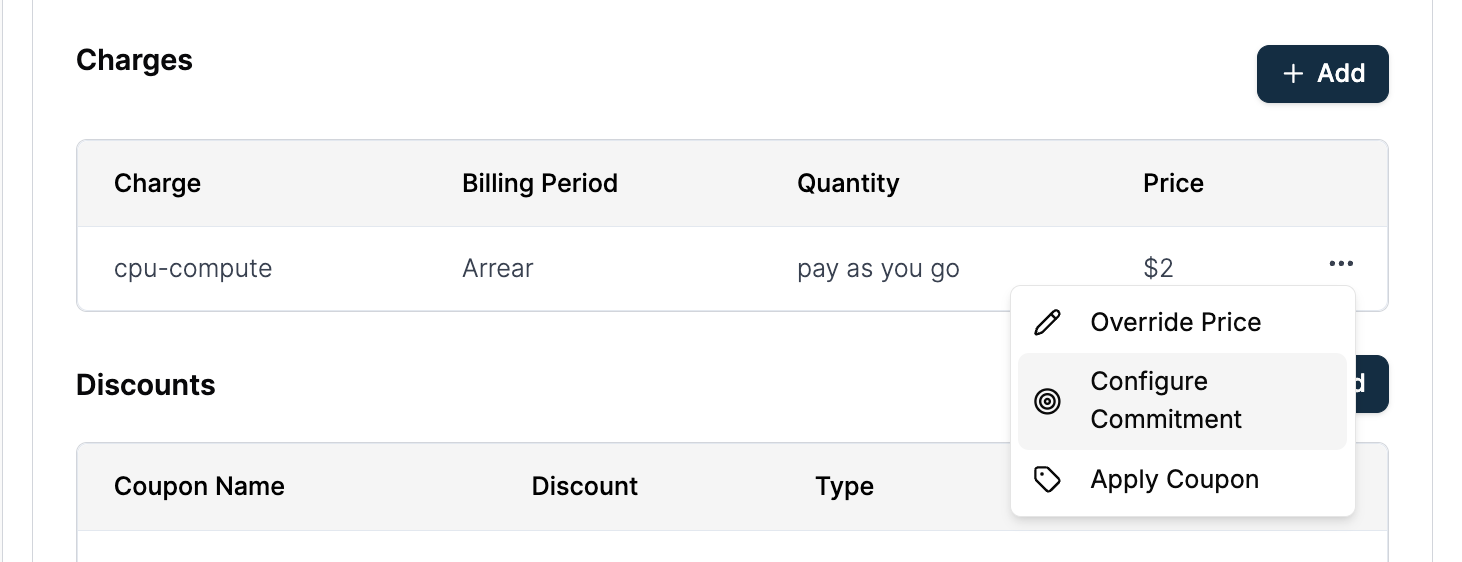
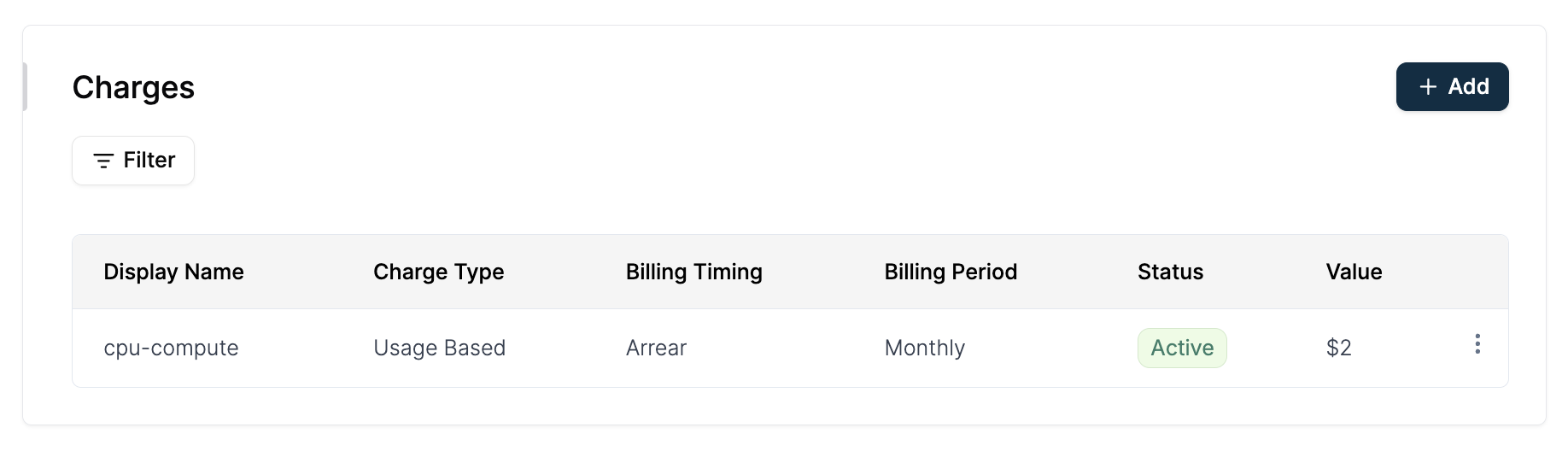 Navigate to **Customers** → Select a customer → **Add Subscription**, and select your pricing plan. Once the plan is loaded, click the three-dot menu (`...`) next to the vCPU-hours charge and select **Configure Commitment**.
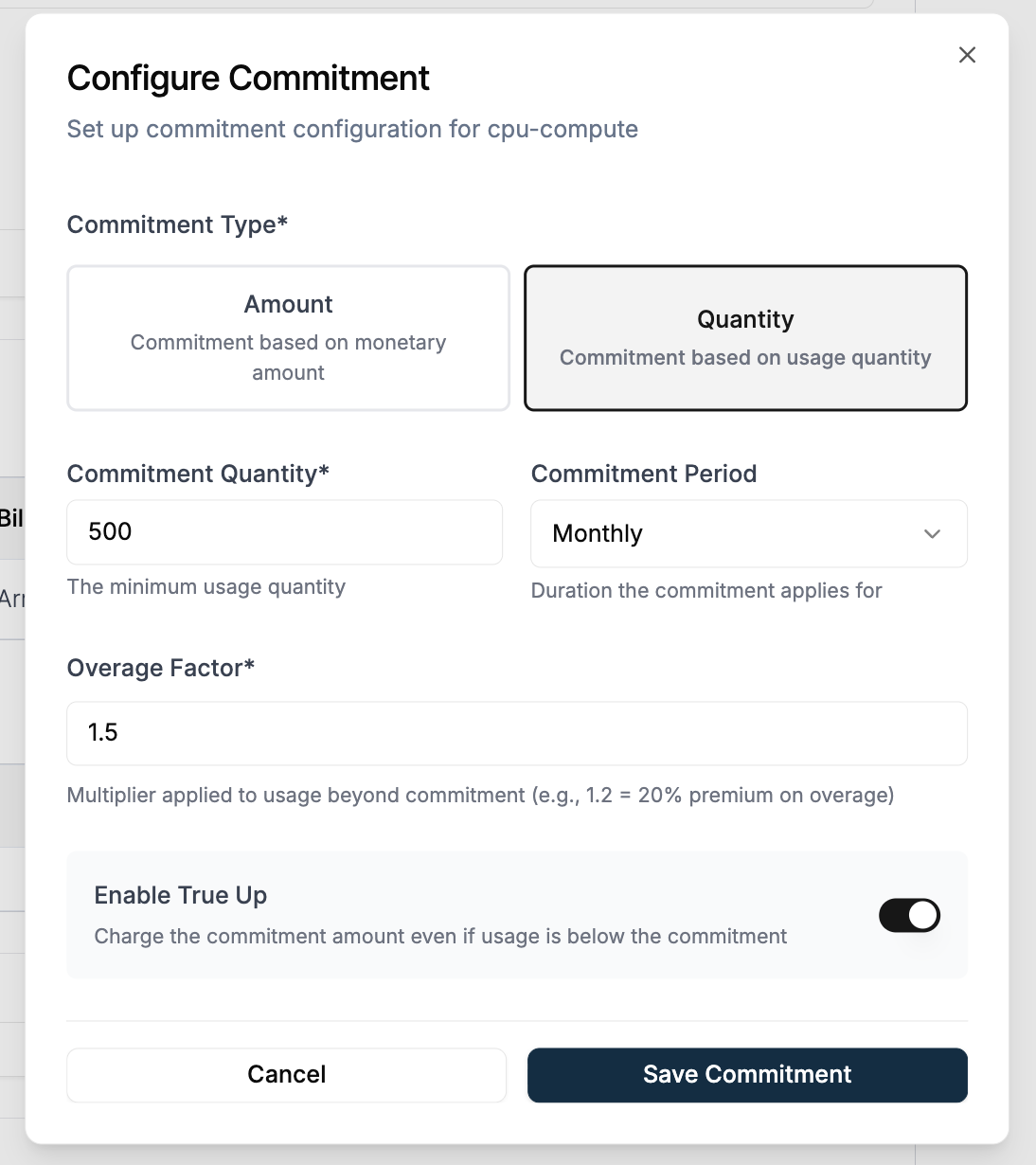
 In the configuration modal, set the commitment type to **Quantity** with a value of **500**, apply an overage factor of **1.5x**, and enable **True Up**. Save the commitment and proceed to create the subscription.
 ```
Overage qty: 700 − 500 = 200 vCPU-hours
Commitment: 500 vCPU-hours × $2 = $1,000
Overage: 200 vCPU-hours × ($2 × 1.5) = $600
Total Invoice: $1,000 + $600 = $1,600
```
True-up is enabled so the full commitment is enforced.
```
Shortfall qty: 500 − 300 = 200 vCPU-hours
Usage cost: 300 vCPU-hours × $2 = $600
True-up fee: 200 vCPU-hours × $2 = $400
Total Invoice: $600 + $400 = $1,000
```
Same usage but with true-up turned off. The customer pays only for what they consumed.
```
Usage cost: 300 vCPU-hours × $2 = $600
Total Invoice: = $600
```
***
## Example 2 — Cloud Infra Company (Windowed Commitment)
A cloud infrastructure company sells GPU compute at **\$2 / GPU-hour**. Instead of a single monthly commitment, they want to commit customers on an **hourly basis** — a minimum of **10 GPU-hours every hour**. Each hour settles independently and the totals are summed at the end of the billing period.
Windowed commitment is available only on **bucketed** features. The window size is inherited from the meter's bucket configuration.
| Parameter | Value |
| -------------- | ----------------------------------- |
| Metered charge | GPU-hours |
| Unit price | \$2 / GPU-hour |
| Commitment | 10 GPU-hours per hour (= \$20/hour) |
| Overage factor | 1.5× |
| True-up | Enabled |
| Window | Hourly |
The GPU-hours line item is configured with a unit price of \$2 / GPU-hour in the pricing plan.
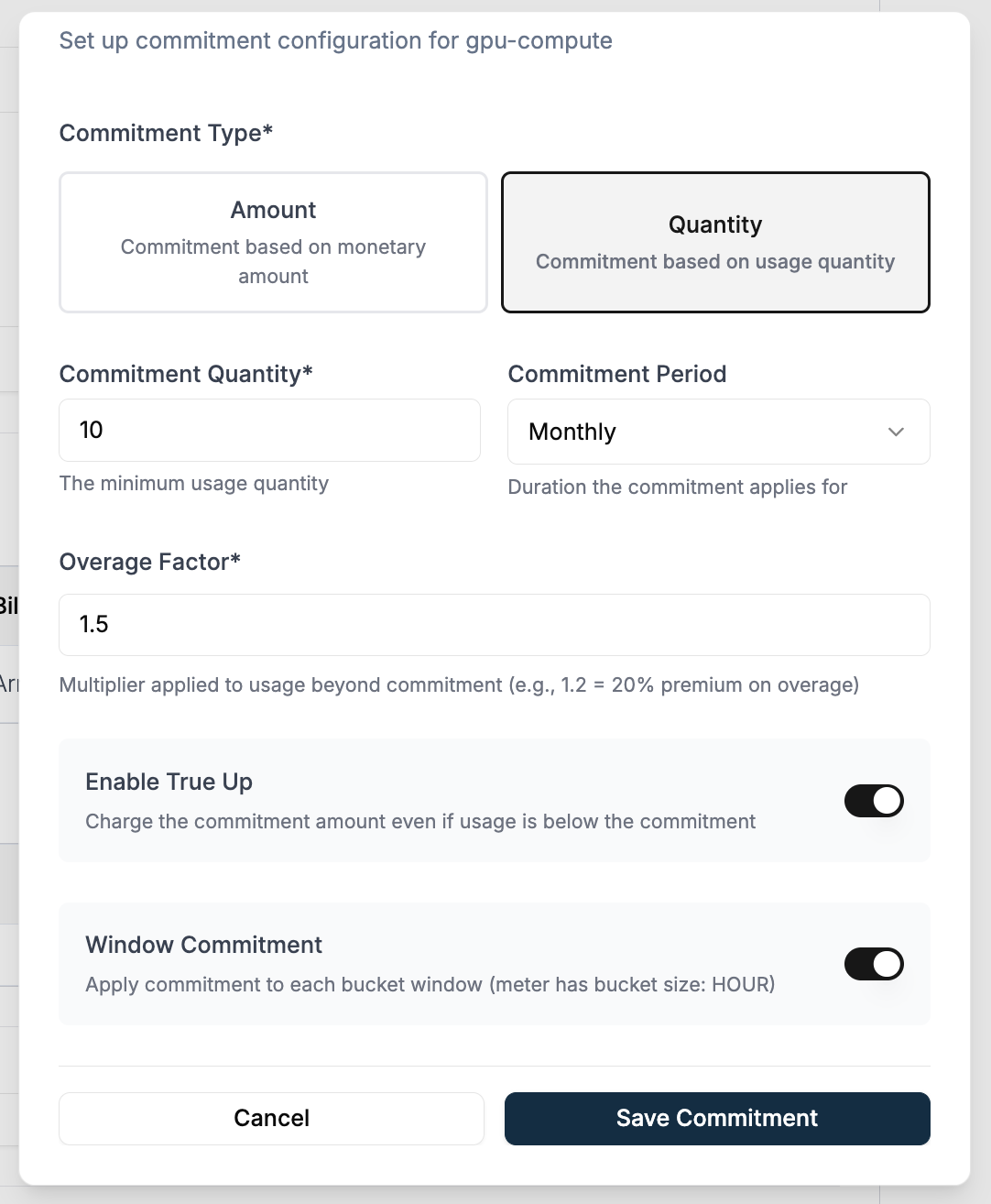
Navigate to **Customers** → Select a customer → **Add Subscription**, and select your pricing plan. Once the plan is loaded, click the three-dot menu (`...`) next to the GPU-hours charge and select **Configure Commitment**.
In the configuration modal, set the commitment type to **Quantity** with a value of **10**. Apply a **1.5x** overage factor, enable both **True Up** and **Windowed Commitment**, and save your changes before creating the subscription.
```
Overage qty: 700 − 500 = 200 vCPU-hours
Commitment: 500 vCPU-hours × $2 = $1,000
Overage: 200 vCPU-hours × ($2 × 1.5) = $600
Total Invoice: $1,000 + $600 = $1,600
```
True-up is enabled so the full commitment is enforced.
```
Shortfall qty: 500 − 300 = 200 vCPU-hours
Usage cost: 300 vCPU-hours × $2 = $600
True-up fee: 200 vCPU-hours × $2 = $400
Total Invoice: $600 + $400 = $1,000
```
Same usage but with true-up turned off. The customer pays only for what they consumed.
```
Usage cost: 300 vCPU-hours × $2 = $600
Total Invoice: = $600
```
***
## Example 2 — Cloud Infra Company (Windowed Commitment)
A cloud infrastructure company sells GPU compute at **\$2 / GPU-hour**. Instead of a single monthly commitment, they want to commit customers on an **hourly basis** — a minimum of **10 GPU-hours every hour**. Each hour settles independently and the totals are summed at the end of the billing period.
Windowed commitment is available only on **bucketed** features. The window size is inherited from the meter's bucket configuration.
| Parameter | Value |
| -------------- | ----------------------------------- |
| Metered charge | GPU-hours |
| Unit price | \$2 / GPU-hour |
| Commitment | 10 GPU-hours per hour (= \$20/hour) |
| Overage factor | 1.5× |
| True-up | Enabled |
| Window | Hourly |
The GPU-hours line item is configured with a unit price of \$2 / GPU-hour in the pricing plan.
Navigate to **Customers** → Select a customer → **Add Subscription**, and select your pricing plan. Once the plan is loaded, click the three-dot menu (`...`) next to the GPU-hours charge and select **Configure Commitment**.
In the configuration modal, set the commitment type to **Quantity** with a value of **10**. Apply a **1.5x** overage factor, enable both **True Up** and **Windowed Commitment**, and save your changes before creating the subscription.
 ```
Overage qty: 15 − 10 = 5 GPU-hours
Commitment: 10 GPU-hours × $2 = $20
Overage: 5 GPU-hours × ($2 × 1.5) = $15
Hour 1 charge: $20 + $15 = $35
```
```
Shortfall qty: 10 − 6 = 4 GPU-hours
Usage cost: 6 GPU-hours × $2 = $12
True-up fee: 4 GPU-hours × $2 = $8
Hour 2 charge: $12 + $8 = $20
```
```
Usage cost: 10 GPU-hours × $2 = $20
Hour 3 charge: = $20
```
```
Total: $35 + $20 + $20 = $75
```
***
Reservation discount applies per-charge commitment and overage. For a single minimum spend across the **entire subscription**, see [Commitment](/docs/subscriptions/commitment/overview).
```
Overage qty: 15 − 10 = 5 GPU-hours
Commitment: 10 GPU-hours × $2 = $20
Overage: 5 GPU-hours × ($2 × 1.5) = $15
Hour 1 charge: $20 + $15 = $35
```
```
Shortfall qty: 10 − 6 = 4 GPU-hours
Usage cost: 6 GPU-hours × $2 = $12
True-up fee: 4 GPU-hours × $2 = $8
Hour 2 charge: $12 + $8 = $20
```
```
Usage cost: 10 GPU-hours × $2 = $20
Hour 3 charge: = $20
```
```
Total: $35 + $20 + $20 = $75
```
***
Reservation discount applies per-charge commitment and overage. For a single minimum spend across the **entire subscription**, see [Commitment](/docs/subscriptions/commitment/overview).