> ## Documentation Index
> Fetch the complete documentation index at: https://docs.flexprice.io/llms.txt
> Use this file to discover all available pages before exploring further.
# Pause subscription
There are scenarios where customers may need to temporarily **pause their subscription** instead of canceling it. This feature ensures they are not billed during inactivity while allowing for a seamless reactivation when needed. Common use cases include:
* **Seasonal Usage**: A customer only requires the service at certain times of the year.
* **Budget Constraints**: A temporary pause allows cost control without losing their setup.
* **Operational Downtime**: Businesses undergoing internal transitions can pause subscriptions until they resume operations.
* **Trial Extension**: Giving users extra time before fully committing to a plan.
With Flexprice, pausing a subscription **stops all billing for the selected period** while keeping the account intact.
**Steps to Pause a Subscription:**
* Select the customer whose subscription needs to be paused from Customers tab
* Under the Subscriptions section, find the active subscription.
* Click on the Options Menu (⋮) next to the subscription.
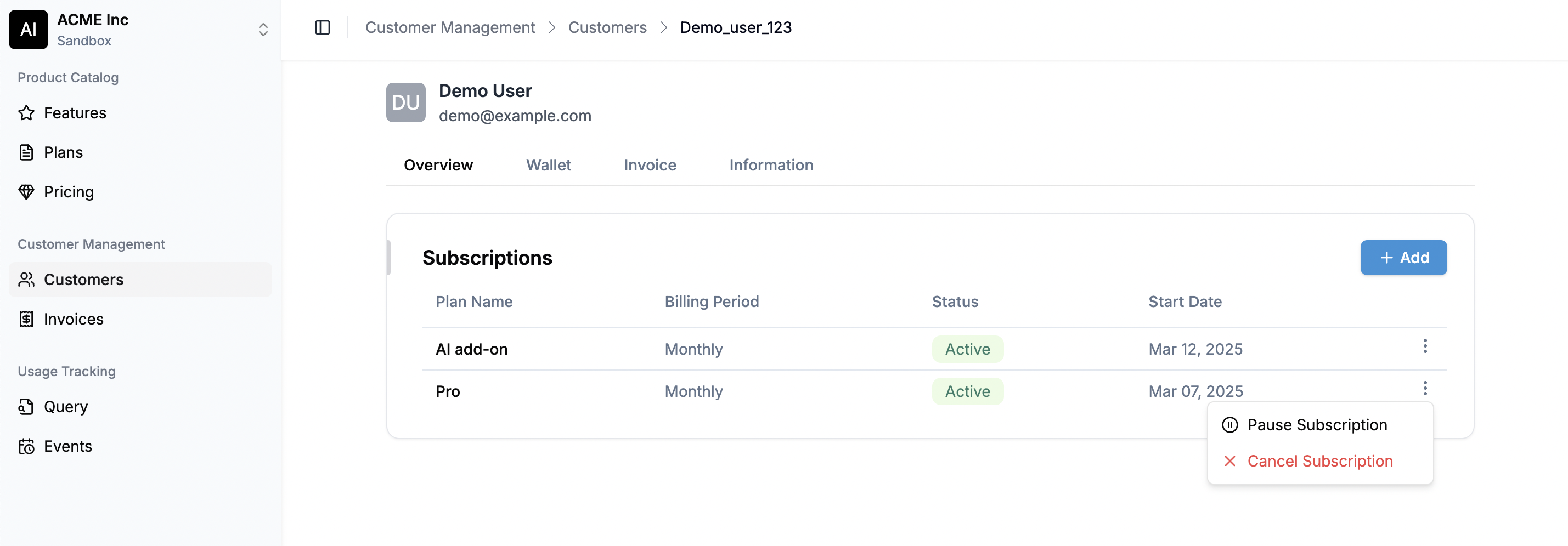 * Choose Pause Subscription from the dropdown.
* Select the Pause Start Date and enter the number of days to pause the subscription.
* Choose Pause Subscription from the dropdown.
* Select the Pause Start Date and enter the number of days to pause the subscription.
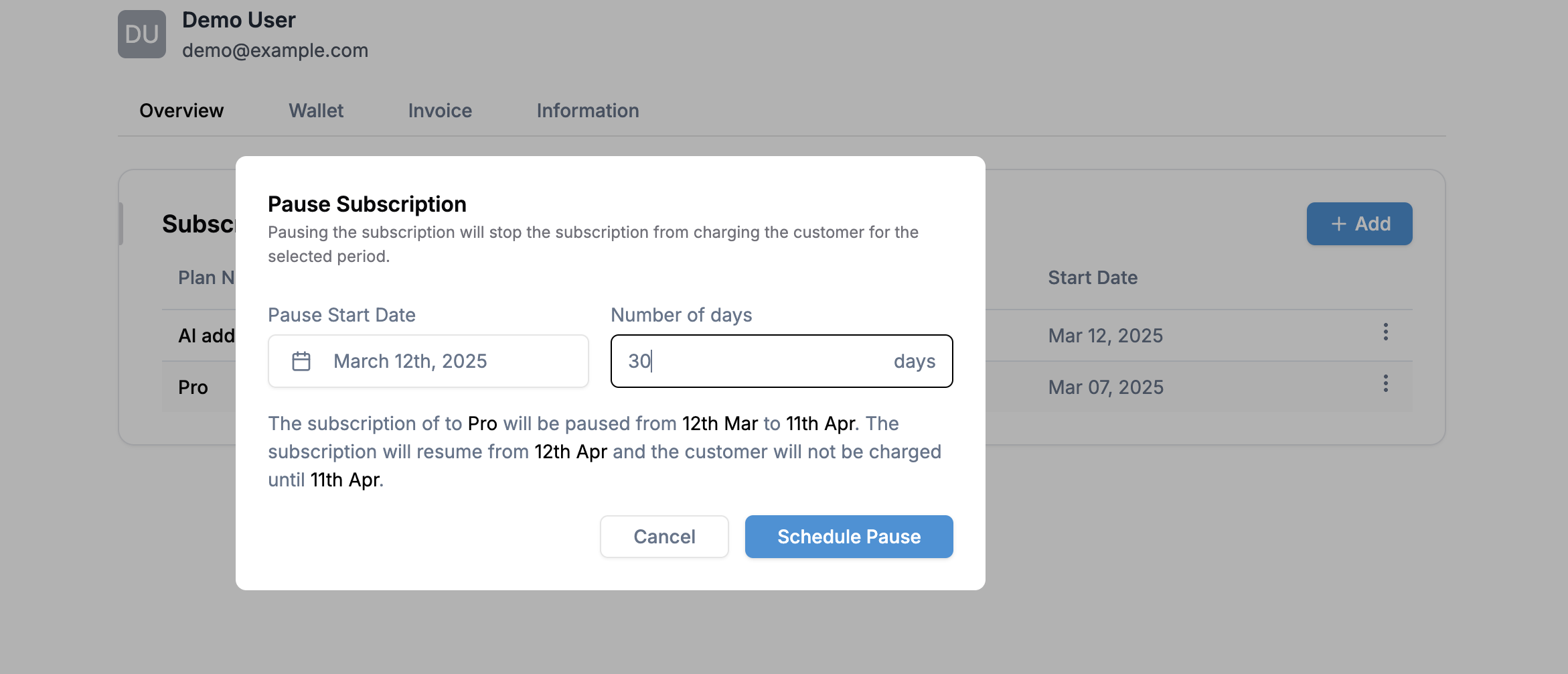 * A confirmation message will summarize the pause period.
* Click Schedule Pause to apply changes.
Once paused, the subscription status updates to **Paused**, and the customer will not be charged until the subscription resumes.
**Steps to Resume a Subscription:**
A paused subscription can either **automatically resume** after the scheduled pause period or can be **resumed manually** at any time before the scheduled resume date.
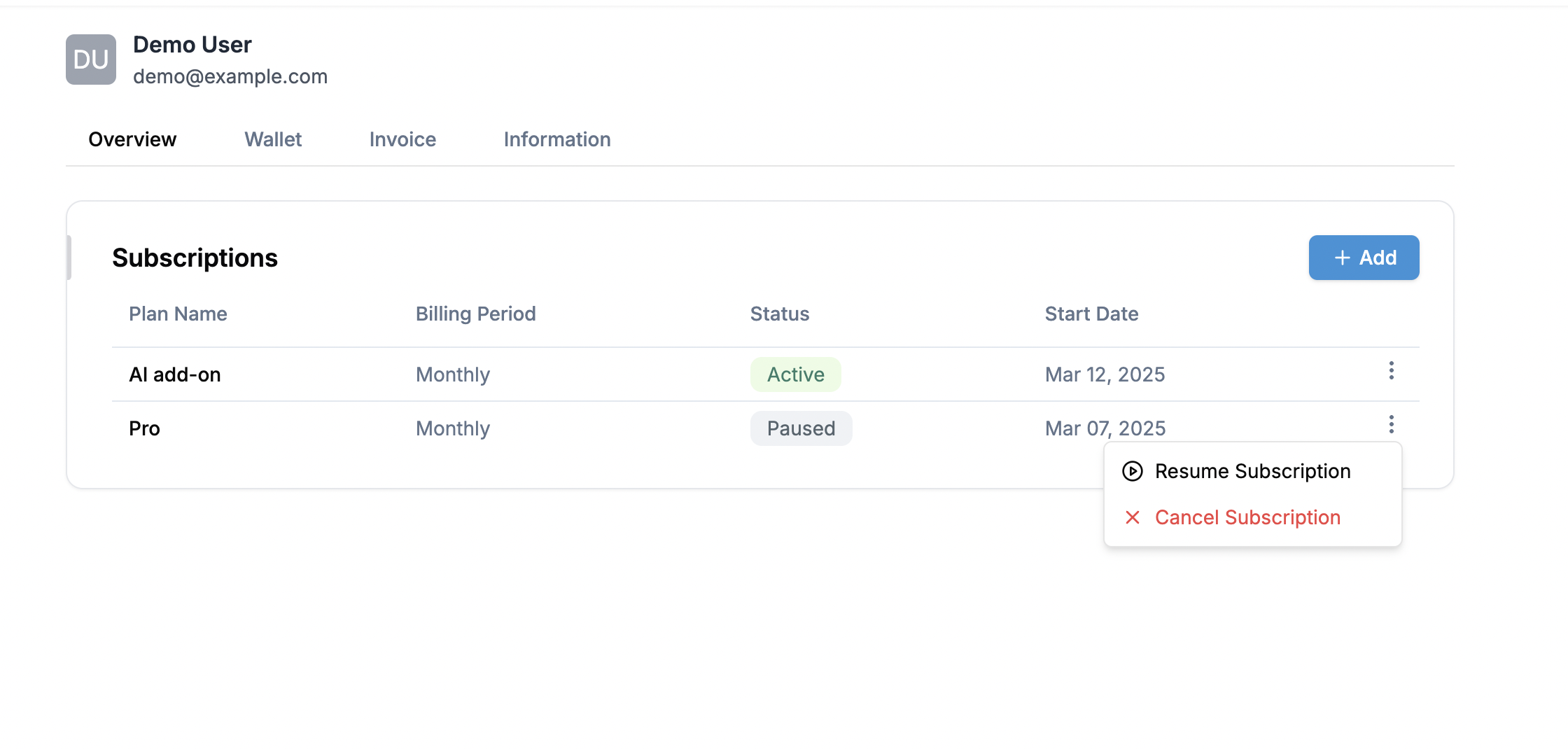
* Under **Subscriptions**, locate the paused subscription.
* Click on the **Options Menu (⋮)** next to the subscription.
* Select "Resume Subscription”
* A confirmation message will summarize the pause period.
* Click Schedule Pause to apply changes.
Once paused, the subscription status updates to **Paused**, and the customer will not be charged until the subscription resumes.
**Steps to Resume a Subscription:**
A paused subscription can either **automatically resume** after the scheduled pause period or can be **resumed manually** at any time before the scheduled resume date.
* Under **Subscriptions**, locate the paused subscription.
* Click on the **Options Menu (⋮)** next to the subscription.
* Select "Resume Subscription”
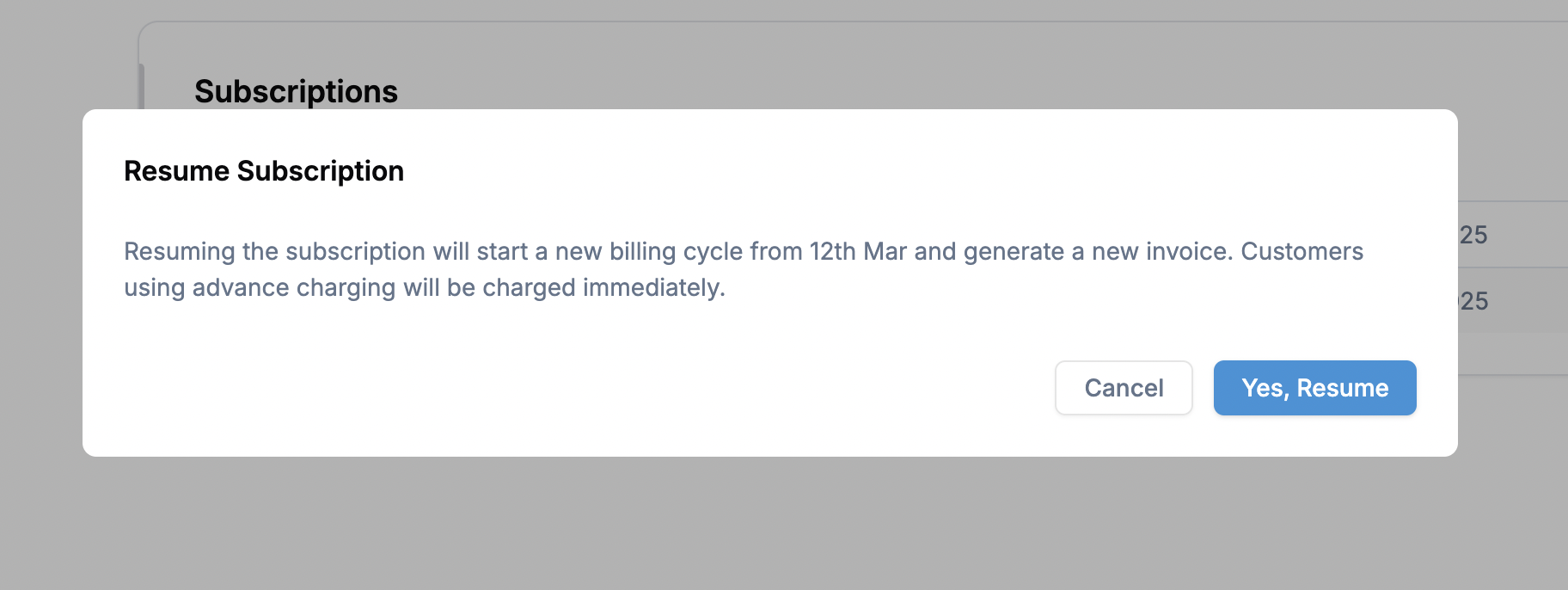
 * A confirmation message appears, indicating that resuming will **restart the billing cycle**.
* Click **Yes, Resume** to reactivate the subscription.
* A confirmation message appears, indicating that resuming will **restart the billing cycle**.
* Click **Yes, Resume** to reactivate the subscription.
 Once resumed, billing will continue based on the subscription’s original schedule.
**Points to consider:**
* Billing automatically resumes once the pause period ends unless manually resumed earlier.
* For usage-based subscriptions, any usage before pausing will still be billed.
* Customers using advance payment plans will be charged immediately upon resuming the subscription.
Once resumed, billing will continue based on the subscription’s original schedule.
**Points to consider:**
* Billing automatically resumes once the pause period ends unless manually resumed earlier.
* For usage-based subscriptions, any usage before pausing will still be billed.
* Customers using advance payment plans will be charged immediately upon resuming the subscription.