> ## Documentation Index
> Fetch the complete documentation index at: https://docs.flexprice.io/llms.txt
> Use this file to discover all available pages before exploring further.
# Auto Top-Up
> Automatically recharge customer wallets when balance falls below a configured threshold to ensure uninterrupted service.
The Auto Top-Up feature in Flexprice automatically adds credits to a customer's wallet when the ongoing balance falls below a predefined threshold. This ensures continuous service availability and eliminates the need for manual monitoring and intervention.
**Benefits of Auto Top-Up:**
* **Uninterrupted Service**: Prevents service disruptions due to insufficient wallet balance
* **Automated Management**: Eliminates manual monitoring and top-up operations
* **Improved Cash Flow**: Ensures timely wallet replenishment
* **Flexible Configuration**: Choose between immediate credits or invoiced top-ups
* **Proactive Balance Management**: Maintains wallet balance above critical thresholds
## How Auto Top-Up Works
Auto top-up monitors the **ongoing balance** (real-time credit balance) of a wallet, which accounts for:
* Current wallet credit balance
* Pending invoice amounts
* Current period usage
When the ongoing balance drops to or below the configured threshold, Flexprice automatically triggers a top-up operation if configured, based on your configuration.
## Auto Top-Up Modes
Flexprice supports two modes for auto top-up:
### 1. Direct Top-Up
Credits are immediately added to the wallet when the threshold is reached. This mode provides instant balance replenishment.
**When to Use:**
* When you want immediate credit availability
* For customers with reliable payment methods
* When you need to prevent any service interruption
### 2. Invoiced Top-Up
An invoice is created when the threshold is reached, and credits are only added to the wallet after the invoice is paid. This mode provides better cash flow control.
**When to Use:**
* When you want payment confirmation before adding credits
* For customers who prefer invoiced billing
* When you need to track top-up transactions separately
## Configuring Auto Top-Up
### During Wallet Creation
You can enable auto top-up when creating a new wallet:
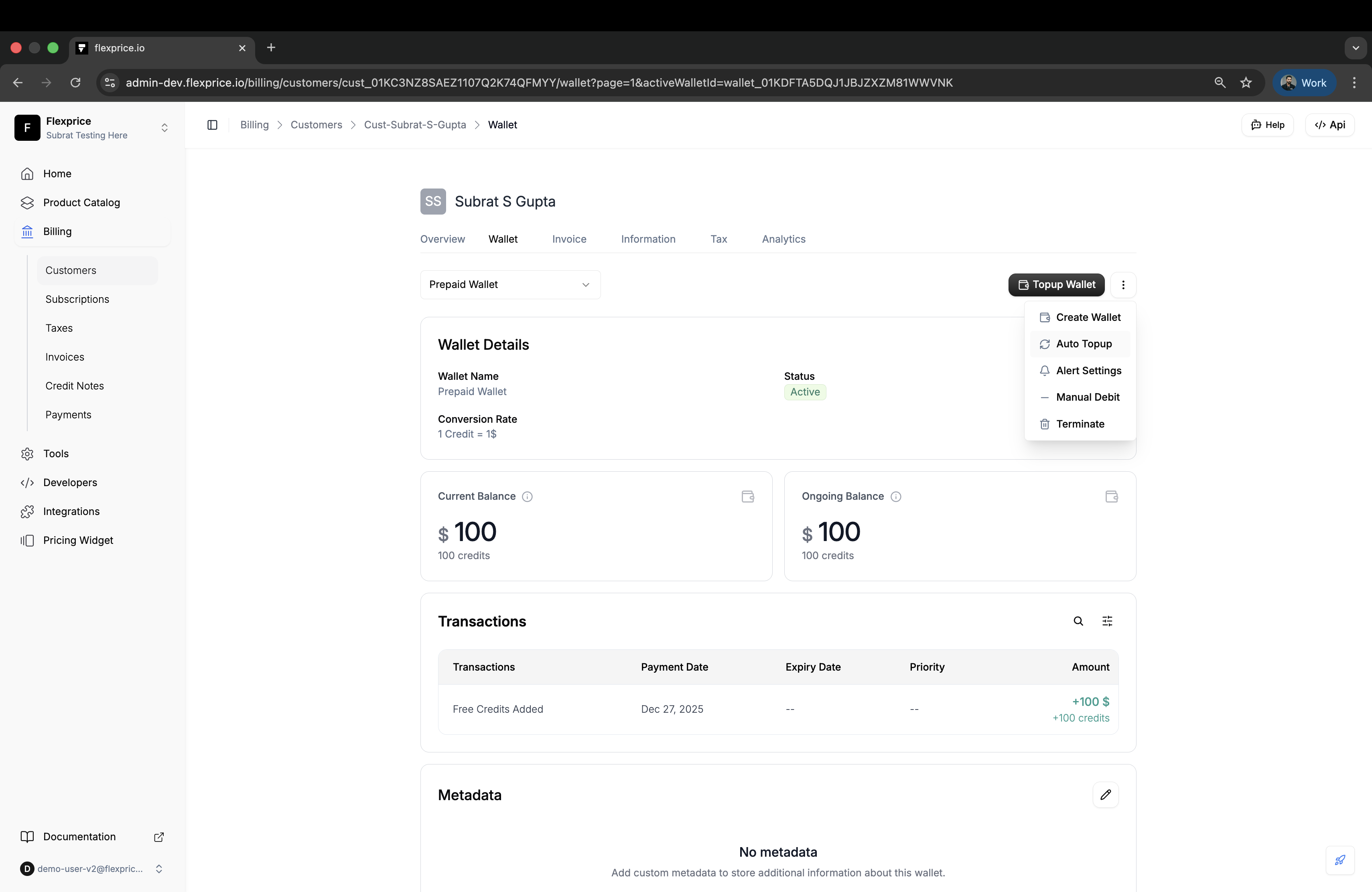
Go to **Billing** → **Customers** → Select customer → **Wallet** tab
Click the **three-dot menu (⋮)** in the top right corner of the wallet section
Select **Auto Topup** from the dropdown menu to enable auto top-up
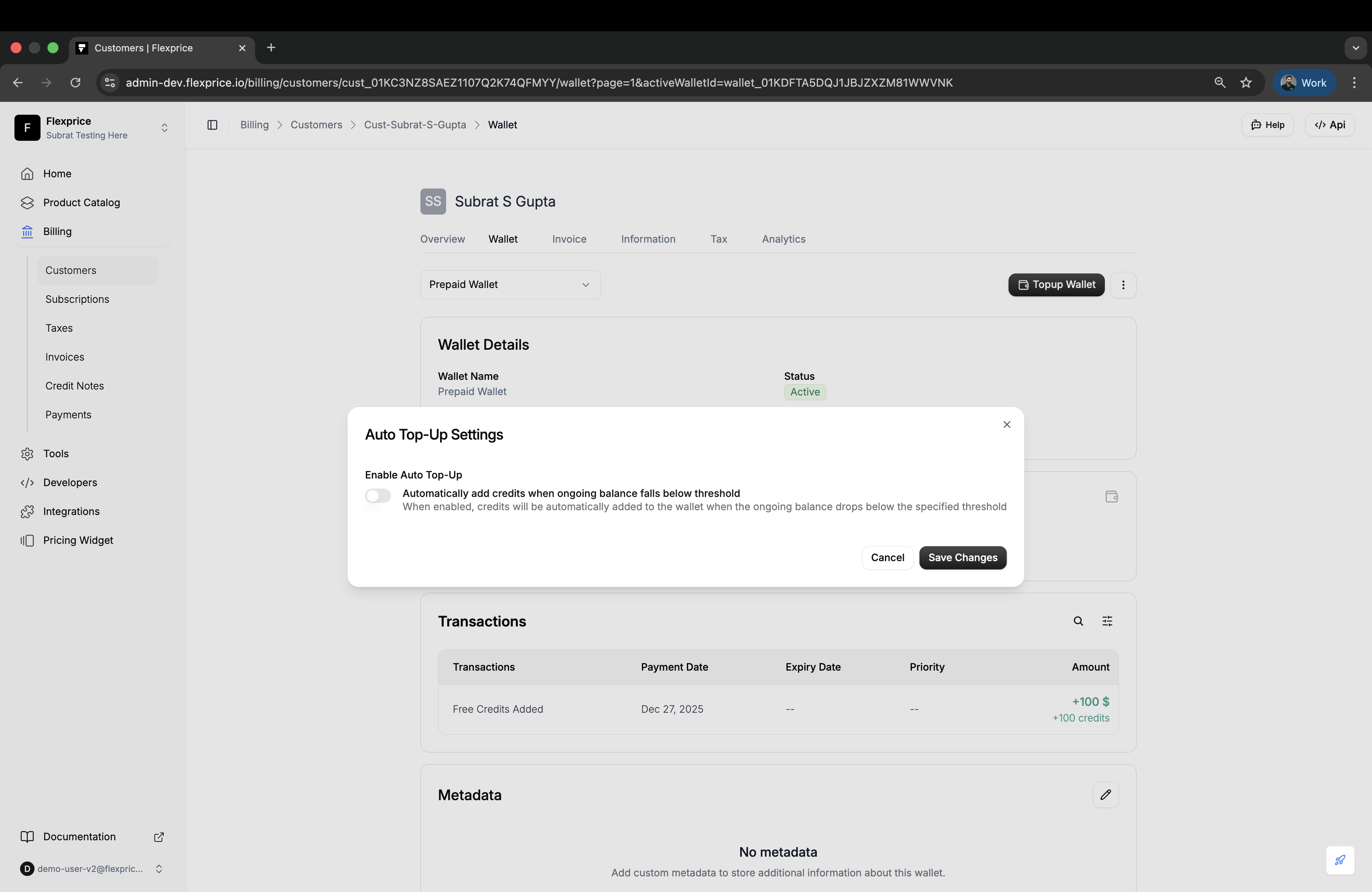
 Toggle the **Enable Auto Top-Up** switch to activate automatic wallet recharging
 Configure the following settings:
* **Threshold**: Enter the minimum ongoing balance amount that triggers auto top-up
* **Top-Up Amount**: Enter the number of credits to add when triggered
* **Invoicing Mode**: Toggle the switch to choose between:
* **Direct Credit**: Credits added immediately
* **Invoiced**: Invoice created, credits added after payment
Configure the following settings:
* **Threshold**: Enter the minimum ongoing balance amount that triggers auto top-up
* **Top-Up Amount**: Enter the number of credits to add when triggered
* **Invoicing Mode**: Toggle the switch to choose between:
* **Direct Credit**: Credits added immediately
* **Invoiced**: Invoice created, credits added after payment
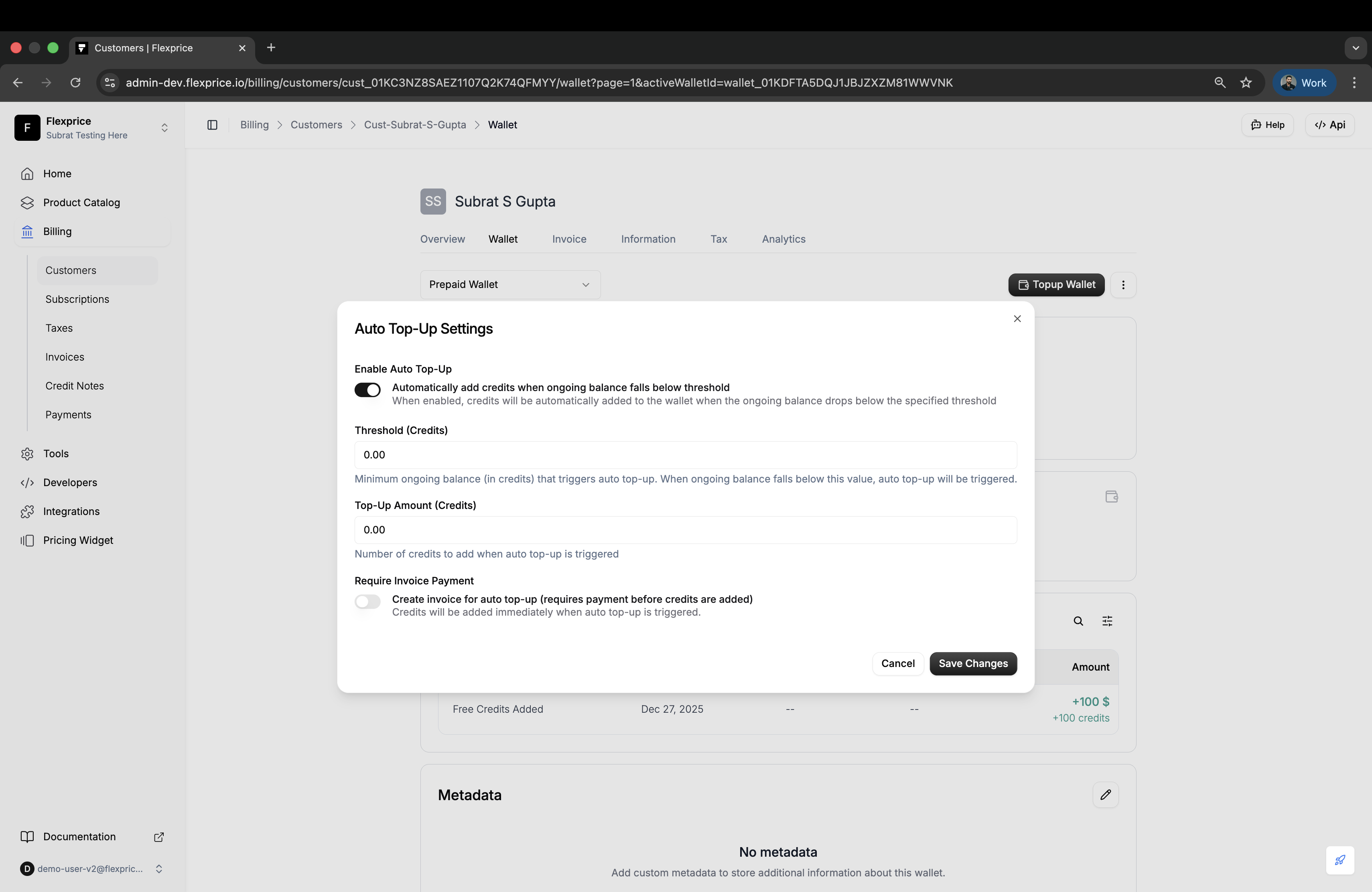 Click **Save Changes** to apply the auto top-up configuration
### Updating Auto Top-Up Settings
You can modify auto top-up configuration for existing wallets:
Go to **Billing** → **Customers** → Select customer → **Wallet** tab
Click the **three-dot menu (⋮)** in the top right corner of the wallet section
Select **Auto Topup** from the dropdown menu to enable auto top-up
Configure the following settings:
* **Threshold**: Enter the minimum ongoing balance amount that triggers auto top-up
* **Top-Up Amount**: Enter the number of credits to add when triggered
* **Invoicing Mode**: Toggle the switch to choose between:
* **Direct Credit**: Credits added immediately
* **Invoiced**: Invoice created, credits added after payment
Click **Save Changes** to apply the auto top-up configuration
**Note**: Partial updates are supported. You can update only specific fields without changing others.
## Auto Top-Up Configuration Options
### Threshold
The minimum ongoing balance that triggers auto top-up. When the ongoing balance falls to or below this value, the top-up is automatically triggered.
### Top-Up Amount
The number of credits to add to the wallet when auto top-up is triggered.
### Invoicing Mode
Determines how credits are added:
* **Direct Credit** (`invoicing: false`): Credits are immediately added to the wallet
* **Invoiced** (`invoicing: true`): An invoice is created, and credits are added after payment successful
## Auto Top-Up Workflow
### Direct Top-Up Flow
When `invoicing: false` is configured, credits are added immediately:
The wallet's ongoing balance falls to or below the configured threshold value
Flexprice automatically detects the low balance and triggers the top-up process
Credits are immediately added to the wallet balance
A wallet transaction is created with status `completed` and transaction reason `PURCHASED_CREDIT_DIRECT`
The wallet balance is updated instantly, and the transaction appears in the wallet transaction history
### Invoiced Top-Up Flow
When `invoicing: true` is configured, an invoice is created and credits are added after payment:
The wallet's ongoing balance falls to or below the configured threshold value
Flexprice automatically detects the low balance and triggers the top-up process
An invoice is created with status `pending` and linked to the wallet transaction
A wallet transaction is created with status `pending` and transaction reason `PURCHASED_CREDIT_INVOICED`
The wallet balance remains unchanged until the invoice is paid
When the invoice is paid:
* Transaction status changes to `completed`
* Credits are added to the wallet
* Wallet balance is updated
**Note**: If your account has `AutoCompletePurchasedCreditTransaction` enabled, invoiced top-ups may complete immediately without waiting for payment.
## Use Cases
### SaaS Companies
* **Usage-Based Billing**: Automatically top up wallets when usage depletes balance
* **Prepaid Plans**: Maintain minimum balance for prepaid customers
* **Service Continuity**: Prevent service interruptions for high-value customers
### API Providers
* **API Usage**: Maintain wallet balance for API consumption
* **Rate Limiting**: Prevent service disruption due to insufficient credits
* **Enterprise Customers**: Provide automated balance management for enterprise accounts
## Best Practices
💡 **Set Realistic Thresholds**: Choose threshold values that provide sufficient buffer before balance reaches zero. Consider typical usage patterns and top-up frequency.
💡 **Match Top-Up Amount to Usage**: Set top-up amounts that align with typical customer usage. Too small may trigger frequently; too large may tie up unnecessary funds.
💡 **Consider Invoicing Mode**: Use direct top-up for trusted customers with reliable payment methods. Use invoiced mode when you need payment confirmation before adding credits.
💡 **Monitor Transaction History**: Regularly review auto top-up transactions to understand patterns and optimize configuration.
💡 **Combine with Low Balance Alerts**: Use auto top-up alongside low balance alerts for comprehensive wallet management.
## Troubleshooting
### Auto Top-Up Not Triggering
**Possible Causes:**
* Auto top-up is disabled
* Ongoing balance is above threshold
**Solutions:**
* Verify auto top-up is enabled in wallet settings
* Check real-time balance vs. threshold value
### Credits Not Added (Invoiced Mode)
**Possible Causes:**
* Invoice is still pending payment
* Invoice payment failed
* Auto-complete setting is disabled
**Solutions:**
* Check invoice payment status
* Verify invoice payment was successful
* Review transaction status in wallet history
### Frequent Top-Ups
**Possible Causes:**
* Threshold set too high
* Top-up amount too small
* High usage depleting balance quickly
**Solutions:**
* Adjust threshold to a lower value
* Increase top-up amount
* Review customer usage patterns
## Related Documentation
* [Wallet Transactions](/docs/wallet/transactions) - Track and monitor all wallet transactions
* [Top-Up Wallet](/docs/wallet/top-up) - Learn about manual wallet top-ups
* [Low Balance Alert](/docs/wallet/low-balance-alert) - Configure balance alerts
Click **Save Changes** to apply the auto top-up configuration
### Updating Auto Top-Up Settings
You can modify auto top-up configuration for existing wallets:
Go to **Billing** → **Customers** → Select customer → **Wallet** tab
Click the **three-dot menu (⋮)** in the top right corner of the wallet section
Select **Auto Topup** from the dropdown menu to enable auto top-up
Configure the following settings:
* **Threshold**: Enter the minimum ongoing balance amount that triggers auto top-up
* **Top-Up Amount**: Enter the number of credits to add when triggered
* **Invoicing Mode**: Toggle the switch to choose between:
* **Direct Credit**: Credits added immediately
* **Invoiced**: Invoice created, credits added after payment
Click **Save Changes** to apply the auto top-up configuration
**Note**: Partial updates are supported. You can update only specific fields without changing others.
## Auto Top-Up Configuration Options
### Threshold
The minimum ongoing balance that triggers auto top-up. When the ongoing balance falls to or below this value, the top-up is automatically triggered.
### Top-Up Amount
The number of credits to add to the wallet when auto top-up is triggered.
### Invoicing Mode
Determines how credits are added:
* **Direct Credit** (`invoicing: false`): Credits are immediately added to the wallet
* **Invoiced** (`invoicing: true`): An invoice is created, and credits are added after payment successful
## Auto Top-Up Workflow
### Direct Top-Up Flow
When `invoicing: false` is configured, credits are added immediately:
The wallet's ongoing balance falls to or below the configured threshold value
Flexprice automatically detects the low balance and triggers the top-up process
Credits are immediately added to the wallet balance
A wallet transaction is created with status `completed` and transaction reason `PURCHASED_CREDIT_DIRECT`
The wallet balance is updated instantly, and the transaction appears in the wallet transaction history
### Invoiced Top-Up Flow
When `invoicing: true` is configured, an invoice is created and credits are added after payment:
The wallet's ongoing balance falls to or below the configured threshold value
Flexprice automatically detects the low balance and triggers the top-up process
An invoice is created with status `pending` and linked to the wallet transaction
A wallet transaction is created with status `pending` and transaction reason `PURCHASED_CREDIT_INVOICED`
The wallet balance remains unchanged until the invoice is paid
When the invoice is paid:
* Transaction status changes to `completed`
* Credits are added to the wallet
* Wallet balance is updated
**Note**: If your account has `AutoCompletePurchasedCreditTransaction` enabled, invoiced top-ups may complete immediately without waiting for payment.
## Use Cases
### SaaS Companies
* **Usage-Based Billing**: Automatically top up wallets when usage depletes balance
* **Prepaid Plans**: Maintain minimum balance for prepaid customers
* **Service Continuity**: Prevent service interruptions for high-value customers
### API Providers
* **API Usage**: Maintain wallet balance for API consumption
* **Rate Limiting**: Prevent service disruption due to insufficient credits
* **Enterprise Customers**: Provide automated balance management for enterprise accounts
## Best Practices
💡 **Set Realistic Thresholds**: Choose threshold values that provide sufficient buffer before balance reaches zero. Consider typical usage patterns and top-up frequency.
💡 **Match Top-Up Amount to Usage**: Set top-up amounts that align with typical customer usage. Too small may trigger frequently; too large may tie up unnecessary funds.
💡 **Consider Invoicing Mode**: Use direct top-up for trusted customers with reliable payment methods. Use invoiced mode when you need payment confirmation before adding credits.
💡 **Monitor Transaction History**: Regularly review auto top-up transactions to understand patterns and optimize configuration.
💡 **Combine with Low Balance Alerts**: Use auto top-up alongside low balance alerts for comprehensive wallet management.
## Troubleshooting
### Auto Top-Up Not Triggering
**Possible Causes:**
* Auto top-up is disabled
* Ongoing balance is above threshold
**Solutions:**
* Verify auto top-up is enabled in wallet settings
* Check real-time balance vs. threshold value
### Credits Not Added (Invoiced Mode)
**Possible Causes:**
* Invoice is still pending payment
* Invoice payment failed
* Auto-complete setting is disabled
**Solutions:**
* Check invoice payment status
* Verify invoice payment was successful
* Review transaction status in wallet history
### Frequent Top-Ups
**Possible Causes:**
* Threshold set too high
* Top-up amount too small
* High usage depleting balance quickly
**Solutions:**
* Adjust threshold to a lower value
* Increase top-up amount
* Review customer usage patterns
## Related Documentation
* [Wallet Transactions](/docs/wallet/transactions) - Track and monitor all wallet transactions
* [Top-Up Wallet](/docs/wallet/top-up) - Learn about manual wallet top-ups
* [Low Balance Alert](/docs/wallet/low-balance-alert) - Configure balance alerts