> ## Documentation Index
> Fetch the complete documentation index at: https://docs.flexprice.io/llms.txt
> Use this file to discover all available pages before exploring further.
# Chargebee Connection Setup
> Complete guide to setting up and configuring Chargebee connections in Flexprice
## Overview
A Chargebee connection in Flexprice stores encrypted credentials that allow the system to interact with your Chargebee account for:
* Creating item families, items, and item prices in Chargebee
* Synchronizing customers to Chargebee
* Syncing invoices to Chargebee for payment collection
* Receiving webhook notifications from Chargebee
## Prerequisites
Before setting up your Chargebee connection, ensure you have:
1. **Active Chargebee Account** - Sign up at [chargebee.com](https://chargebee.com)
2. **API Key** - Available in your Chargebee Dashboard
3. **Webhook Endpoint** - Configured in Chargebee Dashboard
4. **Flexprice Environment** - Valid tenant and environment IDs
## Step 1: Gather Chargebee Credentials
### Required Credentials
| Credential | Location in Chargebee Dashboard | Required | Purpose |
| -------------------- | ------------------------------------ | -------- | ------------------------------ |
| **Site Name** | Settings → API & Webhooks → Site | ✅ | Chargebee site identifier |
| **API Key** | Settings → API & Webhooks → API Keys | ✅ | API authentication |
| **Webhook Username** | Settings → API & Webhooks → Webhooks | ❌ | Basic Auth username (optional) |
| **Webhook Password** | Settings → API & Webhooks → Webhooks | ❌ | Basic Auth password (optional) |
### Finding Your Credentials
1. **Site Name:**
* Go to Chargebee Dashboard → Settings → API & Webhooks
* Your site name is displayed at the top (e.g., `acme-test`)
2. **API Key:**
* Go to Chargebee Dashboard → Settings → API & Webhooks → API Keys
* Copy your API key (starts with your site name)
* Use test API keys for development
3. **Webhook Credentials (Optional):**
* Go to Chargebee Dashboard → Settings → API & Webhooks → Webhooks
* Configure Basic Authentication for webhook security
* Copy the username and password
## Step 2: Configure Webhook Endpoint in Chargebee
### Webhook URL Format
```
https://api.cloud.flexprice.io/v1/webhooks/chargebee/tenant_01K1TJDVNSN7TWY8CZY870QMNV/env_01K1TJJF0CJR410C6QVPYQTNV0
```
### Required Webhook Events
Configure these events in your Chargebee webhook endpoint:
| Event Type | Purpose |
| ------------------- | ------------------------------------ |
| `payment_succeeded` | Track successful payment completions |
### Setting Up the Webhook
1. Go to Chargebee Dashboard → Settings → API & Webhooks → Webhooks
2. Click **+ Add New Webhook**
3. Enter your webhook URL
4. Select the required events listed above
5. Configure Basic Authentication (optional but recommended)
6. Click **Save**
## Step 3: Create Chargebee Connection
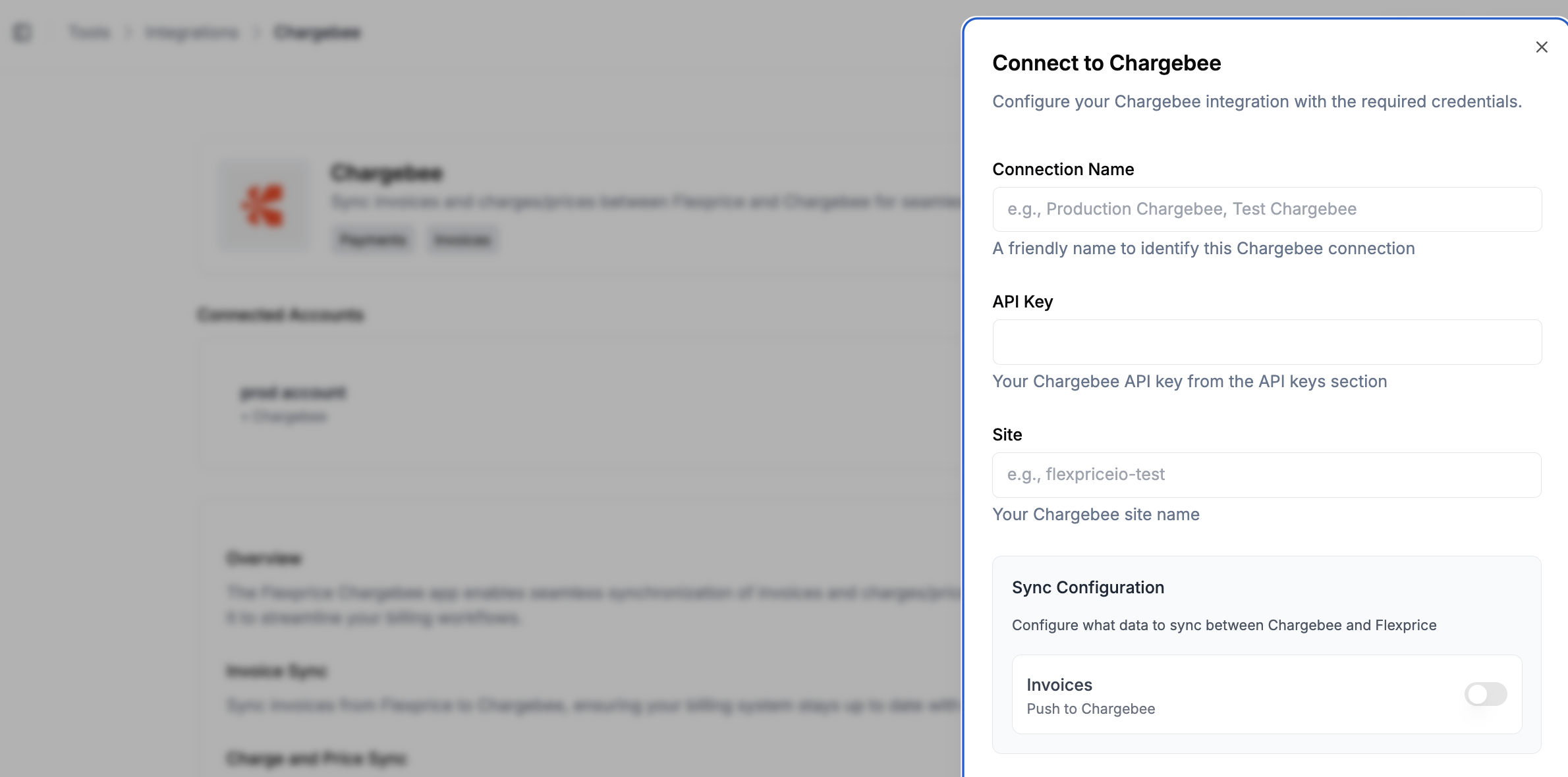
### Using Flexprice Dashboard
You can create a Chargebee connection directly from the Flexprice dashboard.
 ### API Request
**Endpoint:** `POST /api/v1/connections`
**Headers:**
```http theme={null}
Content-Type: application/json
Authorization: Bearer your_api_key
X-Tenant-ID: your_tenant_id
X-Environment-ID: your_environment_id
```
**Request Body:**
```json theme={null}
{
"name": "Chargebee Production",
"provider_type": "chargebee",
"encrypted_secret_data": {
"site": "acme-production",
"api_key": "acme-production_api_key_...",
"webhook_username": "webhook_user",
"webhook_password": "webhook_password"
}
}
```
### Response
```json theme={null}
{
"id": "conn_1234567890abcdef",
"name": "Chargebee Production",
"provider_type": "chargebee",
"status": "active",
"created_at": "2024-01-20T10:30:00Z",
"updated_at": "2024-01-20T10:30:00Z"
}
```
### Editing an Existing Connection
You can edit an existing Chargebee connection to update credentials, sync configuration, or webhook settings.
### API Request
**Endpoint:** `POST /api/v1/connections`
**Headers:**
```http theme={null}
Content-Type: application/json
Authorization: Bearer your_api_key
X-Tenant-ID: your_tenant_id
X-Environment-ID: your_environment_id
```
**Request Body:**
```json theme={null}
{
"name": "Chargebee Production",
"provider_type": "chargebee",
"encrypted_secret_data": {
"site": "acme-production",
"api_key": "acme-production_api_key_...",
"webhook_username": "webhook_user",
"webhook_password": "webhook_password"
}
}
```
### Response
```json theme={null}
{
"id": "conn_1234567890abcdef",
"name": "Chargebee Production",
"provider_type": "chargebee",
"status": "active",
"created_at": "2024-01-20T10:30:00Z",
"updated_at": "2024-01-20T10:30:00Z"
}
```
### Editing an Existing Connection
You can edit an existing Chargebee connection to update credentials, sync configuration, or webhook settings.
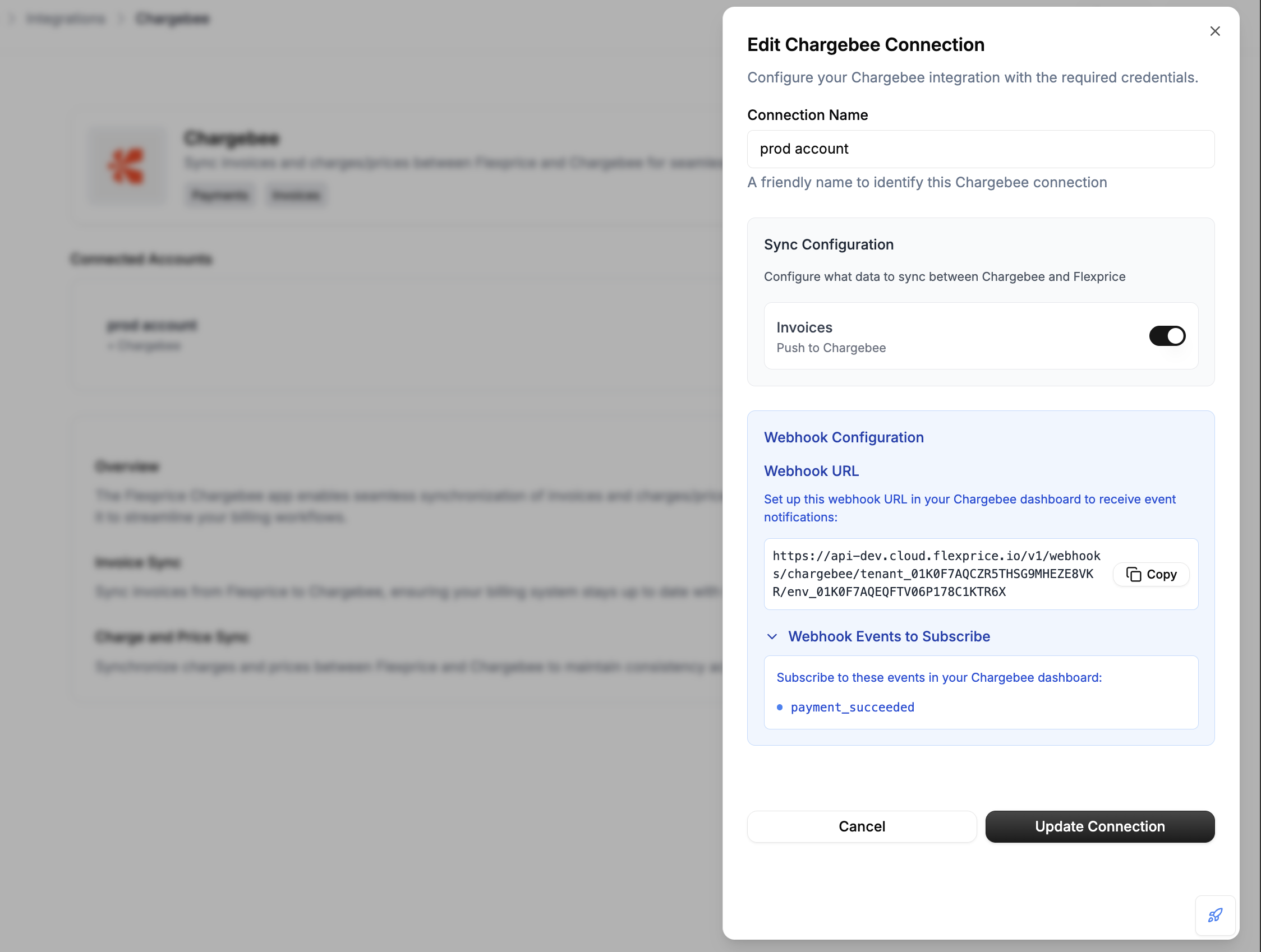 **Editable Fields:**
* **Connection Name**: Update the friendly name for the connection
* **API Key**: Update Chargebee API key if rotated
* **Site**: Update Chargebee site name
* **Sync Configuration**: Enable or disable invoice sync
* **Webhook Configuration**: Update webhook username and password
## Security Best Practices
### Credential Management
1. **Environment Separation**: Use different API keys for test/production
2. **Key Rotation**: Regularly rotate your Chargebee API keys
3. **Access Control**: Limit API key permissions in Chargebee
4. **Encryption**: All credentials are encrypted at rest in Flexprice
### Webhook Security
1. **HTTPS Only**: Always use HTTPS for webhook endpoints
2. **Basic Authentication**: Use Basic Auth for webhook verification (recommended)
3. **Secret Management**: Keep webhook credentials secure and rotate regularly
4. **Rate Limiting**: Implement rate limiting on webhook endpoints
## Troubleshooting
### Common Issues
| Issue | Cause | Solution |
| --------------------- | ---------------------------- | ----------------------------------------------- |
| Connection test fails | Invalid API key or site name | Verify credentials in Chargebee Dashboard |
| Webhook not received | Incorrect webhook URL | Check URL format and endpoint |
| Authentication fails | Wrong webhook credentials | Update webhook username/password in connection |
| API calls fail | Invalid site name | Verify site name matches your Chargebee account |
### Debug Steps
1. **Check Chargebee Dashboard**: Verify API key and site name
2. **Test API Key**: Use Chargebee API to test key validity
3. **Monitor Webhooks**: Check webhook delivery logs in Chargebee
4. **Review Logs**: Check Flexprice application logs for errors
## Next Steps
After setting up your Chargebee connection:
1. **Create Item Family**: Create an item family in Chargebee (required for plan sync)
2. **Sync Plans**: Sync your Flexprice plans to Chargebee
3. **Test Invoice Sync**: Create a test invoice and sync to Chargebee
4. **Monitor Webhooks**: Ensure webhook events are being received
5. **Go Live**: Switch to production credentials when ready
**Editable Fields:**
* **Connection Name**: Update the friendly name for the connection
* **API Key**: Update Chargebee API key if rotated
* **Site**: Update Chargebee site name
* **Sync Configuration**: Enable or disable invoice sync
* **Webhook Configuration**: Update webhook username and password
## Security Best Practices
### Credential Management
1. **Environment Separation**: Use different API keys for test/production
2. **Key Rotation**: Regularly rotate your Chargebee API keys
3. **Access Control**: Limit API key permissions in Chargebee
4. **Encryption**: All credentials are encrypted at rest in Flexprice
### Webhook Security
1. **HTTPS Only**: Always use HTTPS for webhook endpoints
2. **Basic Authentication**: Use Basic Auth for webhook verification (recommended)
3. **Secret Management**: Keep webhook credentials secure and rotate regularly
4. **Rate Limiting**: Implement rate limiting on webhook endpoints
## Troubleshooting
### Common Issues
| Issue | Cause | Solution |
| --------------------- | ---------------------------- | ----------------------------------------------- |
| Connection test fails | Invalid API key or site name | Verify credentials in Chargebee Dashboard |
| Webhook not received | Incorrect webhook URL | Check URL format and endpoint |
| Authentication fails | Wrong webhook credentials | Update webhook username/password in connection |
| API calls fail | Invalid site name | Verify site name matches your Chargebee account |
### Debug Steps
1. **Check Chargebee Dashboard**: Verify API key and site name
2. **Test API Key**: Use Chargebee API to test key validity
3. **Monitor Webhooks**: Check webhook delivery logs in Chargebee
4. **Review Logs**: Check Flexprice application logs for errors
## Next Steps
After setting up your Chargebee connection:
1. **Create Item Family**: Create an item family in Chargebee (required for plan sync)
2. **Sync Plans**: Sync your Flexprice plans to Chargebee
3. **Test Invoice Sync**: Create a test invoice and sync to Chargebee
4. **Monitor Webhooks**: Ensure webhook events are being received
5. **Go Live**: Switch to production credentials when ready