> ## Documentation Index
> Fetch the complete documentation index at: https://docs.flexprice.io/llms.txt
> Use this file to discover all available pages before exploring further.
# Moyasar Connection Setup
> Complete guide to setting up and configuring Moyasar connections in Flexprice
## Overview
A Moyasar connection in Flexprice stores encrypted credentials so Flexprice can sync invoices to Moyasar, generate payment links, and enable autopay via the Flexprice checkout page.
### Steps required
Get your Secret Key, Publishable Key, and Webhook Secret from the Moyasar Dashboard.
Add the webhook URL in Moyasar, select `payment_paid`, and copy the Webhook Secret.
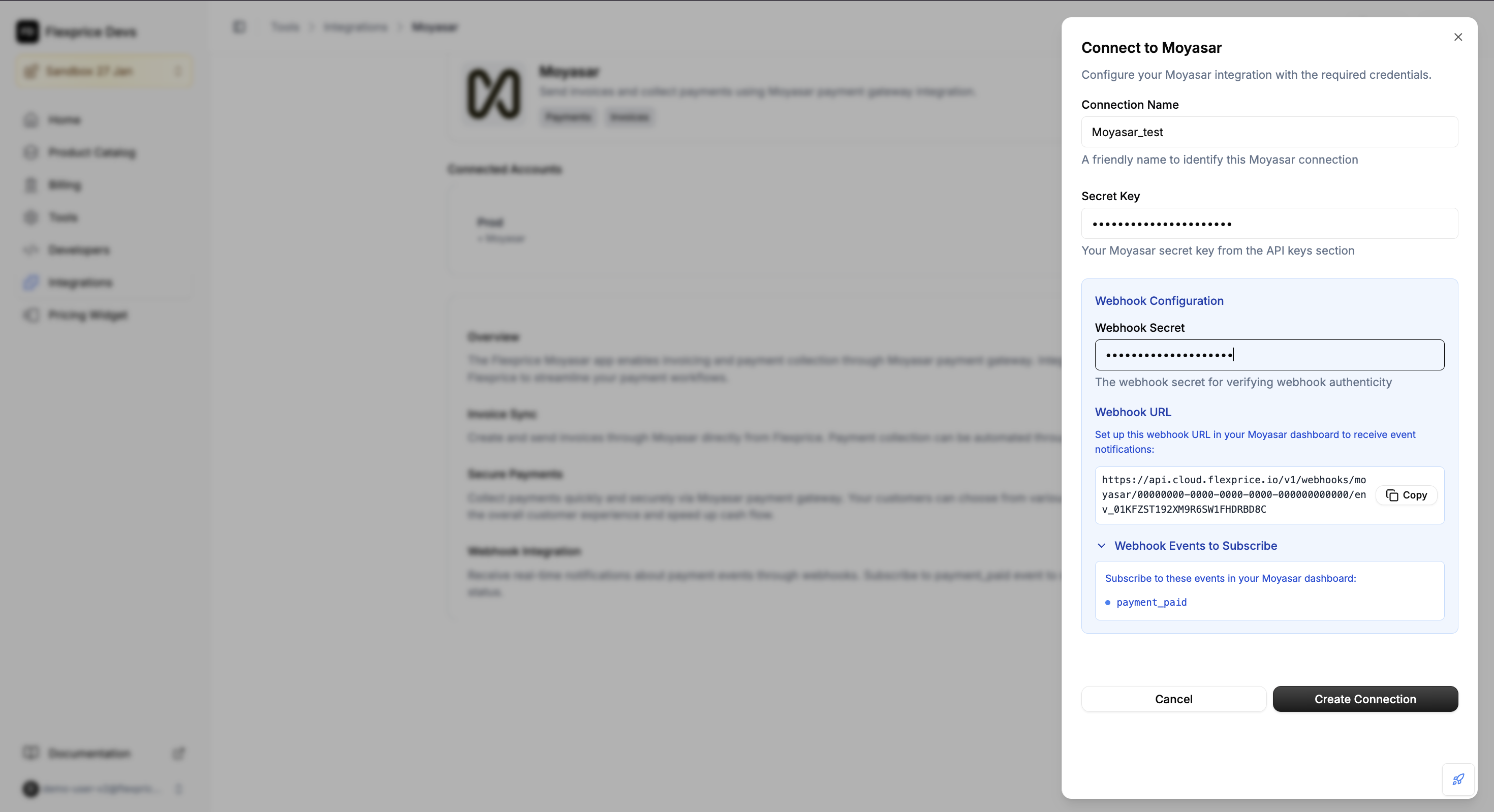
In the Flexprice dashboard (Integrations → Moyasar → Add a connection), enter your Secret Key, Publishable Key, and Webhook Secret.
## Gather Moyasar Credentials
### Required Credentials
| Credential | Location in Moyasar Dashboard | Required | Purpose |
| ------------------- | -------------------------------------- | -------- | ------------------------------------------------------------- |
| **Secret Key** | Settings → API Keys | ✅ | API authentication for all server-side operations |
| **Publishable Key** | Settings → API Keys | ✅ | Required for the Flexprice checkout page (autopay card entry) |
| **Webhook Secret** | Settings → Webhooks → \[Your Endpoint] | ✅ | Webhook signature verification |
### Finding Your Credentials
Go to Moyasar Dashboard → Settings → API Keys. Copy both your **Secret Key** (starts with `sk_`) and your **Publishable Key** (starts with `pk_`). Both are required.
Go to Moyasar Dashboard → Settings → Webhooks. Create or select your webhook endpoint and copy the webhook secret (used to verify that events are from Moyasar).
### Required Webhook Events
Configure the following events so Flexprice can update invoice status when payments occur:
| Event Type | Purpose |
| -------------- | ------------------------------------ |
| `payment_paid` | Track successful payment completions |
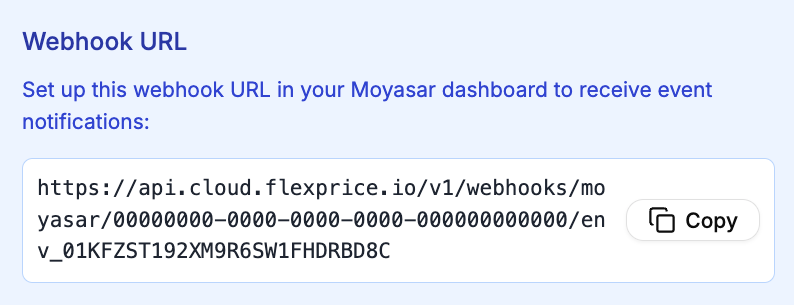
### Webhook configuration endpoint URL
In the Moyasar Dashboard, use this Flexprice webhook URL when creating your webhook.
```
https://api.cloud.flexprice.io/v1/webhooks/moyasar/tenant_YOUR_TENANT_ID/env_YOUR_ENV_ID
```
*(If you use a different Flexprice region, use the base URL for your region instead of `https://api.cloud.flexprice.io`.)*
 ### Setting Up the Webhook
Go to Moyasar Dashboard → Settings → Webhooks and click **+ Add New Webhook**.
Enter the Flexprice webhook endpoint URL (see **Webhook configuration endpoint URL** above) and select `payment_paid`.
Click **Create Webhook**, then copy the **Webhook Secret** and save it for your Flexprice connection.
## Create Moyasar Connection
### Using Flexprice Dashboard
Go to **Flexprice dashboard** → **Integrations** → **Moyasar** → **Add a connection**.
Enter your Secret Key, Publishable Key, and Webhook Secret.
Click to create the connection. Flexprice will store your credentials securely.
### Setting Up the Webhook
Go to Moyasar Dashboard → Settings → Webhooks and click **+ Add New Webhook**.
Enter the Flexprice webhook endpoint URL (see **Webhook configuration endpoint URL** above) and select `payment_paid`.
Click **Create Webhook**, then copy the **Webhook Secret** and save it for your Flexprice connection.
## Create Moyasar Connection
### Using Flexprice Dashboard
Go to **Flexprice dashboard** → **Integrations** → **Moyasar** → **Add a connection**.
Enter your Secret Key, Publishable Key, and Webhook Secret.
Click to create the connection. Flexprice will store your credentials securely.
 ## Connection Configuration
### Default Currency (required in Moyasar)
The default currency for Moyasar is **SAR** (Saudi Riyal).
* **Supported Currencies**: SAR, USD, EUR, KWD, etc.
* **Currency Precision**: Moyasar requires amounts in the **smallest currency unit** (e.g., Halalah for SAR). Flexprice handles this conversion automatically.
### Currency Precision Table
| Currency | Precision | Unit | Example |
| -------- | --------- | ------- | ------------------ |
| SAR | 2 | Halalah | 10.00 SAR = 1000 |
| USD | 2 | Cents | 10.00 USD = 1000 |
| KWD | 3 | Fils | 10.000 KWD = 10000 |
| JPY | 0 | Yen | 1000 JPY = 1000 |
## Security Best Practices
Webhooks must use HTTPS.
Always configure the `webhook_secret` to enable HMAC-SHA256 signature verification.
Rotate API keys periodically from the Moyasar dashboard.
## Troubleshooting
| Issue | Cause | Solution |
| ---------------------------- | ---------------------- | ------------------------------------------------- |
| Connection test fails | Invalid `Secret Key` | Verify the key in Moyasar Dashboard. |
| Webhook not updating invoice | Event type mismatch | Ensure specific `payment_paid` event is selected. |
| Webhook signature error | Wrong `Webhook Secret` | Update the secret in Flexprice connection. |
| Invoice not syncing | Missing credentials | Ensure connection is active and valid. |
## Connection Configuration
### Default Currency (required in Moyasar)
The default currency for Moyasar is **SAR** (Saudi Riyal).
* **Supported Currencies**: SAR, USD, EUR, KWD, etc.
* **Currency Precision**: Moyasar requires amounts in the **smallest currency unit** (e.g., Halalah for SAR). Flexprice handles this conversion automatically.
### Currency Precision Table
| Currency | Precision | Unit | Example |
| -------- | --------- | ------- | ------------------ |
| SAR | 2 | Halalah | 10.00 SAR = 1000 |
| USD | 2 | Cents | 10.00 USD = 1000 |
| KWD | 3 | Fils | 10.000 KWD = 10000 |
| JPY | 0 | Yen | 1000 JPY = 1000 |
## Security Best Practices
Webhooks must use HTTPS.
Always configure the `webhook_secret` to enable HMAC-SHA256 signature verification.
Rotate API keys periodically from the Moyasar dashboard.
## Troubleshooting
| Issue | Cause | Solution |
| ---------------------------- | ---------------------- | ------------------------------------------------- |
| Connection test fails | Invalid `Secret Key` | Verify the key in Moyasar Dashboard. |
| Webhook not updating invoice | Event type mismatch | Ensure specific `payment_paid` event is selected. |
| Webhook signature error | Wrong `Webhook Secret` | Update the secret in Flexprice connection. |
| Invoice not syncing | Missing credentials | Ensure connection is active and valid. |