> ## Documentation Index
> Fetch the complete documentation index at: https://docs.flexprice.io/llms.txt
> Use this file to discover all available pages before exploring further.
# Nomod Connection Setup
> Complete guide to setting up and configuring Nomod connections in Flexprice
## Overview
A Nomod connection in Flexprice lets you:
* **Sync customers** from Flexprice to Nomod
* **Sync invoices** from Flexprice to Nomod
* **Create payment links** for invoices so customers can pay via Nomod
* **Receive payment** (e.g. link paid, invoice paid) in Flexprice
* **Process payments** through Nomod’s secure checkout
## Prerequisites
Before you start, have:
1. **Nomod account** – [Nomod app](https://nomod.com) ([Play Store](https://nomod.app/g) / [App Store](https://nomod.app/a))
2. **Flexprice account** – [https://flexprice.io/](https://flexprice.io/)
## Keys you need
| Key | Where to get it | What it’s for |
| ------------------ | --------------------------------------------------------------------------------------- | ------------------------------------------------------------------------- |
| **Nomod API key** | Nomod app → **Connect and Manage Integrations** | Payment links, invoices, and Nomod integration in Flexprice |
| **Zapier API key** | Nomod app - **Settings** → **Business** → **Connect apps and manage keys** → **Zapier** | Contact Flexprice team to set up the Zapier Zap and webhook configuration |
## Create Nomod Connection
### Using Flexprice Dashboard
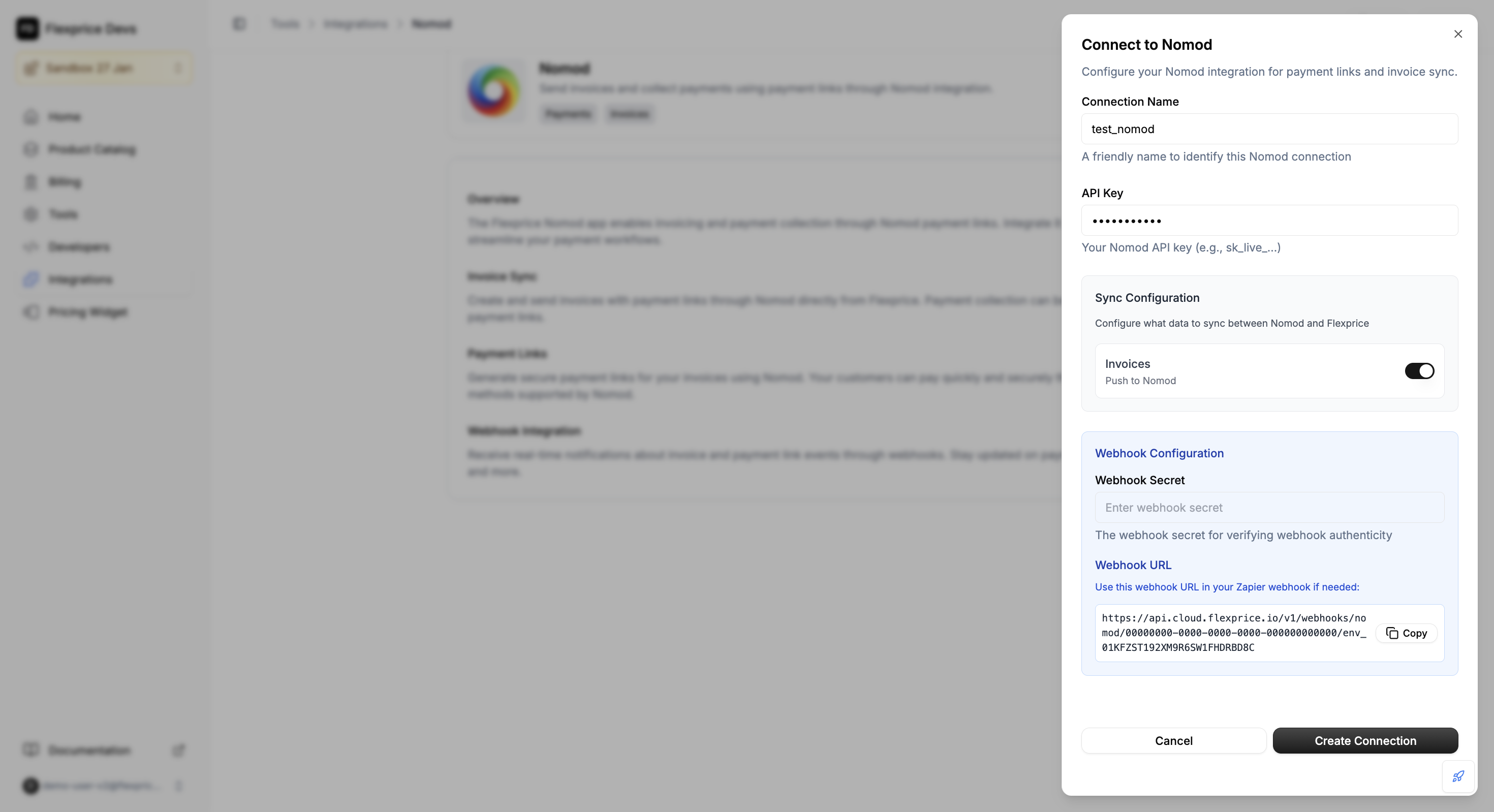
Go to **Flexprice dashboard** → **Integrations** → **Nomod** → **Add a connection**.
 ### Setup at a glance
Choose a name for this Nomod connection so you can identify it in Flexprice.
Get your **Nomod API key** from the Nomod app (Connect and Manage Integrations).
**Invoice sync = true** means Flexprice pushes invoices to Nomod.
**Invoice sync = false** means Flexprice does not push invoices to Nomod (invoices stay only in Flexprice).
Use any secure random name or string for webhook verification and provide it to the Flexprice team as well.
Nomod does not support webhooks. For webhook configuration, contact us.
### Why Zapier?
Nomod does not support webhooks directly.
Zapier offers a pre-built Nomod app for webhook events.
Provide your **Zapier API key** and **webhook secret** to Flexprice so it can receive Nomod events (e.g. Link Paid, Invoice Paid).
Flexprice creates and manages the Zapier connection for you. Contact the Flexprice team to set up the Zapier Zap and webhook configuration.
## Configure Connection Settings
### Editing a Connection
Navigate to the Nomod integration page
Find your connection in the "Connected Accounts" list
Click the edit icon (pencil)
Modify settings as needed
Click **"Update Connection"**
**Note**: API Key and Webhook Secret cannot be edited after creation for security reasons.
### Deleting a Connection
Navigate to the Nomod integration page
Find your connection in the "Connected Accounts" list
Click the delete icon (trash) for the connection you want to remove.
Confirm deletion in the dialog. The connection will be removed and Nomod payment processing for it will stop.
**Warning:** Deleting a connection will disable all Nomod payment processing for that connection.
## Security Best Practices
### Credential Management
1. **Environment Separation**: Use different keys for test/production
2. **Key Rotation**: Regularly rotate your Nomod API keys
3. **Access Control**: Limit API key permissions in Nomod
4. **Encryption**: All credentials are encrypted at rest in Flexprice
## Troubleshooting
### Common Issues
| Issue | Cause | Solution |
| ----------------------------- | --------------------------------- | ---------------------------------------------------------------------------------- |
| Connection creation fails | Invalid Nomod API key | Verify key in Nomod app → Connect and Manage Integrations |
| Events not reaching Flexprice | Invalid or missing Zapier API key | Verify Zapier API key in the connection; Flexprice uses it for webhook integration |
| Invoice sync fails | Sync not enabled | Enable invoice outbound sync in the connection |
## Next steps
After your Nomod connection is set up:
1. **Test payment links** – Create a test payment link and confirm the flow works.
2. **Check events** – Ensure your Zapier API key is correct and events reach Flexprice (Flexprice handles the Zapier integration).
3. **Enable invoice sync** – If you want invoices pushed to Nomod, turn on **Push to Nomod** in the connection.
4. **Go live** – When ready, switch to production keys in Nomod and Flexprice.
### Setup at a glance
Choose a name for this Nomod connection so you can identify it in Flexprice.
Get your **Nomod API key** from the Nomod app (Connect and Manage Integrations).
**Invoice sync = true** means Flexprice pushes invoices to Nomod.
**Invoice sync = false** means Flexprice does not push invoices to Nomod (invoices stay only in Flexprice).
Use any secure random name or string for webhook verification and provide it to the Flexprice team as well.
Nomod does not support webhooks. For webhook configuration, contact us.
### Why Zapier?
Nomod does not support webhooks directly.
Zapier offers a pre-built Nomod app for webhook events.
Provide your **Zapier API key** and **webhook secret** to Flexprice so it can receive Nomod events (e.g. Link Paid, Invoice Paid).
Flexprice creates and manages the Zapier connection for you. Contact the Flexprice team to set up the Zapier Zap and webhook configuration.
## Configure Connection Settings
### Editing a Connection
Navigate to the Nomod integration page
Find your connection in the "Connected Accounts" list
Click the edit icon (pencil)
Modify settings as needed
Click **"Update Connection"**
**Note**: API Key and Webhook Secret cannot be edited after creation for security reasons.
### Deleting a Connection
Navigate to the Nomod integration page
Find your connection in the "Connected Accounts" list
Click the delete icon (trash) for the connection you want to remove.
Confirm deletion in the dialog. The connection will be removed and Nomod payment processing for it will stop.
**Warning:** Deleting a connection will disable all Nomod payment processing for that connection.
## Security Best Practices
### Credential Management
1. **Environment Separation**: Use different keys for test/production
2. **Key Rotation**: Regularly rotate your Nomod API keys
3. **Access Control**: Limit API key permissions in Nomod
4. **Encryption**: All credentials are encrypted at rest in Flexprice
## Troubleshooting
### Common Issues
| Issue | Cause | Solution |
| ----------------------------- | --------------------------------- | ---------------------------------------------------------------------------------- |
| Connection creation fails | Invalid Nomod API key | Verify key in Nomod app → Connect and Manage Integrations |
| Events not reaching Flexprice | Invalid or missing Zapier API key | Verify Zapier API key in the connection; Flexprice uses it for webhook integration |
| Invoice sync fails | Sync not enabled | Enable invoice outbound sync in the connection |
## Next steps
After your Nomod connection is set up:
1. **Test payment links** – Create a test payment link and confirm the flow works.
2. **Check events** – Ensure your Zapier API key is correct and events reach Flexprice (Flexprice handles the Zapier integration).
3. **Enable invoice sync** – If you want invoices pushed to Nomod, turn on **Push to Nomod** in the connection.
4. **Go live** – When ready, switch to production keys in Nomod and Flexprice.