> ## Documentation Index
> Fetch the complete documentation index at: https://docs.flexprice.io/llms.txt
> Use this file to discover all available pages before exploring further.
# Razorpay Payment Links & Invoice Sync
> Complete guide to creating payment links and handling the Razorpay checkout flow
## Overview
Payment links in Flexprice provide a secure, hosted checkout experience powered by Razorpay. Customers click a payment URL and are redirected to Razorpay's secure checkout page to complete their payment.
### Key Features
* **Secure Checkout**: Hosted by Razorpay with PCI compliance
* **Multiple Payment Methods**: Cards, UPI, netbanking, wallets, and more
* **Real-time Updates**: Webhook-driven status updates
* **Invoice Integration**: Automatic invoice reconciliation
* **Auto-generated Links**: Razorpay automatically generates payment link URLs
## Payment Link Lifecycle
```mermaid theme={null}
graph TD
A[Create Payment Request] --> B[Validate Invoice
& Customer]
B --> C[Create Payment Record
INITIATED]
C --> D[Generate Razorpay
Payment Link]
D --> E{Link Created?}
E -->|Success| F[Update Status
PENDING]
E -->|Failure| G[Keep Status
INITIATED]
F --> H[Return Payment URL]
H --> I[Customer Clicks Link]
I --> J[Razorpay Checkout]
J --> K[Enter Payment Details]
K --> L{Payment
Successful?}
L -->|Yes| M[Webhook:
payment.captured]
L -->|No| N[Webhook:
payment.failed]
M --> O[Status: SUCCEEDED]
N --> P[Status: FAILED]
O --> Q[Reconcile Invoice]
P --> R[Log Failure]
```
## Payment Status Flow
### Status Transitions
```
INITIATED → PENDING → SUCCEEDED
↓ ↓ ↓
FAILED FAILED REFUNDED
```
### Status Definitions
| Status | Description | Triggers |
| ------------ | ----------------------------------------------------- | ------------------------------------ |
| `INITIATED` | Payment record created, Razorpay link not yet created | Initial payment creation |
| `PENDING` | Razorpay payment link created successfully | Successful Razorpay API call |
| `PROCESSING` | Payment is being processed | Temporary status during updates |
| `SUCCEEDED` | Payment completed successfully | Razorpay webhook: `payment.captured` |
| `FAILED` | Payment attempt failed | Razorpay webhook: `payment.failed` |
| `REFUNDED` | Payment was refunded | Manual refund processing |
## Creating Payment Links
### Prerequisites
1. **Razorpay Connection**: Active Razorpay connection configured
2. **Customer Sync**: Customer must have Razorpay customer ID
3. **Invoice Status**: Invoice must be finalized and unpaid
4. **Valid Amount**: Payment amount must match invoice outstanding
5. **Currency Minimums**: Ensure amounts meet Razorpay minimums
### Currency Minimum Amounts
Razorpay requires minimum amounts in the smallest currency subunit:
| Currency | Minimum amount (in smallest subunit) | Equivalent Minimum Value |
| -------- | ------------------------------------ | ------------------------ |
| INR | 100 | ₹1.00 |
| USD | 1 | \$0.01 |
**Important**: Amounts are automatically converted to smallest currency units (paise for INR, cents for USD) when creating payment links.
### API Request
**Endpoint:** `POST /api/v1/payments`
**Headers:**
```http theme={null}
Content-Type: application/json
Authorization: Bearer your_api_key
X-Environment-ID: your_environment_id
```
**Request Body:**
```json theme={null}
{
"amount": 100,
"currency": "inr",
"destination_id": "inv_01K34HYZN03V6X8Q6V3T8X6G4F",
"destination_type": "INVOICE",
"payment_method_type": "PAYMENT_LINK",
"process_payment": true,
"payment_gateway": "razorpay",
"success_url": "https://admin.flexprice.io/customer-management/invoices/inv_01K34HYZN03V6X8Q6V3T8X6G4F?page=1"
}
```
### Response
```json theme={null}
{
"id": "pay_1234567890abcdef",
"payment_status": "pending",
"payment_url": "https://rzp.io/i/abc123",
"amount": "100.00",
"currency": "inr",
"gateway_tracking_id": "plink_1234567890abcdef",
"created_at": "2024-01-20T10:30:00Z",
"metadata": {
"razorpay_payment_link_id": "plink_1234567890abcdef"
}
}
```
**Note**: The `payment_url` is automatically generated by Razorpay and returned as a short URL (e.g., `https://rzp.io/i/abc123`).
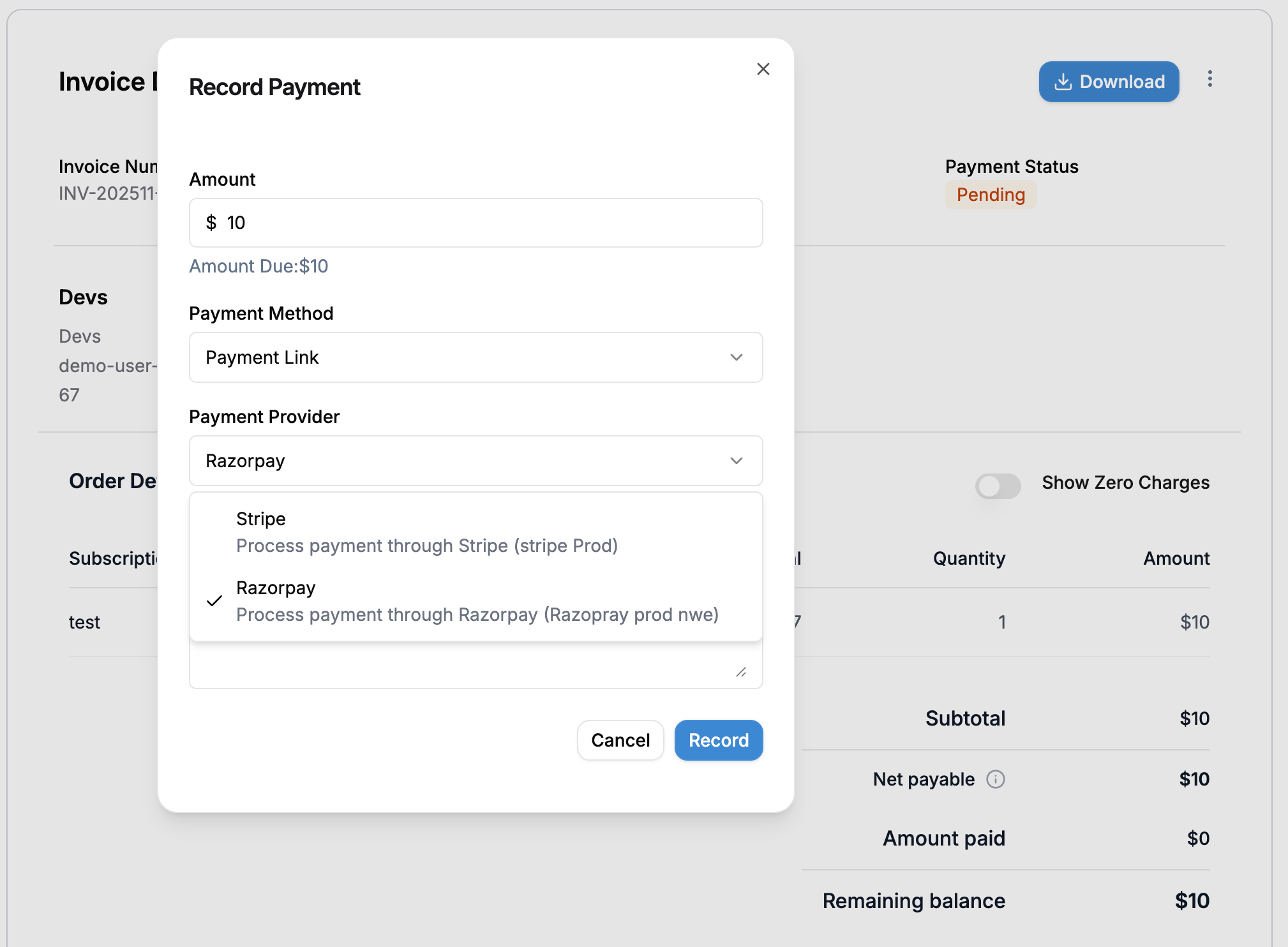
### Creating Payment Links via Dashboard
You can also create payment links directly from the Flexprice dashboard:
 ## Payment Link Configuration
### Required Fields
| Field | Type | Required | Description |
| --------------------- | ------- | -------- | ------------------------------------- |
| `destination_type` | string | ✅ | Must be `"INVOICE"` |
| `destination_id` | string | ✅ | Valid invoice ID |
| `payment_method_type` | string | ✅ | Must be `"PAYMENT_LINK"` |
| `payment_gateway` | string | ✅ | Must be `"razorpay"` |
| `amount` | string | ✅ | Payment amount (must match invoice) |
| `currency` | string | ✅ | Valid currency code (INR, USD, etc.) |
| `process_payment` | boolean | ✅ | Set to `true` to create Razorpay link |
| `success_url` | string | ❌ | Callback URL after payment (optional) |
## Razorpay Payment Link Configuration
### Default Payment Link Settings
When creating payment links, Flexprice automatically configures Razorpay with:
* **Payment Methods**: Cards, UPI, netbanking, wallets, and more
* **Currency**: Matches the payment currency
* **Amount**: Exact payment amount (converted to smallest unit)
* **Customer**: Pre-filled with customer data
* **Description**: Invoice details and line items
* **Notifications**: Email and SMS notifications enabled
* **Reminders**: Payment reminders enabled
### Callback URL
Razorpay uses a single `callback_url` for both successful and cancelled payments:
* **Success**: Customer is redirected to `callback_url` with payment details
* **Cancel**: Customer is redirected to `callback_url` with cancellation status
* **Method**: Only GET method is supported for payment links
## Webhook Processing
### Payment Completion Webhook
When a payment is completed, Razorpay sends a `payment.captured` webhook:
```json theme={null}
{
"event": "payment.captured",
"payload": {
"payment": {
"entity": {
"id": "pay_1234567890abcdef",
"amount": 10000,
"currency": "INR",
"status": "captured",
"invoice_id": "inv_razorpay123",
"notes": {
"flexprice_payment_id": "pay_1234567890abcdef"
}
}
}
}
}
```
### Webhook Processing Flow
1. **Receive Webhook**: Flexprice receives the webhook from Razorpay
2. **Verify Signature**: Validate webhook signature for security
3. **Find Payment**: Locate payment record using payment ID from notes
4. **Update Status**: Change payment status to `SUCCEEDED`
5. **Reconcile Invoice**: Update invoice payment status and amounts
6. **Trigger Events**: Send payment completion events
## Error Handling
### Common Payment Errors
| Error | Cause | Resolution |
| -------------------------------- | ---------------------- | ----------------------------------------------------------- |
| "Customer not found in Razorpay" | Customer not synced | Sync customer to Razorpay first |
| "Invalid invoice amount" | Amount mismatch | Ensure amount matches invoice |
| "Invoice already paid" | Invoice status issue | Check invoice payment status |
| "Amount below minimum" | Below currency minimum | Ensure amount meets minimum (₹1.00 for INR, \$0.01 for USD) |
| "Razorpay link creation failed" | API error | Check Razorpay connection |
### Payment Failure Handling
When payments fail:
1. **Webhook Received**: Razorpay sends `payment.failed` webhook
2. **Status Updated**: Payment status changed to `FAILED`
3. **Error Logged**: Failure reason recorded
4. **Customer Notified**: Optional failure notification
5. **Retry Available**: Customer can create new payment link
## Testing Payment Links
### Test Environment Setup
1. **Use Test Keys**: Configure Razorpay test mode
2. **Test Cards**: Use Razorpay's test card numbers
3. **Test Webhooks**: Use ngrok for local webhook testing
### Test Card Numbers
#### Test Cards for Indian Payments
| Card Network | Card Number | CVV | Expiry Date |
| ------------ | --------------------- | ---------- | --------------- |
| Mastercard | `2305 3242 5784 8228` | Random CVV | Any future date |
| Visa | `4386 2894 0766 0153` | Random CVV | Any future date |
#### Test Cards for International Payments
| Card Network | Card Number | CVV | Expiry Date |
| ------------ | --------------------- | ---------- | --------------- |
| Mastercard | `5421 1393 0609 0628` | Random CVV | Any future date |
| Mastercard | `5105 1051 0510 5100` | Random CVV | Any future date |
| Mastercard | `5104 0600 0000 0008` | Random CVV | Any future date |
| Visa | `4012 8888 8888 1881` | Random CVV | Any future date |
### Test UPI IDs
| UPI ID | Description |
| ------------------ | ------------------ |
| `success@razorpay` | Successful payment |
| `failure@razorpay` | Failed payment |
#### To use the test UPI ID details:
1. At the Checkout, select **UPI** as the payment method
2. Enter the UPI ID
3. **Test payment success flow** using `success@razorpay`
4. **Test payment failure flow** using `failure@razorpay`
**Watch Out!**
In test mode, payment cancellation will result in a successful payment. Use the live mode to test payment cancellation on UPI.
### Testing Flow
1. **Create Test Payment**: Use test invoice and customer
2. **Generate Payment Link**: Create payment with test data
3. **Complete Payment**:
* Use test card numbers listed above in Razorpay checkout
* Or use test UPI ID `success@razorpay` for UPI payments
4. **Verify Webhook**: Check webhook processing
5. **Confirm Status**: Verify payment and invoice updates
## Invoice Integration
### Payment Links from Synced Invoices
When an invoice is synced to Razorpay:
1. **Invoice Sync**: Invoice is created in Razorpay with payment URL
2. **Payment Link Reuse**: If payment link is requested for synced invoice, the existing Razorpay invoice payment URL is returned
3. **Automatic Association**: Payments made through the URL are automatically associated with the invoice
### Invoice Sync Timing
Invoices are automatically synced to Razorpay when:
* Invoice is finalized (status changes from `DRAFT` to `FINALIZED`)
* Invoice outbound sync is enabled in the Razorpay connection
* Customer is successfully synced to Razorpay
## Security Considerations
### Payment Link Security
* **HTTPS Required**: All payment links use HTTPS
* **Link Expiry**: Links expire based on Razorpay settings
* **One-time Use**: Each link can only be used once
* **Signature Verification**: All webhooks verified
### Data Protection
* **PCI Compliance**: Razorpay handles sensitive payment data
* **No Card Storage**: Card details never stored in Flexprice
* **Encrypted Storage**: All payment data encrypted at rest
* **Access Controls**: Role-based access to payment data
## Webhook Endpoints
* `POST /api/v1/webhooks/razorpay/{tenant_id}/{environment_id}` - Razorpay webhook handler
For complete API documentation, see the [API Reference](/api-reference/payments/create-payment).
## Payment Link Configuration
### Required Fields
| Field | Type | Required | Description |
| --------------------- | ------- | -------- | ------------------------------------- |
| `destination_type` | string | ✅ | Must be `"INVOICE"` |
| `destination_id` | string | ✅ | Valid invoice ID |
| `payment_method_type` | string | ✅ | Must be `"PAYMENT_LINK"` |
| `payment_gateway` | string | ✅ | Must be `"razorpay"` |
| `amount` | string | ✅ | Payment amount (must match invoice) |
| `currency` | string | ✅ | Valid currency code (INR, USD, etc.) |
| `process_payment` | boolean | ✅ | Set to `true` to create Razorpay link |
| `success_url` | string | ❌ | Callback URL after payment (optional) |
## Razorpay Payment Link Configuration
### Default Payment Link Settings
When creating payment links, Flexprice automatically configures Razorpay with:
* **Payment Methods**: Cards, UPI, netbanking, wallets, and more
* **Currency**: Matches the payment currency
* **Amount**: Exact payment amount (converted to smallest unit)
* **Customer**: Pre-filled with customer data
* **Description**: Invoice details and line items
* **Notifications**: Email and SMS notifications enabled
* **Reminders**: Payment reminders enabled
### Callback URL
Razorpay uses a single `callback_url` for both successful and cancelled payments:
* **Success**: Customer is redirected to `callback_url` with payment details
* **Cancel**: Customer is redirected to `callback_url` with cancellation status
* **Method**: Only GET method is supported for payment links
## Webhook Processing
### Payment Completion Webhook
When a payment is completed, Razorpay sends a `payment.captured` webhook:
```json theme={null}
{
"event": "payment.captured",
"payload": {
"payment": {
"entity": {
"id": "pay_1234567890abcdef",
"amount": 10000,
"currency": "INR",
"status": "captured",
"invoice_id": "inv_razorpay123",
"notes": {
"flexprice_payment_id": "pay_1234567890abcdef"
}
}
}
}
}
```
### Webhook Processing Flow
1. **Receive Webhook**: Flexprice receives the webhook from Razorpay
2. **Verify Signature**: Validate webhook signature for security
3. **Find Payment**: Locate payment record using payment ID from notes
4. **Update Status**: Change payment status to `SUCCEEDED`
5. **Reconcile Invoice**: Update invoice payment status and amounts
6. **Trigger Events**: Send payment completion events
## Error Handling
### Common Payment Errors
| Error | Cause | Resolution |
| -------------------------------- | ---------------------- | ----------------------------------------------------------- |
| "Customer not found in Razorpay" | Customer not synced | Sync customer to Razorpay first |
| "Invalid invoice amount" | Amount mismatch | Ensure amount matches invoice |
| "Invoice already paid" | Invoice status issue | Check invoice payment status |
| "Amount below minimum" | Below currency minimum | Ensure amount meets minimum (₹1.00 for INR, \$0.01 for USD) |
| "Razorpay link creation failed" | API error | Check Razorpay connection |
### Payment Failure Handling
When payments fail:
1. **Webhook Received**: Razorpay sends `payment.failed` webhook
2. **Status Updated**: Payment status changed to `FAILED`
3. **Error Logged**: Failure reason recorded
4. **Customer Notified**: Optional failure notification
5. **Retry Available**: Customer can create new payment link
## Testing Payment Links
### Test Environment Setup
1. **Use Test Keys**: Configure Razorpay test mode
2. **Test Cards**: Use Razorpay's test card numbers
3. **Test Webhooks**: Use ngrok for local webhook testing
### Test Card Numbers
#### Test Cards for Indian Payments
| Card Network | Card Number | CVV | Expiry Date |
| ------------ | --------------------- | ---------- | --------------- |
| Mastercard | `2305 3242 5784 8228` | Random CVV | Any future date |
| Visa | `4386 2894 0766 0153` | Random CVV | Any future date |
#### Test Cards for International Payments
| Card Network | Card Number | CVV | Expiry Date |
| ------------ | --------------------- | ---------- | --------------- |
| Mastercard | `5421 1393 0609 0628` | Random CVV | Any future date |
| Mastercard | `5105 1051 0510 5100` | Random CVV | Any future date |
| Mastercard | `5104 0600 0000 0008` | Random CVV | Any future date |
| Visa | `4012 8888 8888 1881` | Random CVV | Any future date |
### Test UPI IDs
| UPI ID | Description |
| ------------------ | ------------------ |
| `success@razorpay` | Successful payment |
| `failure@razorpay` | Failed payment |
#### To use the test UPI ID details:
1. At the Checkout, select **UPI** as the payment method
2. Enter the UPI ID
3. **Test payment success flow** using `success@razorpay`
4. **Test payment failure flow** using `failure@razorpay`
**Watch Out!**
In test mode, payment cancellation will result in a successful payment. Use the live mode to test payment cancellation on UPI.
### Testing Flow
1. **Create Test Payment**: Use test invoice and customer
2. **Generate Payment Link**: Create payment with test data
3. **Complete Payment**:
* Use test card numbers listed above in Razorpay checkout
* Or use test UPI ID `success@razorpay` for UPI payments
4. **Verify Webhook**: Check webhook processing
5. **Confirm Status**: Verify payment and invoice updates
## Invoice Integration
### Payment Links from Synced Invoices
When an invoice is synced to Razorpay:
1. **Invoice Sync**: Invoice is created in Razorpay with payment URL
2. **Payment Link Reuse**: If payment link is requested for synced invoice, the existing Razorpay invoice payment URL is returned
3. **Automatic Association**: Payments made through the URL are automatically associated with the invoice
### Invoice Sync Timing
Invoices are automatically synced to Razorpay when:
* Invoice is finalized (status changes from `DRAFT` to `FINALIZED`)
* Invoice outbound sync is enabled in the Razorpay connection
* Customer is successfully synced to Razorpay
## Security Considerations
### Payment Link Security
* **HTTPS Required**: All payment links use HTTPS
* **Link Expiry**: Links expire based on Razorpay settings
* **One-time Use**: Each link can only be used once
* **Signature Verification**: All webhooks verified
### Data Protection
* **PCI Compliance**: Razorpay handles sensitive payment data
* **No Card Storage**: Card details never stored in Flexprice
* **Encrypted Storage**: All payment data encrypted at rest
* **Access Controls**: Role-based access to payment data
## Webhook Endpoints
* `POST /api/v1/webhooks/razorpay/{tenant_id}/{environment_id}` - Razorpay webhook handler
For complete API documentation, see the [API Reference](/api-reference/payments/create-payment).