> ## Documentation Index
> Fetch the complete documentation index at: https://docs.flexprice.io/llms.txt
> Use this file to discover all available pages before exploring further.
# Zoho Books Connection Setup
> Complete guide to setting up and configuring Zoho Books connections in Flexprice
## Overview
A Zoho Books connection in Flexprice stores encrypted credentials that allow the system to interact with your Zoho Books organization for:
* Connecting to Zoho Books using OAuth
* Syncing invoices from Flexprice to Zoho Books
* Creating and matching contacts in Zoho Books when invoices sync
* Receiving webhook notifications from Zoho Books
* Reconciling invoice payments and voids between Zoho Books and Flexprice
## Prerequisites
Before setting up your Zoho Books connection, ensure you have:
1. **Zoho Books Organization** - Admin access to a Zoho Books organization with API access
2. **Zoho API Console Application** - Client ID and Client Secret from [Zoho API Console](https://api-console.zoho.com/) (or your region’s console)
3. **OAuth Redirect URI** - The callback URL Flexprice uses for OAuth, registered exactly under your app’s authorized redirect URIs in Zoho
4. **Flexprice Environment** - Valid Flexprice tenant and environment for the connection
5. **Webhook Secret** - A strong value **you invent** (Zoho does **not** provide one by default). **Type the exact same string** in Zoho’s webhook settings **and** in Flexprice (recommended; used to verify `X-Zoho-Webhook-Signature`)
## Step 1: Gather Zoho Books Credentials
### Required Credentials
| Credential | Location | Required | Purpose |
| ------------------- | ------------------------------------------------------------------------------------------------- | ----------- | ------------------------------------------------------------------------------------------------------- |
| **Client ID** | Zoho API Console | ✅ | OAuth app identifier; starts the Zoho sign-in flow |
| **Client Secret** | Zoho API Console | ✅ | Completes token exchange after user consent |
| **Redirect URI** | Zoho API Console → Authorized Redirect URIs | ✅ | Must match Flexprice’s OAuth callback URL for your deployment and region |
| **Organization ID** | Zoho Books (organization settings / URL) | ✅ | Identifies which Zoho Books org Flexprice calls |
| **Accounts server** | Zoho Accounts region | ✅ | OAuth and API host context (for example `https://accounts.zoho.in`, `https://accounts.zoho.com`) |
| **Webhook Secret** | **You type it** in Zoho Books (webhook action) **and** again in Flexprice—same string both places | Recommended | Zoho does **not** auto-generate this; both sides must match for `X-Zoho-Webhook-Signature` verification |
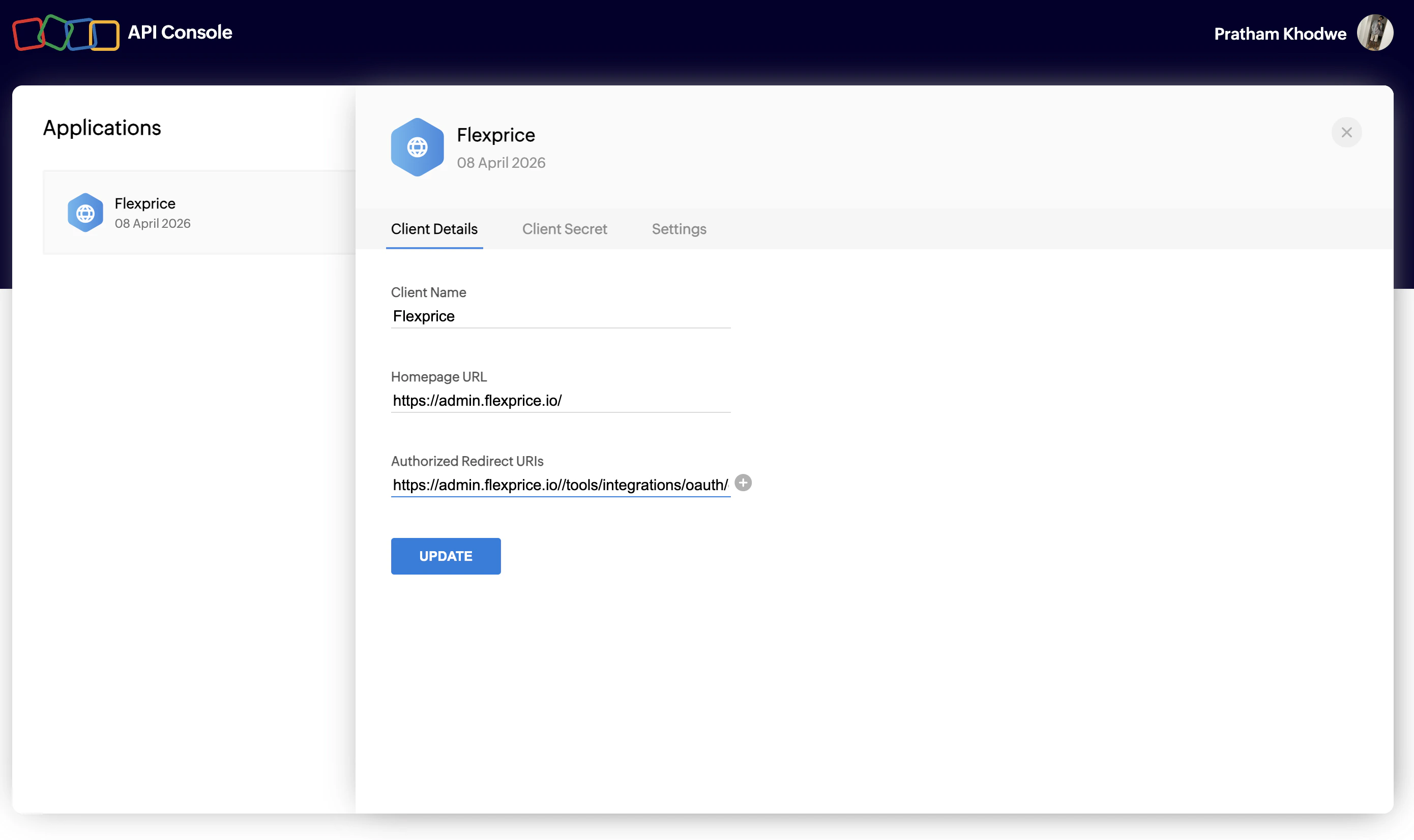
### Finding Your Client ID and Client Secret
1. Go to [Zoho API Console](https://api-console.zoho.com/) (or your Zoho region’s API console).
2. Create or open an application for **Server-based Applications** (or the application type your organization uses for Zoho Books).
3. Copy the **Client ID** and **Client Secret**.
4. Under **Authorized Redirect URIs**, add Flexprice’s OAuth callback (for example `https://admin.flexprice.io/tools/integrations/oauth/` for Flexprice Cloud—use the exact URL your deployment shows if it differs).
5. Save the application.
 ## Step 2: Configure Zoho Books Webhooks
Zoho Books uses **webhook rules** (when something happens) and **actions** (for example **notify URL** / POST to an endpoint). For a full integration, configure **two** webhooks:
1. **Invoices** - So Flexprice can process **paid** and **voided** invoice events.
2. **Customers** - So Flexprice can create **customers** when a **customer is created** in Zoho Books (workflow on the **Customers** module; **customer inbound** sync is **on by default** on the connection).
Both webhooks should use the **same** Flexprice URL pattern below. Use the **tenant** and **environment** IDs from the Flexprice dashboard for the workspace where the connection will live.
**Webhook URL Format:**
```
https:///v1/webhooks/zoho_books//
```
For Flexprice Cloud, the host is often `https://api.cloud.flexprice.io`. Replace `` and `` with your Flexprice IDs. For other regions or deployments, use the API base URL your organization was given (for example `https://us.api.flexprice.io`).
If webhooks return success but Flexprice does not update data, confirm the **tenant** and **environment** in the path match the environment where Zoho Books is connected.
### Webhook secret (type the same value in Zoho and Flexprice)
Zoho Books does **not** give you a webhook signing secret to copy. The field is empty unless **you** fill it: you choose a strong secret (for example a long random string), then **type that exact same characters** everywhere it is asked for.
1. **Choose one secret** and use it for **both** workflow webhooks (invoice and customer), so Flexprice only stores a single value.
2. When you add the **webhook** action in Zoho, **type** that secret into Zoho’s webhook / signing secret field (wording varies by screen)—do not look for a value Zoho generated; there isn’t one by default.
3. In Flexprice (**Step 3**), **type the same secret** into the **Webhook secret** field on the Zoho Books connection.
There is nothing to “copy from Zoho”—only the same string **typed** in Zoho and in Flexprice. It does not matter whether you enter it in Zoho or in Flexprice first, as long as both match. If you change the secret, update **both** places.
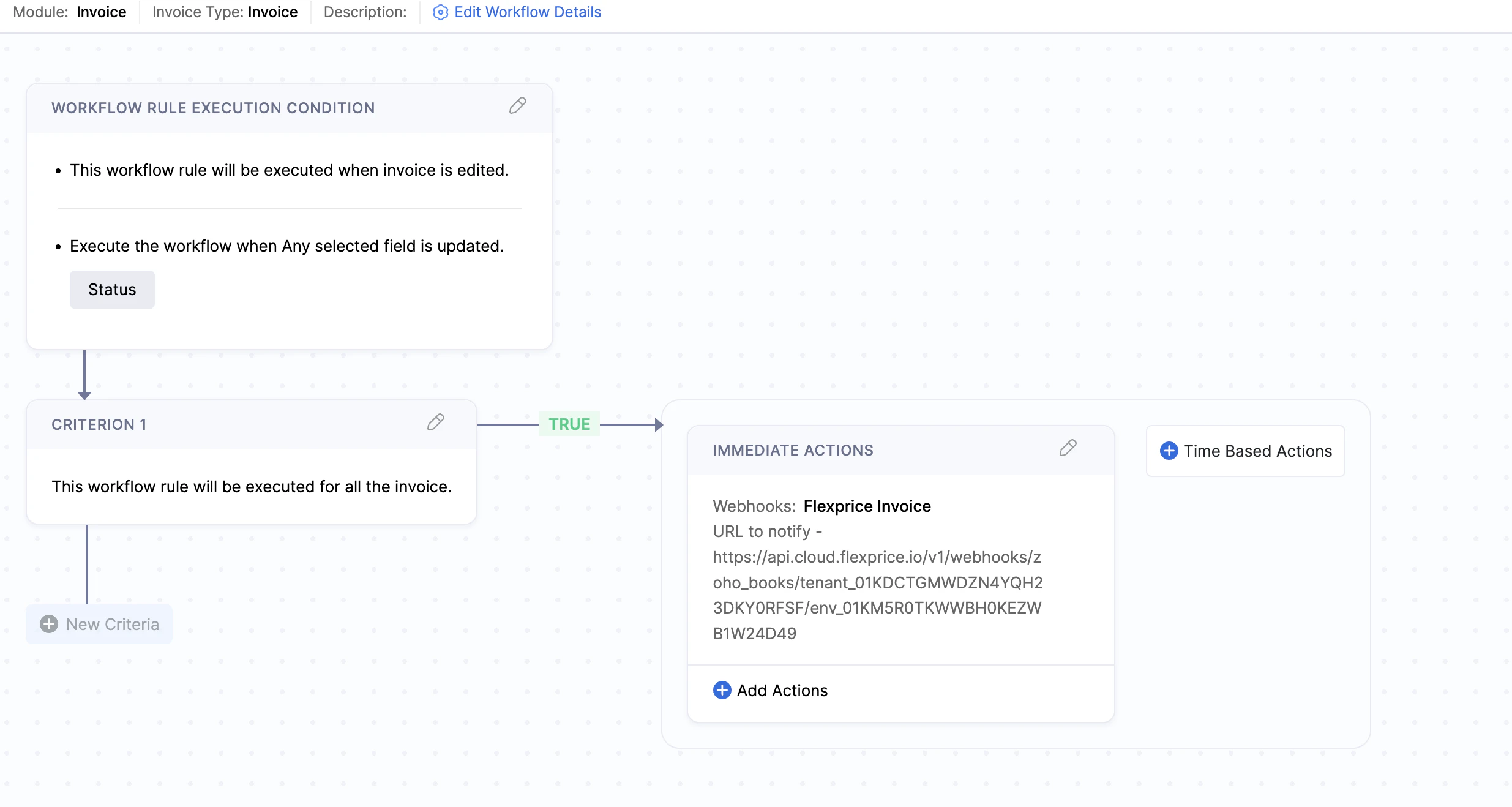
### Webhook 1 — Invoices (Paid and Voided)
Create a **workflow** on the **Invoice** module (for example when an invoice is **edited** and **status** is updated) so changes such as **Paid** or **Void** are sent to Flexprice. Add a **webhook** immediate action that **POST**s to your Flexprice webhook URL.
## Step 2: Configure Zoho Books Webhooks
Zoho Books uses **webhook rules** (when something happens) and **actions** (for example **notify URL** / POST to an endpoint). For a full integration, configure **two** webhooks:
1. **Invoices** - So Flexprice can process **paid** and **voided** invoice events.
2. **Customers** - So Flexprice can create **customers** when a **customer is created** in Zoho Books (workflow on the **Customers** module; **customer inbound** sync is **on by default** on the connection).
Both webhooks should use the **same** Flexprice URL pattern below. Use the **tenant** and **environment** IDs from the Flexprice dashboard for the workspace where the connection will live.
**Webhook URL Format:**
```
https:///v1/webhooks/zoho_books//
```
For Flexprice Cloud, the host is often `https://api.cloud.flexprice.io`. Replace `` and `` with your Flexprice IDs. For other regions or deployments, use the API base URL your organization was given (for example `https://us.api.flexprice.io`).
If webhooks return success but Flexprice does not update data, confirm the **tenant** and **environment** in the path match the environment where Zoho Books is connected.
### Webhook secret (type the same value in Zoho and Flexprice)
Zoho Books does **not** give you a webhook signing secret to copy. The field is empty unless **you** fill it: you choose a strong secret (for example a long random string), then **type that exact same characters** everywhere it is asked for.
1. **Choose one secret** and use it for **both** workflow webhooks (invoice and customer), so Flexprice only stores a single value.
2. When you add the **webhook** action in Zoho, **type** that secret into Zoho’s webhook / signing secret field (wording varies by screen)—do not look for a value Zoho generated; there isn’t one by default.
3. In Flexprice (**Step 3**), **type the same secret** into the **Webhook secret** field on the Zoho Books connection.
There is nothing to “copy from Zoho”—only the same string **typed** in Zoho and in Flexprice. It does not matter whether you enter it in Zoho or in Flexprice first, as long as both match. If you change the secret, update **both** places.
### Webhook 1 — Invoices (Paid and Voided)
Create a **workflow** on the **Invoice** module (for example when an invoice is **edited** and **status** is updated) so changes such as **Paid** or **Void** are sent to Flexprice. Add a **webhook** immediate action that **POST**s to your Flexprice webhook URL.
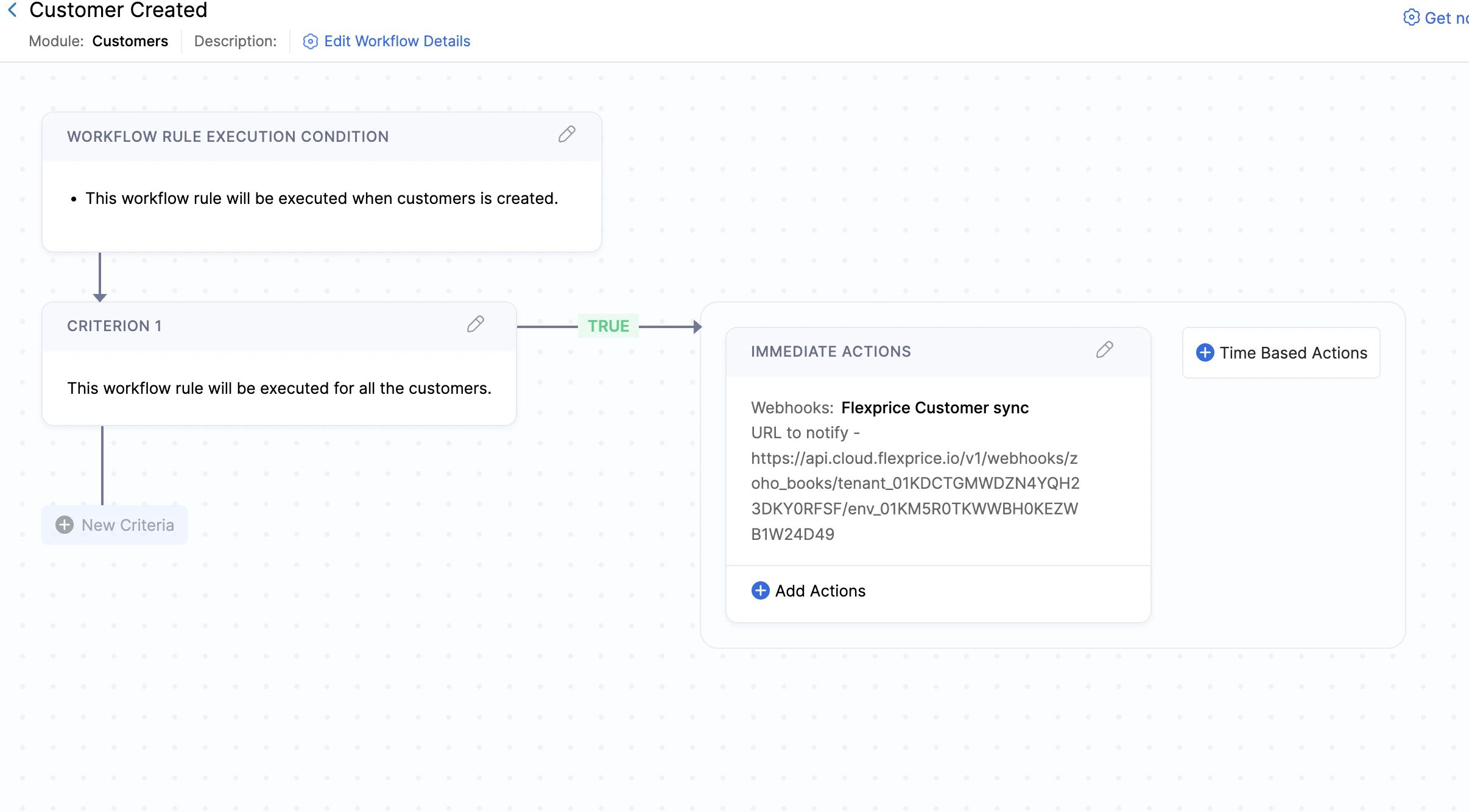
 ### Webhook 2 — Customers (Inbound Customer Sync)
Create a second workflow on the **Customers** module for **customer created** (all customers or your criteria), with a webhook action posting to the **same** Flexprice URL as the invoice rule. **Customer inbound** sync is **on by default** on the connection; turn it off only if you do not want new Zoho customers to create Flexprice customers.
### Webhook 2 — Customers (Inbound Customer Sync)
Create a second workflow on the **Customers** module for **customer created** (all customers or your criteria), with a webhook action posting to the **same** Flexprice URL as the invoice rule. **Customer inbound** sync is **on by default** on the connection; turn it off only if you do not want new Zoho customers to create Flexprice customers.
 ## Step 3: Create Zoho Books Connection
### Using Flexprice Dashboard
You can create a Zoho Books connection from the Flexprice dashboard:
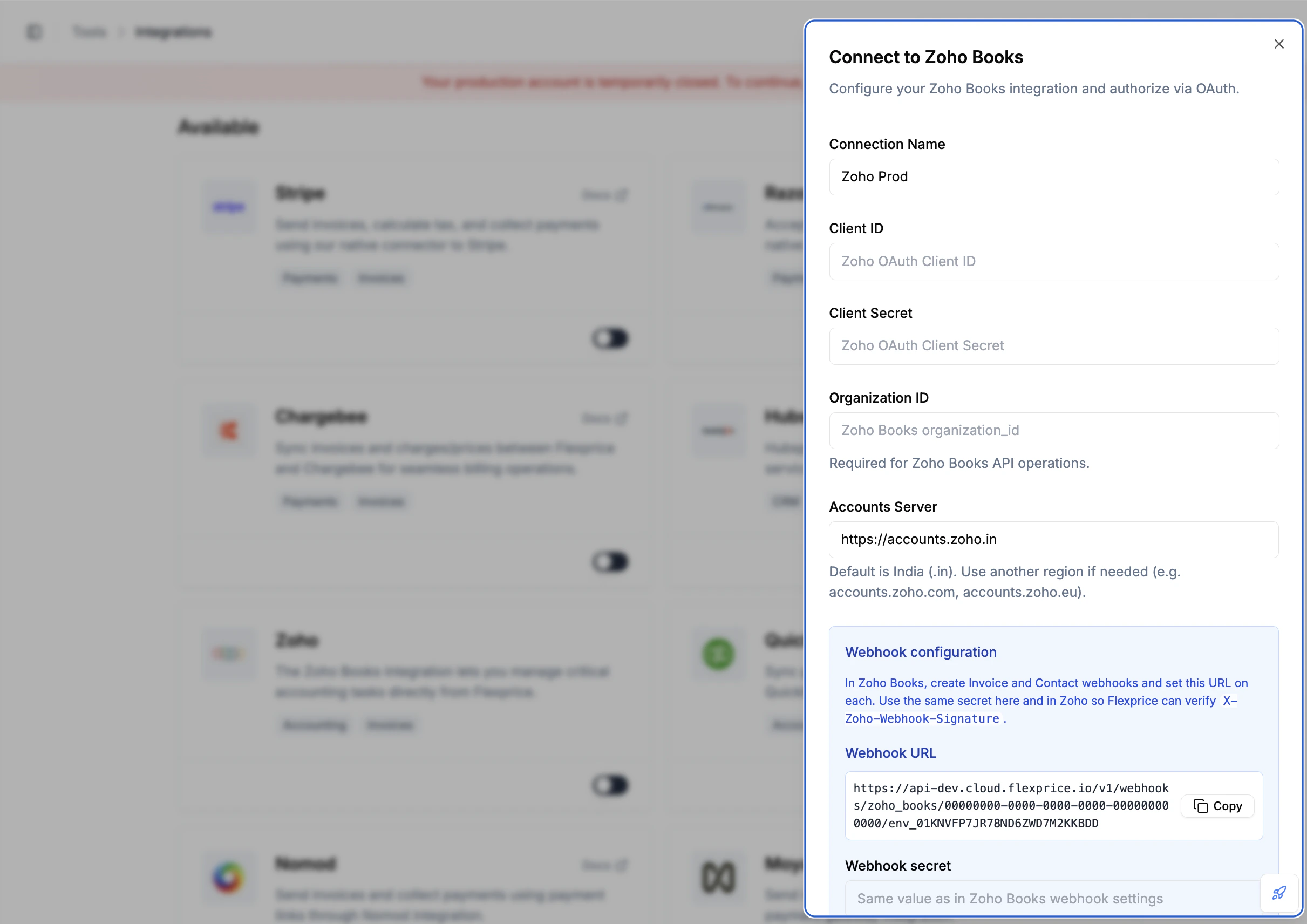
Go to **Flexprice dashboard** → **Integrations** → **Zoho Books** (or **Accounting**) → **Connect** / **Add connection**.
Fill in **Connection name**, **Client ID**, and **Client Secret** from the Zoho API Console. Add your Zoho Books **organization ID** and the **accounts server** for your region (for example `https://accounts.zoho.in` or `https://accounts.zoho.com`). Copy the **webhook URL** from the modal into each Zoho Books webhook. In **Webhook secret**, **type the same value** you use in Zoho’s webhook / signing-secret field (**character-for-character**). You pick that value yourself—Zoho does not provide one. You can update this field later if you rotate the secret.
Complete sign-in and consent in Zoho. Flexprice exchanges the authorization code for tokens, stores them encrypted, and associates the connection with your Zoho **organization**. Access tokens refresh automatically.
**Invoice** outbound sync and **customer** inbound sync are **on by default** for a new connection. Change them only if you do not want invoices pushed to Zoho or new Zoho contacts imported into Flexprice.
## Step 3: Create Zoho Books Connection
### Using Flexprice Dashboard
You can create a Zoho Books connection from the Flexprice dashboard:
Go to **Flexprice dashboard** → **Integrations** → **Zoho Books** (or **Accounting**) → **Connect** / **Add connection**.
Fill in **Connection name**, **Client ID**, and **Client Secret** from the Zoho API Console. Add your Zoho Books **organization ID** and the **accounts server** for your region (for example `https://accounts.zoho.in` or `https://accounts.zoho.com`). Copy the **webhook URL** from the modal into each Zoho Books webhook. In **Webhook secret**, **type the same value** you use in Zoho’s webhook / signing-secret field (**character-for-character**). You pick that value yourself—Zoho does not provide one. You can update this field later if you rotate the secret.
Complete sign-in and consent in Zoho. Flexprice exchanges the authorization code for tokens, stores them encrypted, and associates the connection with your Zoho **organization**. Access tokens refresh automatically.
**Invoice** outbound sync and **customer** inbound sync are **on by default** for a new connection. Change them only if you do not want invoices pushed to Zoho or new Zoho contacts imported into Flexprice.
 ## Customer Sync
Flexprice can keep customers aligned **toward Zoho** (with invoice sync) and **from Zoho** (via webhooks). On the connection, **invoice outbound** and **customer inbound** sync are **on by default**; you can turn either off if you do not want that behavior.
### Flexprice → Zoho Books (contacts on the Zoho side)
**Default:** **Invoice outbound** sync is **on by default** (see [Sending invoices to Zoho](#sending-invoices-to-zoho-outbound)). If someone turned it off, enable it again on the connection to push invoices—and the related contacts—to Zoho.
**What happens:** Whenever Flexprice **creates an invoice in Zoho Books**, it also **creates or matches a contact** in Zoho for that invoice’s Flexprice customer. You do not maintain that contact separately before the invoice sync runs.
### Zoho Books → Flexprice (new customers in Flexprice)
**Default:** **Customer inbound** sync is **on by default** on the connection.
**Also required in Zoho:** Inbound only works when Zoho can reach Flexprice. In Zoho Books, configure the **customer created** webhook from [Step 2](#step-2-configure-zoho-books-webhooks) so Zoho notifies Flexprice when customers are created.
**What happens:** A **new customer** in Zoho Books can become a **new customer** in Flexprice. **Vendor** records are ignored. If the customer’s **email** already exists on a Flexprice customer, Flexprice **links** to that customer instead of creating a second one.
## Invoice Sync
### Sending invoices to Zoho (outbound)
**Default:** **Invoice outbound** sync is **on by default** on a new connection. Disable it only if you do not want Flexprice to create invoices in Zoho Books.
**What happens:** After a Flexprice invoice is **eligible to sync** to your accounting system (same rules as other Flexprice accounting integrations), Flexprice **creates a corresponding invoice** in Zoho Books. You do not manually re-enter that invoice in Zoho.
### How line items appear in Zoho
Zoho Books receives one line per Flexprice line so **totals stay aligned**:
* **Quantity** is always **1** per line.
* **Rate** is set to the **full amount** of that Flexprice line (so the line total in Zoho equals the Flexprice line amount).
### Currency and exchange rates
Zoho Books uses an organization **base currency**. If the Flexprice invoice uses a **different currency**:
1. In Zoho Books, open **Settings → Currencies**.
2. **Add** that invoice currency if it is missing.
3. Set a **positive exchange rate** from that currency to your **base** currency.
If this is missing or invalid, Zoho may **reject** the invoice Flexprice tries to create.
### Invoice updates from Zoho (webhooks)
This applies when the Zoho invoice was **originally created from Flexprice** (so both systems are linked).
| Event in Zoho | What Flexprice does |
| ------------------ | ---------------------------------------------------------------------------------------------------------------- |
| Invoice **paid** | Records payment and updates the Flexprice invoice status (safe to retry if Zoho sends the event more than once). |
| Invoice **voided** | Voids the linked Flexprice invoice when the workflow allows it. |
Other changes in Zoho (edits, partial updates, unrelated fields) are **not** continuously copied back into Flexprice; only these webhook-driven outcomes are handled.
## Security Best Practices
### Credential Management
1. **Environment separation** - Use separate Zoho API applications or organizations for development and production where possible.
2. **Secret rotation** - Rotate the Zoho **Client Secret** in the API Console if needed. For webhooks, set a **new** secret in both Zoho workflow actions and the Flexprice connection together.
3. **Encryption** - Flexprice stores connection secrets encrypted at rest.
### Webhook Security
1. **HTTPS only** - Use HTTPS for the webhook URL.
2. **Signature verification** - Store the **same** user-defined webhook secret on the Flexprice connection as in Zoho so Flexprice can verify `X-Zoho-Webhook-Signature`.
3. **Correct URL path** - Incorrect **tenant** or **environment** in the URL prevents Flexprice from loading the connection even when the HTTP request succeeds.
## Troubleshooting
| Issue | Cause | Solution |
| ---------------------------------------------------- | ---------------------------------- | ------------------------------------------------------------------------------------------------------------------------------------- |
| Webhook does not update Flexprice | Wrong tenant or environment in URL | Use the exact **tenant** and **environment** IDs from Flexprice for the org where the connection exists |
| Invalid webhook signature | Secret mismatch | The string in Zoho’s webhook action and in Flexprice must be **identical**; update both sides if you rotate the secret |
| Invoice fails to sync to Zoho | Currency or exchange rate | In **Settings → Currencies**, add the invoice currency with a **positive** rate against **base** currency |
| New Zoho customer does not create Flexprice customer | Inbound off or missing webhook | Confirm **customer inbound** is on (default is on); ensure the **customer created** webhook in Zoho targets the correct Flexprice URL |
| Paid in Zoho but Flexprice invoice unpaid | Missing entity mapping | The Zoho invoice typically must have been created from Flexprice so entity integration mapping links both sides |
## Next Steps
After setting up your Zoho Books connection:
1. **Verify the connection** - Confirm the connection shows as active in Flexprice.
2. **Test invoice sync** - With outbound invoice sync on, create or finalize a test invoice and confirm it appears in Zoho Books.
3. **Test payment reconciliation** - Mark the invoice paid in Zoho and confirm Flexprice reflects payment status.
4. **Test customer sync (optional)** - With inbound customer sync on, create a customer in Zoho Books and confirm a customer appears in Flexprice.
## Customer Sync
Flexprice can keep customers aligned **toward Zoho** (with invoice sync) and **from Zoho** (via webhooks). On the connection, **invoice outbound** and **customer inbound** sync are **on by default**; you can turn either off if you do not want that behavior.
### Flexprice → Zoho Books (contacts on the Zoho side)
**Default:** **Invoice outbound** sync is **on by default** (see [Sending invoices to Zoho](#sending-invoices-to-zoho-outbound)). If someone turned it off, enable it again on the connection to push invoices—and the related contacts—to Zoho.
**What happens:** Whenever Flexprice **creates an invoice in Zoho Books**, it also **creates or matches a contact** in Zoho for that invoice’s Flexprice customer. You do not maintain that contact separately before the invoice sync runs.
### Zoho Books → Flexprice (new customers in Flexprice)
**Default:** **Customer inbound** sync is **on by default** on the connection.
**Also required in Zoho:** Inbound only works when Zoho can reach Flexprice. In Zoho Books, configure the **customer created** webhook from [Step 2](#step-2-configure-zoho-books-webhooks) so Zoho notifies Flexprice when customers are created.
**What happens:** A **new customer** in Zoho Books can become a **new customer** in Flexprice. **Vendor** records are ignored. If the customer’s **email** already exists on a Flexprice customer, Flexprice **links** to that customer instead of creating a second one.
## Invoice Sync
### Sending invoices to Zoho (outbound)
**Default:** **Invoice outbound** sync is **on by default** on a new connection. Disable it only if you do not want Flexprice to create invoices in Zoho Books.
**What happens:** After a Flexprice invoice is **eligible to sync** to your accounting system (same rules as other Flexprice accounting integrations), Flexprice **creates a corresponding invoice** in Zoho Books. You do not manually re-enter that invoice in Zoho.
### How line items appear in Zoho
Zoho Books receives one line per Flexprice line so **totals stay aligned**:
* **Quantity** is always **1** per line.
* **Rate** is set to the **full amount** of that Flexprice line (so the line total in Zoho equals the Flexprice line amount).
### Currency and exchange rates
Zoho Books uses an organization **base currency**. If the Flexprice invoice uses a **different currency**:
1. In Zoho Books, open **Settings → Currencies**.
2. **Add** that invoice currency if it is missing.
3. Set a **positive exchange rate** from that currency to your **base** currency.
If this is missing or invalid, Zoho may **reject** the invoice Flexprice tries to create.
### Invoice updates from Zoho (webhooks)
This applies when the Zoho invoice was **originally created from Flexprice** (so both systems are linked).
| Event in Zoho | What Flexprice does |
| ------------------ | ---------------------------------------------------------------------------------------------------------------- |
| Invoice **paid** | Records payment and updates the Flexprice invoice status (safe to retry if Zoho sends the event more than once). |
| Invoice **voided** | Voids the linked Flexprice invoice when the workflow allows it. |
Other changes in Zoho (edits, partial updates, unrelated fields) are **not** continuously copied back into Flexprice; only these webhook-driven outcomes are handled.
## Security Best Practices
### Credential Management
1. **Environment separation** - Use separate Zoho API applications or organizations for development and production where possible.
2. **Secret rotation** - Rotate the Zoho **Client Secret** in the API Console if needed. For webhooks, set a **new** secret in both Zoho workflow actions and the Flexprice connection together.
3. **Encryption** - Flexprice stores connection secrets encrypted at rest.
### Webhook Security
1. **HTTPS only** - Use HTTPS for the webhook URL.
2. **Signature verification** - Store the **same** user-defined webhook secret on the Flexprice connection as in Zoho so Flexprice can verify `X-Zoho-Webhook-Signature`.
3. **Correct URL path** - Incorrect **tenant** or **environment** in the URL prevents Flexprice from loading the connection even when the HTTP request succeeds.
## Troubleshooting
| Issue | Cause | Solution |
| ---------------------------------------------------- | ---------------------------------- | ------------------------------------------------------------------------------------------------------------------------------------- |
| Webhook does not update Flexprice | Wrong tenant or environment in URL | Use the exact **tenant** and **environment** IDs from Flexprice for the org where the connection exists |
| Invalid webhook signature | Secret mismatch | The string in Zoho’s webhook action and in Flexprice must be **identical**; update both sides if you rotate the secret |
| Invoice fails to sync to Zoho | Currency or exchange rate | In **Settings → Currencies**, add the invoice currency with a **positive** rate against **base** currency |
| New Zoho customer does not create Flexprice customer | Inbound off or missing webhook | Confirm **customer inbound** is on (default is on); ensure the **customer created** webhook in Zoho targets the correct Flexprice URL |
| Paid in Zoho but Flexprice invoice unpaid | Missing entity mapping | The Zoho invoice typically must have been created from Flexprice so entity integration mapping links both sides |
## Next Steps
After setting up your Zoho Books connection:
1. **Verify the connection** - Confirm the connection shows as active in Flexprice.
2. **Test invoice sync** - With outbound invoice sync on, create or finalize a test invoice and confirm it appears in Zoho Books.
3. **Test payment reconciliation** - Mark the invoice paid in Zoho and confirm Flexprice reflects payment status.
4. **Test customer sync (optional)** - With inbound customer sync on, create a customer in Zoho Books and confirm a customer appears in Flexprice.