

Overview
A Moyasar connection in Flexprice stores encrypted credentials so Flexprice can sync invoices to Moyasar, generate payment links, and enable autopay via the Flexprice checkout page.Steps required
1
Gather credentials
Get your Secret Key, Publishable Key, and Webhook Secret from the Moyasar Dashboard.
2
Configure webhook
Add the webhook URL in Moyasar, select
payment_paid, and copy the Webhook Secret.3
Create connection
In the Flexprice dashboard (Integrations → Moyasar → Add a connection), enter your Secret Key, Publishable Key, and Webhook Secret.
Gather Moyasar Credentials
Required Credentials
Finding Your Credentials
1
Get API Keys
Go to Moyasar Dashboard → Settings → API Keys. Copy both your Secret Key (starts with
sk_) and your Publishable Key (starts with pk_). Both are required.2
Get Webhook Secret
Go to Moyasar Dashboard → Settings → Webhooks. Create or select your webhook endpoint and copy the webhook secret (used to verify that events are from Moyasar).
Required Webhook Events
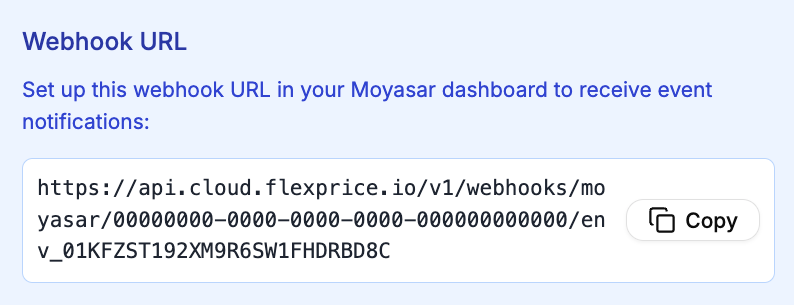
Configure the following events so Flexprice can update invoice status when payments occur:Webhook configuration endpoint URL
In the Moyasar Dashboard, use this Flexprice webhook URL when creating your webhook.https://api.cloud.flexprice.io.)
Setting Up the Webhook
1
Open Webhooks
Go to Moyasar Dashboard → Settings → Webhooks and click + Add New Webhook.
2
Enter URL and events
Enter the Flexprice webhook endpoint URL (see Webhook configuration endpoint URL above) and select
payment_paid.3
Create and copy secret
Click Create Webhook, then copy the Webhook Secret and save it for your Flexprice connection.
Create Moyasar Connection
Using Flexprice Dashboard
1
Navigate to Integrations
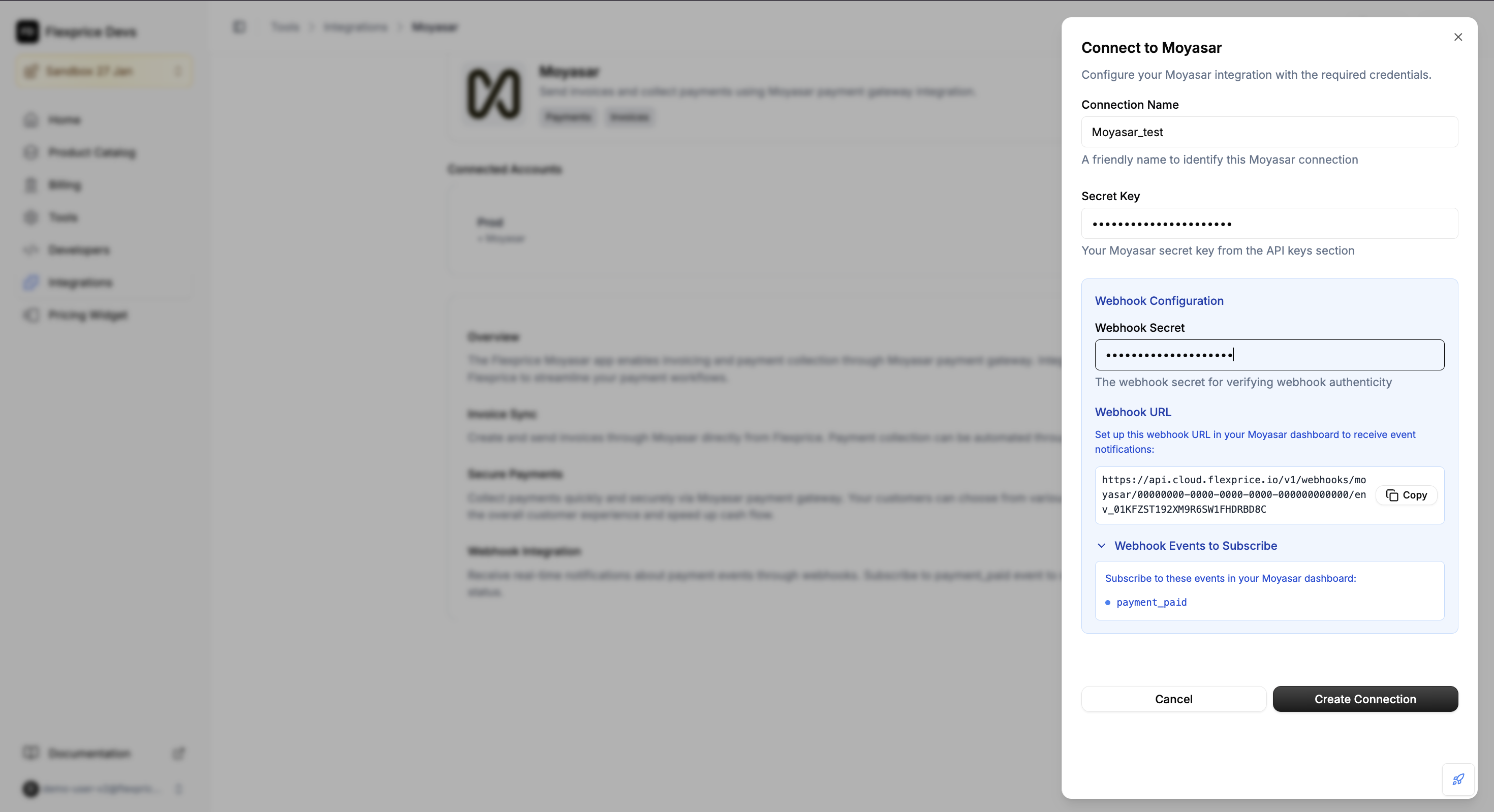
Go to Flexprice dashboard → Integrations → Moyasar → Add a connection.
2
Enter credentials
Enter your Secret Key, Publishable Key, and Webhook Secret.
3
Save connection
Click to create the connection. Flexprice will store your credentials securely.
Connection Configuration
Default Currency (required in Moyasar)
The default currency for Moyasar is SAR (Saudi Riyal).- Supported Currencies: SAR, USD, EUR, KWD, etc.
- Currency Precision: Moyasar requires amounts in the smallest currency unit (e.g., Halalah for SAR). Flexprice handles this conversion automatically.
Currency Precision Table
Security Best Practices
1
HTTPS Only
Webhooks must use HTTPS.
2
Signature Verification
Always configure the
webhook_secret to enable HMAC-SHA256 signature verification.3
Key Rotation
Rotate API keys periodically from the Moyasar dashboard.