

Overview
Vapi uses a modular, usage-based pricing model where you pay for distinct components.Pricing Breakdown
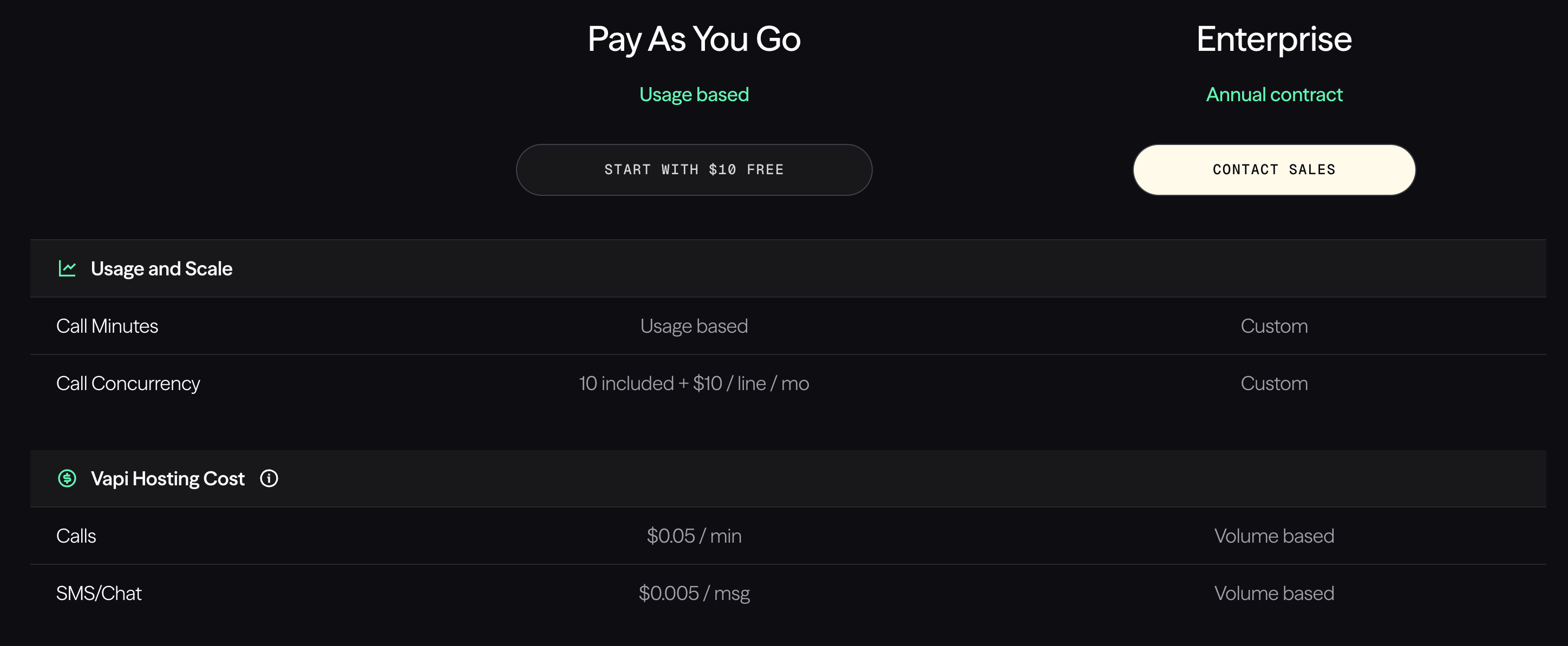
1. Key Chargeable Features in Vapi
- Vapi charges customers primarily for hosting and orchestration, not for the underlying AI or telecom providers directly.
A. Hosting Fee for Call Minutes
It charges a fixed hosting fee per call minute. Pricing (Pay As You Go):- $0.05 per minute
B. Hosting Cost for SMS / Chat Messages
It also charges a fixed hosting fee per message. Pricing (Pay As You Go):- $0.005 per message
2. Fixed Fees vs Usage-Based Charges
Pricing consists of fixed per-unit fees, not bundled plans or feature-based tiers.Fixed Fees (Platform Hosting Costs)
These fees are fixed per unit of usage:
These fees remain the same regardless of scale (Pay As You Go).
Usage-Based Scaling
3. Call Concurrency Pricing
Call concurrency determines how many simultaneous calls your system can handle.Pay As You Go
- 10 concurrent calls included
- $10 per additional line per month
Enterprise
- Custom concurrency limits
- Volume-based pricing
- SLA-backed infrastructure
4. Enterprise Pricing Model
The Enterprise plan operates under an annual contract with custom pricing. Enterprise features include:- Custom call minute pricing
- Volume-based SMS and chat pricing
- Priority support and SLAs
Enterprise pricing is negotiated directly with the Vapi sales team.
Complete Flow Summary
The complete subscription flow for Vapi usage-based pricing:- Create Features (Call Minutes, SMS/Chat) ↓
- Create Plans (Pay As You Go with usage charges) ↓
- Create Customer (with External ID) ↓
- Create Subscription (link customer to plan) ↓
- Send Usage Events (via API) ↓
- Verify Events (using Event Debugger) ↓
- Billing (automatic at end of billing cycle) ↓
- Review Invoices (Customer Info)
Flexprice Set-up
To configure Vapi’s usage-based pricing in Flexprice, follow these steps in order:1
Step 1: Create Features
Navigate to Flexprice Dashboard → Product Catalog → FeaturesClick New feature to start creating features. You need to create two metered features: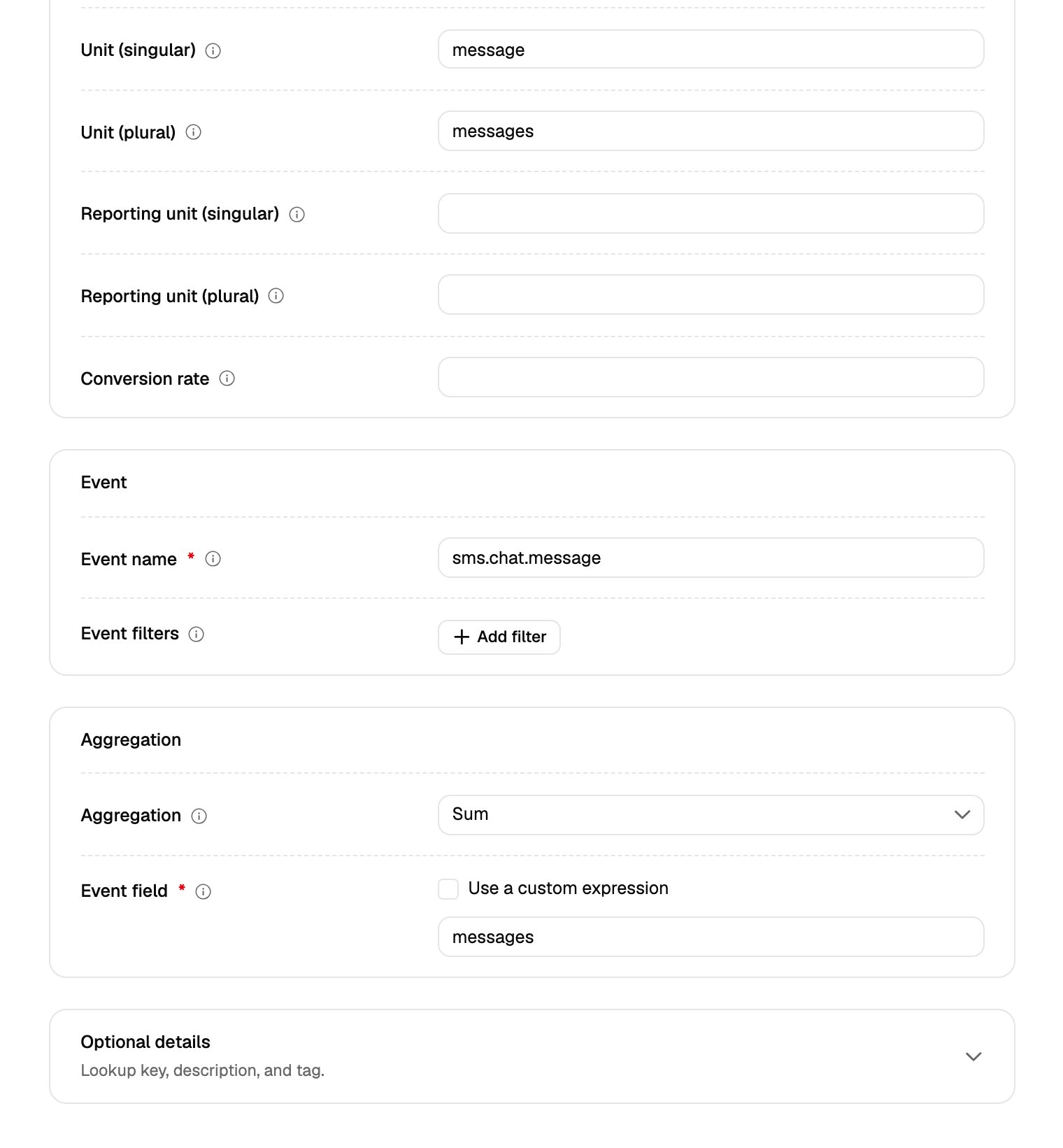
- Name:
SMS / Chat Hosting - Lookup key (under Optional details):
sms_chat_hosting(immutable, unique identifier) - Type:
Metered - Event name:
sms.chat.message(must match exactly when sending events) - Aggregation:
Sum - Event field:
messages - Unit (singular) and Unit (plural):
messageandmessages - Description (under Optional details):
Vapi hosting cost for SMS and chat messages - covers message delivery, session handling, and conversational state management
Note: The Event Name must match exactly when you send usage events via API. Save these event names for later use.For comprehensive information on creating features, see Features.
2
Step 2: Create Pricing Plans
Navigate to Flexprice Dashboard → Product Catalog → PlansClick New plan to create a new plan.Create Pay As You Go Plan: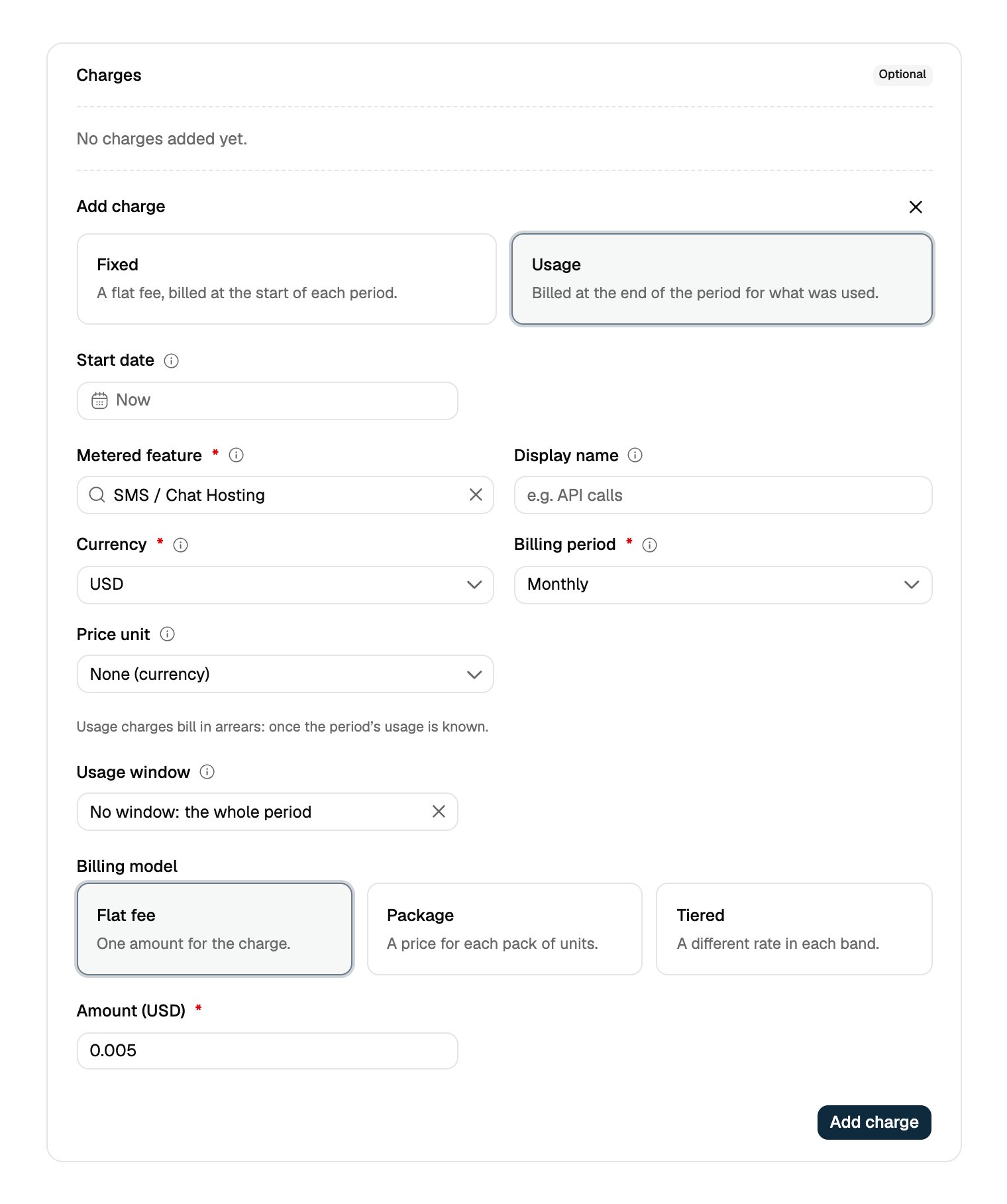
- Name:
Pay As You Go - Lookup key:
pay_as_you_go(immutable, unique identifier) - Description:
Usage-based pricing plan with flat fees for call minutes and SMS/chat messages - Click Next to proceed to charge configuration
- Metered feature:
SMS / Chat Hosting(sms_chat_hosting) - Currency:
USD - Billing period:
Monthly - Billing model:
Flat fee - Amount:
0.005(per message) - Usage charges always bill in arrears, at the end of the billing period
- Click Add charge to save this charge
3
Step 3: Create Customer
Navigate to Flexprice Dashboard → CustomersClick New customer to create a new customer.Required Fields:
- Name:
Acme Corporation(or your customer’s name) - External ID:
cust_acme_001(unique identifier from your system)
- Email: Customer’s email address
- More details: billing address, timezone, and tax treatment
Important: The External ID is what you’ll use when sending usage events. Make sure it matches exactly.Click Create customer to create the customer.For comprehensive information on creating customers, see Customer Management.
4
Step 4: Create Subscription
Navigate to Flexprice Dashboard → CustomersClick on the customer you created to open their details page.Click Create contract. In the dashboard, subscriptions are called contracts.Subscription Configuration:
- Plan: Choose
Pay As You Gofrom the dropdown - Starts: Select the start date for billing (e.g., today’s date)
- Ends: Leave it empty (runs until cancelled) for ongoing contracts, or set a specific end date
- Bill on: When billing cycles start: the contract start date (the default), the 1st of every month, or a custom date
- All recurring charges (if any)
- Usage-based charges that will be billed based on consumption
5
Step 5: Create Usage Events
Once a customer has an active subscription, you can start sending usage events to Flexprice via API.API Endpoint:Authentication:
Include your API key in the request header:Example 1: Send SMS/Chat Message EventExample 2: Bulk Events (Multiple Events at Once)Event Payload Fields:For comprehensive information on sending events, see Sending Events.
- event_name (required): Must match your feature’s Event Name exactly (
call.minutesorsms.chat.message) - external_customer_id (required): Must match the customer’s External ID (
cust_acme_001) - properties (required): Contains the aggregation field value
- For Call Minutes:
{"minutes": <number>} - For SMS/Chat:
{"messages": <number>}
- For Call Minutes:
- event_id (optional): Your unique identifier for the event
- timestamp (optional): ISO 8601 UTC timestamp. If omitted, server time is used
- source (optional): Origin of the event (e.g., “vapi-platform”, “api”)
6
Step 6: Verify Events with Event Debugger
After sending usage events, verify they are being processed correctly using the Event Debugger.Navigate to Event Debugger:Filter Events:
Use filters to find specific events:
- Go to Flexprice Dashboard → Usage Tracking → Event Debugger
- Event ID: Unique identifier for each event
- Event name: The feature being tracked (
call.minutesorsms.chat.message) - Customer Lookup Key: Customer’s External ID
- Source: Origin of the event
- Timestamp: When the event occurred
- Filter by Event Name:
event_name contains "call.minutes" - Filter by Customer:
external_customer_id contains "cust_acme_001" - Filter by Time Range: Set Start Time and End Time
- Filter by Source:
source contains "vapi-platform"
- Check that events appear in the Event Debugger shortly after sending
- Verify the event payload matches what you sent
- Confirm the
external_customer_idmatches your customer - Ensure
event_namematches your feature configuration exactly - Check that
propertiescontain the correct aggregation field values
Next Steps
After completing the setup:- Monitor Usage: Regularly check the Event Debugger to ensure events are being processed
- Review Invoices: Check upcoming invoices to verify billing calculations
- Track Usage: Use the Query tool to view aggregated usage by customer and feature
- Scale: Add more customers and subscriptions as your business grows