

Prerequisites
- Events have been transmitted to Flexprice
- Access to the Flexprice Admin Dashboard
- Knowledge of your feature configuration
Checking Event Ingestion
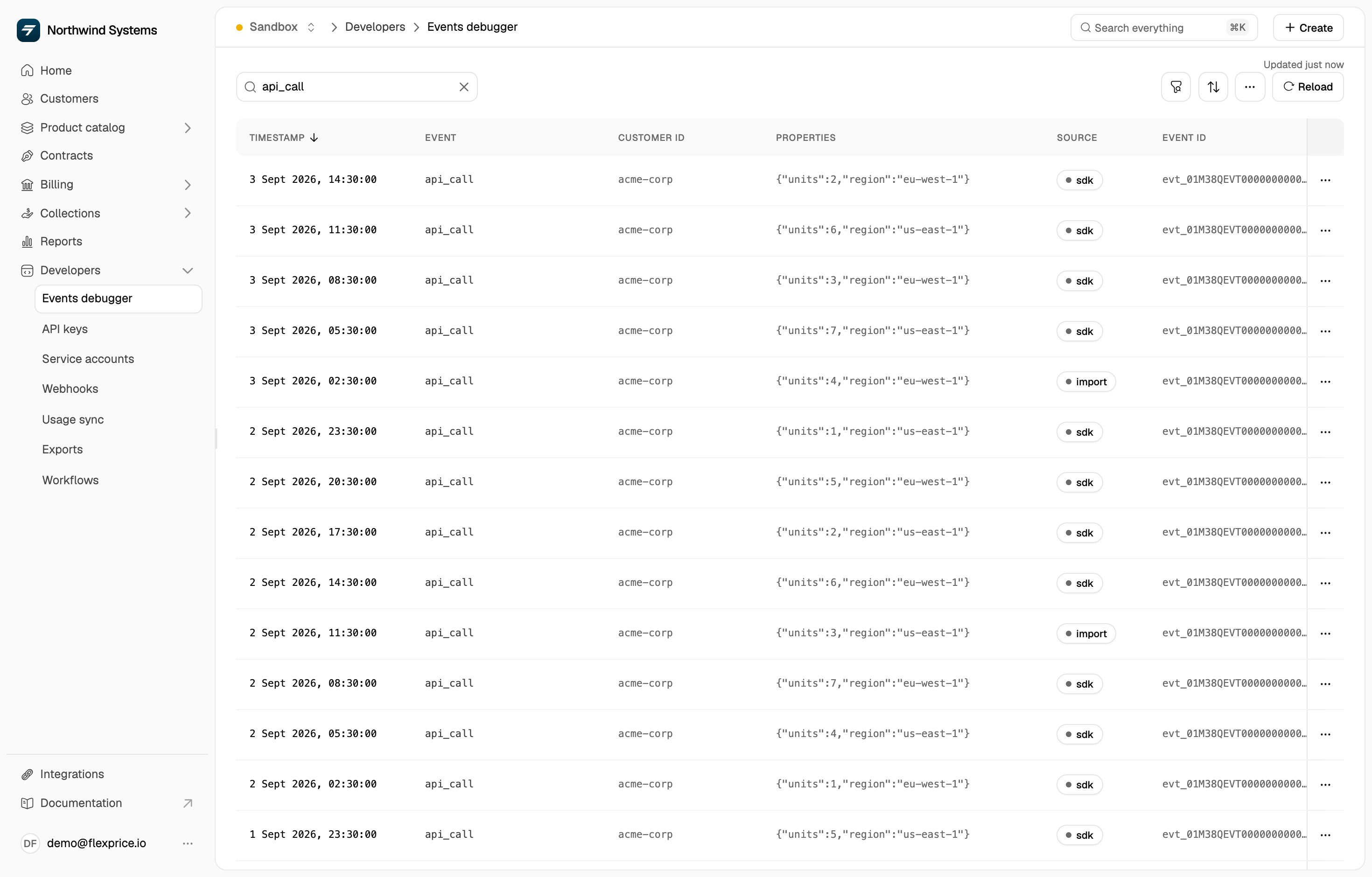
1. Navigate to the Events Debugger
- Log into your Flexprice dashboard
- In the left sidebar, click Developers
- Click Events debugger
- Timestamp: When the event occurred
- Event: The event name
- Customer ID: The
external_customer_idthe event was sent for - Properties: The properties sent with the event
- Source: Origin of the event (if provided)
- Event ID: Unique identifier for each event
2. View Event Details
Click any event in the list to open its details: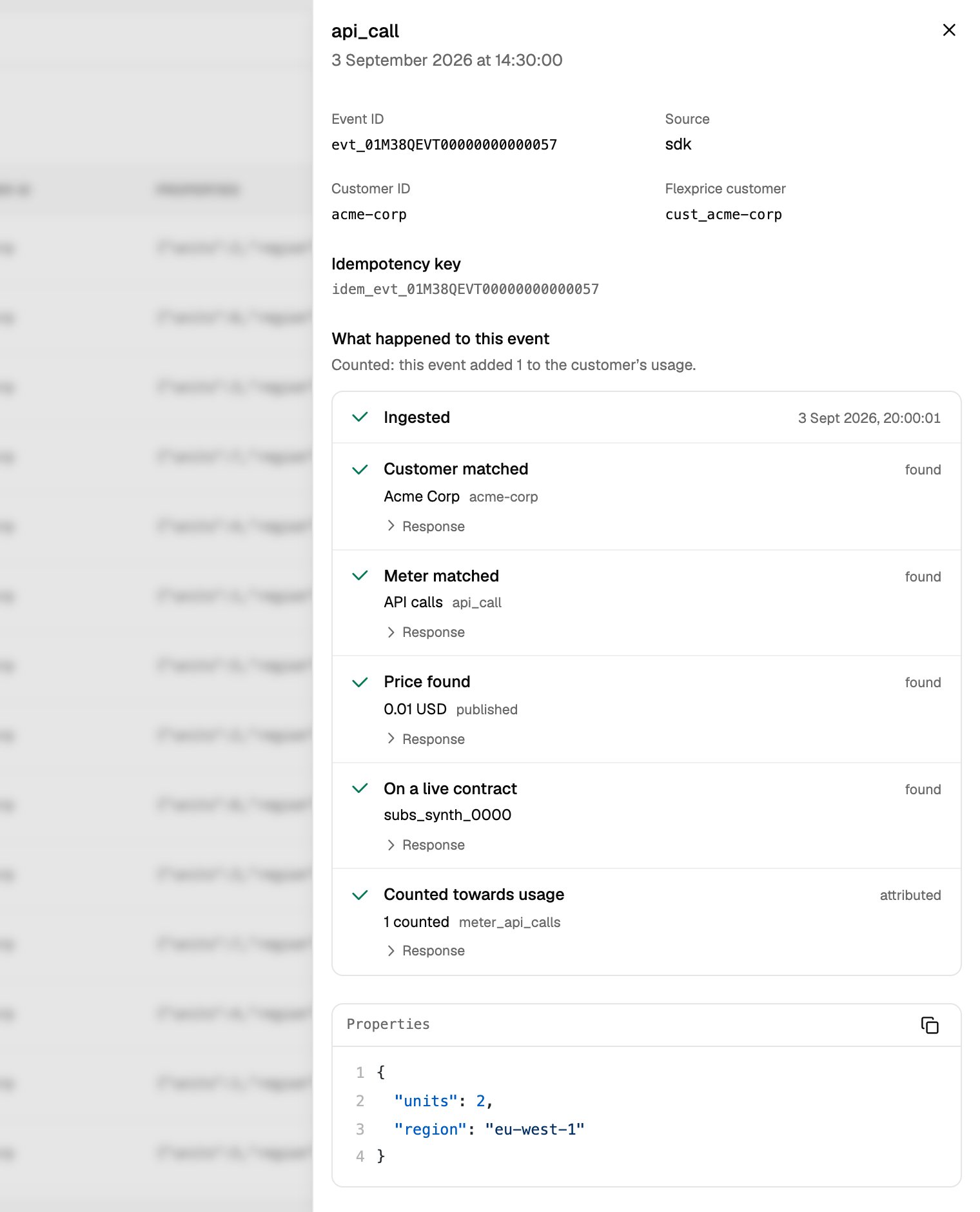
- The event ID, source, and idempotency key
- The customer ID and the Flexprice customer it matched
- All properties transmitted with the event
Using the Event Debugger
The Event Debugger provides real-time insights into event processing:- Go to Developers → Events debugger
- Click an event to see:
- Whether it was ingested, matched to a customer and a meter, and counted
- The first failed check, if any
- When it was ingested
Validating Aggregation
Check Feature Configuration
- Go to Product catalog → Features
- Open your metered feature
- Verify the configuration:
- Event name matches what you’re transmitting
- Aggregation is set correctly
- Event field exists in your event properties
Verify Event Properties
In the Events dashboard, check that:- Event Name matches your feature exactly
- Properties contain the event field
- Property values are the correct data type
credits, ensure every event has:
Common Validation Issues
1. Events Not Appearing
Possible Causes:- Invalid Event Name
- Missing required fields
- Customer doesn’t exist
- API key issues
- Check Event Name spelling and case
- Verify all required fields are present
- Ensure customer exists in Flexprice
- Validate API key permissions
2. Wrong Aggregation Values
Possible Causes:- Event field name mismatch
- Incorrect data types
- Missing properties
- Verify field name matches exactly (case-sensitive)
- Use numbers for Sum/Max, strings for Unique Count
- Ensure every event includes the required property
3. Events Appearing but No Billing
Possible Causes:- Feature not added to a plan
- Customer not subscribed to the plan
- Usage reset configuration
- Add feature to a pricing plan
- Subscribe customer to the plan
- Check Usage Reset setting (Periodic vs Cumulative)
Testing Your Setup
Step-by-Step Validation
-
Transmit a Test Event
-
Check Event Ingestion
- Go to Events dashboard
- Locate your test event
- Verify the payload is correct
-
Verify Aggregation
- Check that the event appears in the correct billing period
- Verify the aggregation value is as expected
-
Test Billing Impact
- Ensure feature is in a plan
- Subscribe customer to the plan
- Check upcoming invoices
Debugging Checklist
Use this checklist to systematically debug event ingestion issues:✅ Event Configuration
- Feature exists and is active
- Event Name matches exactly
- Aggregation is correct
- Event field is set (if required)
✅ Event Payload
- All required fields present
- Event Name matches feature
- External Customer ID exists
- Properties contain the event field
- Property values are correct data type
✅ Customer Setup
- Customer exists in Flexprice
- External Customer ID matches
- Customer has active subscription
- Subscription includes the feature
✅ Billing Configuration
- Feature is added to a plan
- Plan has pricing for the feature
- Customer is subscribed to the plan
- Usage Reset setting is correct
Advanced Validation
Query Events by Customer
You can filter events by customer to see all usage for a specific account:- In the Events dashboard, use the filter options
- Filter by External Customer ID
- Review all events for that customer
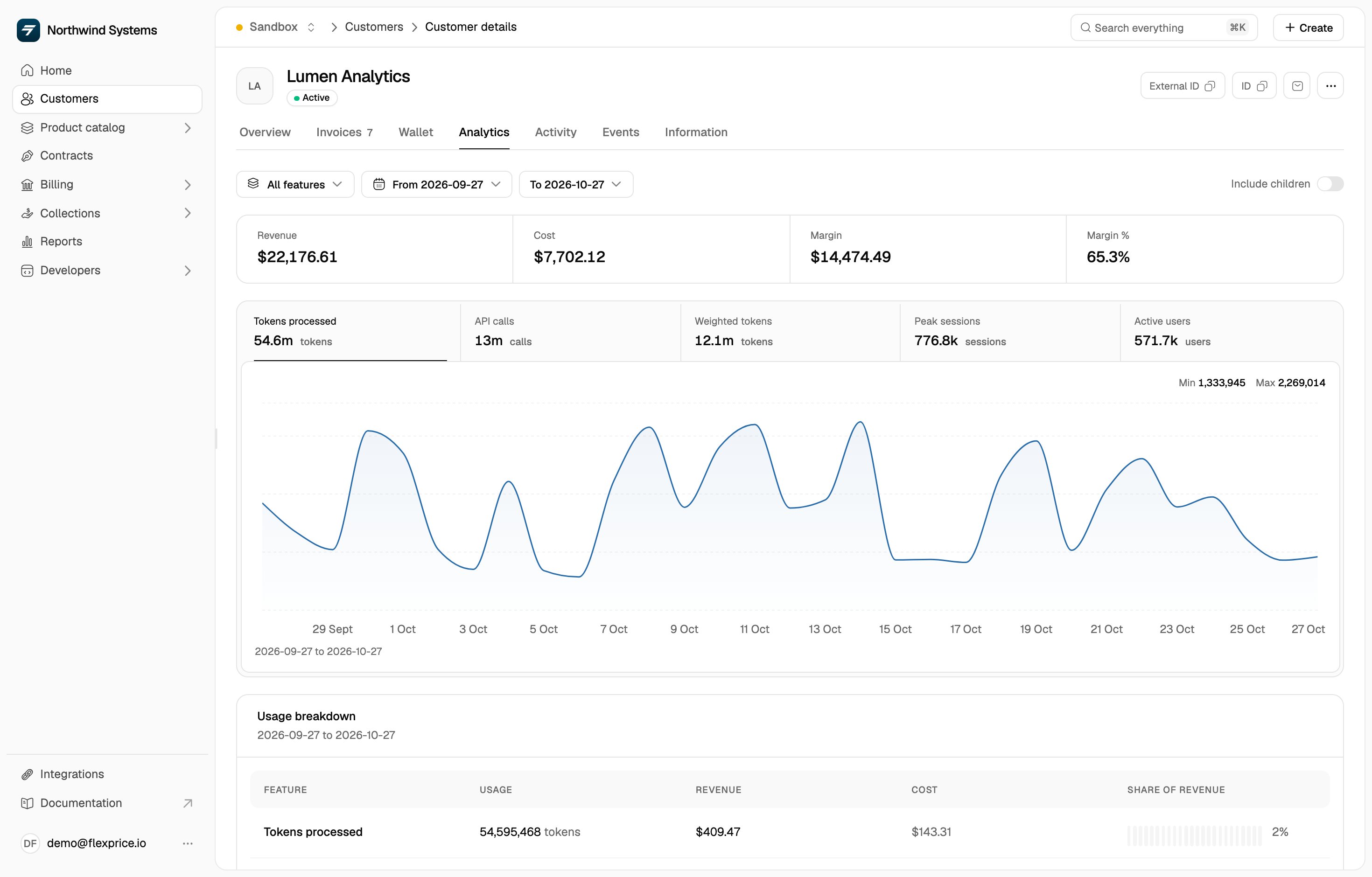
Check Aggregated Usage
- Go to Customers and open the customer
- Open the Analytics tab
- Pick the feature (or keep All features) and the date range
- View the aggregated usage for each feature, and the Usage breakdown table
Validate Billing Periods
For Periodic usage reset:- Usage should reset at the start of each billing cycle
- Check that usage accumulates correctly within the period
- Usage should keep growing across billing cycles
- Verify no unexpected resets
Troubleshooting Common Scenarios
Scenario 1: Events Transmitted but Not Counted
Symptoms: Events appear in dashboard but don’t affect billing Check:- Feature configuration (event name, event field)
- Event properties (correct field name and data type)
- Customer subscription status
- Plan configuration
Scenario 2: Wrong Aggregation Values
Symptoms: Billing shows incorrect quantities Check:- Event field name matches exactly
- Property values are correct data type
- No duplicate or conflicting events
- Usage Reset configuration
Scenario 3: Events Missing from Dashboard
Symptoms: Events not visible in Events list Check:- API response status (should be 202 Accepted)
- Event Name validity
- Customer existence
- API key permissions
Scenario 4: Unexpected Usage Resets
Symptoms: Usage resets when it shouldn’t Check:- Usage Reset setting (Periodic vs Cumulative)
- Billing cycle configuration
- Subscription changes
- Feature configuration changes
Best Practices for Validation
1. Test Before Production
Always test your event ingestion setup with a small number of events before going live.2. Monitor Regularly
Check the Events dashboard regularly to ensure events are being processed correctly.3. Use Consistent Identifiers
Use consistent Event Names and External Customer IDs across your system.4. Include Debugging Information
Add useful properties to your events for debugging:5. Set Up Alerts
Consider setting up alerts for:- Failed event ingestion
- Unusual usage patterns
- Missing events
Next Steps
After validating your events: Connect to Billing - Set up pricing and subscriptionsGetting Help
If you’re still experiencing issues after following this validation guide:- Check the Event Debugger for detailed error messages
- Review your feature configuration carefully
- Test with a simple event payload
- Contact support with specific error messages and event examples