

How It Works
Two currencies are involved:- Charge currency: the currency of the subscription and its prices (for example, USD). Usage, discounts and prepaid credits are calculated in this currency.
- Billing currency: the currency set on the customer (for example, INR). Invoices are issued and paid in this currency.
- One rate per invoice: the whole invoice is converted at a single rate, and that rate is fixed on the invoice. Changing your rates later never changes an issued invoice.
- Tax in the billing currency: tax is calculated on the converted amounts, so tax lines are in the billing currency.
- Line items add up: every line item is converted and rounded so the lines add up exactly to the converted total.
- Original amounts kept: the invoice records the charge currency, the rate used and the original amounts in an
fx_conversionobject.
Which rate is used
Rates are set at three levels. When an invoice is finalized, Flexprice uses the most specific rate that is valid at that moment:
A rate always reads as 1 unit of the from currency = rate units of the to currency. For example,
USD → INR at 83 means 1 USD = 83 INR.
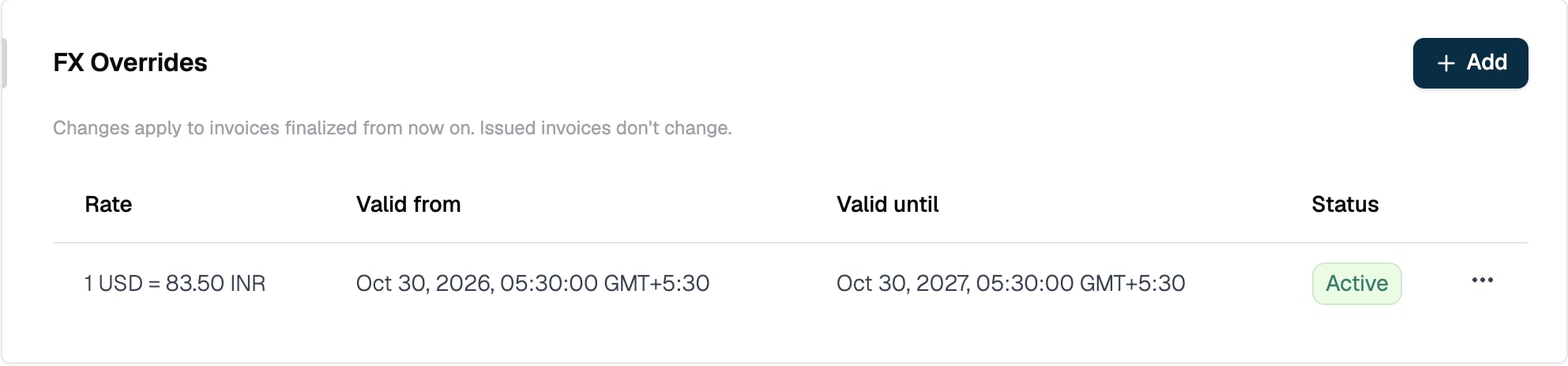
Overrides can have a Valid from and Valid until date. A blank start date has no start limit, and a blank end date never expires. The dates are matched at the moment an invoice is finalized or a checkout is created. Overrides for the same customer or subscription and currency pair can’t overlap.
Checkout, wallets and refunds
- Pay-first checkout: the invoice is converted when the checkout is created, so the customer pays the converted amount in the billing currency.
- Wallets: a wallet keeps its own currency. When you create a wallet in a currency other than the billing currency, there must be a rate from the wallet currency to the billing currency. Top-up invoices are then issued in the billing currency.
- Refunds: refunds to a card or payment method are made in the billing currency. Refunds to a wallet go back to the customer’s wallet in the charge currency, converted at the rate fixed on the invoice.
Setting Up
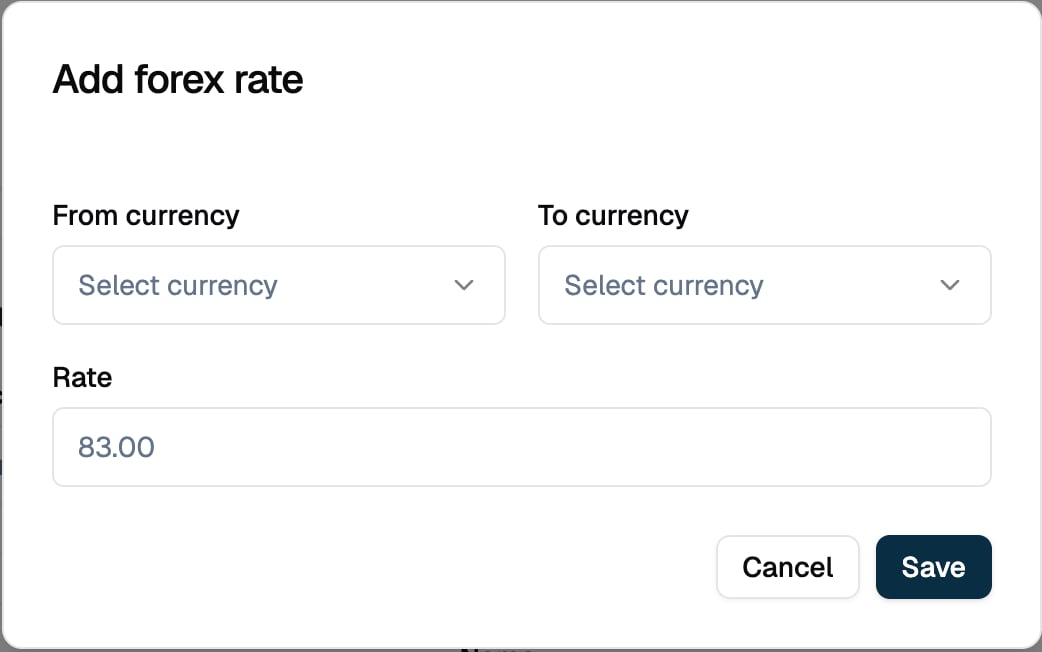
Setup takes three steps: add a global rate, set the customer’s billing currency, then optionally add overrides.Step 1: Add a global rate
Every currency pair you bill across needs a global rate. Overrides fall back to it, and you can’t add an override for a pair without one.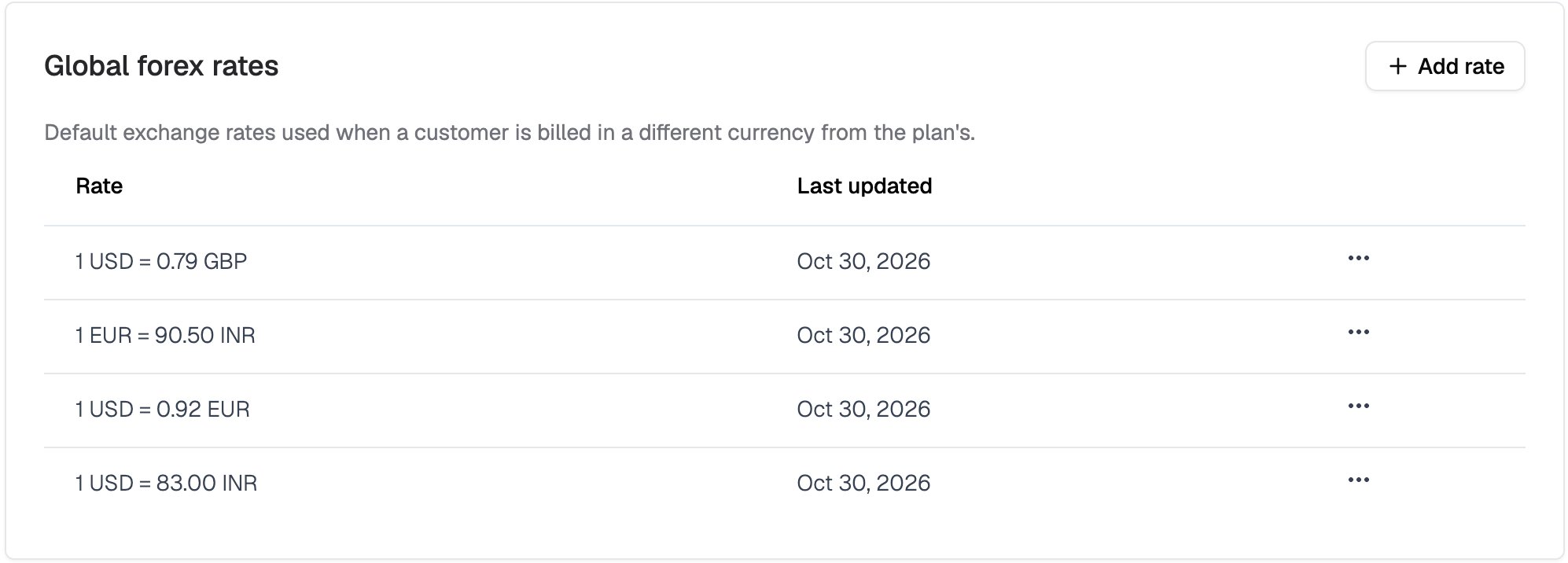
Step 2: Set the customer’s billing currency
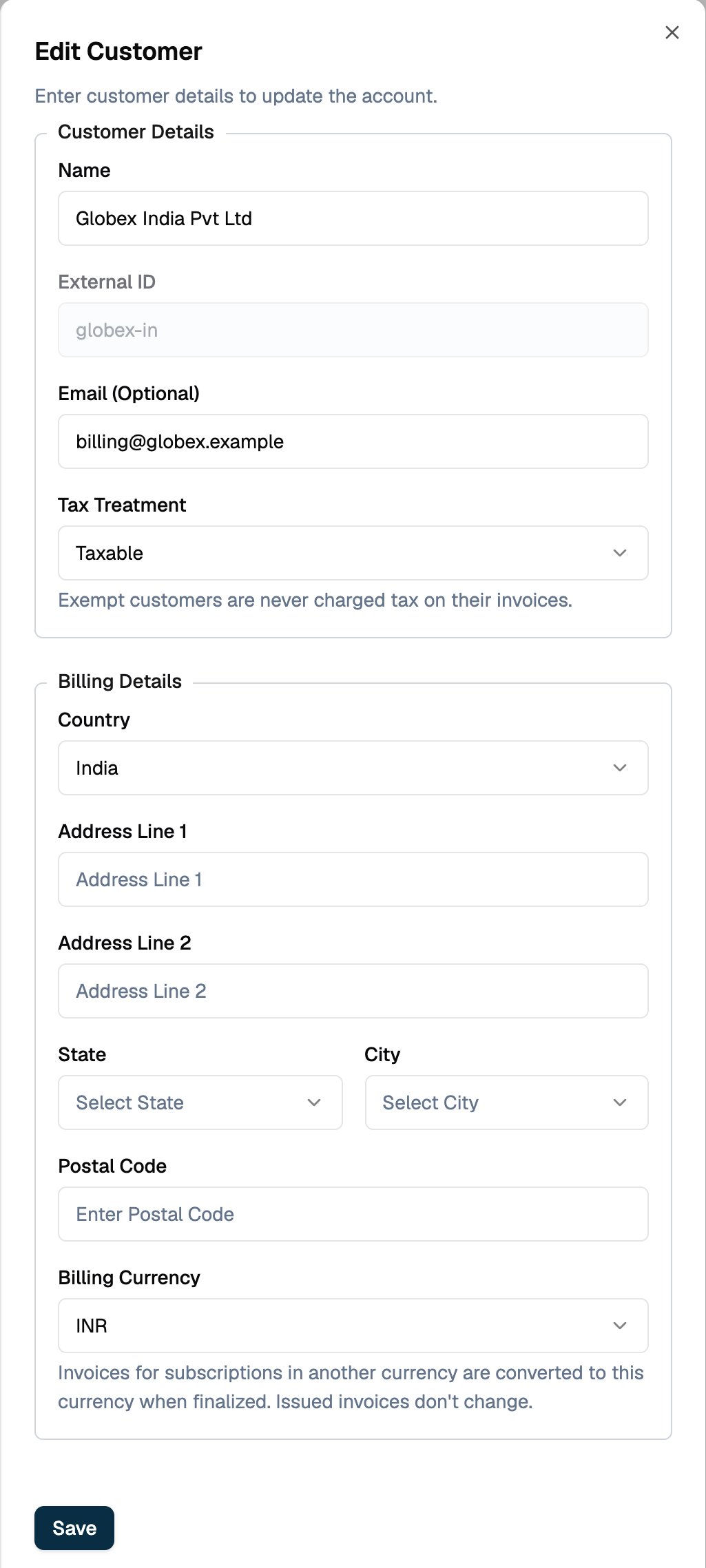
Setbilling_currency when you create or update a customer:
"billing_currency": "". Invoices are then issued in the subscription’s currency again.
In the dashboard, open the customer, click the edit icon and choose a Billing Currency. Choose None to clear it.
- Rates must exist: every active, trialing or paused subscription and every wallet of the customer in another currency needs a rate to the new billing currency. If any are missing, the request is rejected with a message that lists the missing currency pairs.
- No open checkout: the billing currency can’t change while the customer has an open checkout session. Complete or cancel it first.
A new billing currency applies to invoices finalized from then on. Issued
invoices don’t change.
Step 3 (optional): Add overrides
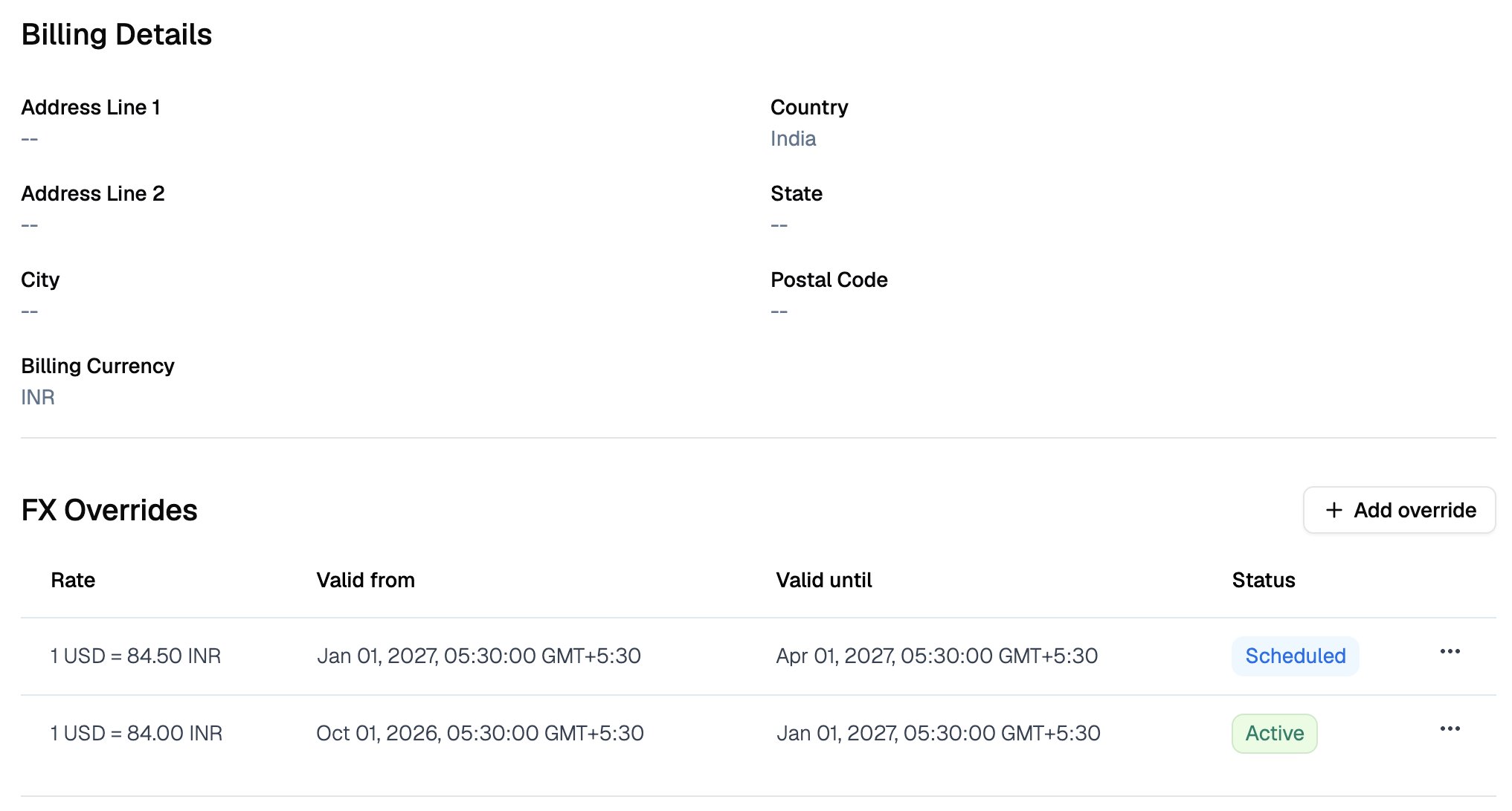
Use an override when a customer or a contract has a negotiated rate. Customer override. Create a rate withscope set to customer and the customer ID as scope_id:
fx_rates when you create the subscription. Each entry is a rate with optional dates, and the entries can’t overlap:
fx_rates is accepted only when the subscription’s currency differs from the customer’s billing currency. It is converted from the subscription’s currency to the billing currency of the customer who is invoiced.
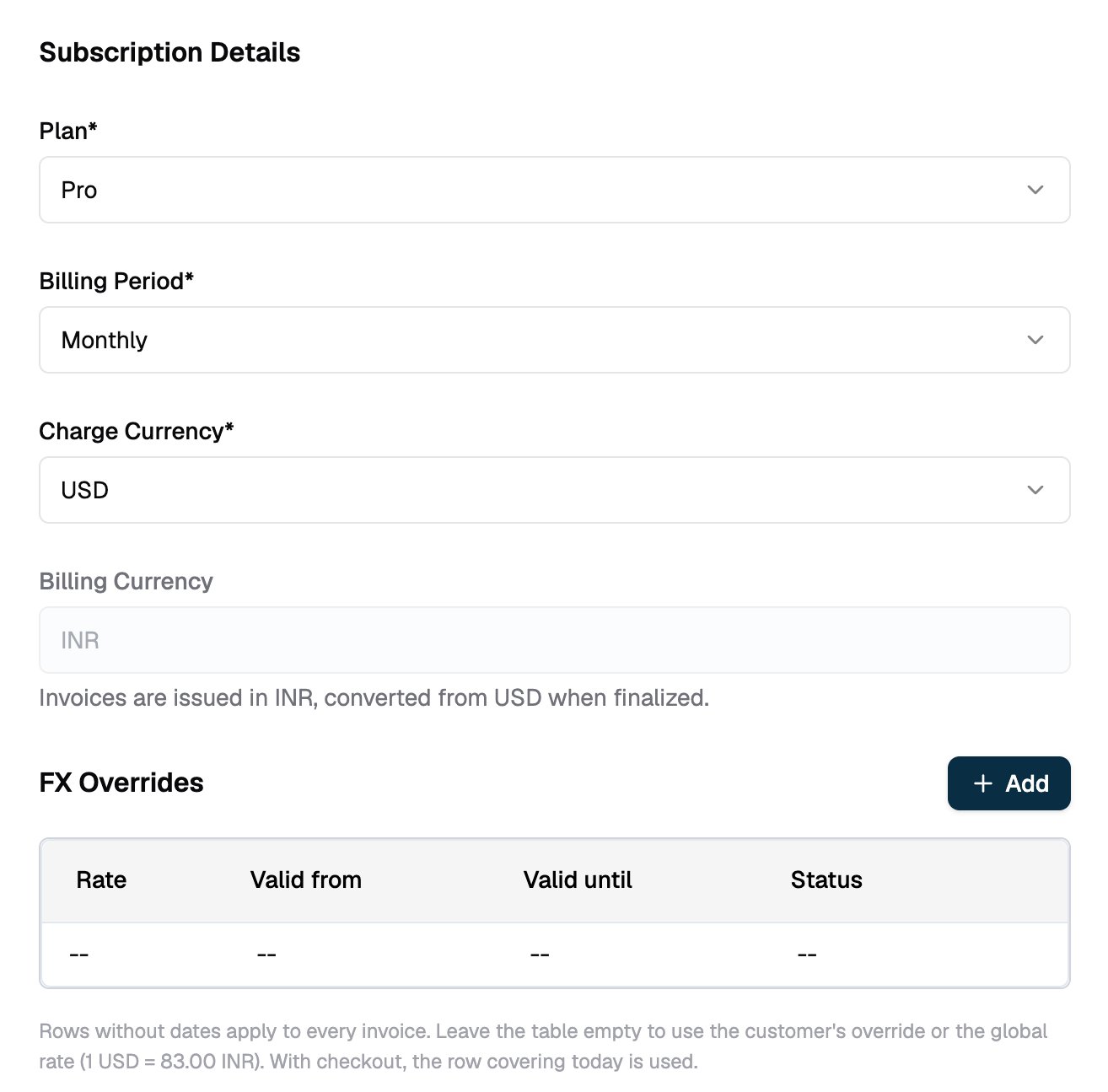
In the dashboard, the Create Subscription form labels the subscription currency as Charge Currency and shows the customer’s Billing Currency below it. Add rows to the FX Overrides table, or leave it empty to use the customer override or the global rate.
POST /v1/forex, using scope set to subscription and the subscription ID as scope_id. Its from_currency must be the subscription’s currency.
Reading a Converted Invoice
A converted invoice hascurrency set to the billing currency, and all amounts are in that currency. The fx_conversion object records how it was converted:
Each line item also carries
fx_conversion with its charge_currency and original source amounts. Invoices that were never converted have no fx_conversion. Invoice webhooks include the same fields.
What Stays the Same
- Plans, prices and usage events don’t change. Keep pricing in the currencies you already use.
- Customers with no billing currency are invoiced exactly as before.
- Invoices that are already finalized keep their amounts and rate, even if you change a rate or the billing currency later.
Example
A customer, Globex India, has an INR billing currency and subscribes to a $100/month Pro plan. Three rates exist for USD → INR:
The first invoice is finalized on Oct 30, 2026. All three rates are valid, and the subscription override is the most specific, so it wins:
If the subscription had no override, the customer override (84) would apply and the invoice would be ₹8,400. Without either override, the global rate (83) gives ₹8,300.
Limitations
Missing rates block finalization If no rate is valid for the currency pair when an invoice is finalized, the invoice stays in draft and the request returns an error naming the missing pair. Add the rate, then finalize the invoice again. Payments on drafts A draft invoice that will be converted can’t take a payment yet, because its final amount isn’t known. Finalize the invoice first, then record the payment in the billing currency. Fixed rates only Rates are values you set. Flexprice doesn’t fetch market rates. Update your global rate or add an override when the rate you bill at changes. Currencies Rates support standard ISO fiat currency codes. Custom currencies, such as credits, don’t use these rates: they convert through the factor in your custom currency configuration.Related Articles
Creating a Customer
Create customers and set their billing details.
Localisation
Price a plan in several currencies.
Pay-First Checkout
Collect payment before a subscription starts.
Wallets
Create prepaid wallets and top them up.
API References