

Overview
A QuickBooks connection in Flexprice stores encrypted credentials that allow the system to interact with your QuickBooks Online account for:- Syncing invoices from Flexprice to QuickBooks
- Creating customers in QuickBooks automatically
- Creating items (products/services) for invoice line items
- Inbound Payment sync
Understanding Sync Configuration
Invoice Sync (Outbound Only)
When enabled, invoices created in Flexprice are automatically synced to QuickBooks:- Outbound:
true- Sync invoices from Flexprice to QuickBooks - Inbound: Always
false- QuickBooks invoices are NOT imported to Flexprice
Payment Sync (Inbound Only)
When enabled, payment notifications from QuickBooks update invoice status in Flexprice:- Inbound:
true- Receive payment notifications from QuickBooks webhooks - Outbound: Always
false- Payments are NOT sent from Flexprice to QuickBooks
Prerequisites
Before setting up your QuickBooks connection, ensure you have:- Intuit Developer Account - Create an app at developer.intuit.com
- OAuth 2.0 Credentials - Client ID and Client Secret from your app
- Income Account in QuickBooks - At least one active Income account (for creating items)
Step 1: Create a QuickBooks App
Create App in Intuit Developer Portal
- Go to Intuit Developer Portal
- Click Create an app
- Select QuickBooks Online and Payments
- Fill in app details:
- App Name: “Flexprice Connection” (or your preferred name) following the naming quickbooks’ naming conventions. Go to View naming guidelines
- Define the authorization scope of your app
- You will be provided with two options (you can select either or both as per your requirements):
- Click Create app
Configure OAuth Settings
- In your app dashboard, go to Settings
- Configure redirect URIs:
- Add flexprice resource
https://admin.flexprice.io/tools/integrations/oauth/callbackas one of your redirect uri
- Add flexprice resource
- Go to Keys & Credentials and copy your credentials:
- Client ID
- Client Secret
Step 2: Configure Webhook (Optional but Recommended)
Webhooks allow Flexprice to receive real-time payment notifications from QuickBooks.Webhook URL Format
Setting Up Webhooks
- Go to Intuit Developer Portal → Your App → Webhooks
- Set up your webhook endpoint to receive live events.
- Enter the webhook URL you were provided with from flexprice
- Subscribe to these events:
Paymententity (Create)
- Copy the Webhook Verifier Token
- Click Save
Step 3: Create QuickBooks Connection
Using Flexprice Dashboard
You can create a QuickBooks connection through OAuth flow in the Flexprice dashboard:1
Navigate to Integrations
Go to Settings → Integrations → QuickBooks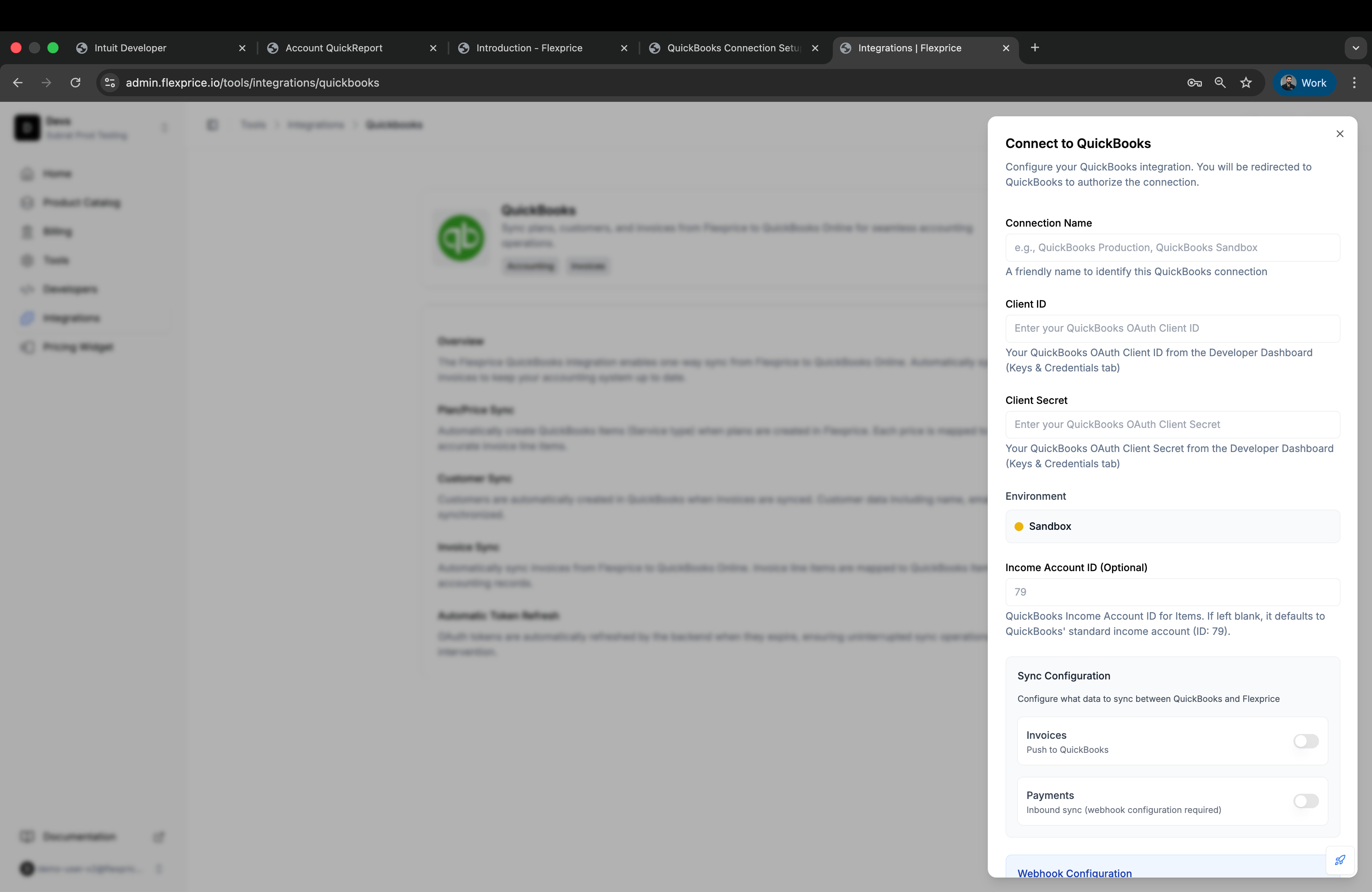
2
Enter Connection Details
Fill in the connection form:
- Connection Name: “QuickBooks Production” (or your preferred name)
- Client ID: From Intuit Developer Portal
- Client Secret: From Intuit Developer Portal
- Environment: Select “Production” or “Sandbox”
- Webhook Verifier Token: From webhook configuration (optional)
- Income Account ID: Provide any custom income account id that you may have created to track your revenue, by default it is set to
79(used for creating items)
3
Configure Sync Settings
Enable sync options:
- Invoice Sync: Enable to automatically sync invoices to QuickBooks
- Payment Sync: Enable to sync payments from QuickBooks
4
Authorize with QuickBooks
Click Connect to QuickBooks to start OAuth flow:
- You’ll be redirected to QuickBooks login
- Sign in to your QuickBooks account
- Select the company to connect
- Authorize Flexprice to access your account
- You’ll be redirected back to Flexprice
5
Verify Connection
After authorization, verify the connection is active and working
Security Best Practices
Credential Management
- Environment Separation: Use sandbox for development, production for live data
- Token Refresh: Access tokens expire after 1 hour - Flexprice automatically refreshes them
- Access Control: Limit OAuth app permissions in QuickBooks
- Encryption: All credentials are encrypted at rest in Flexprice
Webhook Security
- HTTPS Only: Always use HTTPS for webhook endpoints in production
- Signature Verification: Configure webhook verifier token for signature validation
- Idempotency: Flexprice handles duplicate webhook events automatically
- Rate Limiting: Webhooks are rate-limited to prevent abuse
OAuth Token Management
Access Token Expiration:- Access tokens expire after 1 hour of inactivity
- Flexprice automatically refreshes tokens using refresh tokens
- No manual intervention required
- Refresh tokens expire after 100 days of inactivity
- If both tokens expire, you’ll need to re-authorize the connection
Troubleshooting
Common Issues
Debug Steps
- Check Intuit Developer Portal: Verify OAuth credentials and webhook configuration
- Verify Realm ID: Ensure Realm ID matches your QuickBooks company
- Test Income Account: Query QuickBooks to ensure Income Account exists and is active
- Monitor Webhooks: Check webhook delivery logs in Intuit Developer Portal
- Review Logs: Check Flexprice application logs for sync errors
Income Account Configuration
QuickBooks requires all service items to have an Income Account reference. This is where revenue is tracked in your books.Finding Your Income Account ID
- Go to QuickBooks → Chart of Accounts
- Look for accounts with type Income
- Click on an account to view details
Setting Default Income Account
During connection setup, you may provide an Income Account ID. This account will be used as the default for all items created from Flexprice line items.Next Steps
After setting up your QuickBooks connection:- Test Invoice Sync: Create a test invoice in Flexprice and verify it appears in QuickBooks
- Verify Customer Creation: Ensure customers are automatically created when needed
- Check Item Creation: Verify line items are creating service items in QuickBooks
- Configure Webhooks: Set up payment webhooks for automated reconciliation
- Monitor Sync Status: Check integration logs for any sync errors
Related Documentation
- Item Sync - Learn how items are synced to QuickBooks
- Integration Workflow - Understand the complete sync workflow