

Overview
A Paddle connection in Flexprice stores encrypted credentials that allow the system to interact with your Paddle account for:- Creating customers and addresses in Paddle
- Syncing subscriptions to Paddle for payment method collection via hosted checkout
- Syncing invoices to Paddle as transactions for automatic charging
- Receiving webhook notifications from Paddle
- Automatic reconciliation of payments between Paddle and Flexprice
Prerequisites
Before setting up your Paddle connection, ensure you have:- Active Paddle Billing Account - Sign up at paddle.com
- API Key - Available in your Paddle Dashboard (Developers → Authentication)
- Webhook Secret - Configured in Paddle Dashboard (Developers → Notifications)
- Client-Side Token - For Paddle.js when a Flexprice-hosted checkout page loads with a signed
tokenquery param (see Step 2); customers saving a card via the subscription API usepaddle_checkout_urlfrom the integration workflow - Flexprice Environment - Valid Flexprice environment
- Default Payment Link - Required by Paddle on your seller account; set the Flexprice checkout base URL in Paddle (see Step 2)
- Domain Approval - flexprice.io domain approved in Paddle (see Step 2)
Step 1: Gather Paddle Credentials
Required Credentials
Finding Your Credentials
-
API Key:
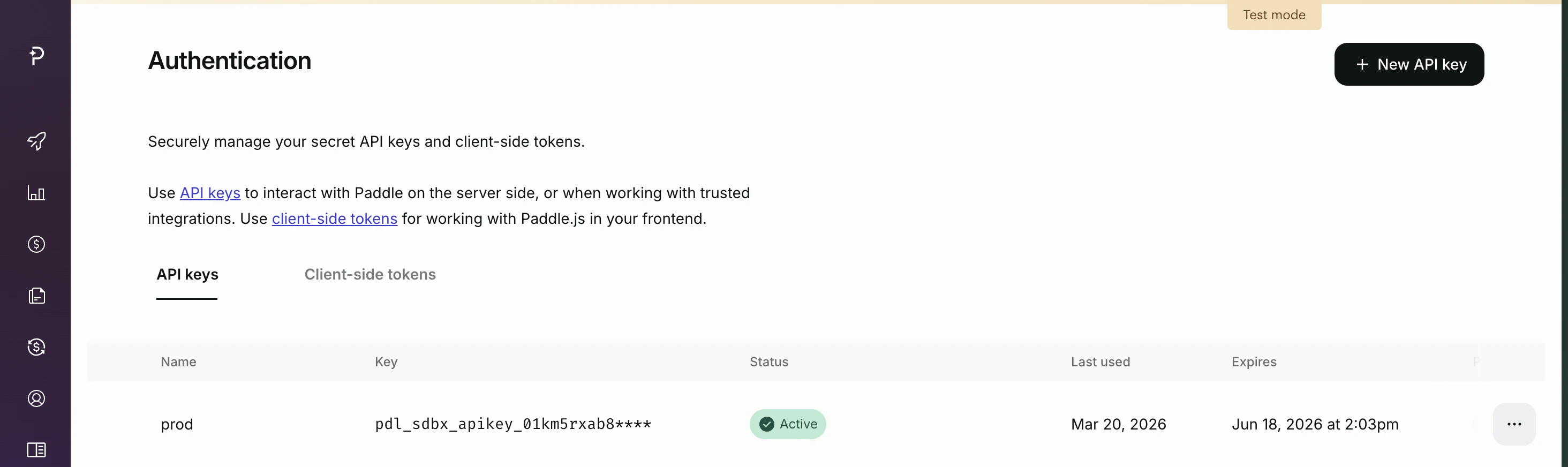
- Go to Paddle Dashboard → Developers → Authentication
- Copy your API key (use
pdl_sdbx_prefix for sandbox, live prefix for production)
-
Webhook Secret:
- Go to Paddle Dashboard → Developers → Notifications
- Create or select your webhook endpoint
- Copy the webhook secret (used for signature verification)
-
Client-Side Token:
- Go to Paddle Dashboard → Developers → Authentication
- Copy the client-side token (e.g.
test_xxxorlive_xxx) for Paddle.js
Step 2: Configure Paddle Checkout & Webhooks
Default Payment Link
Paddle requires a default payment link on your seller account to create transactions. Flexprice still relies on this as part of the integration.Card capture for subscriptions: In the current integration, you usually send customers the
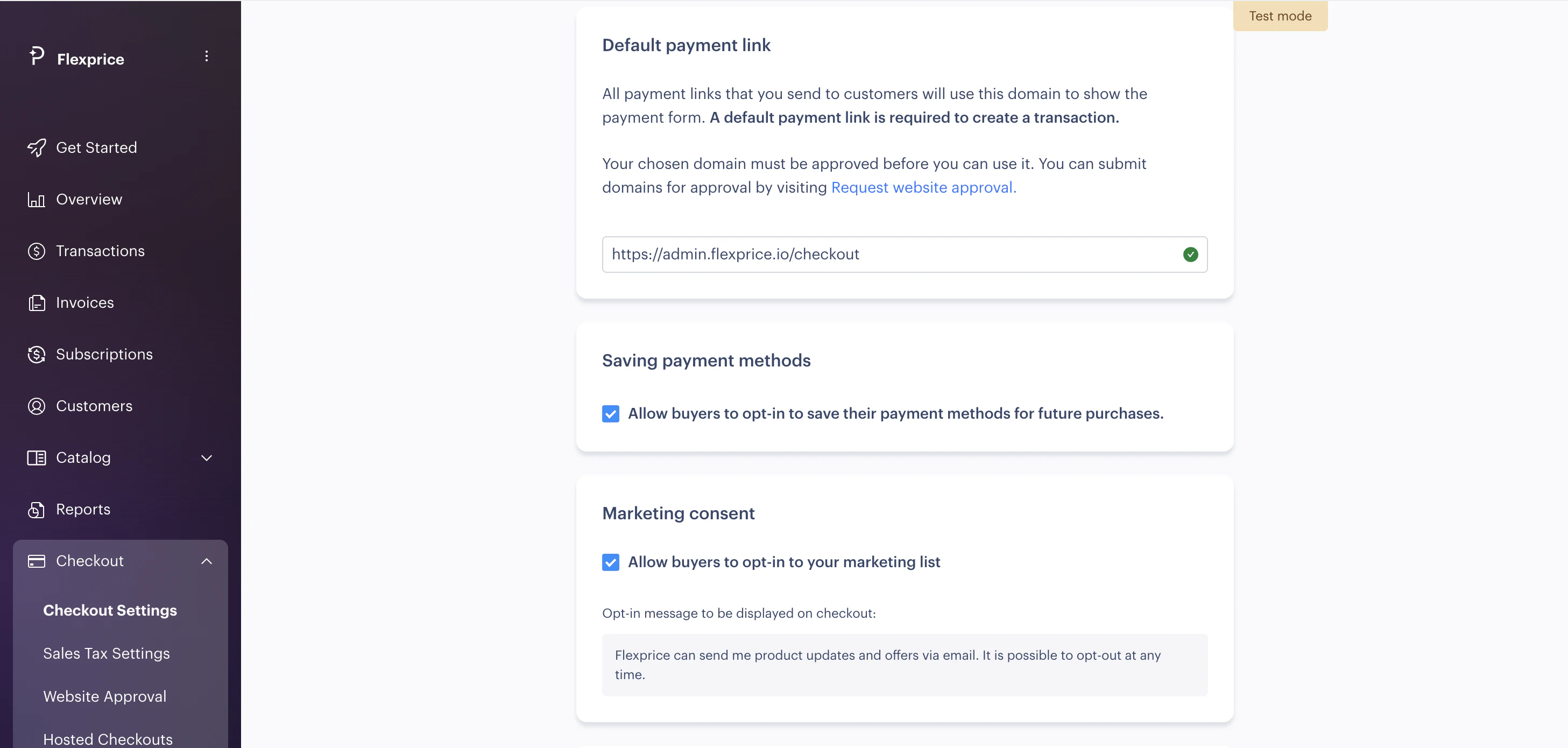
paddle_checkout_url returned when you create a Flexprice subscription (see Paddle Integration Workflow). The steps below configure Paddle’s required default payment link and domain — they do not replace sharing that API-provided checkout URL.- Go to Paddle Dashboard → Checkout → Checkout settings
- Set Default payment link to:
https://admin.flexprice.io/checkout - Submit your domain for approval via Request website approval if not already approved
Website Approval
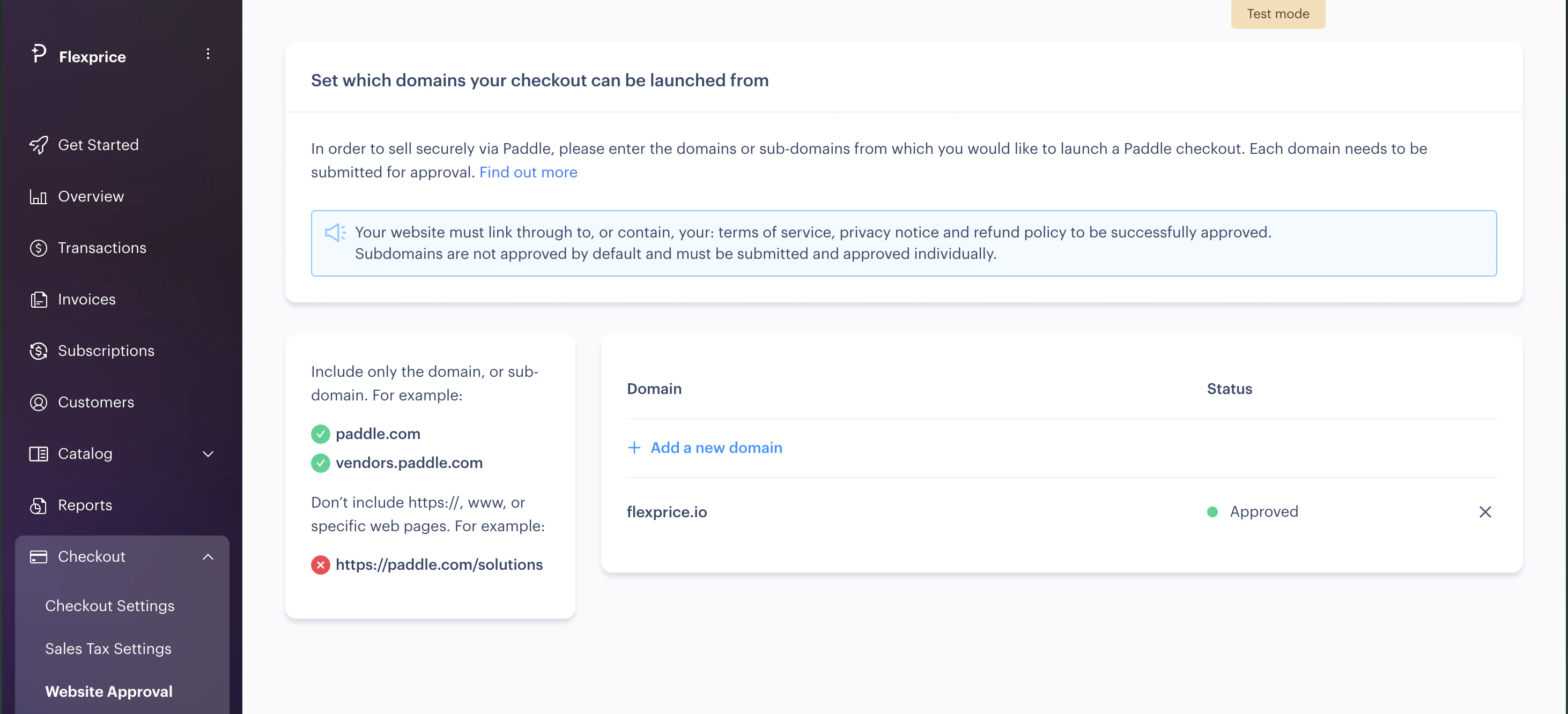
Your domain must be approved before checkout works in production.- Go to Paddle Dashboard → Checkout → Request website approval
- Add and approve the flexprice.io domain (or your production domain)
Setting Up the Webhook
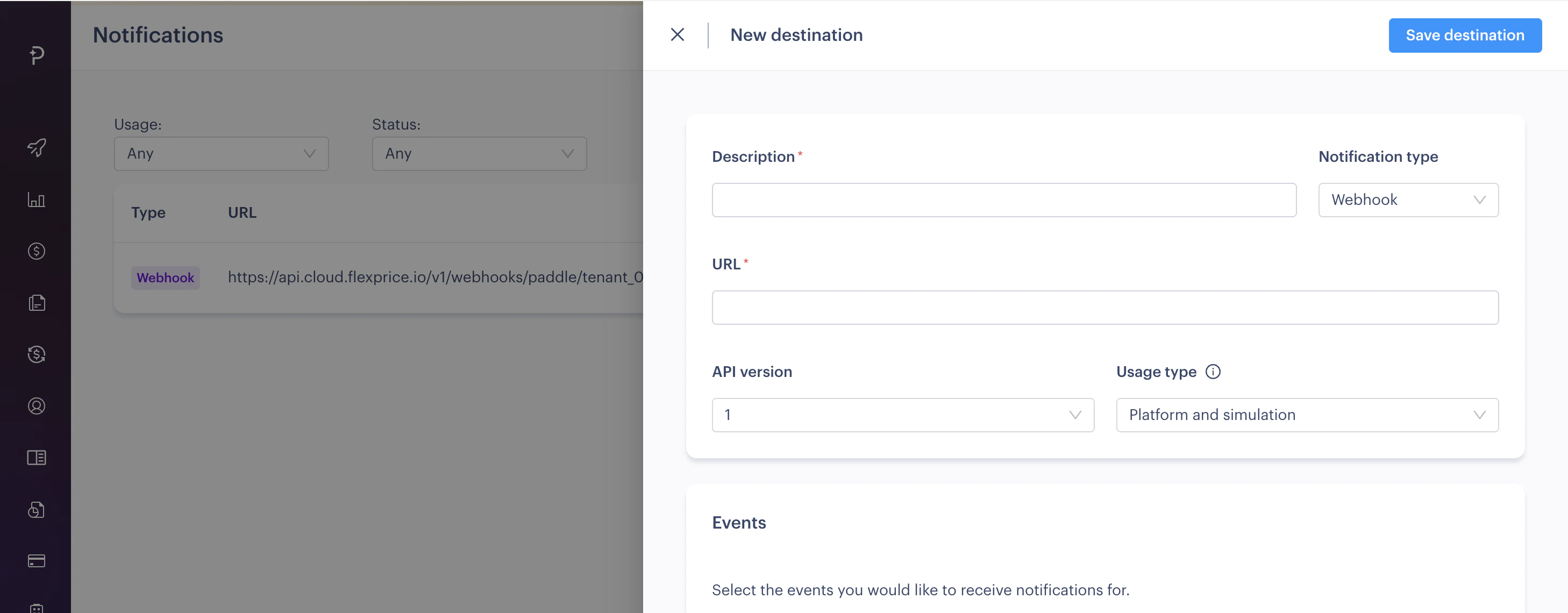
- Go to Paddle Dashboard → Developers → Notifications
- Click Add notification destination
- Enter your webhook URL (see format below)
- Select the required events listed below
- Copy the Webhook Secret for your connection
tenant_01K1TJDVNSN7TWY8CZY870QMNV and env_01K1TJJF0CJR410C6QVPYQTNV0 with your tenant and environment IDs. If you use a different Flexprice region, use the base URL for your region instead of https://api.cloud.flexprice.io.)
Required Webhook Events – Configure these events in your Paddle webhook endpoint:
Step 3: Create Paddle Connection
Using Flexprice Dashboard
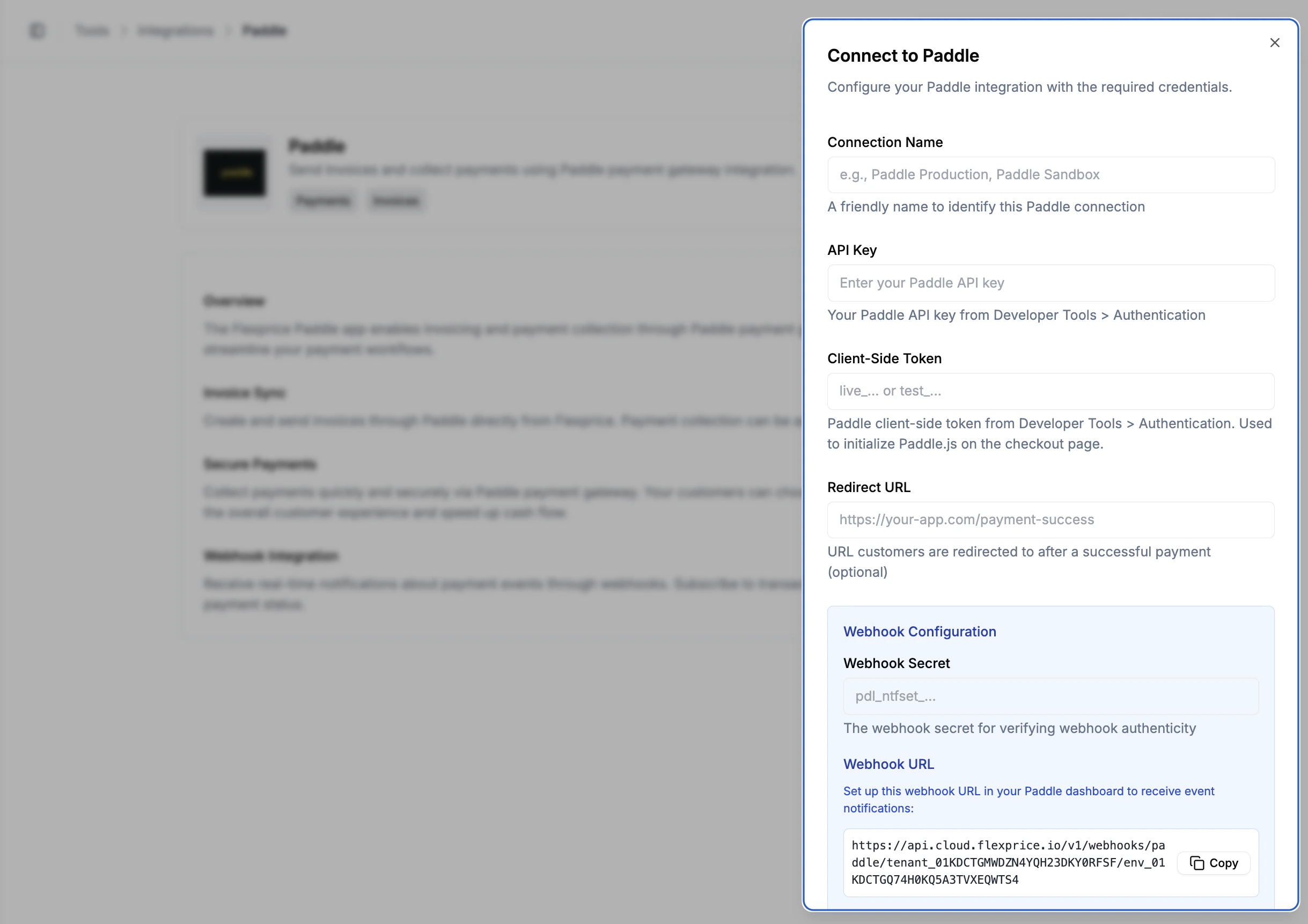
You can create a Paddle connection directly from the Flexprice dashboard:1
Navigate to Integrations
Go to Flexprice dashboard → Integrations → Paddle → Add a connection.
2
Enter credentials
Enter your API Key, Webhook Secret, and Client-Side Token (recommended). Optionally add a Redirect URL in metadata for post-payment redirects.
3
Save connection
Click to create the connection. Flexprice will store your credentials securely.
Subscriptions, invoices, and Paddle
-
Subscription setup: When you create a Flexprice subscription, Flexprice creates a matching Paddle subscription and returns checkout metadata so the customer can save a payment method. See Paddle Integration Workflow for the full flow (
paddle_checkout_url,subscription.activated, card capture, and customer/address sync). -
Invoicing: Flexprice syncs each invoice to Paddle as a transaction. Paddle charges the saved payment method automatically;
transaction.completedreconciles the invoice in Flexprice. - Tax: If Paddle adds tax on top of the invoice amount and the charged total exceeds the invoice total, Flexprice may mark the invoice as overpaid — align tax mode (internal vs. external) in Paddle with your pricing setup.
Security Best Practices
Credential Management
- Environment Separation: Use sandbox keys (
pdl_sdbx_) for development - Key Rotation: Regularly rotate your Paddle API keys
- Encryption: All credentials are encrypted at rest in Flexprice
Webhook Security
- HTTPS Only: Always use HTTPS for webhook endpoints
- Signature Verification: Flexprice verifies all webhook signatures
- Secret Management: Keep webhook secrets secure and rotate regularly
Troubleshooting
Next Steps
After setting up your Paddle connection:- Follow the Integration Workflow: See the Paddle Integration Workflow for the complete end-to-end guide — subscription creation, customer checkout, and invoice auto-charge.
- Test in Sandbox: Use
pdl_sdbx_keys and Paddle’s sandbox environment before going live. - Test customer sync and checkout: Create a test customer with address, sync an invoice, and complete a test payment via Flexprice Checkout.
- Monitor Webhooks: Ensure
transaction.completedandsubscription.activatedevents are being received. - Go Live: Switch to production keys when ready.