

Overview
A Zoho Books connection in Flexprice stores encrypted credentials that allow the system to interact with your Zoho Books organization for:- Connecting to Zoho Books using OAuth
- Syncing invoices from Flexprice to Zoho Books
- Creating and matching contacts in Zoho Books when invoices sync
- Receiving webhook notifications from Zoho Books
- Reconciling invoice payments and voids between Zoho Books and Flexprice
Prerequisites
Before setting up your Zoho Books connection, ensure you have:- Zoho Books Organization - Admin access to a Zoho Books organization with API access
- Zoho API Console Application - Client ID and Client Secret from Zoho API Console (or your region’s console)
- OAuth Redirect URI - The callback URL Flexprice uses for OAuth, registered exactly under your app’s authorized redirect URIs in Zoho
- Flexprice Environment - Valid Flexprice tenant and environment for the connection
- Webhook Secret - A strong value you invent (Zoho does not provide one by default). Type the exact same string in Zoho’s webhook settings and in Flexprice (recommended; used to verify
X-Zoho-Webhook-Signature)
Step 1: Gather Zoho Books Credentials
Required Credentials
Finding Your Client ID and Client Secret
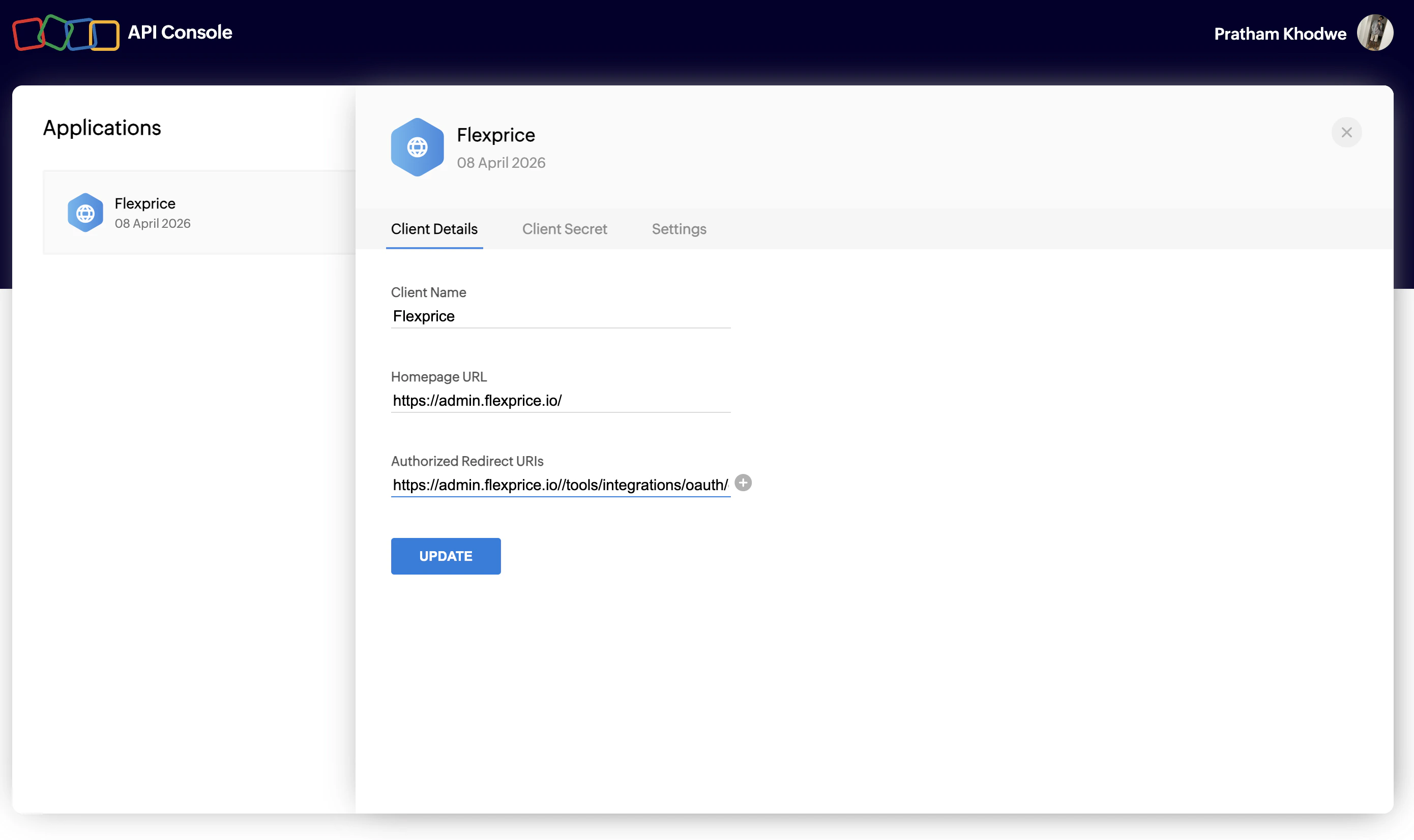
- Go to Zoho API Console (or your Zoho region’s API console).
- Create or open an application for Server-based Applications (or the application type your organization uses for Zoho Books).
- Copy the Client ID and Client Secret.
- Under Authorized Redirect URIs, add Flexprice’s OAuth callback (for example
https://admin.flexprice.io/tools/integrations/oauth/for Flexprice Cloud—use the exact URL your deployment shows if it differs). - Save the application.
Step 2: Configure Zoho Books Webhooks
Zoho Books uses webhook rules (when something happens) and actions (for example notify URL / POST to an endpoint). For a full integration, configure two webhooks:- Invoices - So Flexprice can process paid and voided invoice events.
- Customers - So Flexprice can create customers when a customer is created in Zoho Books (workflow on the Customers module; customer inbound sync is on by default on the connection).
https://api.cloud.flexprice.io. Replace <tenant_id> and <environment_id> with your Flexprice IDs. For other regions or deployments, use the API base URL your organization was given (for example https://us.api.flexprice.io).
If webhooks return success but Flexprice does not update data, confirm the tenant and environment in the path match the environment where Zoho Books is connected.
Webhook secret (type the same value in Zoho and Flexprice)
Zoho Books does not give you a webhook signing secret to copy. The field is empty unless you fill it: you choose a strong secret (for example a long random string), then type that exact same characters everywhere it is asked for.- Choose one secret and use it for both workflow webhooks (invoice and customer), so Flexprice only stores a single value.
- When you add the webhook action in Zoho, type that secret into Zoho’s webhook / signing secret field (wording varies by screen)—do not look for a value Zoho generated; there isn’t one by default.
- In Flexprice (Step 3), type the same secret into the Webhook secret field on the Zoho Books connection.
Webhook 1 — Invoices (Paid and Voided)
Create a workflow on the Invoice module (for example when an invoice is edited and status is updated) so changes such as Paid or Void are sent to Flexprice. Add a webhook immediate action that POSTs to your Flexprice webhook URL.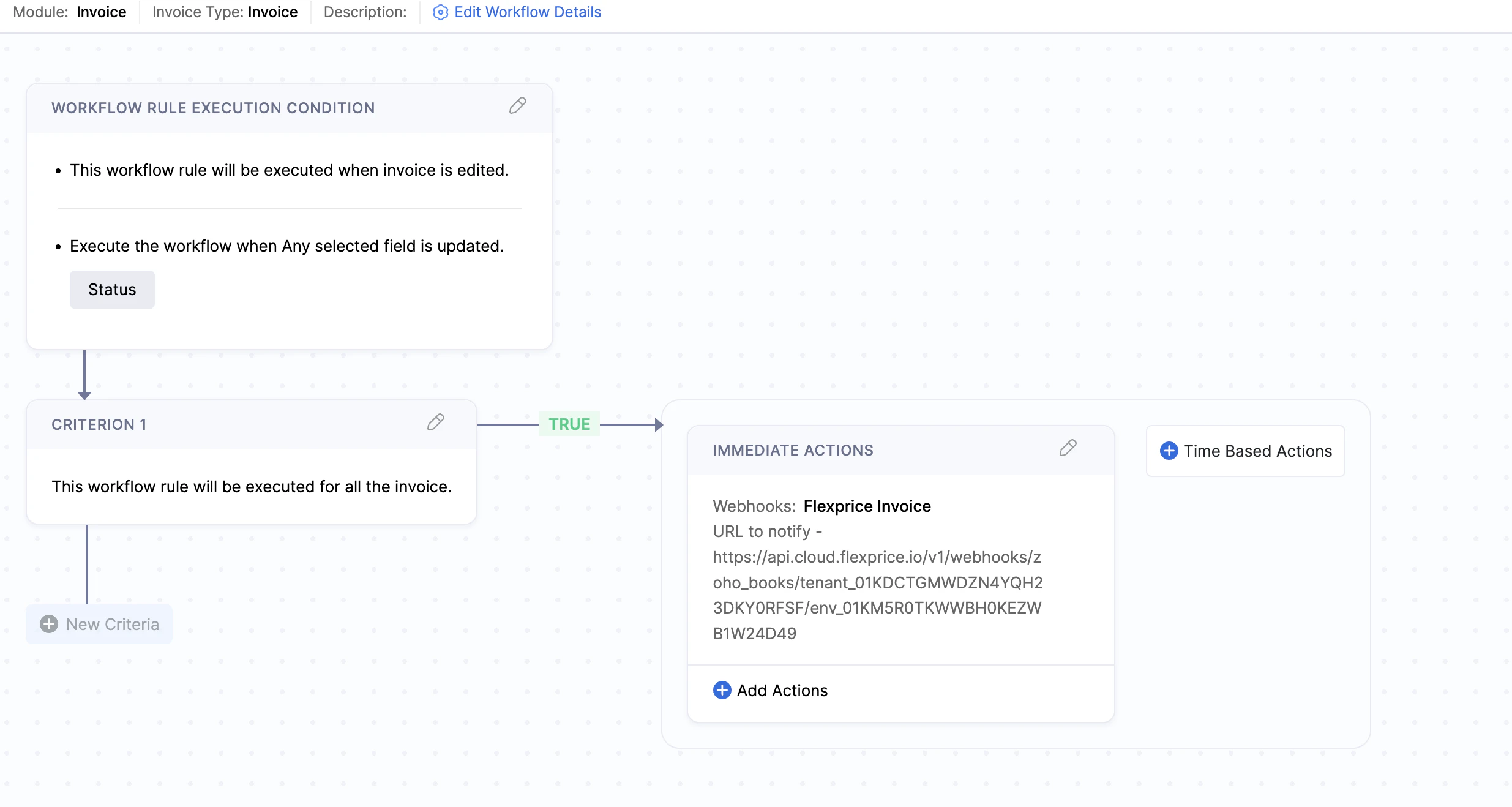
Webhook 2 — Customers (Inbound Customer Sync)
Create a second workflow on the Customers module for customer created (all customers or your criteria), with a webhook action posting to the same Flexprice URL as the invoice rule. Customer inbound sync is on by default on the connection; turn it off only if you do not want new Zoho customers to create Flexprice customers.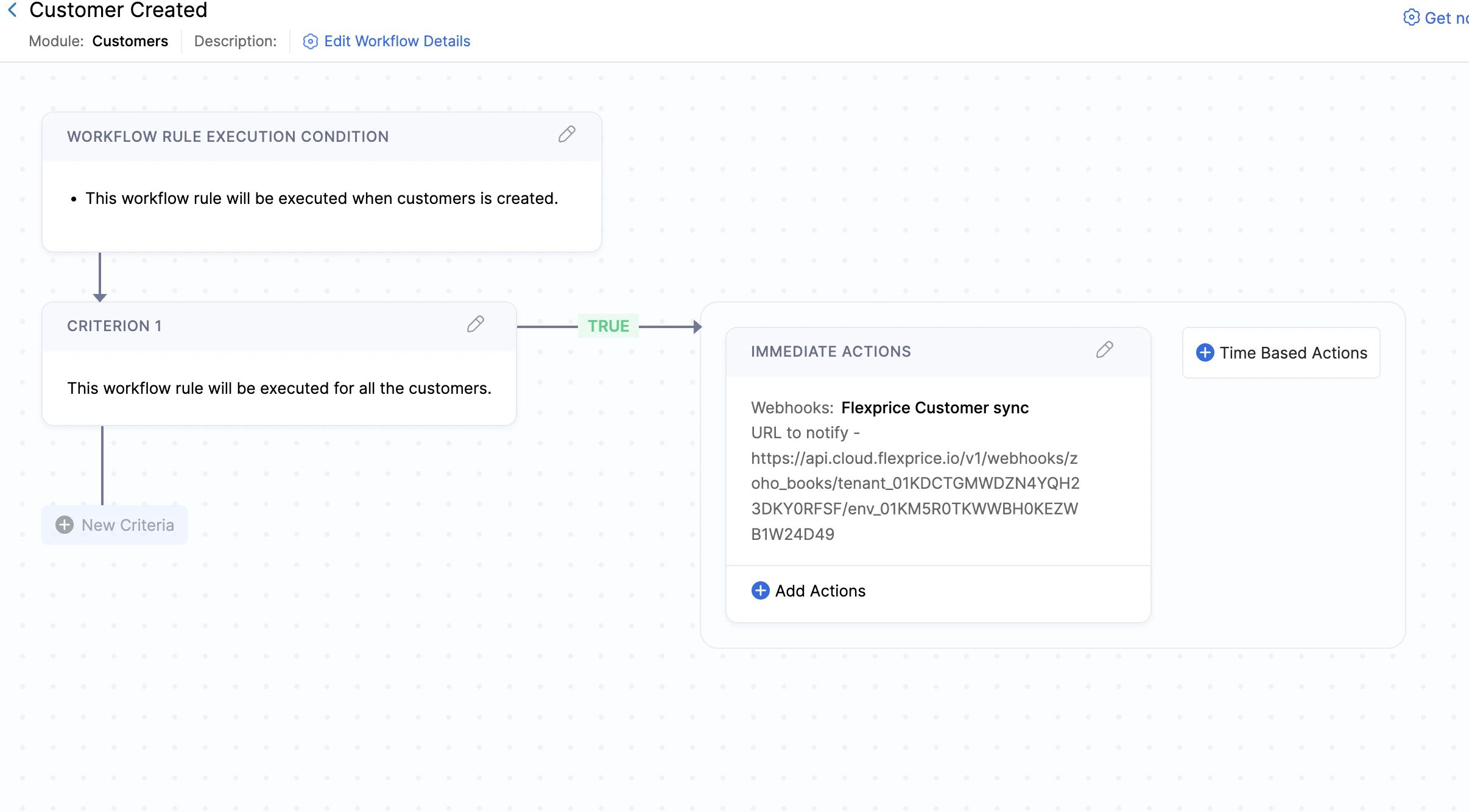
Step 3: Create Zoho Books Connection
Using Flexprice Dashboard
You can create a Zoho Books connection from the Flexprice dashboard:1
Navigate to Integrations
Go to Flexprice dashboard → Integrations → Zoho Books (or Accounting) → Connect / Add connection.
2
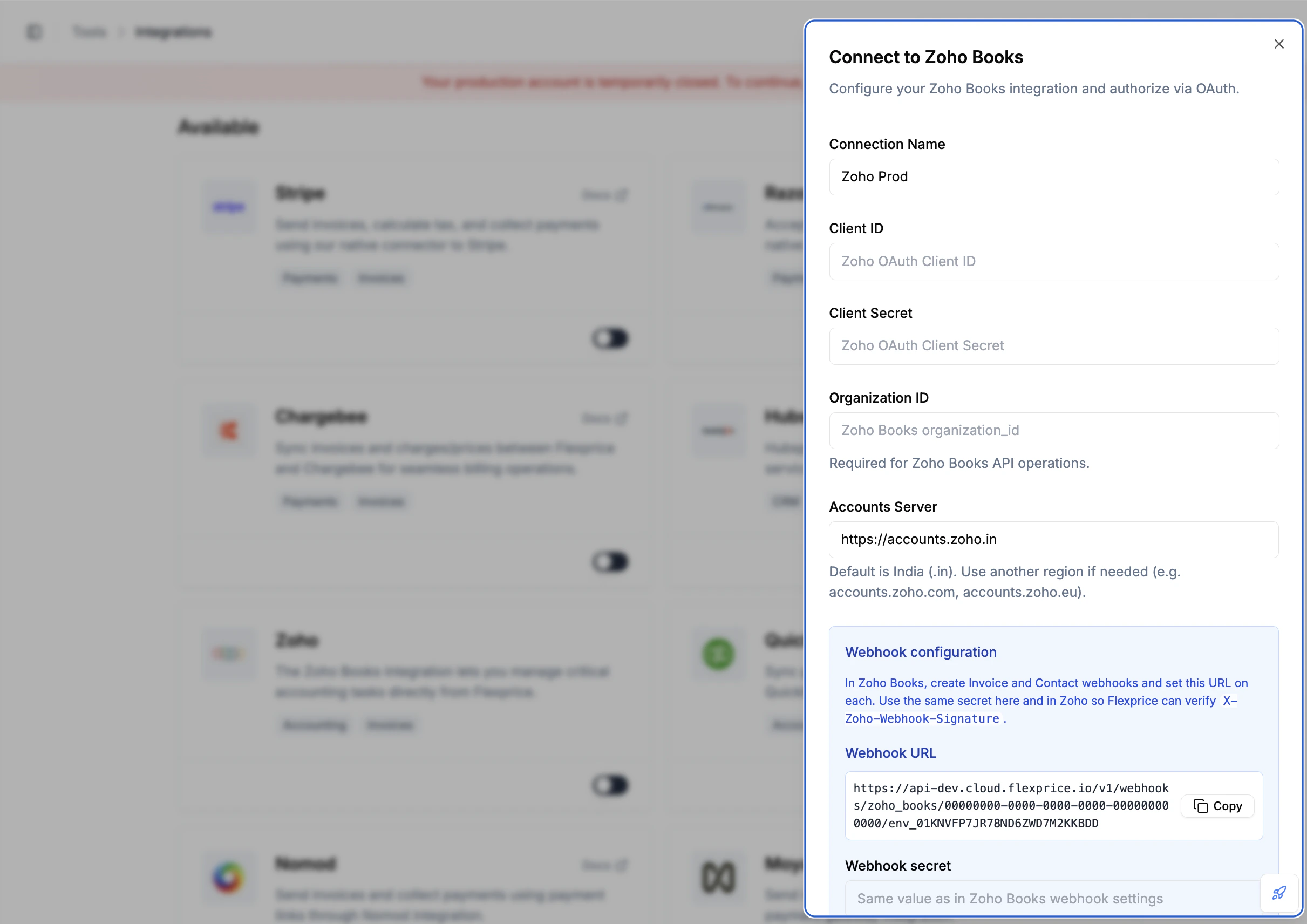
Enter connection details
Fill in Connection name, Client ID, and Client Secret from the Zoho API Console. Add your Zoho Books organization ID and the accounts server for your region (for example
https://accounts.zoho.in or https://accounts.zoho.com). Copy the webhook URL from the modal into each Zoho Books webhook. In Webhook secret, type the same value you use in Zoho’s webhook / signing-secret field (character-for-character). You pick that value yourself—Zoho does not provide one. You can update this field later if you rotate the secret.3
Complete OAuth
Complete sign-in and consent in Zoho. Flexprice exchanges the authorization code for tokens, stores them encrypted, and associates the connection with your Zoho organization. Access tokens refresh automatically.
4
Review sync settings
Invoice outbound sync and customer inbound sync are on by default for a new connection. Change them only if you do not want invoices pushed to Zoho or new Zoho contacts imported into Flexprice.
Customer Sync
Flexprice can keep customers aligned toward Zoho (with invoice sync) and from Zoho (via webhooks). On the connection, invoice outbound and customer inbound sync are on by default; you can turn either off if you do not want that behavior.Flexprice → Zoho Books (contacts on the Zoho side)
Default: Invoice outbound sync is on by default (see Sending invoices to Zoho). If someone turned it off, enable it again on the connection to push invoices—and the related contacts—to Zoho. What happens: Whenever Flexprice creates an invoice in Zoho Books, it also creates or matches a contact in Zoho for that invoice’s Flexprice customer. You do not maintain that contact separately before the invoice sync runs.Zoho Books → Flexprice (new customers in Flexprice)
Default: Customer inbound sync is on by default on the connection. Also required in Zoho: Inbound only works when Zoho can reach Flexprice. In Zoho Books, configure the customer created webhook from Step 2 so Zoho notifies Flexprice when customers are created. What happens: A new customer in Zoho Books can become a new customer in Flexprice. Vendor records are ignored. If the customer’s email already exists on a Flexprice customer, Flexprice links to that customer instead of creating a second one.Invoice Sync
Sending invoices to Zoho (outbound)
Default: Invoice outbound sync is on by default on a new connection. Disable it only if you do not want Flexprice to create invoices in Zoho Books. What happens: After a Flexprice invoice is eligible to sync to your accounting system (same rules as other Flexprice accounting integrations), Flexprice creates a corresponding invoice in Zoho Books. You do not manually re-enter that invoice in Zoho.How line items appear in Zoho
Zoho Books receives one line per Flexprice line so totals stay aligned:- Quantity is always 1 per line.
- Rate is set to the full amount of that Flexprice line (so the line total in Zoho equals the Flexprice line amount).
Currency and exchange rates
Zoho Books uses an organization base currency. If the Flexprice invoice uses a different currency:- In Zoho Books, open Settings → Currencies.
- Add that invoice currency if it is missing.
- Set a positive exchange rate from that currency to your base currency.
Invoice updates from Zoho (webhooks)
This applies when the Zoho invoice was originally created from Flexprice (so both systems are linked).
Other changes in Zoho (edits, partial updates, unrelated fields) are not continuously copied back into Flexprice; only these webhook-driven outcomes are handled.
Security Best Practices
Credential Management
- Environment separation - Use separate Zoho API applications or organizations for development and production where possible.
- Secret rotation - Rotate the Zoho Client Secret in the API Console if needed. For webhooks, set a new secret in both Zoho workflow actions and the Flexprice connection together.
- Encryption - Flexprice stores connection secrets encrypted at rest.
Webhook Security
- HTTPS only - Use HTTPS for the webhook URL.
- Signature verification - Store the same user-defined webhook secret on the Flexprice connection as in Zoho so Flexprice can verify
X-Zoho-Webhook-Signature. - Correct URL path - Incorrect tenant or environment in the URL prevents Flexprice from loading the connection even when the HTTP request succeeds.
Troubleshooting
Next Steps
After setting up your Zoho Books connection:- Verify the connection - Confirm the connection shows as active in Flexprice.
- Test invoice sync - With outbound invoice sync on, create or finalize a test invoice and confirm it appears in Zoho Books.
- Test payment reconciliation - Mark the invoice paid in Zoho and confirm Flexprice reflects payment status.
- Test customer sync (optional) - With inbound customer sync on, create a customer in Zoho Books and confirm a customer appears in Flexprice.