

Overview
A Tabs connection in Flexprice enables you to:- Sync invoices - Flexprice pushes invoices to Tabs automatically as they are generated
- Create customers and contracts - Flexprice provisions the matching customer and contract in Tabs whenever they are needed
- Centralize collection - invoices are created in Tabs as editable drafts, ready for review before collection
Flexprice pushes invoices to Tabs. This integration does not require any webhook configuration.
Prerequisites
Before you start, have:- Tabs account - tabsplatform.com
- Flexprice account - flexprice.io
Keys you need
1
Open the Tabs Developer keys page
In Tabs, go to Developers (app.tabsplatform.com/merchant/developers) and click Add API key.
2
Create the key
Enter a name (e.g. 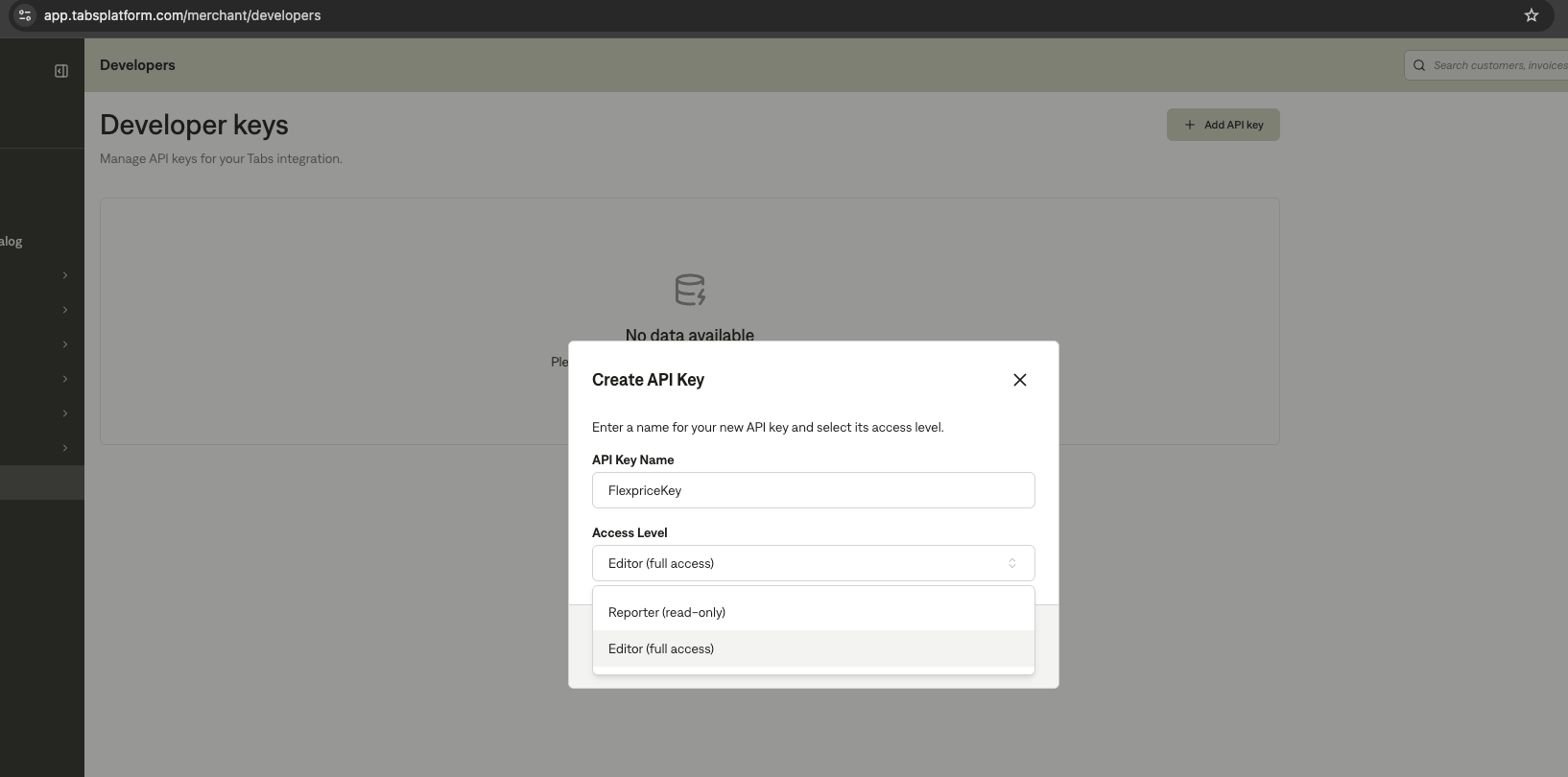
FlexpriceKey), set Access Level to Editor (full access), and create the key.3
Copy the key
Copy the generated API key. You will paste it into Flexprice in the next step.
Connect your Tabs account
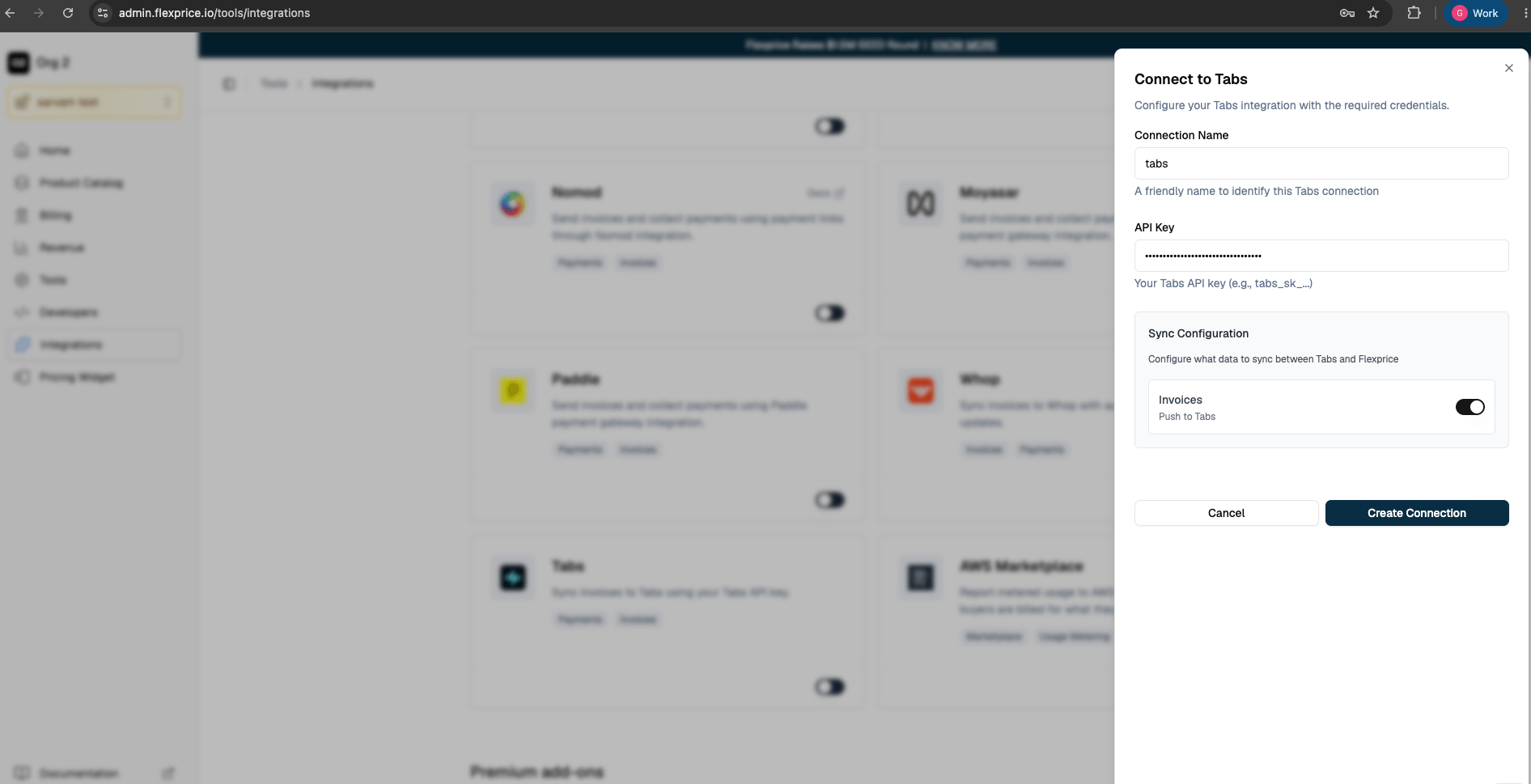
Go to Flexprice Dashboard → Integrations → Tabs → Connect.1
Name your connection
Enter a name to identify this connection, e.g.
tabs.2
Enter your API Key
Paste the API key copied from Tabs.
3
Enable Invoice Sync
Under Sync Configuration, toggle Invoices on to push invoices to Tabs. With this off, invoices stay only in Flexprice.
4
Create the connection
Click Create Connection.
Create the connection via API
You can also create the connection through the API instead of the dashboard:cURL
Troubleshooting
Next Steps
- Finalize a test invoice in Flexprice and verify it appears in your Tabs dashboard
- Confirm the invoice is created in Tabs as a draft for review
- Read Invoice Sync to understand how Flexprice syncs invoices to Tabs