

Configuring via the Dashboard
1
Open the subscription for editing
Go to Billing → Subscriptions, open the subscription, and go to Edit Subscription.
2
Open the line item's menu
Find the line item to monitor, click its three-dot menu (⋮), and select Alert Settings. It appears alongside Edit and Terminate for that line item.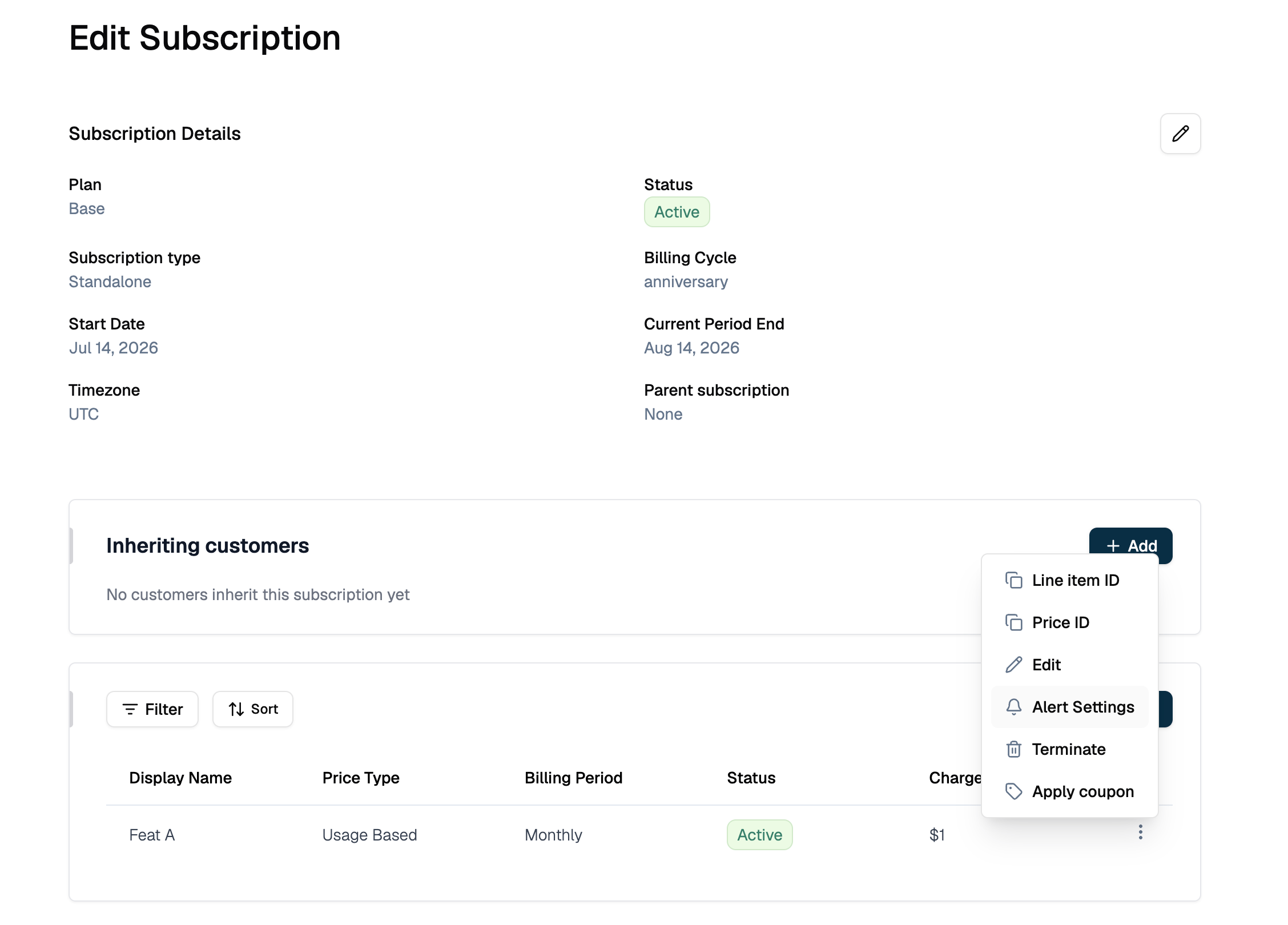
3
Enable alerts
Turn Enable Alerts on.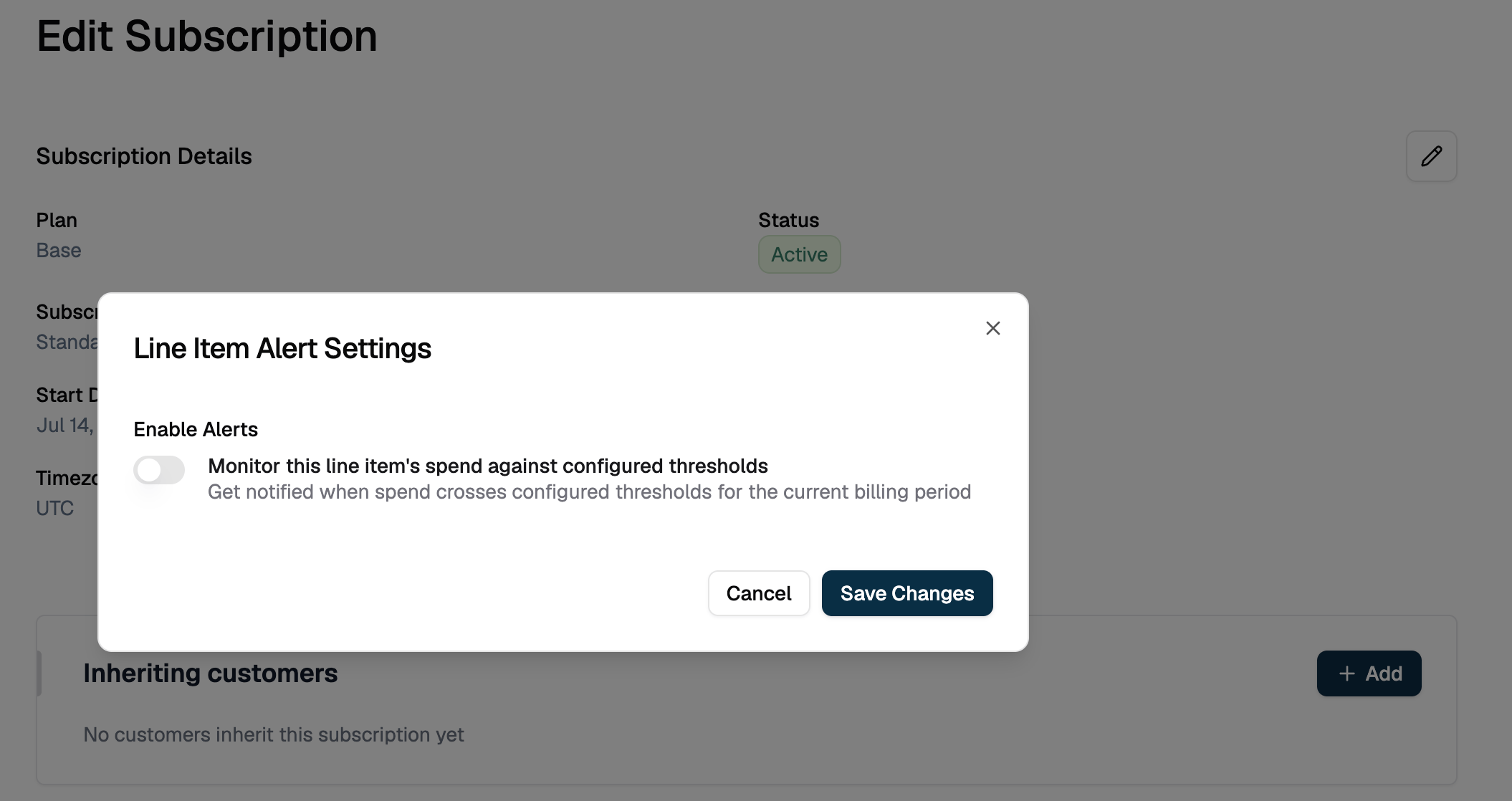
4
Configure thresholds
Set Threshold Value for the levels you want (Critical, Warning, Info). Condition is fixed to Above. Use Remove to drop a level you don’t need, then click Save Changes.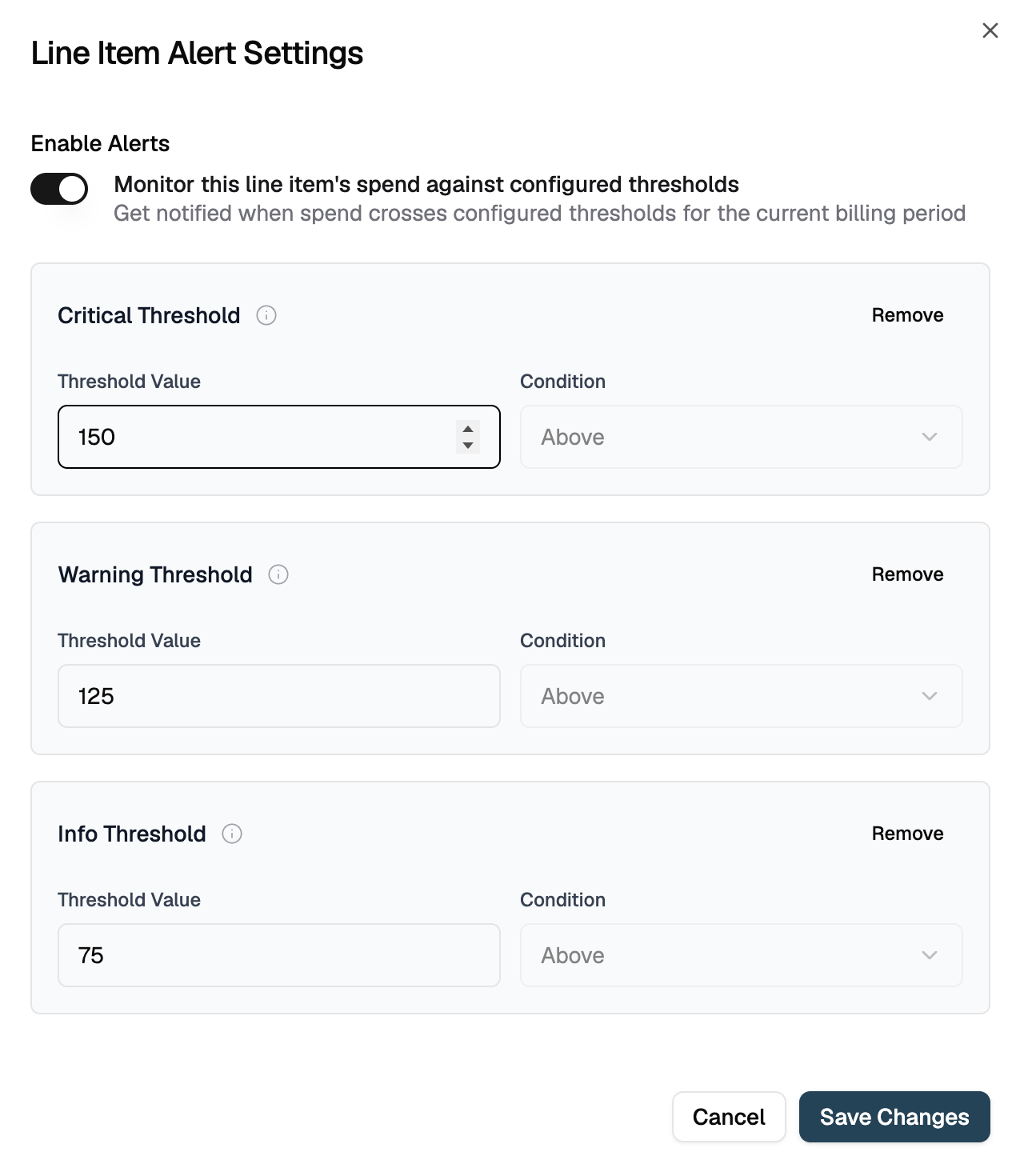
Configuring via API
Alert Behavior
Flexprice recalculates this line item’s usage-based spend on every usage event affecting the subscription and sends a webhook only when the alert state changes.Usage on a different line item in the same subscription does not affect this alert. It only tracks the one line item it’s configured on.
Managing Alert Settings
Viewing current configuration
1
Open the line item's menu
Open Edit Subscription, find the line item, and click its three-dot menu (⋮).
2
Open Alert Settings
Select Alert Settings. The dialog shows Enable Alerts and all configured threshold levels with their values.
Changing thresholds
1
Open Alert Settings
Open Edit Subscription, find the line item, click its three-dot menu (⋮) → Alert Settings.
2
Adjust values
Change Enable Alerts or any threshold value in the dialog.
3
Save
Click Save Changes.
Removing a threshold
1
Open Alert Settings
Open Edit Subscription, find the line item, click its three-dot menu (⋮) → Alert Settings.
2
Remove the level
Click Remove on the threshold level you want to drop.
3
Save
Click Save Changes. Removed thresholds are cleared, not just hidden, so send the complete remaining configuration.
Disabling alerts
1
Open Alert Settings
Open Edit Subscription, find the line item, click its three-dot menu (⋮) → Alert Settings.
2
Turn off Enable Alerts
Set Enable Alerts to off (or set
alert_enabled to false via API).3
Save
Click Save Changes.
Webhooks
Use Cases
- Per-charge budgets: Alert on a specific metered charge (e.g. a particular API or compute meter) without noise from the rest of the subscription
- High-cost line items: Set tighter thresholds on line items with the highest per-unit cost or the most usage variance
- Customer-specific overrides: Combine with per-subscription price overrides to alert on a customer’s negotiated rate independently
Related
- What Are Spend Alerts?: all three alert scopes, shared validation, and the full API reference
- Subscription spend alerts: monitor the whole subscription instead of one line item
- Group spend alerts: monitor spend across a feature group
- Webhooks: endpoint setup, payload signatures, and retry behavior