

Viewing invoices
Go to Billing → Invoices in the left navigation. Dashboard invoice lists exclude Skipped invoices by default. Clear the Invoice status exclusion to include them. The list shows each invoice’s number, customer, invoice date, due date, amount, amount due and payment status. Click an invoice to open it. To see one customer’s invoices, open the customer and go to their Invoices tab.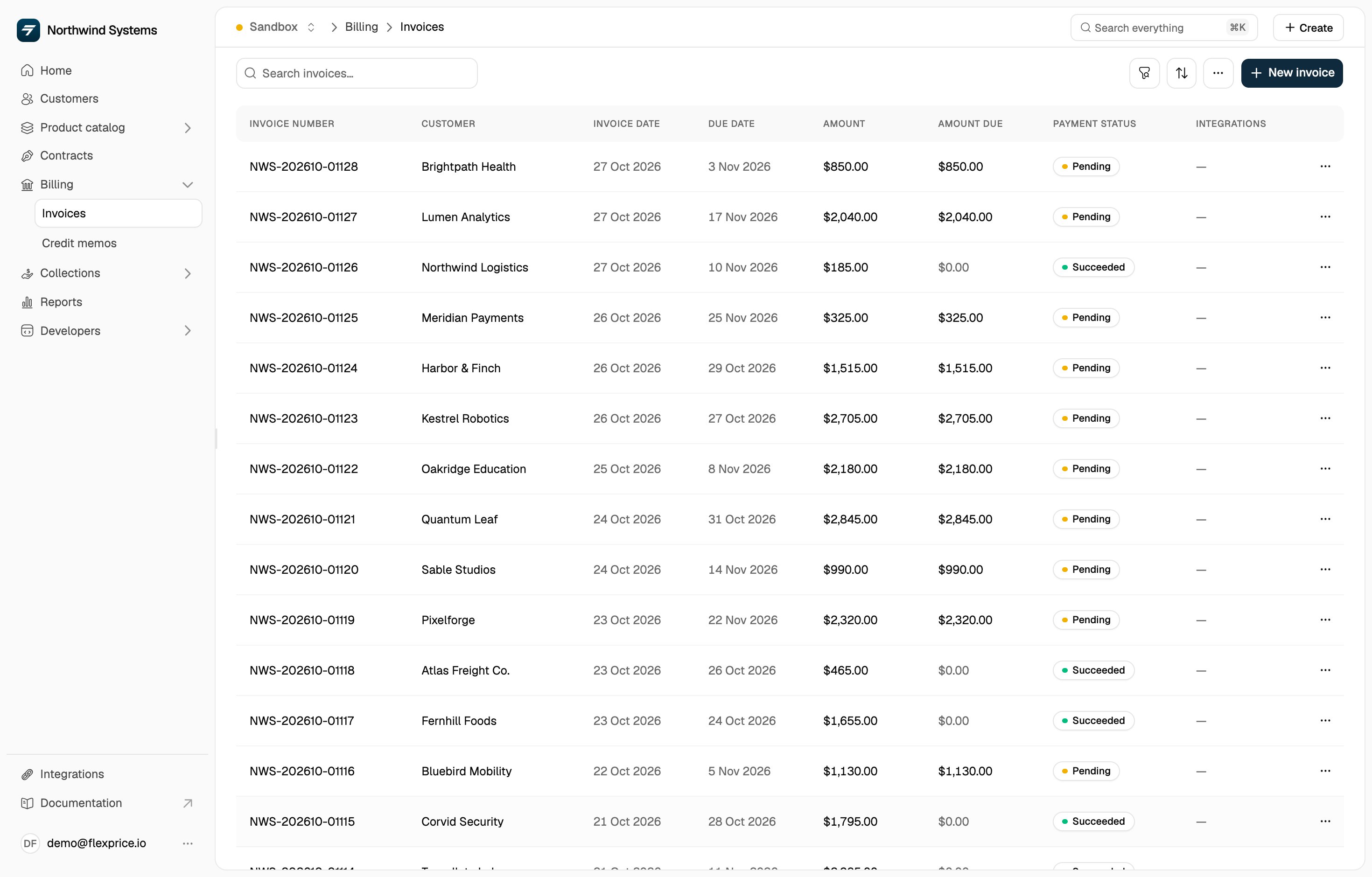
Invoice details
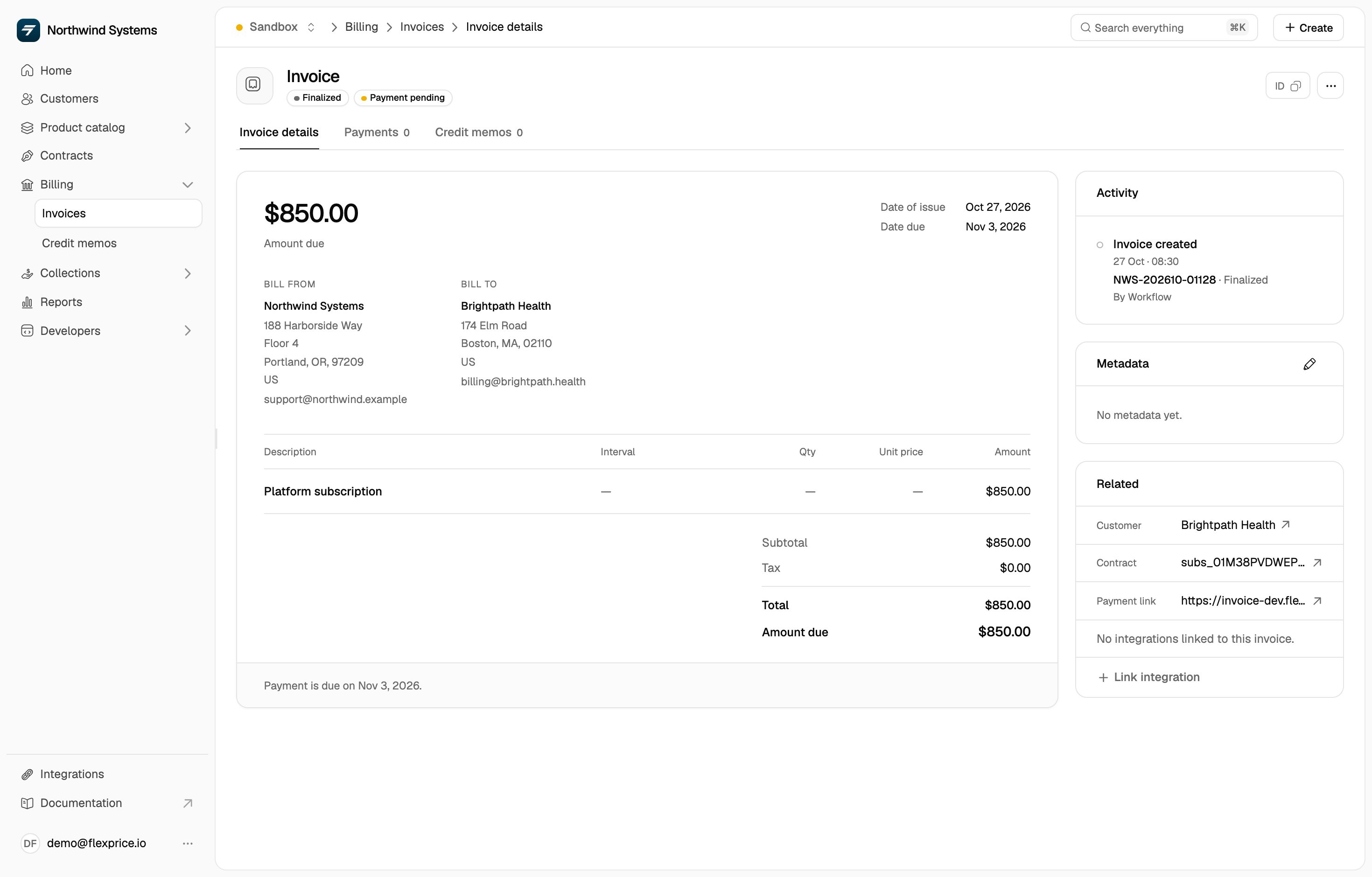
The invoice page shows:- Status badges: the invoice status (for example Finalized) and the payment status.
- Amount due, Date of issue and Date due.
- Bill from and Bill to addresses.
- Line items with description, interval, quantity, unit price and amount.
- Subtotal, tax, any discounts and credits applied, Total and Amount due.
- The Payments and Credit memos tabs, listing the payments recorded against the invoice and the credit memos issued for it.
- The Emails card, listing the emails sent to the customer for the invoice with their delivery status. Select Send to email the invoice. See Emailing invoices.
- If the invoice has linked wallet credits in the pending state, its header shows Releases X credits. The credits become available once the invoice is paid.
Invoice actions
Every action below is in the ⋯ menu at the top right of the invoice page. The ⋯ menu on the invoice’s row in the Invoices list offers all of them except Update payment status.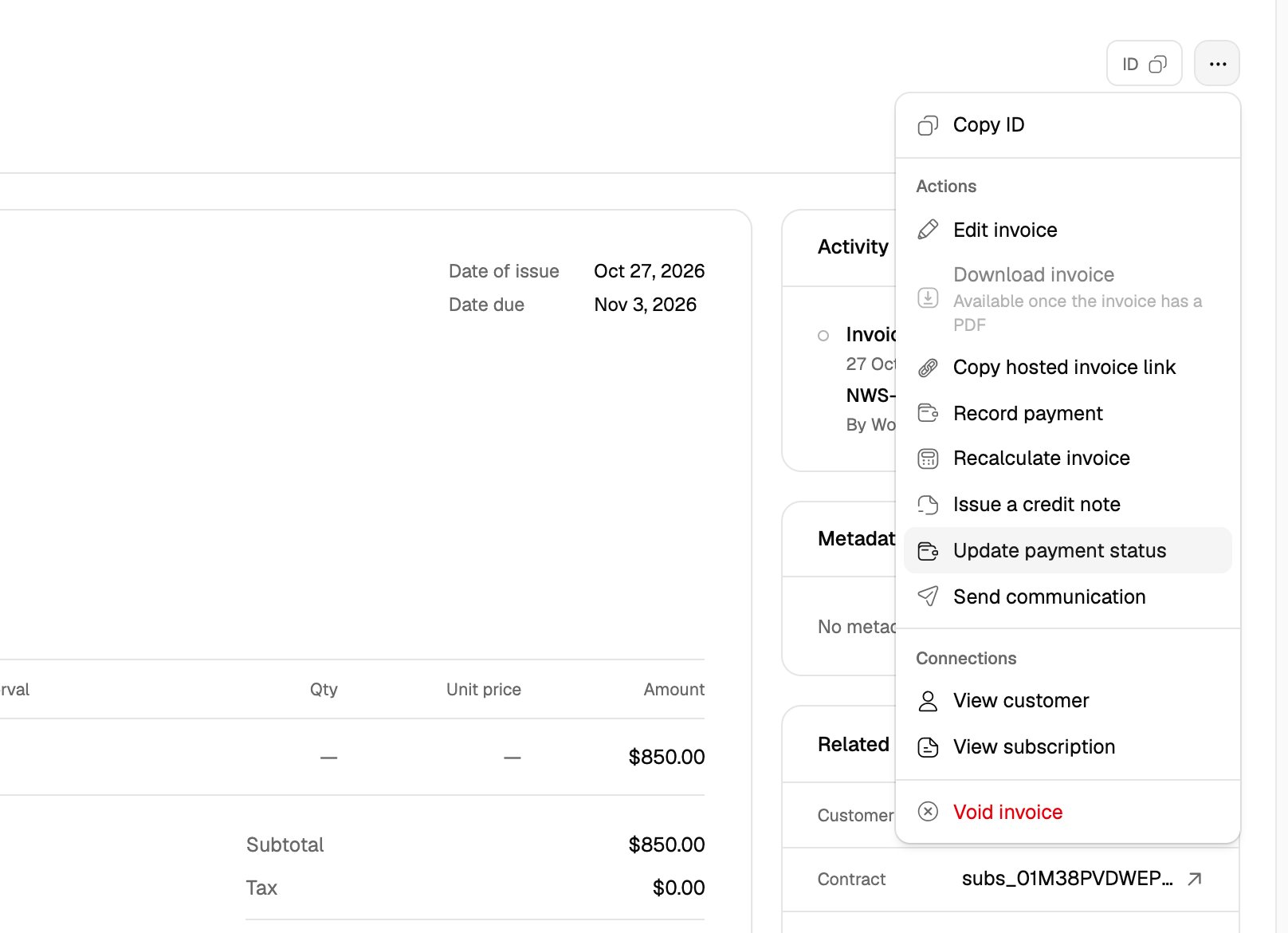
Finalizing and voiding
- A Draft invoice can still change. Select Finalize invoice to lock it for payment.
- Select Void invoice to cancel an invoice and prevent further changes. Flexprice then tries to close the invoice’s unpaid Stripe and Razorpay payment links, except links a checkout session created. See Invoices.
Updating payment status
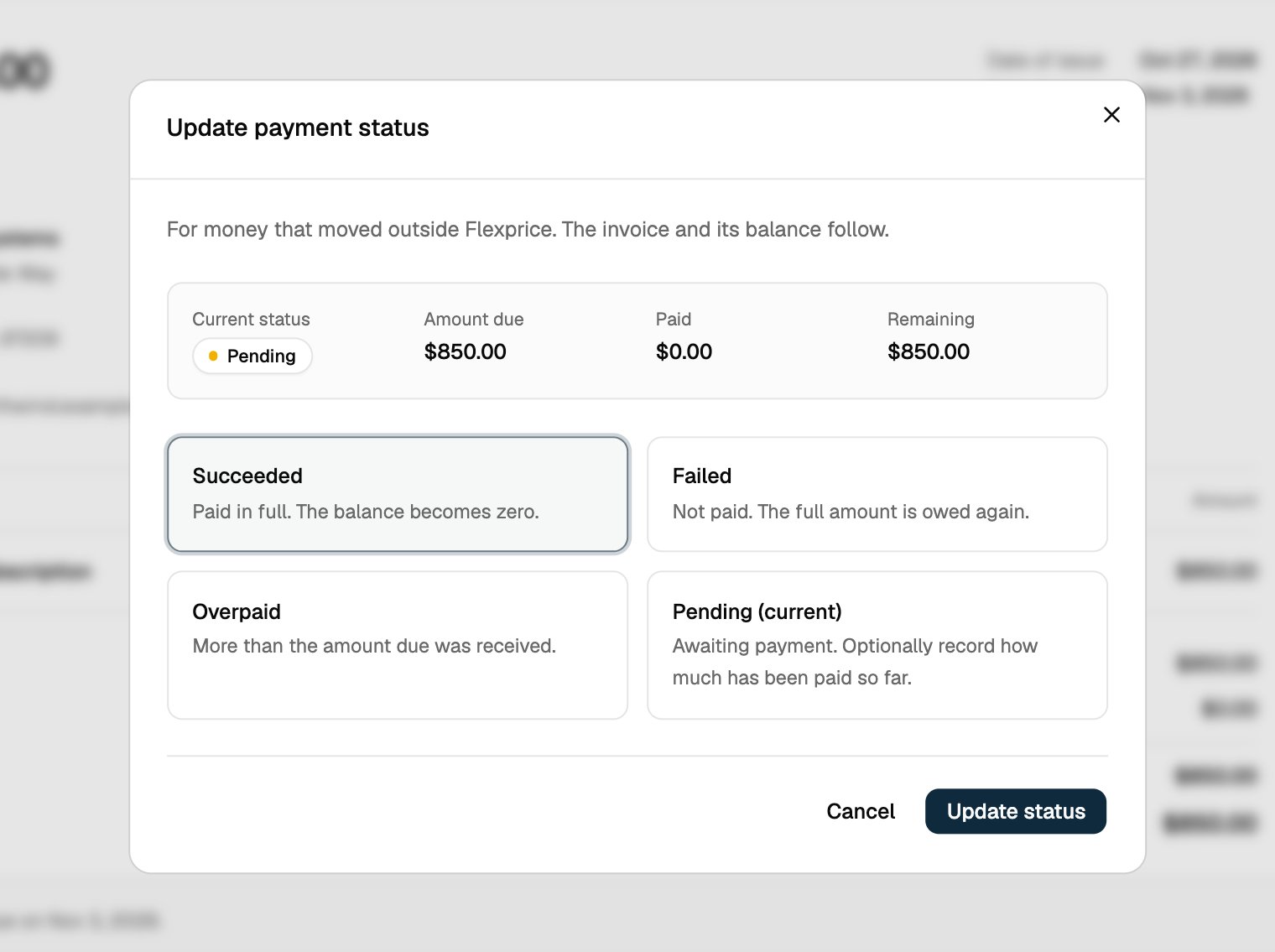
Use this for money that moved outside Flexprice.- Open the invoice and click the ⋯ menu.
- Select Update payment status.
- Choose Succeeded (paid in full), Failed (not paid, so the full amount is owed again), Overpaid, or Pending (awaiting payment, optionally with the amount paid so far).
- Click Update status.
Recording a payment
On an open or overdue invoice with a balance due, select Record payment from the ⋯ menu. You can record an offline or credit payment, create a payment link, or submit a charge against a saved method.- Choose Charge saved method under Method and check the amount.
- Select the Provider and Saved method. Stripe supports saved cards. For INR invoices, Razorpay supports active card, UPI, and eNACH mandates.
- Click Create payment to submit the charge.