

1
Open the customer
Go to Customers and click the customer. The Contracts card lists each contract with its plan, status, billing period, and current period.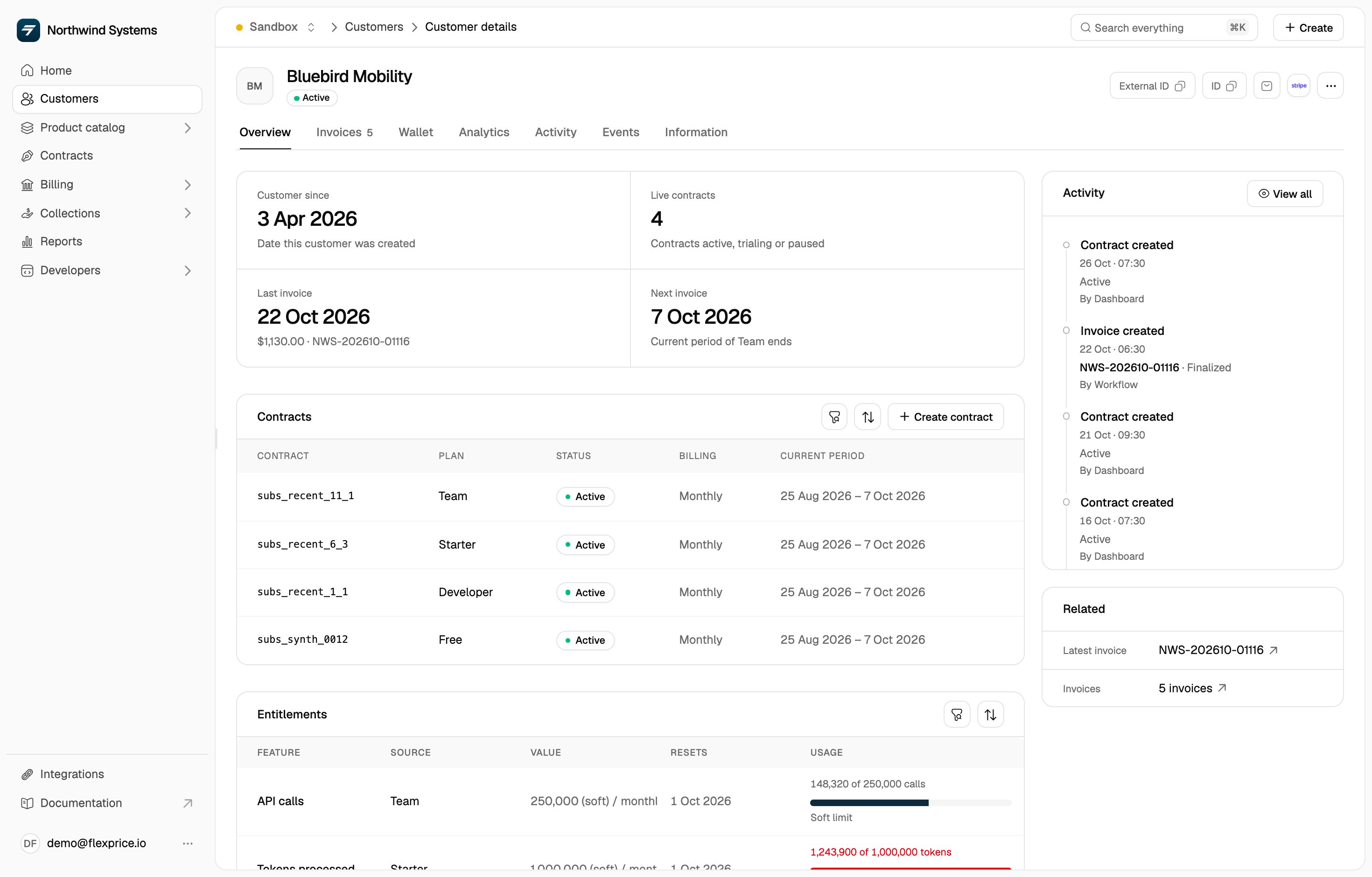
2
Open the contract
Click a contract to open its page. The header shows the customer and plan, with badges for the status, billing period, and currency. The Charges, Usage, and Invoices tabs hold the contract’s details, and Information shows its start date, current period, payment terms, and collection method.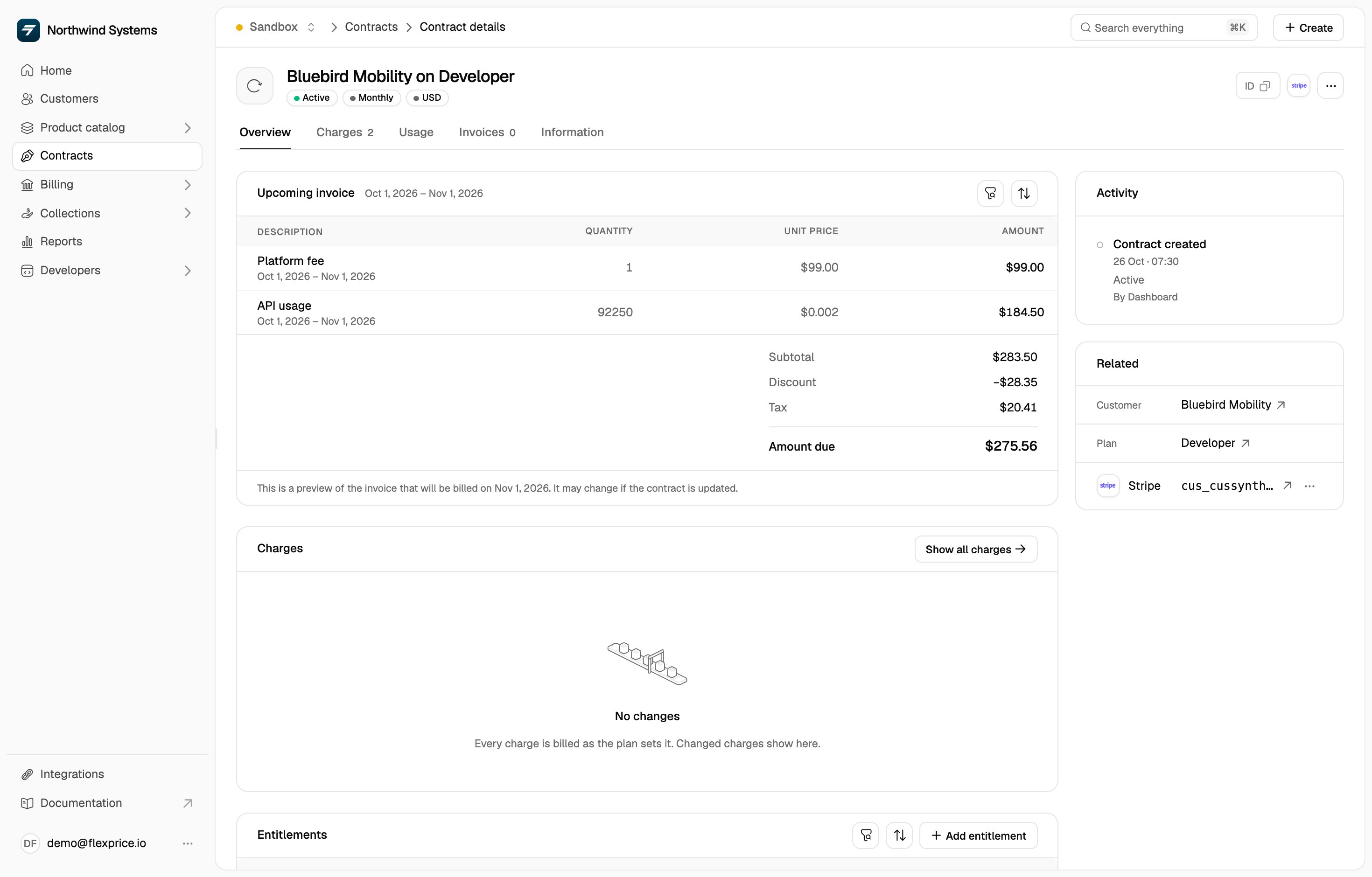
Manage contracts from the customer page
Open the ⋯ menu beside a contract in the customer’s Contracts card to act without opening its detail page. The menu offers the same actions as the contract detail header, based on the contract’s state.
Actions other than Copy ID require write access to subscriptions. Without it, those menu items are disabled, including Alert settings.
To cancel, choose At the end of the current period (the default), Immediately, or On a date. For On a date, choose Cancel on. A paused contract must be canceled Immediately. You can also turn on Prorate the current period and enter a Reason (optional). Raise a final invoice now is available only when canceling immediately. Click Cancel contract to confirm.
Upcoming invoice
The Overview tab opens with the Upcoming invoice: a preview of the invoice the contract raises at the end of the current period. It lists each charge with its quantity and amount, then the subtotal, discount, tax, and amount due.- Usage-based lines reflect usage up to when the page loads. Reload the page to see new usage.
- Lines that come to zero are left out.
- The preview shows only for active and paused contracts.