

Pricing Plans
A pricing plan defines how customers are billed for using your product or service. Flexprice provides a comprehensive and customizable pricing system that enables businesses to design billing structures that fit their monetization strategies. With recurring, usage-based, and hybrid pricing models, companies can launch new pricing plans seamlessly and iterate quickly.Key Features of the Pricing System
- Flexible Pricing Models: Supports recurring subscriptions, metered billing, and hybrid plans.
- Multiple Billing Periods: Options for daily, weekly, monthly, or yearly cycles.
- Multi-Currency Support: Supports any ISO 4217 currency code.
- Automated Trial Management: Enables businesses to offer trial periods before converting to paid plans.
- Advanced Charge Configurations: Supports flat fees, package-based pricing, and volume-based pricing.
- Scalable & API-Driven: Seamless integration with business operations and customer billing workflows.
- Granular Control Over Plans: Edit, duplicate, and manage pricing plans with ease.
Use Cases
Flexprice is designed for a wide range of SaaS businesses, AI infrastructure providers, and digital platforms that need:- Subscription-based billing for SaaS products.
- Usage-based billing for AI services, cloud resources, or API metering.
- Hybrid billing models combining subscriptions with consumption-based charges.
Creating a Pricing Plan
Follow the steps below to create a pricing plan in Flexprice:Navigate to Pricing Plans
- Log in to your Flexprice Dashboard.
- In the left sidebar, go to Product catalog > Plans.
-
Click New plan at the top-right of the screen.
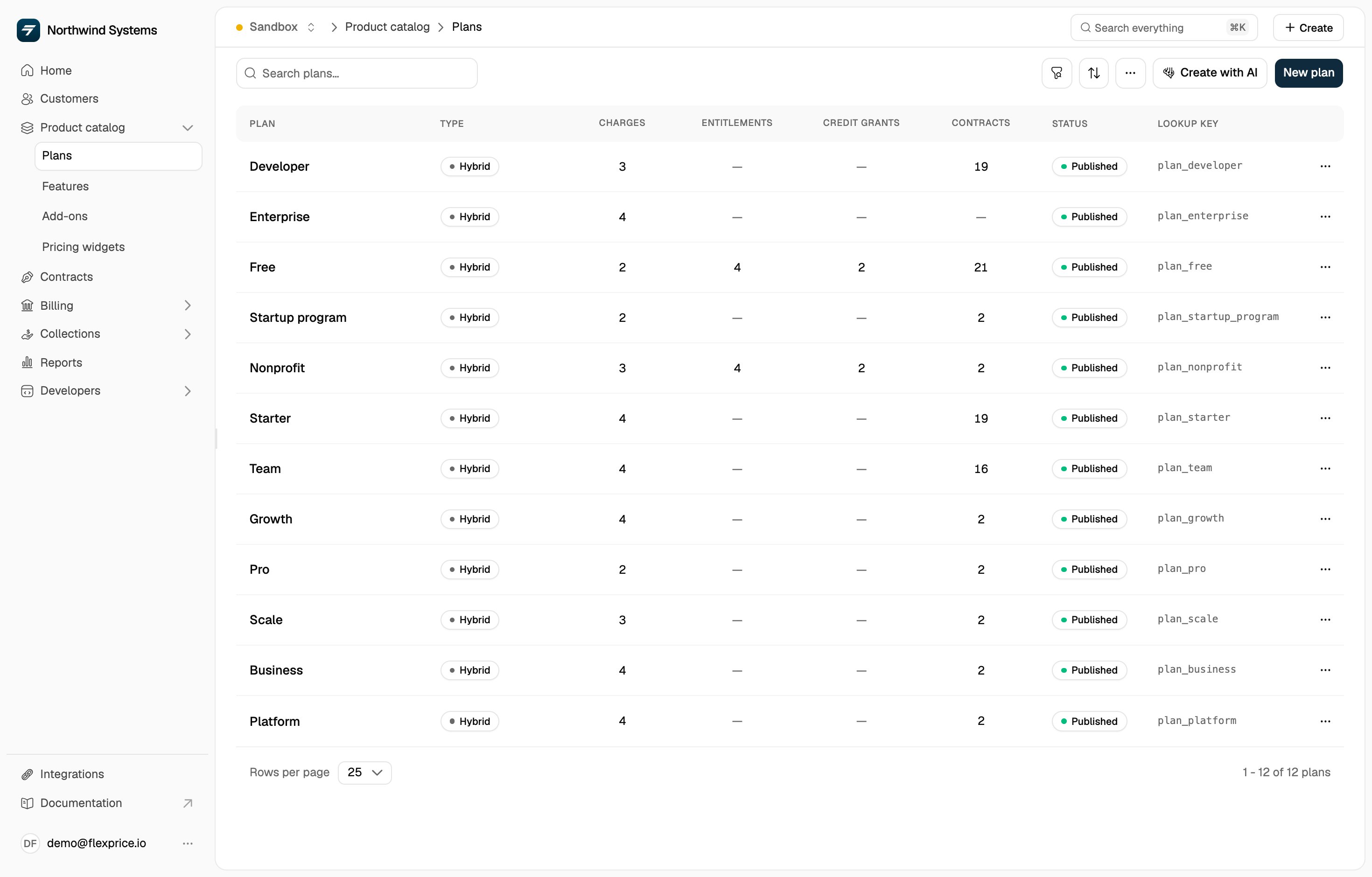
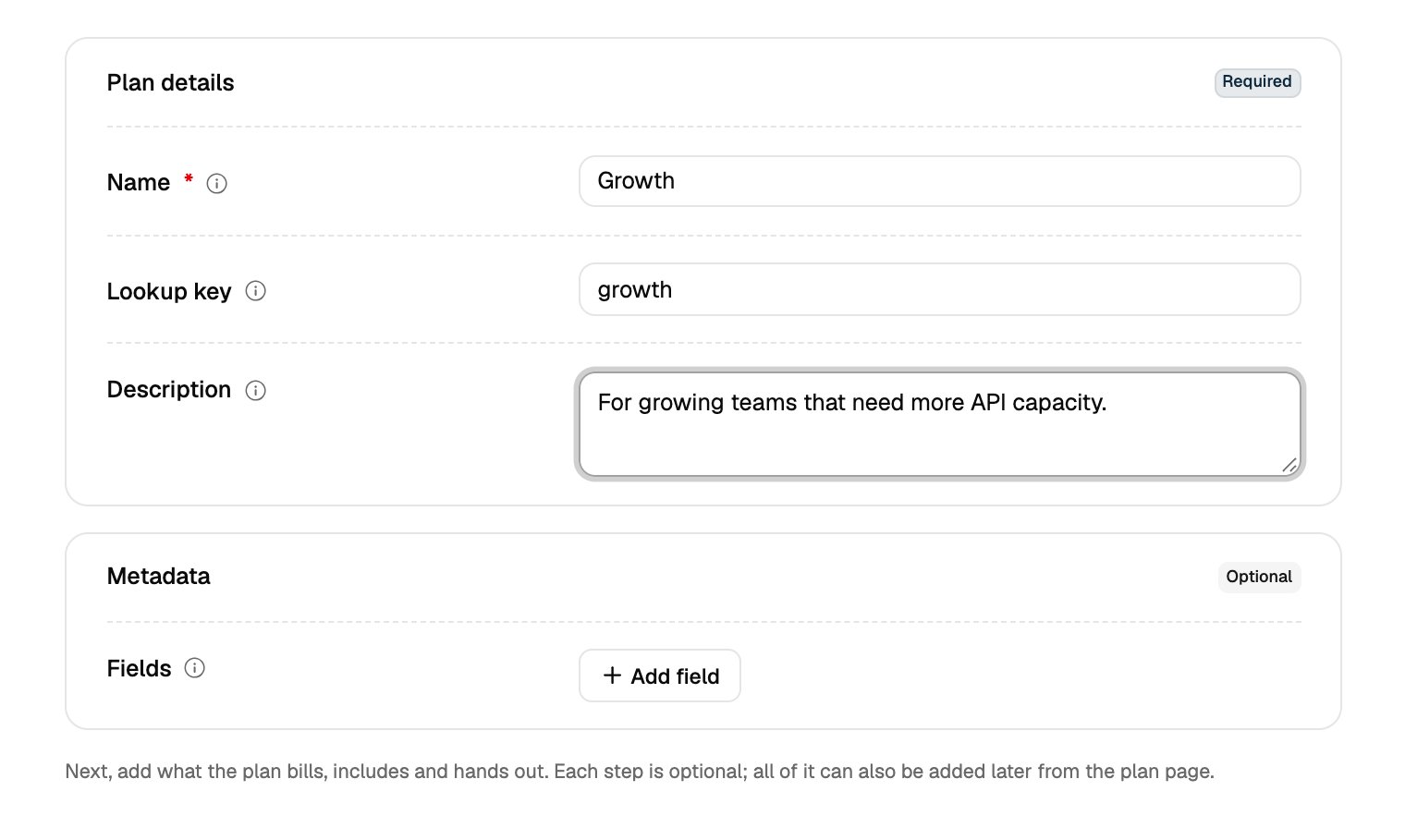
Step 1: Enter plan details
This step captures key identifiers for your pricing plan.- Name: What the plan is called to customers and on invoices.
- Lookup key (Optional): A stable identifier used in API calls and system integrations.
- Description (Optional): Provides internal context about the plan.
Step 2: Define plan charges
It defines how customers will be charged under this plan. Click Add charge and choose a type. You can add one or multiple charges while creating a plan.- Fixed: Charges billed at regular intervals (e.g., $49/month platform fee).
- Usage: Charges based on actual consumption (e.g., $0.05 per API call, $5 per 1,000 tokens).
Setting-up a fixed charge:
Choose Fixed to charge your customers a recurring fee based on the defined billing period. Whenever a customer subscribes to this plan, they are charged this fee and given access to the features that are part of the plan.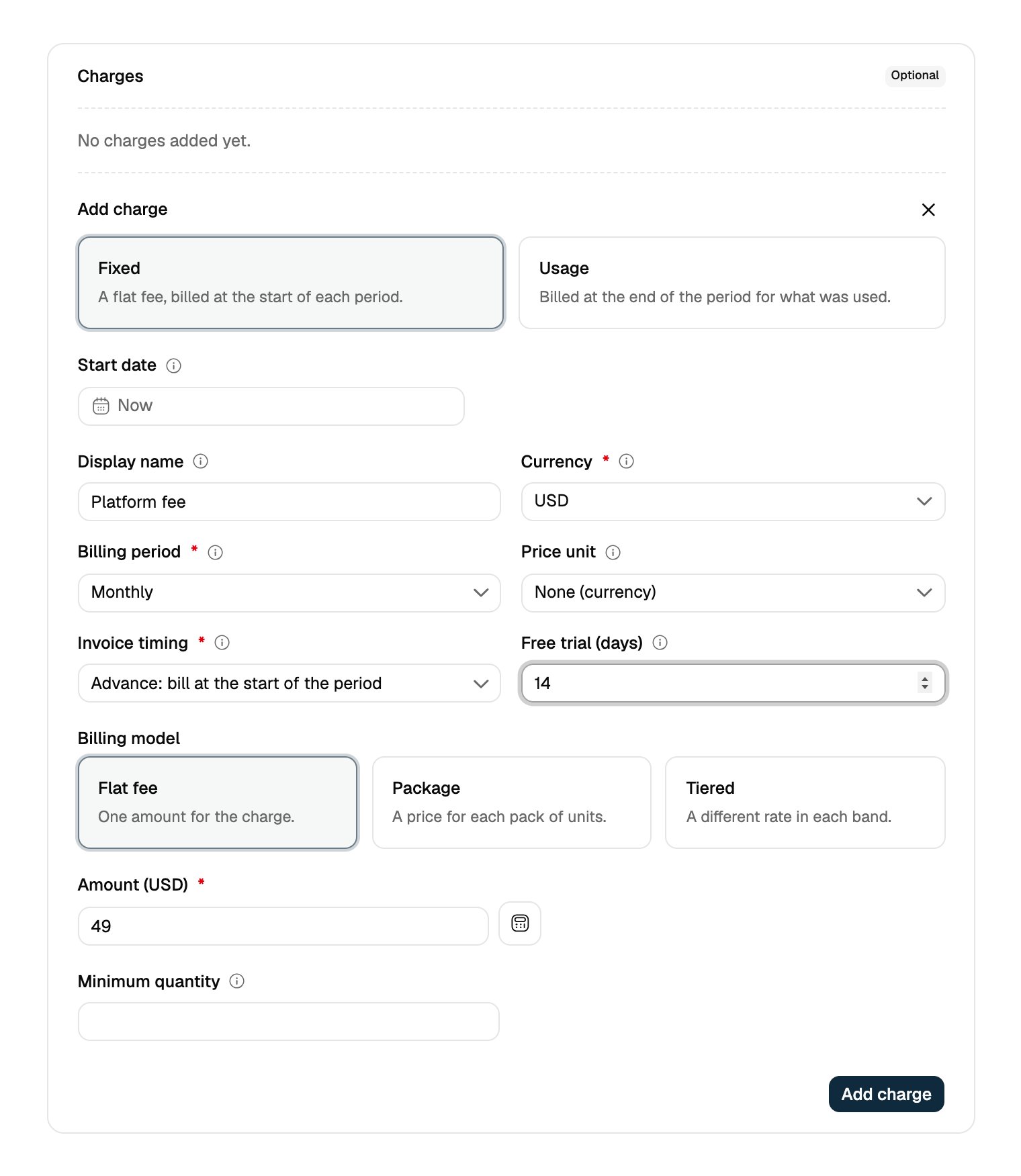
- Select billing currency: Pick any ISO 4217 currency. USD, EUR, GBP, and INR are listed first.
- Choose a billing period: The billing period defines when invoices are generated: Daily, Weekly, Monthly, Quarterly, Half-yearly, Annual, or One-time.
-
Choose invoice timing:
- Advance: Customers are billed at the beginning of the billing period.
- Arrears: Customers are billed at the end of the billing period.
- Add a free trial (Optional): Enter the trial duration in days. The field is hidden when the billing period is One-time.
- Enter the price you want to charge for the selected billing period, then click Add charge.
Setting-up a usage-based charge:
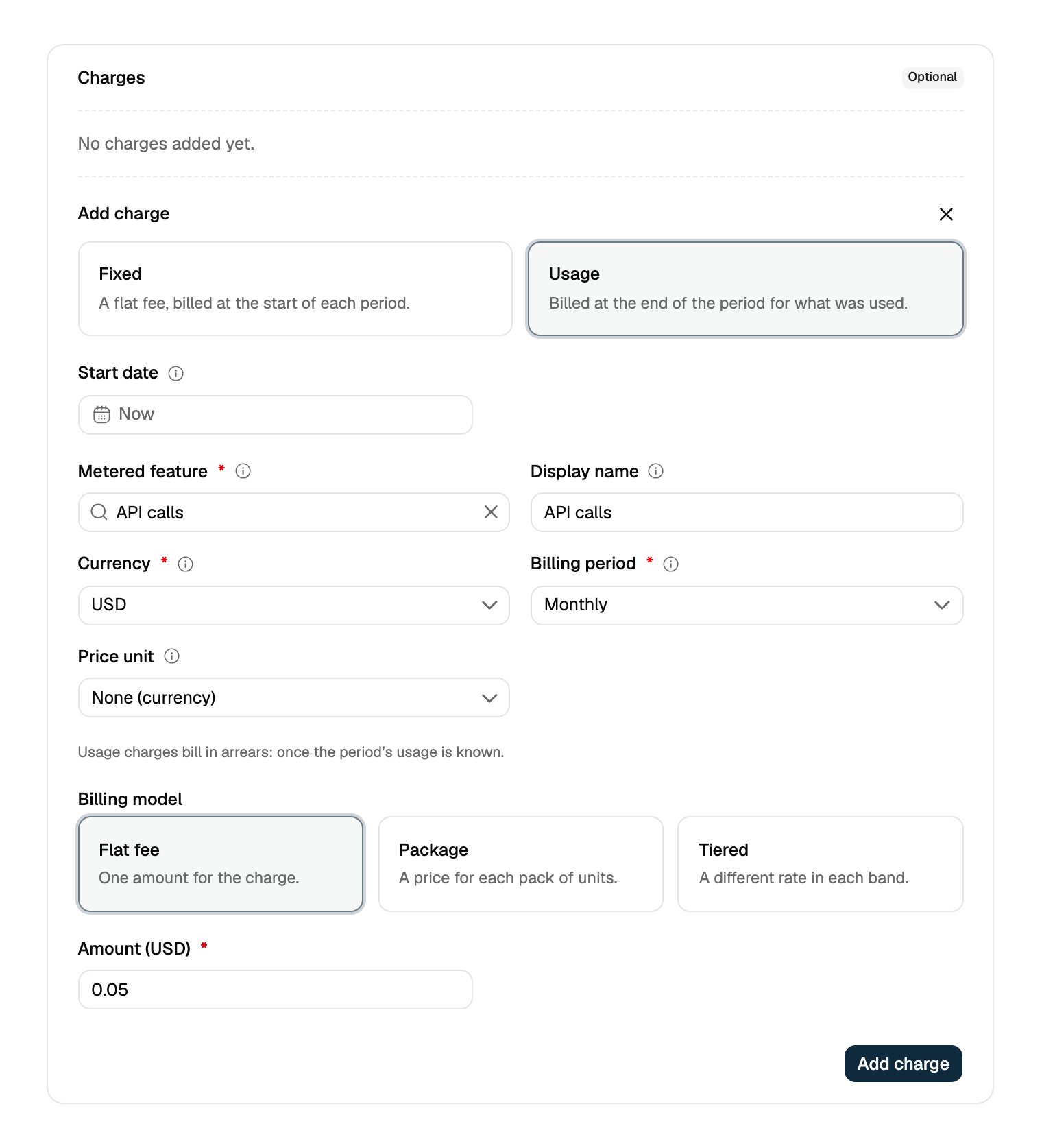
To incorporate usage-based charges into a plan, you can utilize existing metered features. This enables you to offer “pay-as-you-go” features. For instance, you can create charges based on the number of API calls, the number of active users, transactions, compute time, etc. Usage charges are billed in arrears, once the period’s usage is known.- Select the Metered feature you created earlier.
- Define the relevant currency and billing period for your plan.
- Select the Billing model.
Flexprice supports 3 billing models:
-
Flat fee
Select Flat fee if you want to charge the same price for each unit consumed.
Example: $0.05 per API call.
-
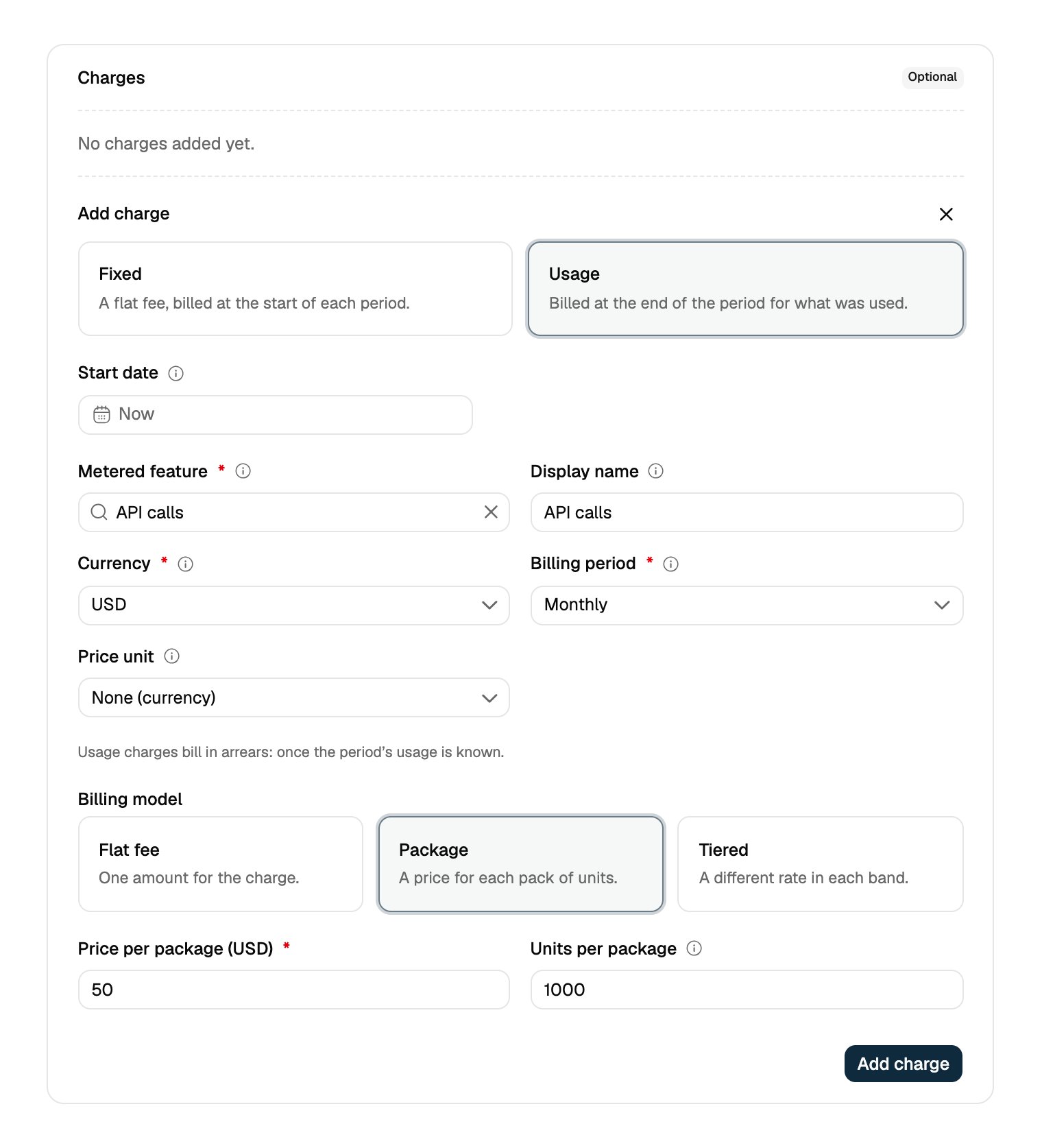
Package
Select Package if you want to charge a fixed price for each package of units. A partial package is rounded up.
Example: $50 per 1,000 API calls.
-
Tiered
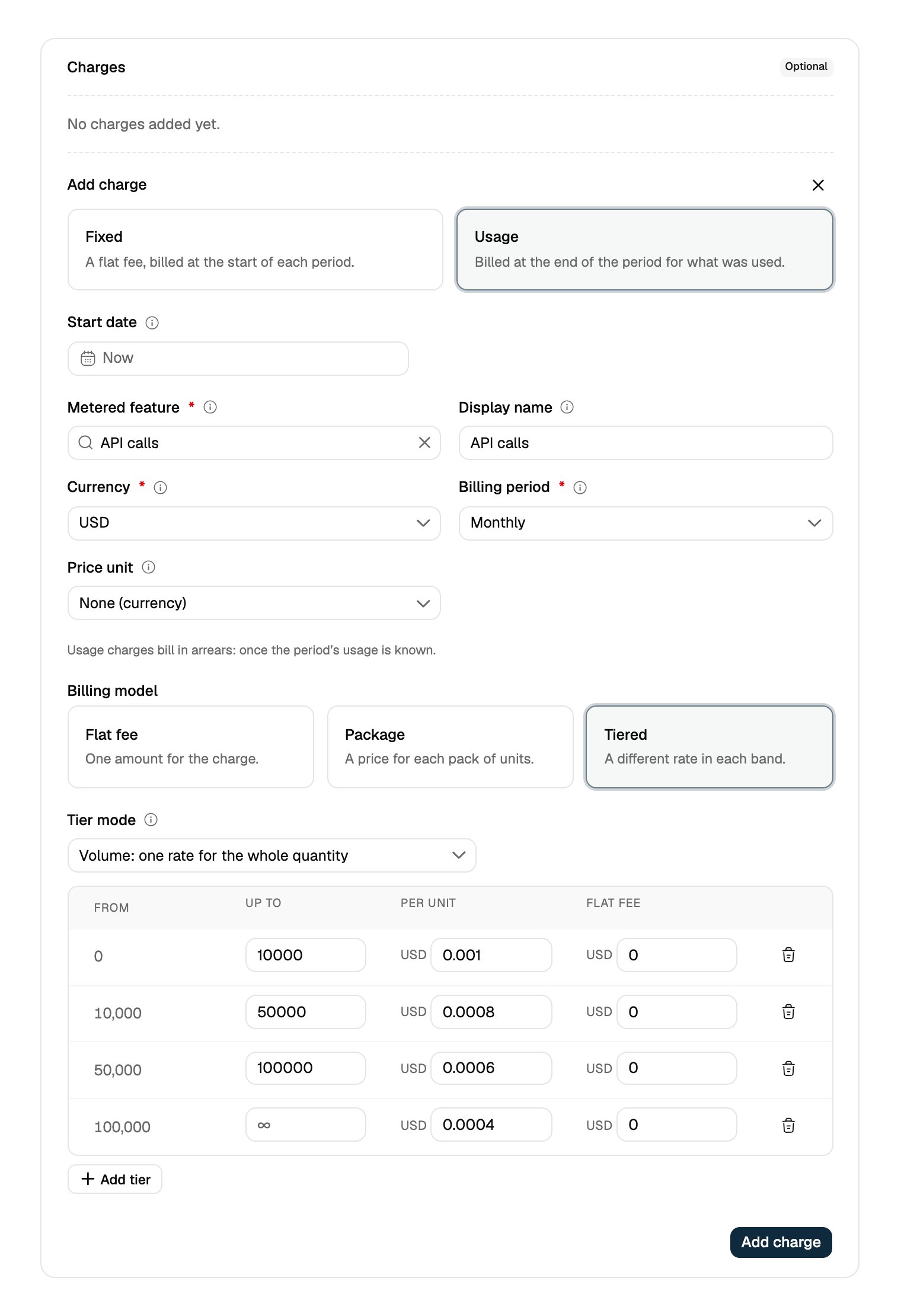
Select Tiered with the Volume tier mode if you want to define several price tiers but apply a single unit price based on the total volume. You can also apply a flat fee in addition to the unit price. See Tiered for volume and slab tiers and package sizes.
Example:
- 0 – 10,000 calls → $0.001 per call
- 10,001 – 50,000 calls → $0.0008 per call
- 50,001 – 100,000 calls → $0.0006 per call
-
100,001 calls and above → $0.0004 per call
- Click Add charge to save the charge
-
Flat fee
Select Flat fee if you want to charge the same price for each unit consumed.
Example: $0.05 per API call.
Setting-up hybrid charges:
You can create a single pricing plan which includes multiple charges: fixed as well as usage-based charges.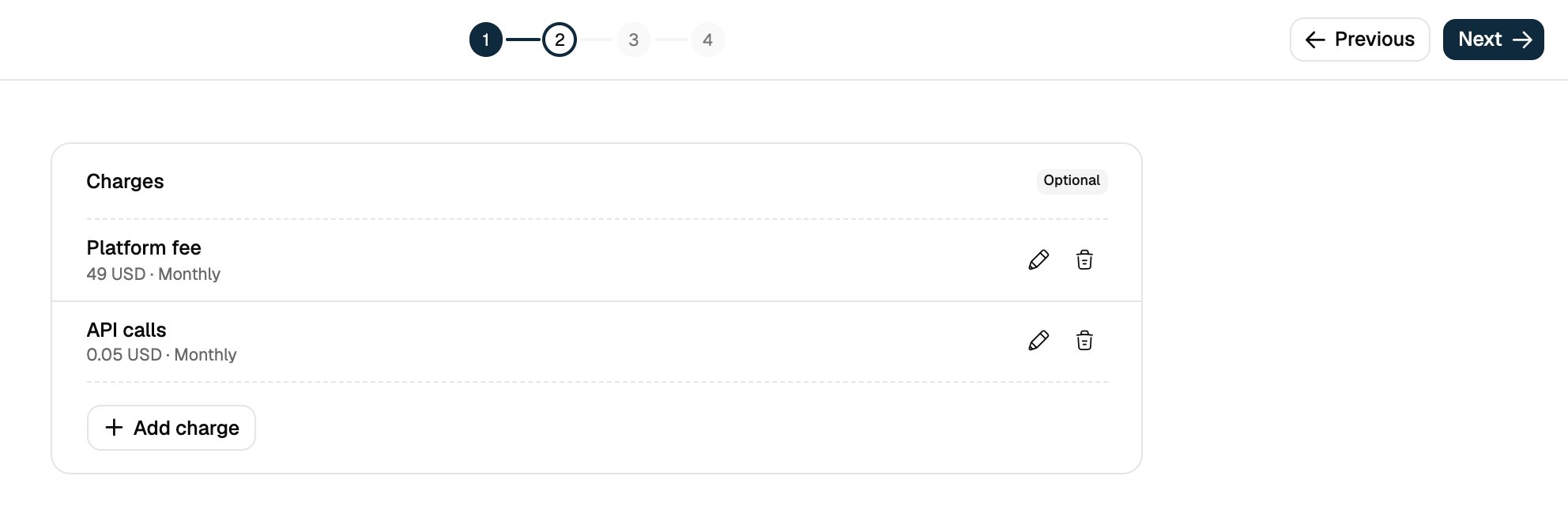
Review & Save
- Double-check all entered details.
- Click Next to add any Entitlements and Credit grants, or skip them.
- Click Create plan to finalize the pricing plan.
Managing Plan Prices After Creation
Terminating Plan Prices
Once a pricing plan is created and has active subscriptions, you may need to terminate specific prices for various business reasons such as:- Price increases or decreases
- Feature deprecation
- Plan restructuring
- Regulatory compliance
- Business model changes
Immediate Price Termination
To immediately terminate a price (in the dashboard, select Terminate in the charge’s ⋯ menu on the plan’s page):- Navigate to the specific price in your plan
- Use the DELETE API endpoint:
DELETE /prices/{price_id} - The price will be terminated immediately and marked with the current timestamp as the end date
Scheduled Price Termination
For better business continuity, you can schedule price termination in the future:- Use the DELETE API endpoint with an
end_dateparameter - Set the end_date to a future date when you want the price to terminate
- Existing subscriptions will continue to use the price until the specified end date
- Customer notification time - Gives customers advance notice of price changes
- Billing continuity - Prevents disruption to existing subscriptions
- Compliance - Meets regulatory requirements for price change notifications
- Customer experience - Allows customers to plan for changes
Price Termination Behavior
When a price is terminated:- Active subscriptions continue to use the terminated price until the end date
- New subscriptions cannot be created with the terminated price
- Billing continues normally until the termination date
- Line items are automatically ended when the price expires
Synchronizing Plan Prices with Existing Subscriptions
⚠️ Important: After terminating prices, you must run the Plan Price Sync API to ensure existing subscriptions reflect the changes.Why Plan Price Sync is Required
When you terminate a price in a plan:- Existing subscriptions still reference the old price
- Line items need to be updated to reflect the termination
- Billing calculations must be adjusted for the new pricing structure
- Override prices and customizations need to be preserved
Running Plan Price Sync
Use the Plan Price Sync API to synchronize terminated prices across all existing subscriptions. In the dashboard, select Sync to contracts in the plan’s ⋯ menu; the sync runs in the background. API Endpoint:POST /plans/{plan_id}/sync/subscriptions
Example:
What Plan Price Sync Does
The sync process:- Identifies all active subscriptions using the plan
- Processes each subscription to update line items
- Ends line items for terminated prices (unless overridden)
- Creates line items for new active prices (if applicable)
- Preserves subscription-specific overrides and customizations
- Maintains billing continuity throughout the transition
Best Practices for Price Termination
-
Plan Ahead
- Schedule terminations well in advance
- Consider customer notification periods
- Plan for business continuity
-
Use Scheduled Termination
- Avoid immediate termination when possible
- Give customers time to adjust
- Maintain billing stability
-
Always Run Plan Price Sync
- Run sync after any price changes
- Ensure existing subscriptions are updated
- Verify billing accuracy
-
Monitor the Process
- Check that the sync workflow completed
- Verify line item updates
- Test billing calculations
-
Preserve Customer Relationships
- Communicate changes clearly
- Honor existing commitments
- Provide migration paths
Monitoring Sync Results
The Plan Price Sync API doesn’t wait for the sync to finish. It starts the sync as a background workflow and returns the workflow’s handle right away:- Dashboard: open Developers > Workflows.
- API: call
POST /workflows/searchwith{"workflow_id": "<workflow_id>"}and read the run’sstatus. It isRunningwhile the sync is in progress andCompletedonce it finishes.Failed,Canceled,Terminated, orTimedOutmeans the sync didn’t finish, so run it again.
409 Conflict with the message A workflow is already running for this entity. Try again once it finishes.
Common Scenarios
Scenario 1: Price Increase- Terminate old price with future end date
- Create new price with higher amount
- Run plan price sync to update subscriptions
- Customers continue with old price until end date
- New billing period uses new price
- Terminate price for deprecated feature
- Run plan price sync to end related line items
- Existing subscriptions lose access to feature
- New subscriptions cannot include deprecated feature
- Terminate multiple prices simultaneously
- Create new pricing structure
- Run plan price sync to update all subscriptions
- Ensure billing continuity during transition
Troubleshooting Price Termination
Common Issues
-
Sync Failures
- Check plan ID validity
- Verify API permissions
- Review error logs for specific issues
-
Incomplete Updates
- Verify all prices are properly terminated
- Check for override prices that may interfere
- Ensure sync completed successfully
-
Billing Discrepancies
- Check that the sync workflow’s status is
Completed - Check individual subscription line items
- Verify price end dates are set correctly
- Check that the sync workflow’s status is
Validation Rules
- End date must be in the future for scheduled termination
- Price must exist and be accessible
- Plan must have active subscriptions for sync to be meaningful
- API key must have appropriate permissions
API Reference
Delete Price:- Endpoint:
DELETE /prices/{price_id} - Body:
{"end_date": "2025-12-31T23:59:59Z"}(optional) - Response:
{"message": "price deleted successfully"}
- Endpoint:
POST /plans/{plan_id}/sync/subscriptions - Response: The sync workflow’s
message,workflow_id, andrun_id. The sync itself runs in the background.
- Endpoint:
GET /plans/{plan_id} - Use: To verify plan structure before and after changes
For technical implementation details and advanced use cases, refer to the API Reference.