

Prerequisites
- Access to the Flexprice Admin Dashboard
- A clear understanding of what you want to meter (e.g., API calls, storage usage, credits consumed)
Step-by-Step Guide
1
Navigate to Features
In the left sidebar, go to Product catalog → Features and click New feature.
2
Basic feature information
Fill in the basic details: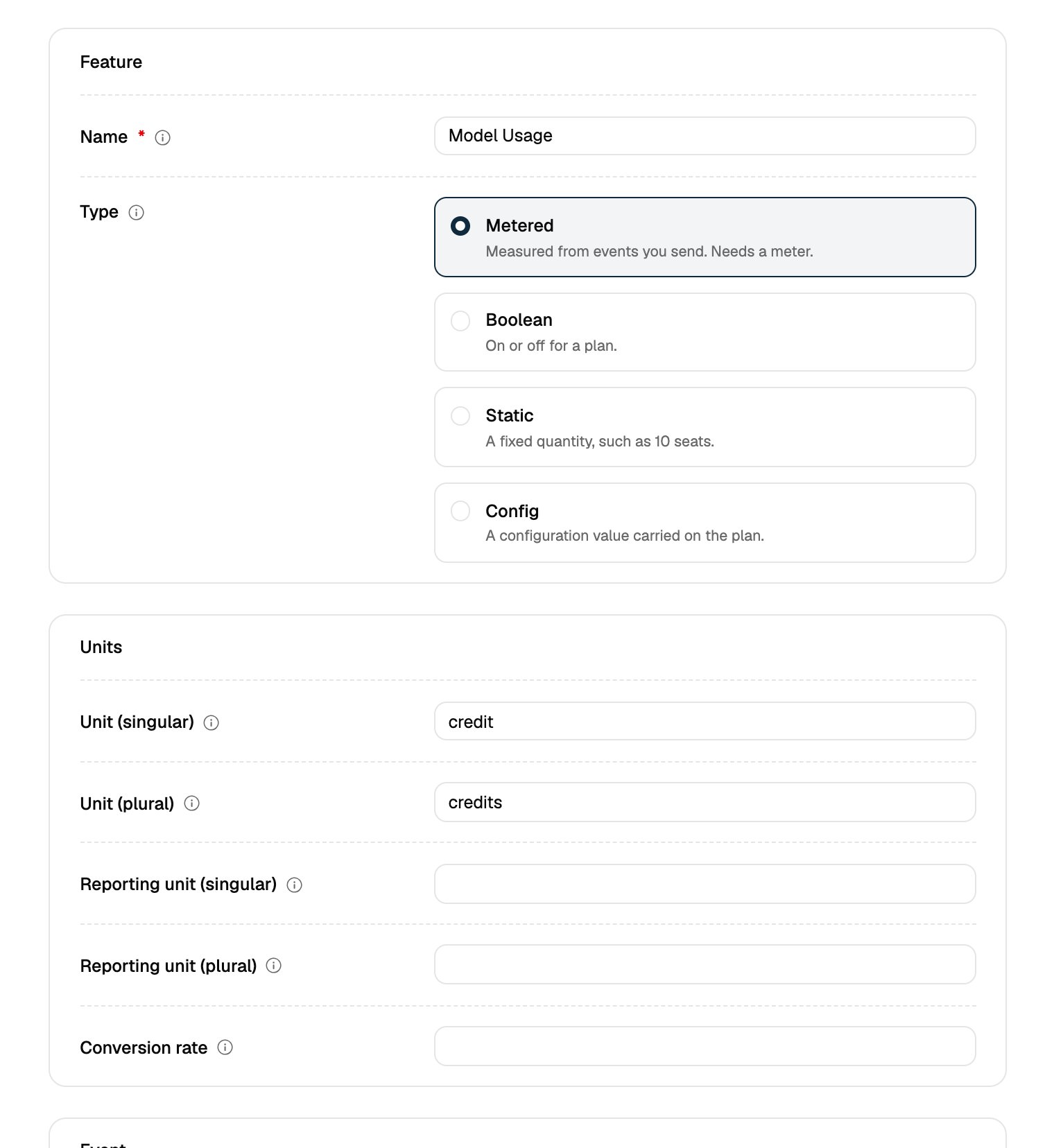
- Name: Give your feature a clear, descriptive name (e.g., “Model Usage”, “API Calls”, “Storage Usage”)
- Type: Select Metered
- Unit (singular) and Unit (plural) (optional): how the quantity appears on invoices, such as
creditandcredits. Flexprice picks the right form, so invoices show “1 credit” or “5 credits”.
3
Configure the event
⚠️ CRITICAL: The event name is the most important settingThe Event name is the identifier that connects your events to this feature: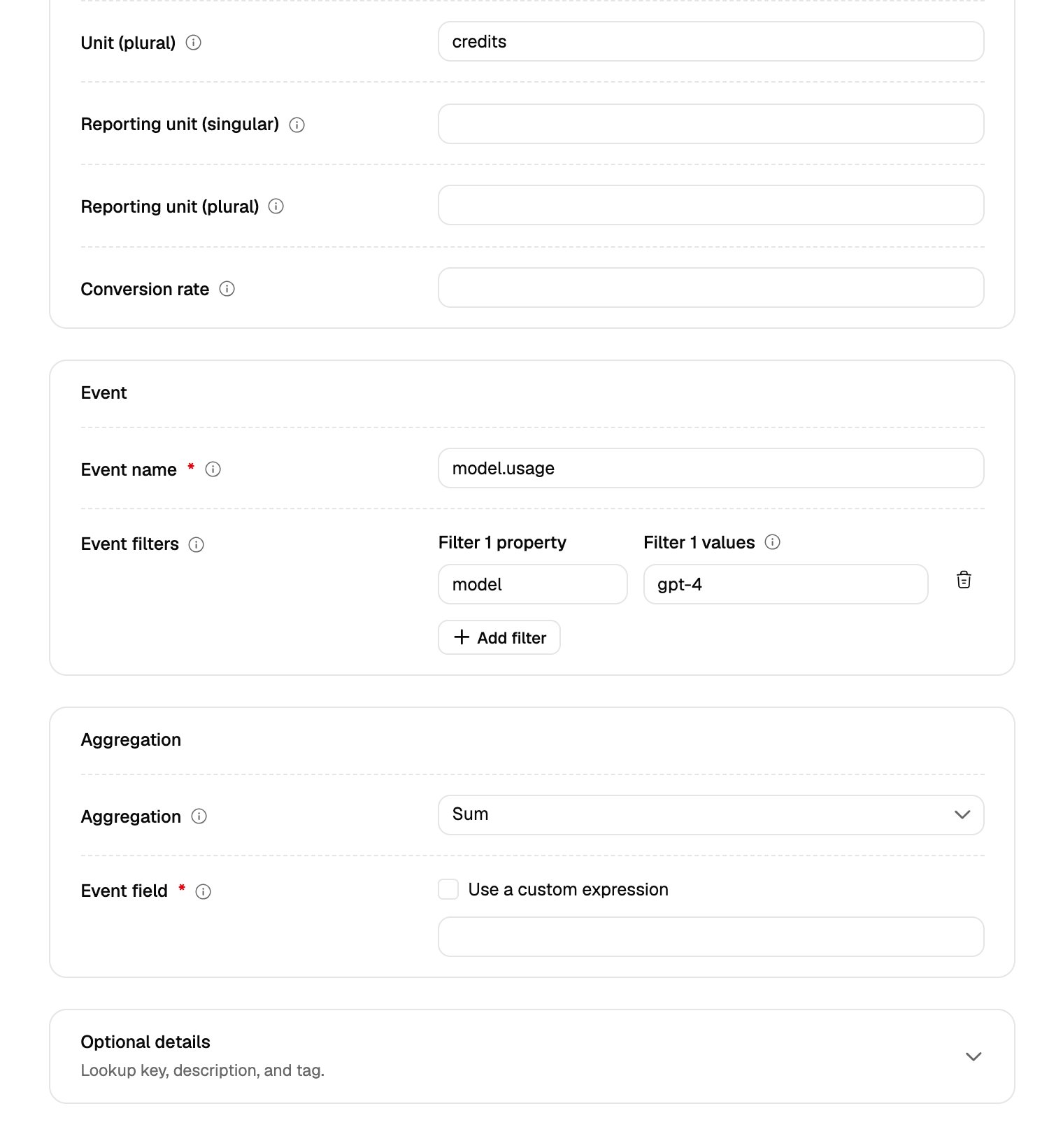
- Cannot be changed after creation
- Must match exactly what you send in your events
- Can be shared: several features can meter the same event name, each with its own filters
- Use lowercase with dots (e.g.,
model.usage,api.calls,storage.gb)
model.usage, every event you transmit must have "event_name": "model.usage".Event filters (optional) count only some of those events. Click Add filter, enter the property, and list the values it may take, separated by commas. For example, only count events where model is gpt-4.4
Choose the aggregation
In the Aggregation card, select how you want to measure usage (see Aggregation Overview for detailed explanations):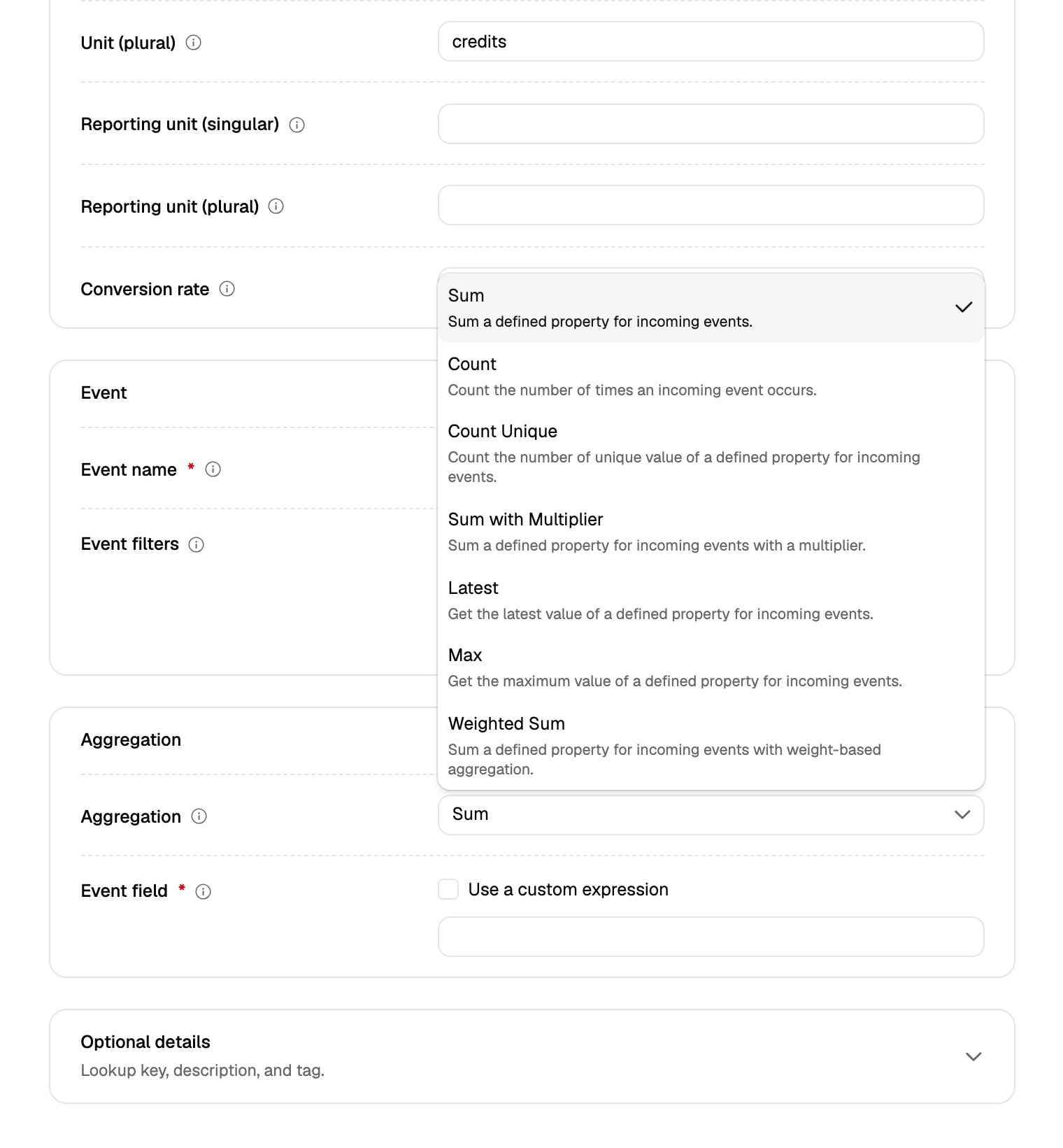
- Sum: Adds up values from a specific property
- Count: Counts the number of events (no property required)
- Count Unique: Counts unique values of a property
- Sum with Multiplier: Sums values and applies a rate multiplier
- Latest: Takes the most recent value sent
- Max: Takes the highest value seen in the billing period (supports bucketing)
- Weighted Sum: Time-weighted sum for capacity-based billing
AVG.Example: If you want to track total credits consumed, choose Sum.5
Set the event field
⚠️ CRITICAL: This must match your event properties exactlyEvery aggregation except Count needs an Event field: the property to aggregate.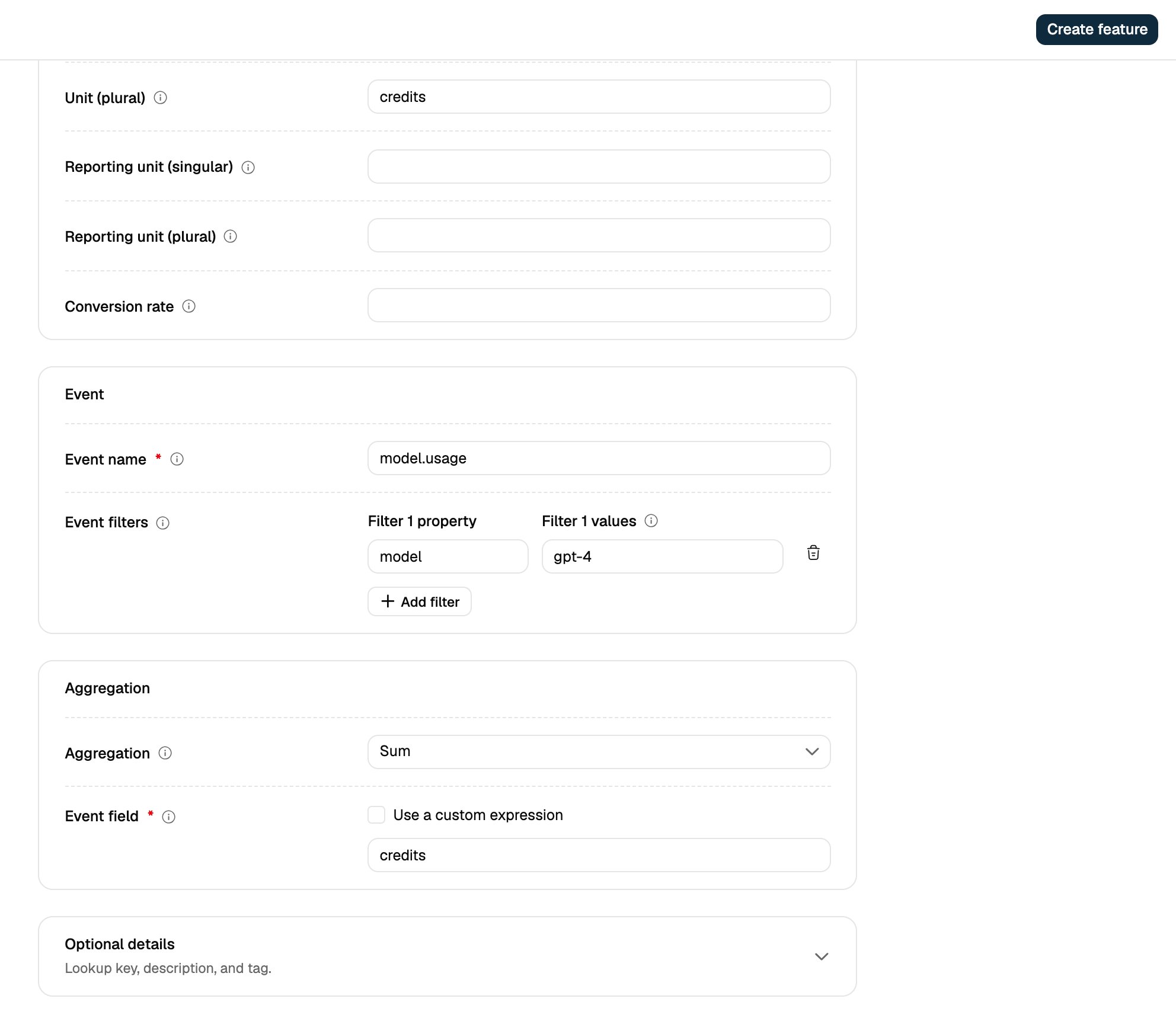
- Field name: The exact property key from your events
- Must match case:
credits≠Credits≠CREDITS - Must exist: Every event must include this property
credits, every event must include:6
Usage reset
Features created in the dashboard reset usage at the start of each billing period. This suits API calls, monthly limits, and other recurring usage (e.g., a customer gets 1000 API calls per month).For usage that keeps growing across billing periods, such as total storage used, create the feature through the API with the meter’s
reset_usage set to NEVER.7
Save the feature
Click Create feature to create your metered feature.
After Creation
Once created, the feature’s page opens. It shows:- ID: click it to copy the feature’s unique identifier
- Charges and Entitlements: the plans and add-ons that bill for the feature, and the plans that include it
- Send a test event: a sample request for this event name. Click Copy cURL to copy it.
Common Configuration Examples
API Calls (Count)
- Event name:
api.calls - Aggregation: Count
- Usage reset: Each billing period
- Units:
API call / API calls
Credits Consumed (Sum)
- Event name:
model.usage - Aggregation: Sum
- Event field:
credits - Usage reset: Each billing period
- Units:
credit / credits
Storage Usage (Sum)
- Event name:
storage.usage - Aggregation: Sum
- Event field:
gb - Usage reset: Cumulative (API only:
reset_usageset toNEVER) - Units:
GB
Peak Concurrent Users (Max)
- Event name:
concurrent.users - Aggregation: Max
- Event field:
count - Usage reset: Each billing period
- Units:
user / users
⚠️ Critical Warnings
Event Name
- Cannot be changed after creation
- Can be shared by several features, each with its own event filters
- Case sensitive —
api.calls≠API.calls
Event Field
- Must match exactly the property name in your events
- Case sensitive —
credits≠Credits - Required for every aggregation except Count
Testing
- Always test your feature configuration before transmitting production events
- Use the Event Debugger to validate your setup
Related Documentation
- Features Overview — Learn about different feature types
- Aggregation Functions — Understand how data is processed
Next Steps
Now that you have a metered feature, you’re ready to:- Send Events - Learn how to transmit usage data
- Validate Events - Ensure events are being processed correctly
- Connect to Billing - Set up pricing and subscriptions
Troubleshooting
”Events not showing up”
- Check that Event Name matches exactly
- Verify the event field exists in your event properties
- Ensure the customer exists with the correct
external_customer_id
”Wrong aggregation values”
- Verify the event field name matches your event properties
- Check that property values are the correct data type (numbers for Sum/Max)
- Confirm Usage Reset setting matches your expectations
”Cannot change Event Name”
- Event Name is immutable after creation
- Create a new feature with the correct name
- Update your application to transmit events with the new name