

- Uninterrupted Service: Prevents service disruptions due to insufficient wallet balance
- Automated Management: Eliminates manual monitoring and top-up operations
- Improved Cash Flow: Ensures timely wallet replenishment
- Flexible Configuration: Choose between immediate credits or invoiced top-ups
- Proactive Balance Management: Maintains wallet balance above critical thresholds
How Auto Top-Up Works
Auto top-up monitors the ongoing balance (real-time credit balance) of a wallet, which accounts for:- Current wallet credit balance
- Pending invoice amounts
- Current period usage
Auto Top-Up Modes
Flexprice supports two modes for auto top-up:1. Direct Top-Up
Credits are immediately added to the wallet when the threshold is reached. This mode provides instant balance replenishment. When to Use:- When you want immediate credit availability
- For customers with reliable payment methods
- When you need to prevent any service interruption
2. Invoiced Top-Up
An invoice is created when the threshold is reached, and credits are only added to the wallet after the invoice is paid. This mode provides better cash flow control. When to Use:- When you want payment confirmation before adding credits
- For customers who prefer invoiced billing
- When you need to track top-up transactions separately
Configuring Auto Top-Up
During Wallet Creation
You can enable auto top-up when creating a new wallet:1
Navigate to Customer Wallet
Go to Billing → Customers → Select customer → Wallet tab
2
Go to Auto Top-up
Click the three-dot menu (⋮) in the top right corner of the wallet sectionSelect Auto Topup from the dropdown menu to enable auto top-up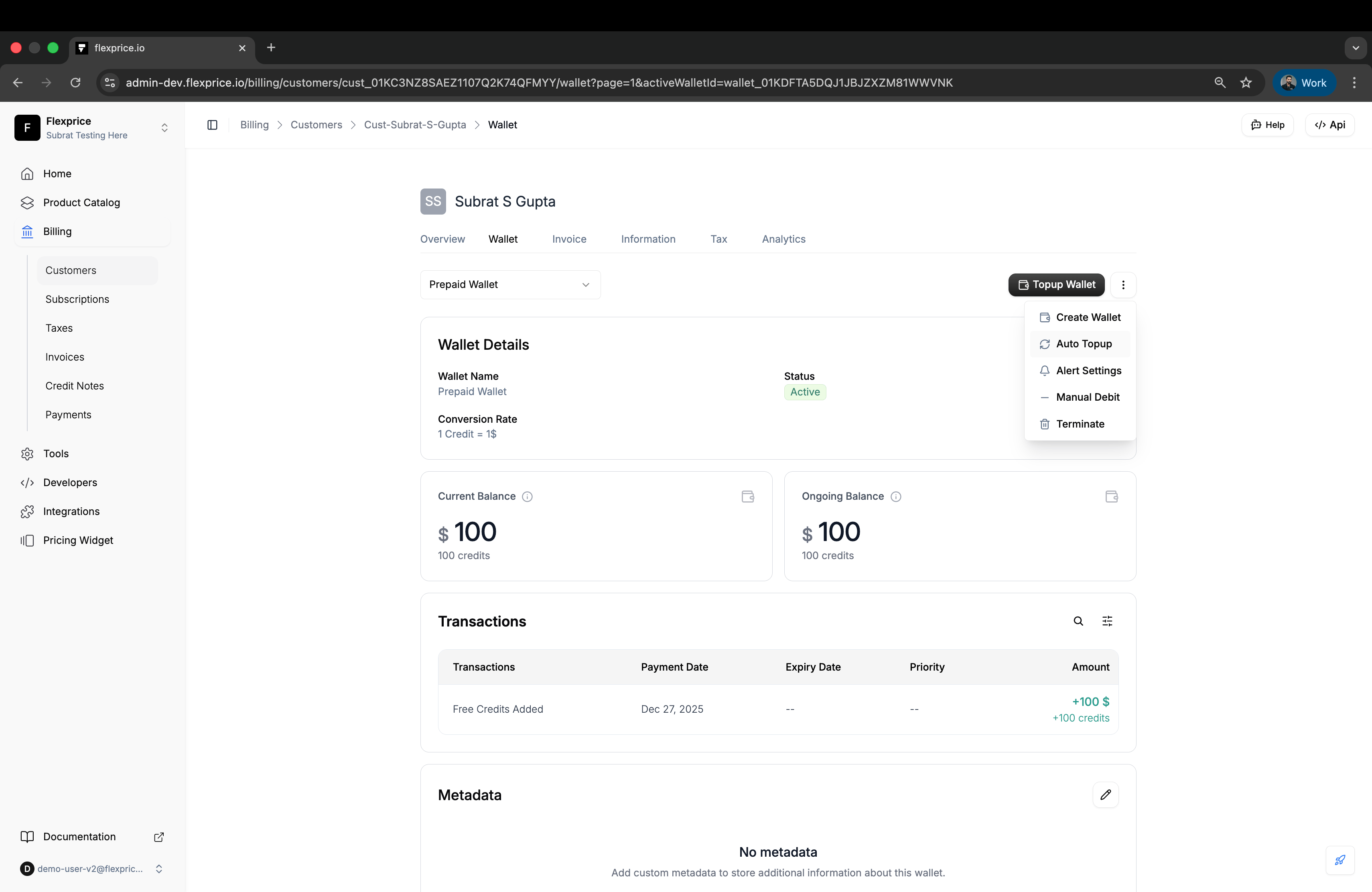
3
Enable Auto Top-Up
Toggle the Enable Auto Top-Up switch to activate automatic wallet recharging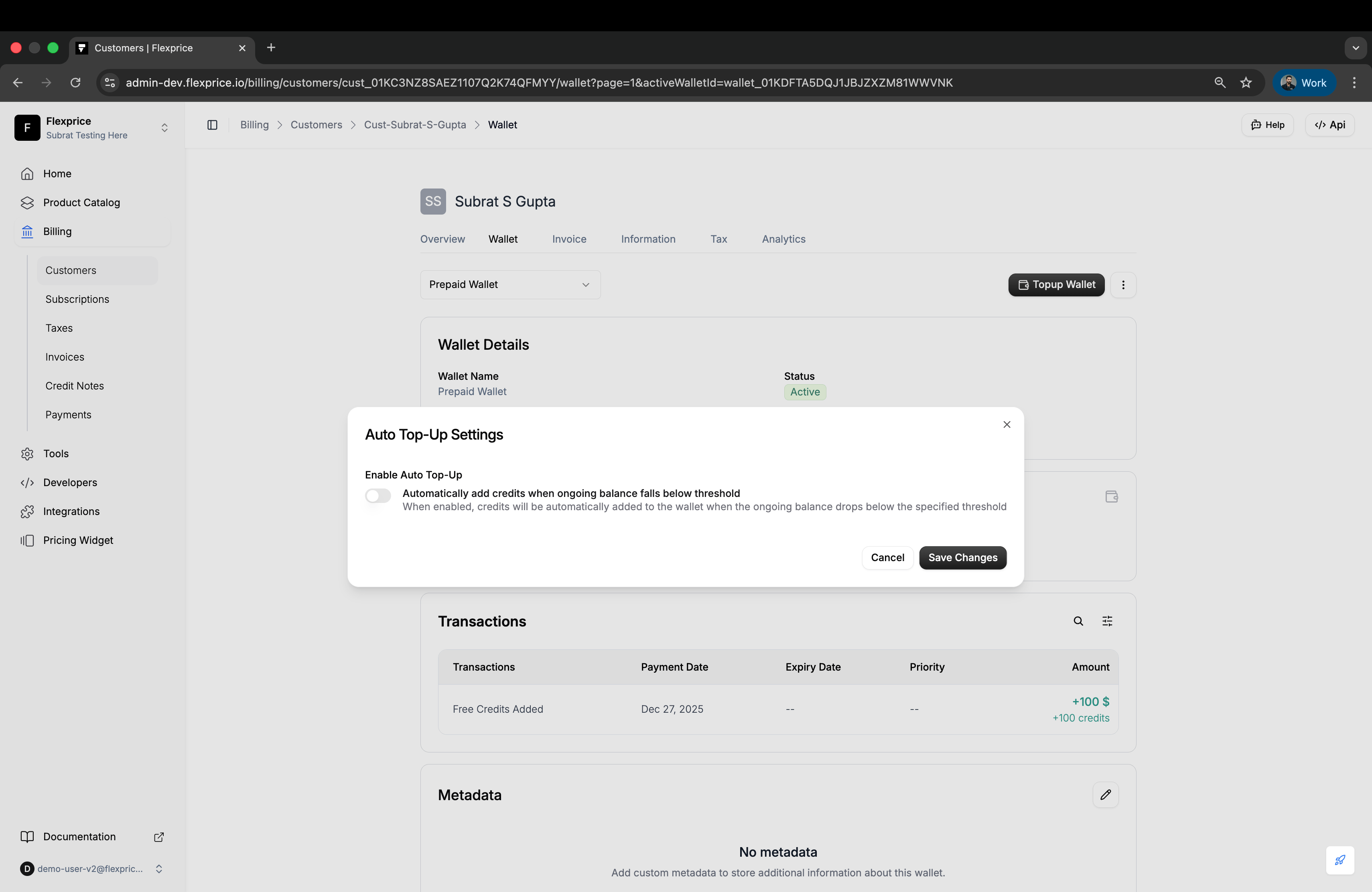
4
Configure Auto Top-Up Settings
Configure the following settings: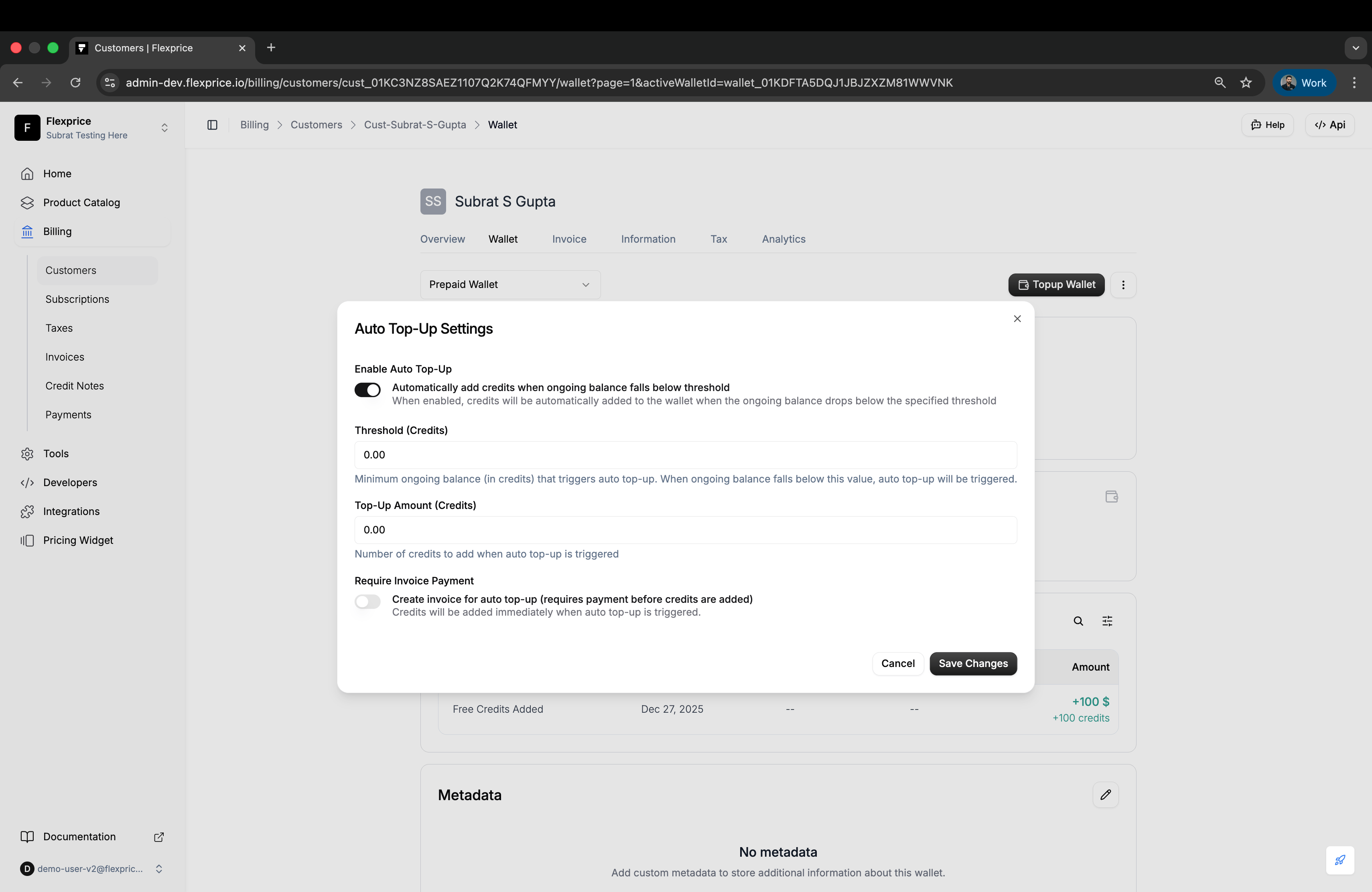
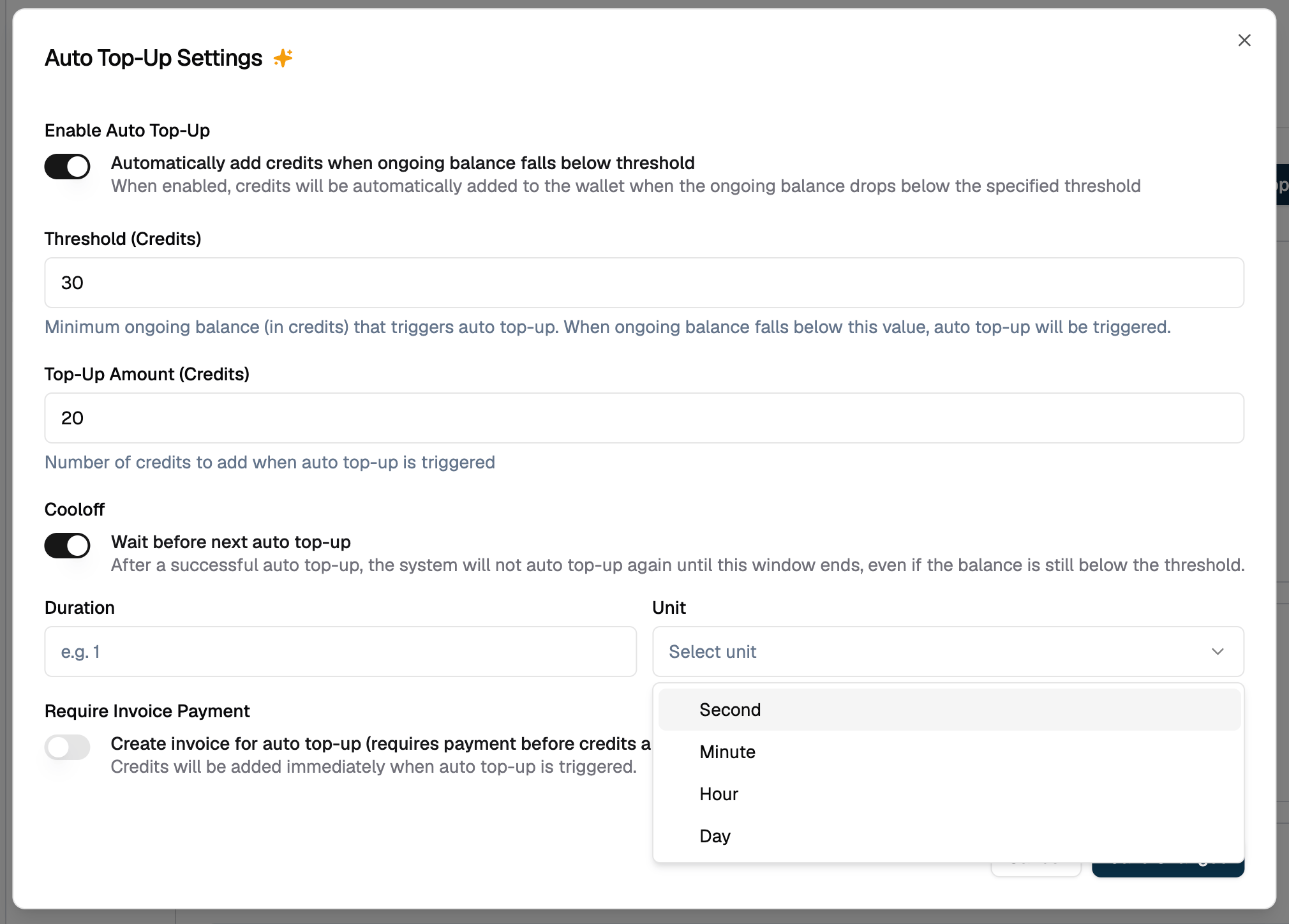
- Threshold: Enter the minimum ongoing balance amount that triggers auto top-up
- Top-Up Amount: Enter the number of credits to add when triggered
- Cooloff (optional): Turn on Wait before next auto top-up, then set a duration and unit so the wallet is not auto-recharged again until that window ends
- Invoicing Mode: Toggle the switch to choose between:
- Direct Credit: Credits added immediately
- Invoiced: Invoice created, credits added after payment
5
Save Changes
Click Save Changes to apply the auto top-up configuration
Updating Auto Top-Up Settings
You can modify auto top-up configuration for existing wallets:1
Navigate to Customer Wallet
Go to Billing → Customers → Select customer → Wallet tab
2
Go to Auto Top-up
Click the three-dot menu (⋮) in the top right corner of the wallet sectionSelect Auto Topup from the dropdown menu to enable auto top-up
3
Configure Auto Top-Up Settings
Configure the following settings:
- Threshold: Enter the minimum ongoing balance amount that triggers auto top-up
- Top-Up Amount: Enter the number of credits to add when triggered
- Cooloff (optional): Duration and unit to wait after a successful auto top-up before another may run
- Invoicing Mode: Toggle the switch to choose between:
- Direct Credit: Credits added immediately
- Invoiced: Invoice created, credits added after payment
4
Save Changes
Click Save Changes to apply the auto top-up configuration
Auto Top-Up Configuration Options
Threshold
The minimum ongoing balance that triggers auto top-up. When the ongoing balance falls to or below this value, the top-up is automatically triggered.Top-Up Amount
The number of credits to add to the wallet when auto top-up is triggered.Invoicing Mode
Determines how credits are added:- Direct Credit (
invoicing: false): Credits are immediately added to the wallet - Invoiced (
invoicing: true): An invoice is created, and credits are added after payment successful
Cooloff
Optional wait after a successful auto top-up before another auto top-up may run. Evaluations during the window are skipped (not queued). Manual credit, debit, and top-up are never blocked by cooloff. Without cooloff, direct mode can top up repeatedly in the same evaluation until ongoing balance is above the threshold. With cooloff set, the wallet gets at most one successful auto top-up per window. There is no timer when the window ends. The next top-up waits for a normal re-evaluation (usage, debit, or payment complete). Setcooldown on the wallet’s auto_topup object:
Omit
cooldown to leave it unset. On update, omit or send null to keep the current value; send { "value": 0, "unit": "second" } to clear cooloff.
A pending auto top-up transaction also blocks another auto top-up until it completes or is voided. In invoiced mode, an unpaid WALLET_AUTO_TOPUP invoice does the same.
Auto Top-Up Workflow
Direct Top-Up Flow
Wheninvoicing: false is configured, credits are added immediately:
1
Balance Drops Below Threshold
The wallet’s ongoing balance falls to or below the configured threshold value
2
Auto Top-Up Triggered
Flexprice automatically detects the low balance and triggers the top-up process
3
Credits Added Immediately
Credits are immediately added to the wallet balance
4
Transaction Created
A wallet transaction is created with status
completed and transaction reason PURCHASED_CREDIT_DIRECT5
Balance Updated
The wallet balance is updated instantly, and the transaction appears in the wallet transaction history
Invoiced Top-Up Flow
Wheninvoicing: true is configured, an invoice is created and credits are added after payment:
1
Balance Drops Below Threshold
The wallet’s ongoing balance falls to or below the configured threshold value
2
Auto Top-Up Triggered
Flexprice automatically detects the low balance and triggers the top-up process
3
Invoice Created
An invoice is created with status
pending and linked to the wallet transaction4
Transaction Created (Pending)
A wallet transaction is created with status
pending and transaction reason PURCHASED_CREDIT_INVOICED5
Balance Unchanged
The wallet balance remains unchanged until the invoice is paid
6
Invoice Payment
When the invoice is paid:
- Transaction status changes to
completed - Credits are added to the wallet
- Wallet balance is updated
AutoCompletePurchasedCreditTransaction enabled, invoiced top-ups may complete immediately without waiting for payment.
Use Cases
SaaS Companies
- Usage-Based Billing: Automatically top up wallets when usage depletes balance
- Prepaid Plans: Maintain minimum balance for prepaid customers
- Service Continuity: Prevent service interruptions for high-value customers
API Providers
- API Usage: Maintain wallet balance for API consumption
- Rate Limiting: Prevent service disruption due to insufficient credits
- Enterprise Customers: Provide automated balance management for enterprise accounts
Best Practices
💡 Set Realistic Thresholds: Choose threshold values that provide sufficient buffer before balance reaches zero. Consider typical usage patterns and top-up frequency. 💡 Match Top-Up Amount to Usage: Set top-up amounts that align with typical customer usage. Too small may trigger frequently; too large may tie up unnecessary funds. 💡 Use Cooloff for Direct Mode: If the top-up amount is smaller than the gap to threshold, turn cooloff on so direct mode does not recharge in a tight loop. 💡 Consider Invoicing Mode: Use direct top-up for trusted customers with reliable payment methods. Use invoiced mode when you need payment confirmation before adding credits. 💡 Monitor Transaction History: Regularly review auto top-up transactions to understand patterns and optimize configuration. 💡 Combine with Low Balance Alerts: Use auto top-up alongside low balance alerts for comprehensive wallet management.Troubleshooting
Auto Top-Up Not Triggering
Possible Causes:- Auto top-up is disabled
- Ongoing balance is above threshold
- Cooloff is still active after the last successful auto top-up
- A pending auto top-up transaction (or unpaid
WALLET_AUTO_TOPUPinvoice) is blocking the wallet
- Verify auto top-up is enabled in wallet settings
- Check real-time balance vs. threshold value
- Wait for cooloff to end, then trigger a new evaluation (usage, debit, or payment)
- Complete, pay, or void the in-flight auto top-up before expecting another
Credits Not Added (Invoiced Mode)
Possible Causes:- Invoice is still pending payment
- Invoice payment failed
- Auto-complete setting is disabled
- Check invoice payment status
- Verify invoice payment was successful
- Review transaction status in wallet history
Frequent Top-Ups
Possible Causes:- Threshold set too high
- Top-up amount too small
- High usage depleting balance quickly
- Adjust threshold to a lower value
- Increase top-up amount
- Review customer usage patterns
Related Documentation
- Wallet Transactions - Track and monitor all wallet transactions
- Top-Up Wallet - Learn about manual wallet top-ups
- Low Balance Alert - Configure balance alerts