

How Events Flow to Billing
The complete flow from events to invoices:- Events → Usage data transmitted to Flexprice
- Features → Define what you’re tracking and how to aggregate
- Plans → Set pricing for features
- Subscriptions → Connect customers to plans
- Invoices → Automatic billing based on usage
Prerequisites
- A metered feature created and configured
- Events being transmitted and validated
- A customer created in Flexprice
Step 1: Create a Pricing Plan
Navigate to Plans
- Log into your Flexprice Admin Dashboard
- In the left sidebar, click on Product Catalog
- Click on Plans
- Click “Create Plan”
Configure the Plan
- Plan Name: Give your plan a descriptive name (e.g., “Basic Plan”, “Pro Plan”)
- Description: Optional description of what the plan includes
- Billing Cycle: Choose how often customers are billed (monthly, annually, etc.)
Add Your Feature
- Click “Add Feature” or “Add Charge”
- Select your metered feature from the list
- Configure the pricing:
- Price Model: Choose “Usage Based”
- Price: Set the price per unit (e.g., $1 per credit)
- Free Tier: Optional free usage before billing starts
- Feature: Model Usage
- Price: $1.00 per credit
- Free Tier: 100 credits per month
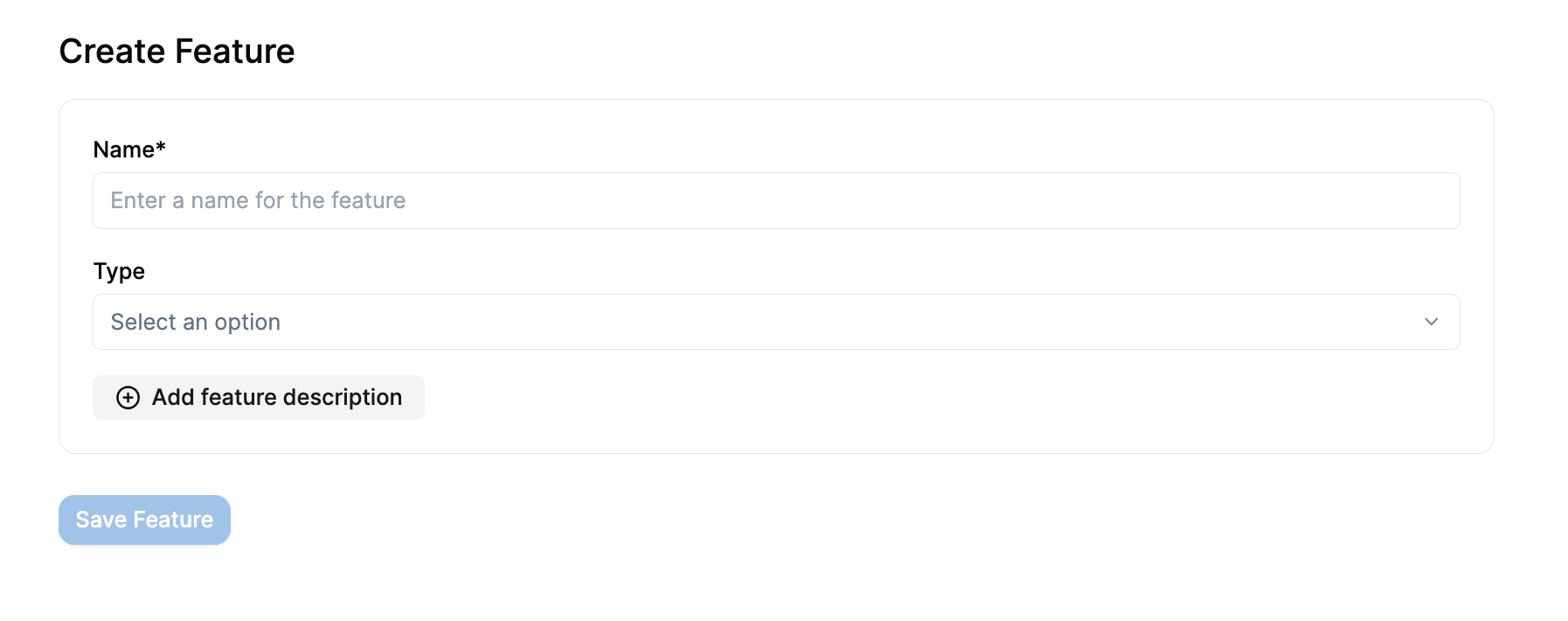
Advanced Pricing Options
Tiered Pricing:- First 1000 credits: $1.00 each
- Next 1000 credits: $0.80 each
- Additional credits: $0.60 each
- 1000 credits for 0.80 per credit)
- Set percentage discounts based on usage volume
Save the Plan
Click “Save Plan” to create your pricing plan.Step 2: Assign Plan to Customer
Create Subscription
- Go to Customers in the left sidebar
- Find and click on your customer
- Click “Create Subscription”
- Select the plan you just created
- Set the subscription start date
- Click “Create Subscription”
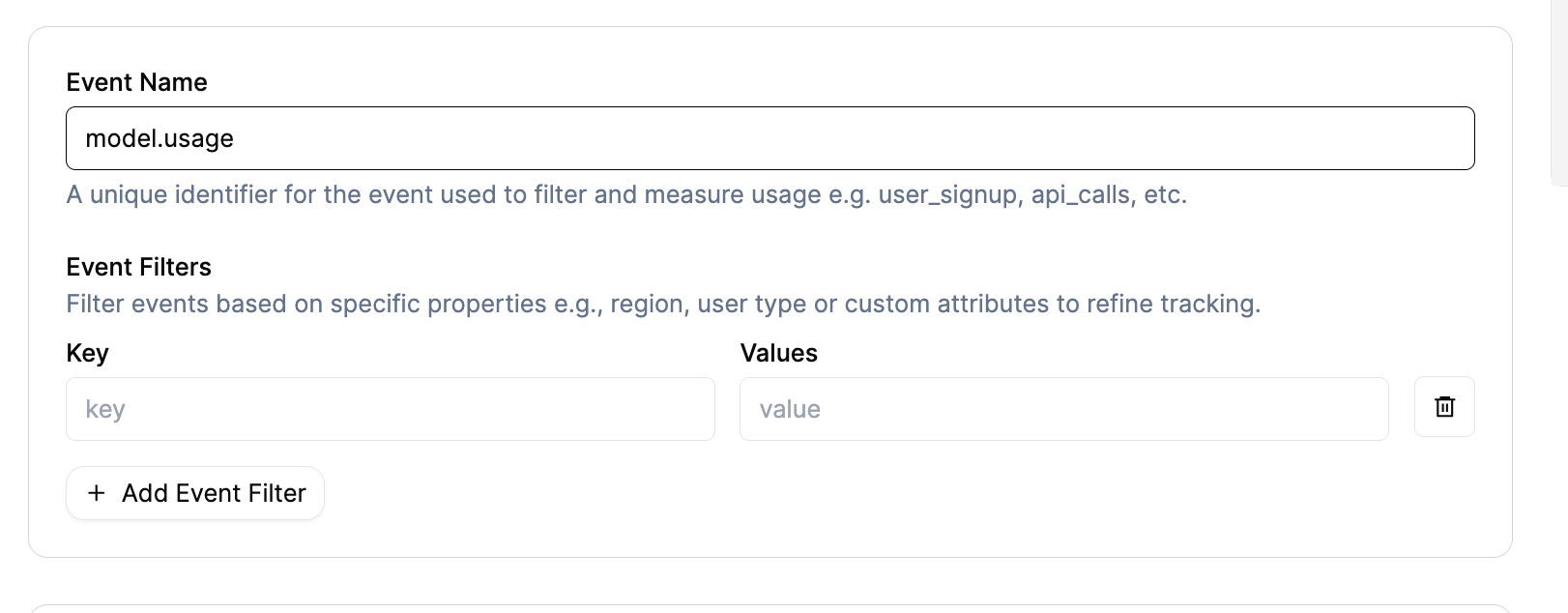
Verify Subscription
After creating the subscription, you should see:- Subscription status: Active
- Plan name and billing cycle
- Next billing date
Step 3: Monitor Usage and Billing
Check Upcoming Invoices
- Go to the customer’s subscription page
- Click on “Upcoming Invoices” tab
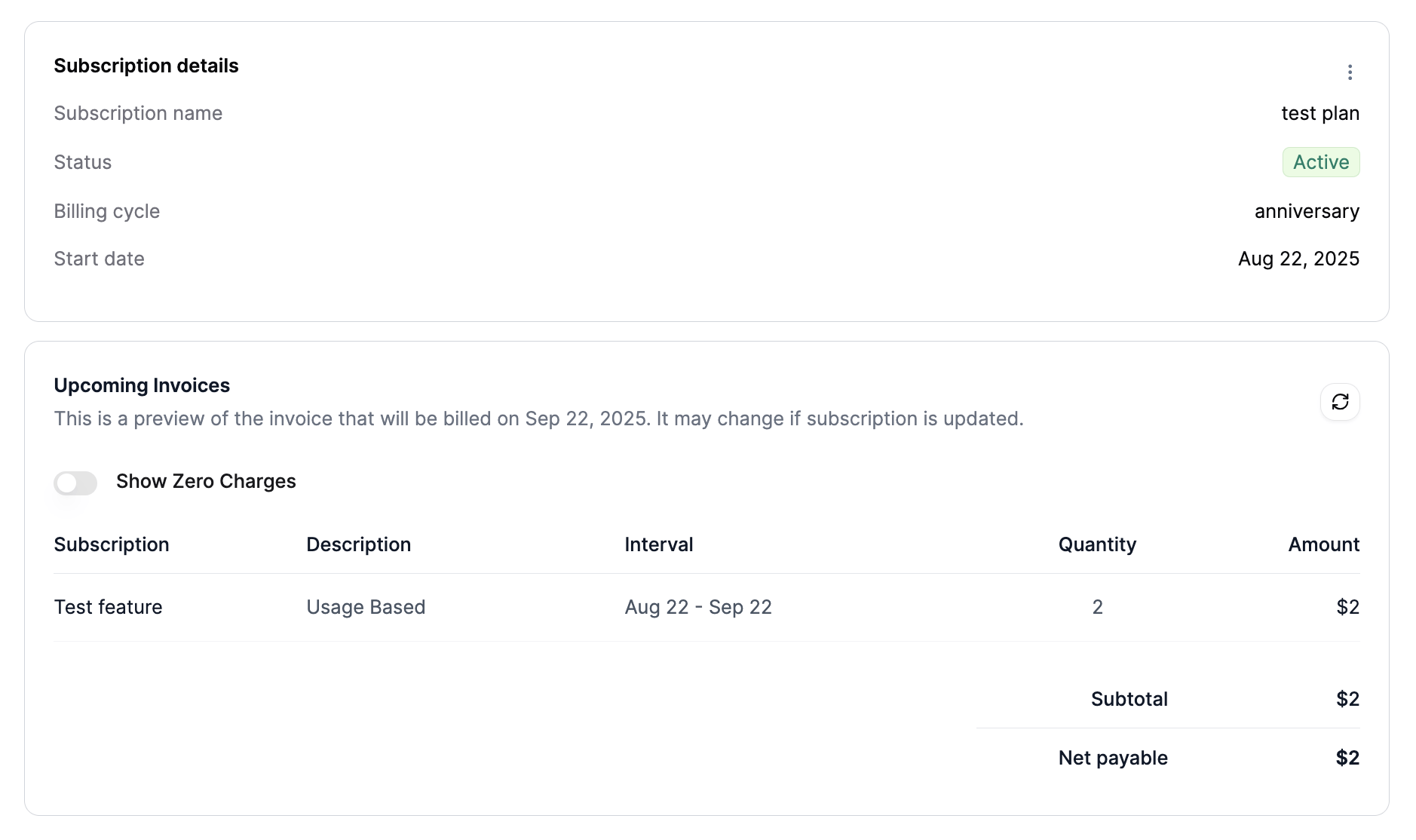
- You’ll view a preview of the next invoice with:
- Usage quantities from your events
- Calculated amounts based on your pricing
- Billing period information
Understanding the Billing
- Quantity: Total usage aggregated from your events
- Amount: Calculated based on your pricing plan
- Interval: Current billing period
- Description: Shows “Usage Based” for metered features
Real-World Example
Let’s walk through a complete example:1. Feature Configuration
- Feature Name: Model Usage
- Event Name:
model.usage - Aggregation: Sum of
credits - Usage Reset: Periodic (monthly)
2. Events Transmitted
3. Plan Configuration
- Plan Name: Basic Plan
- Feature: Model Usage
- Pricing: $1.00 per credit
- Free Tier: 10 credits per month
4. Billing Calculation
- Total Usage: 5 + 3 = 8 credits
- Free Credits: 10 (no charge for first 10)
- Billable Credits: 0 (8 < 10, so no charge)
- Amount: $0.00
5. If More Usage Occurs
If the customer uses 15 credits total:- Total Usage: 15 credits
- Free Credits: 10
- Billable Credits: 5
- Amount: $5.00
Advanced Billing Scenarios
Multiple Features
You can add multiple metered features to a single plan: Plan: Pro Plan- Model Usage: $1.00 per credit
- API Calls: $0.01 per call
- Storage: $0.10 per GB
- 50 credits consumed
- 1000 API calls
- 5 GB storage
Tiered Pricing
Plan: Enterprise Plan- Model Usage:
- First 1000 credits: $0.80 each
- Next 1000 credits: $0.60 each
- Additional: $0.40 each
- First 1000: $800
- Next 1000: $600
- Additional 500: $200
- Total: $1600
Monitoring and Analytics
Usage Trends
- Go to Usage Tracking → Query
- Select your feature and customer
- View usage over time to identify patterns
Billing Analytics
- Go to Invoices section
- View historical invoices and revenue
- Analyze customer usage patterns
Common Billing Issues
1. No Charges Appearing
Possible Causes:- Feature not added to plan
- Customer not subscribed to plan
- Usage below free tier
- Wrong billing period
- Verify feature is in the plan
- Check subscription status
- Review free tier settings
- Confirm billing cycle dates
2. Wrong Amounts
Possible Causes:- Incorrect pricing configuration
- Wrong aggregation values
- Billing period mismatch
- Review plan pricing settings
- Check event aggregation
- Verify billing cycle alignment
3. Unexpected Charges
Possible Causes:- Events transmitted to wrong customer
- Incorrect usage reset setting
- Duplicate events
- Verify external_customer_id
- Check Usage Reset configuration
- Review event history for duplicates
Best Practices
1. Test Billing Setup
Before going live:- Create a test customer
- Transmit a few test events
- Verify charges appear correctly
- Check invoice calculations
2. Monitor Usage Patterns
Regularly check:- Usage trends and spikes
- Customer behavior patterns
- Revenue impact of pricing changes
3. Set Up Alerts
Consider alerts for:- Unusual usage spikes
- Failed billing attempts
- Revenue thresholds
4. Document Pricing
Keep clear documentation of:- Feature pricing structure
- Free tier limits
- Billing cycle details
- Customer-specific overrides
Pricing Strategies
Usage-Based Pricing
Pros:- Aligns cost with value
- Scales automatically
- Fair for customers
- Revenue can be unpredictable
- Complex to forecast
Tiered Pricing
Pros:- Encourages higher usage
- Predictable revenue at scale
- Rewards loyal customers
- More complex to configure
- Can be confusing for customers
Hybrid Models
Combine multiple pricing approaches:- Base subscription fee
- Usage-based charges
- Volume discounts
Next Steps
After setting up billing:- Monitor Performance - Track usage and revenue
- Optimize Pricing - Adjust based on customer behavior
- Scale Operations - Add more features and customers
- Automate Processes - Set up webhooks and integrations
Troubleshooting
”No charges in upcoming invoice”
- Check that events are being transmitted
- Verify feature is in the plan
- Confirm customer subscription is active
- Review free tier settings
”Wrong billing amounts”
- Verify pricing configuration
- Check event aggregation values
- Review billing period dates
- Confirm usage reset settings
”Unexpected charges”
- Review recent events for the customer
- Check for duplicate events
- Verify external_customer_id mapping
- Review plan configuration changes
Getting Help
If you’re experiencing billing issues:- Check the Event Debugger for event processing status
- Review your plan configuration carefully
- Verify customer subscription status
- Contact support with specific examples and error messages