

Flexprice currently supports grouping for prices only (
entity_type: "price").- Organize prices — Bucket by product line, region, tier, or any dimension
- Filter — Search groups by
lookup_key,name,entity_type - List — Group Prices in a plan
- Analytics and Customer Portal — Group appears in usage breakdown in analytics and customer portal
Steps to Configure Groups
1
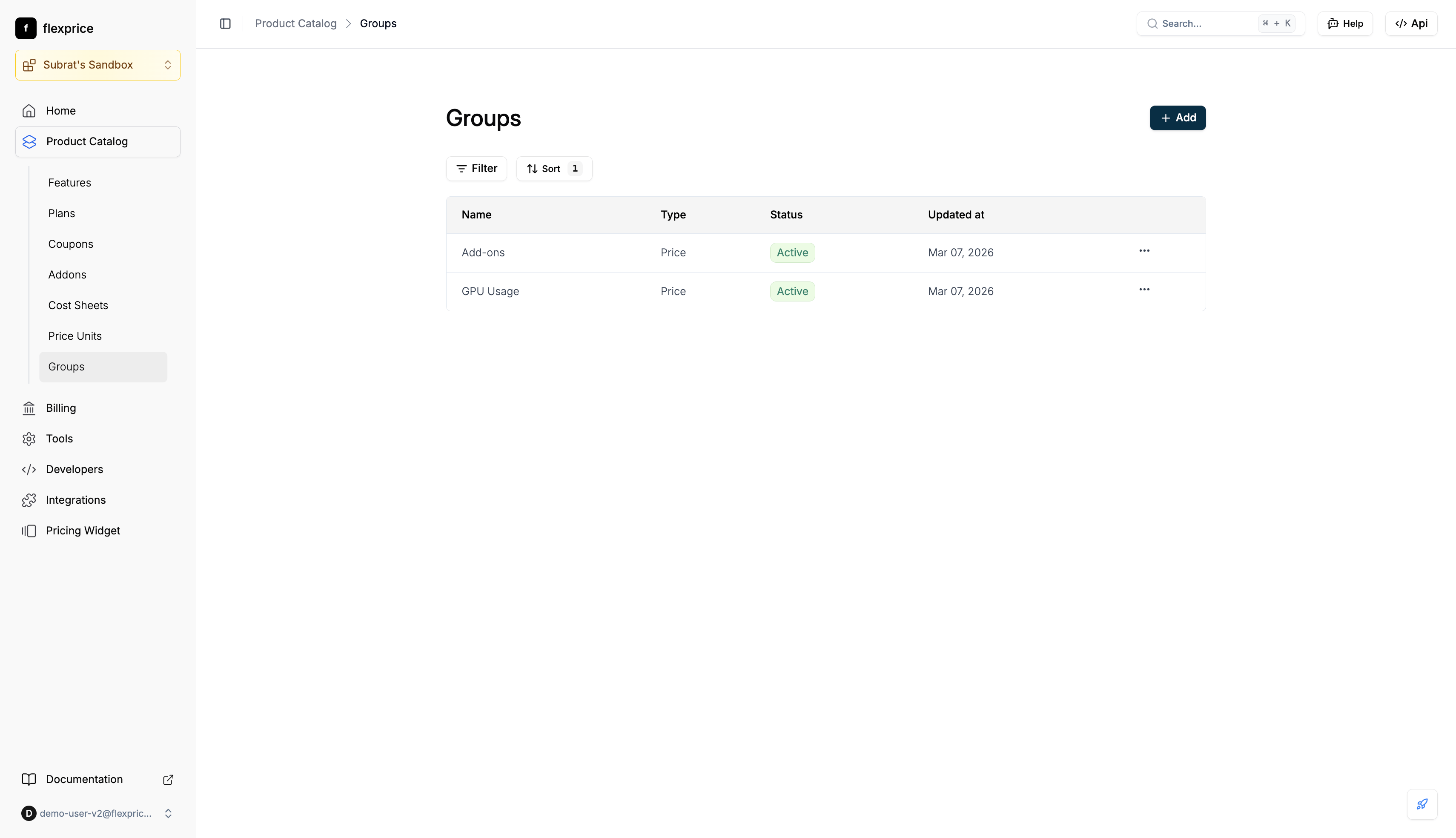
Navigate to Groups
- Go to Product Catalog → Groups
- Use Filter and Sort as needed; + Add creates a new group
2
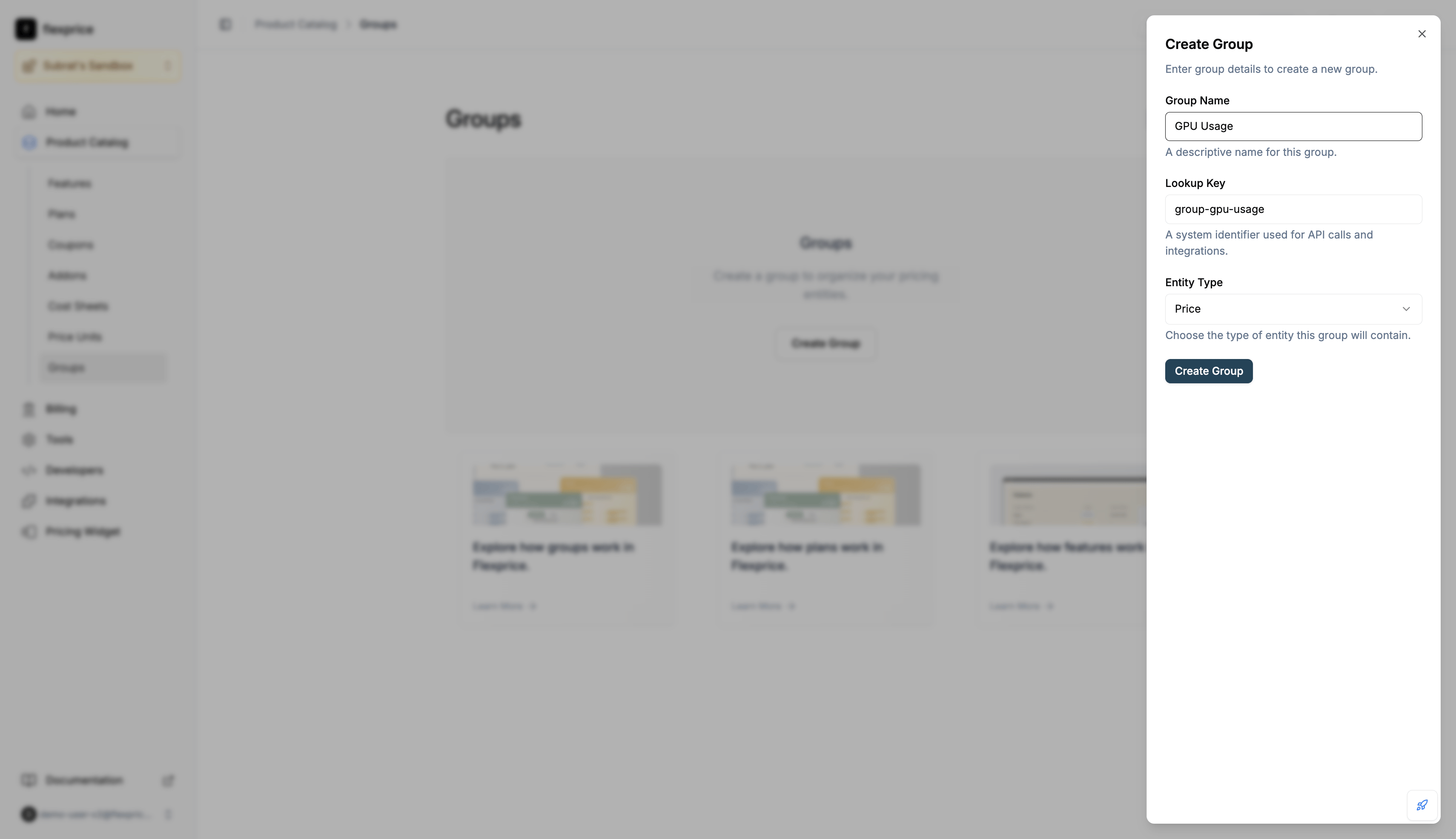
Create a group
- Click + Add
- In the Create Group dialog, enter Group Name, Lookup Key (unique per tenant/environment), and select Entity Type
- Click Create Group
3
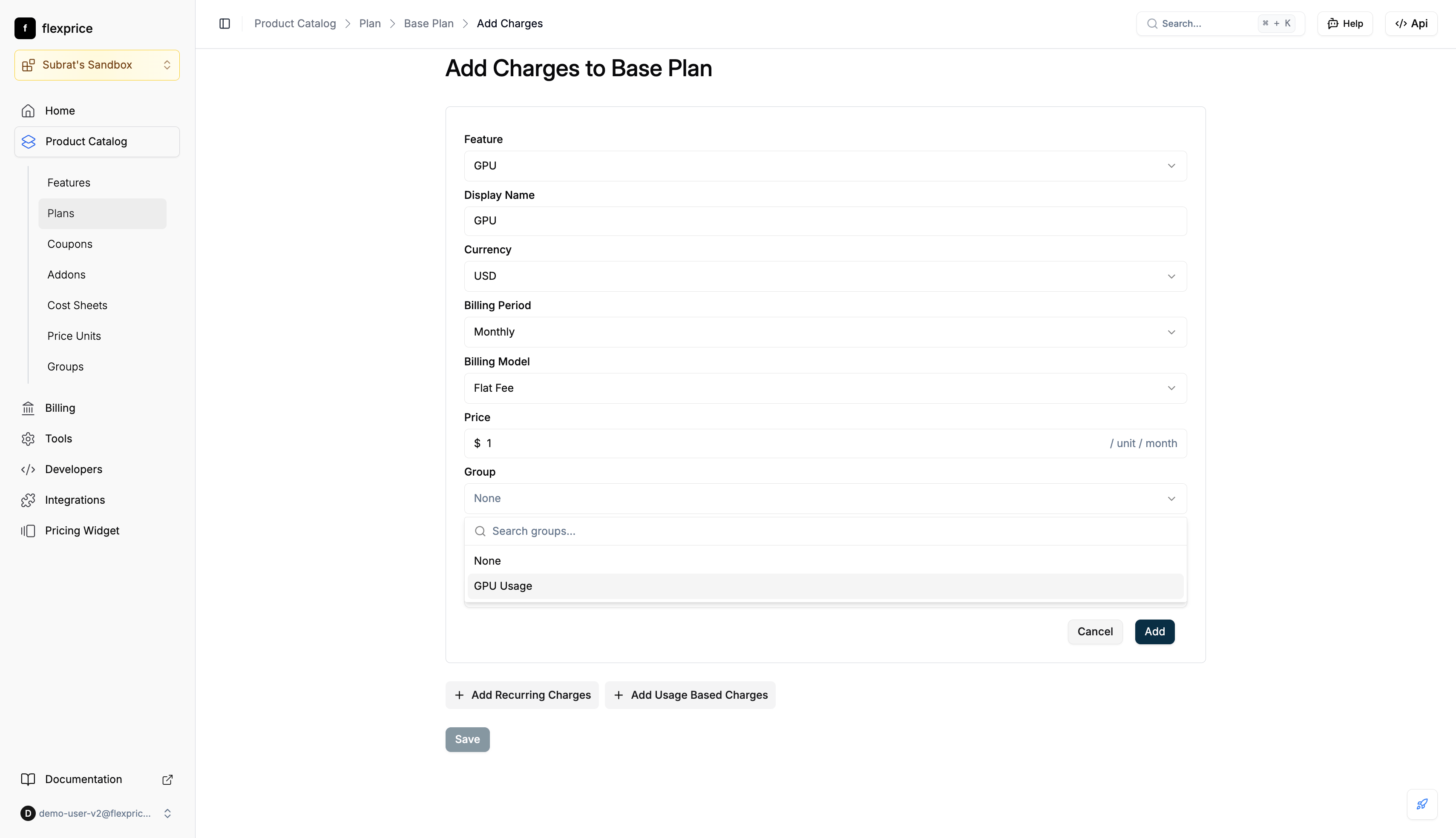
Assign group when adding a charge
- When adding a charge to a plan, use the Group field: search or select a group (e.g. “GPU Usage”)
- Save the charge; it is stored with that group
4
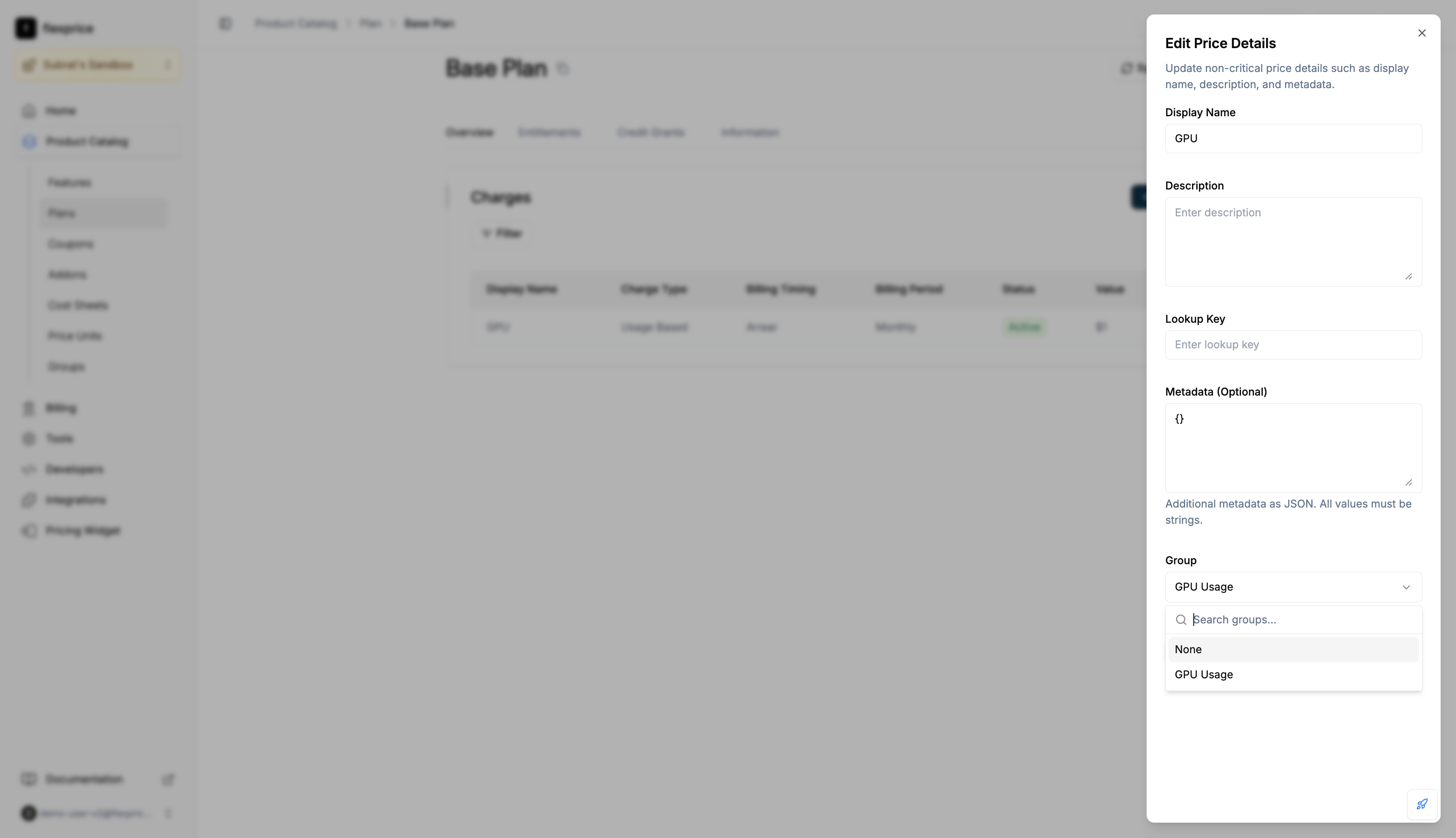
Change group on an existing price
- Open the plan → Charges → Edit Details
- In Edit Price Details, set Group to the desired group or None to ungroup
- Save
Assigning a price to a group (API)
- On create:
POST /v1/prices— includegroup_id(value = groupidfromPOST /v1/groups). - On update:
PUT /v1/prices/:id— sendgroup_id: "grp_..."to assign, orgroup_id: ""to ungroup. Omit to leave unchanged. - Viewing on prices:
GET /v1/prices/:id?expand=groupsorPOST /v1/prices/searchwithexpand: "groups"in the body to get fullgroupobject on each price. - Analytics:
POST /v1/events/analyticswithexpand: ["price"]— group is nested under each item’sprice.groupwhen the price has agroup_id(no separate"group"in expand).
Where groups are reflected
In the analytics dashboard, Usage Breakdown shows usage and cost by group (e.g. GPU Usage, Add-ons). The same grouped view appears in the Customer Portal Usage tab.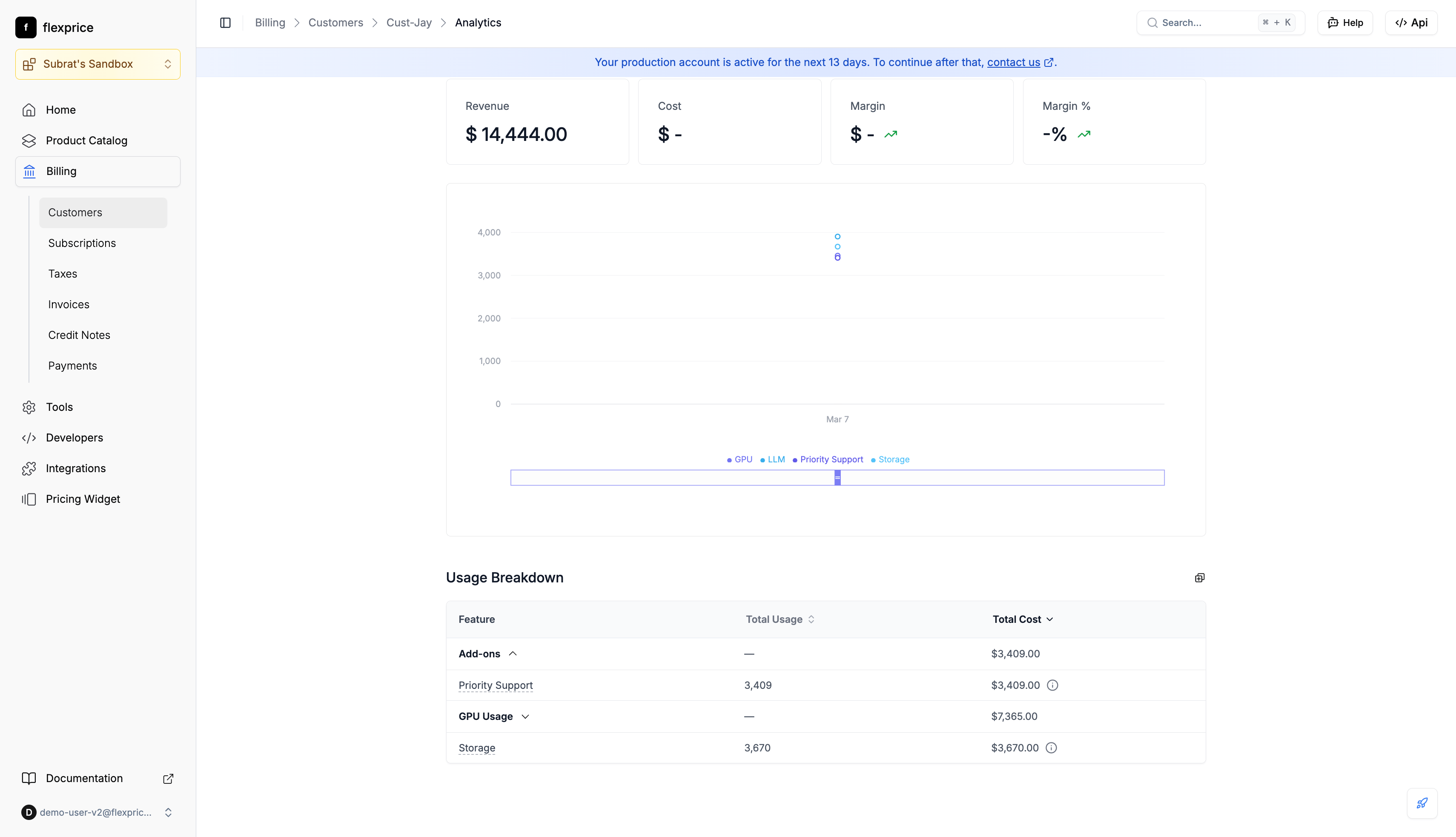
Groups API reference
Create group: Request body must include
name, entity_type ("price"), lookup_key. Response returns id — use it as group_id on prices.
Delete group: Soft-delete.
Validation
Plan cloning preserves groups: when you clone a plan, the cloned plan’s prices keep the same group assignments as the source.